
Build a media plan
Create a scenario, forecast its impact, and turn the strongest option into a plan your team can act on
Planner lets you build a media plan that shows where your budget will drive the most revenue before you commit spend. Using your promoted Marketing Mix Model (the MMM your team has approved as the source of truth for planning), you create a scenario (one version of your plan built on a specific set of assumptions), run a simulation to forecast its results, and save it as a plan.
Each plan can hold multiple scenarios, so you can compare strategies side by side and promote the one you want to put into action.
Create your first scenario
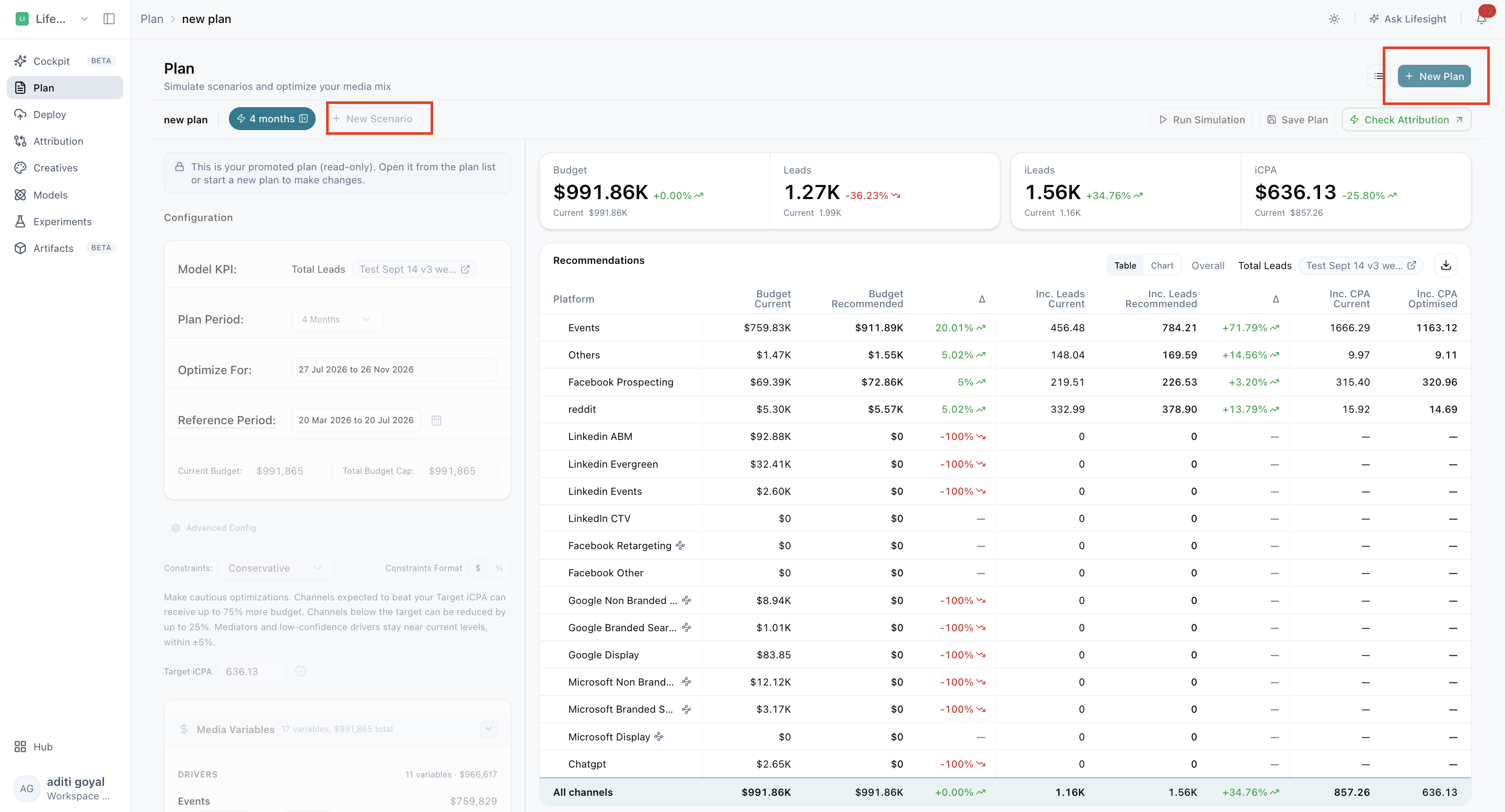
Planner uses a three-step scenario wizard to set up your first scenario. When you run it, Planner automatically creates the plan that holds it.
To get started:
- Navigate to Plan for the sidebar
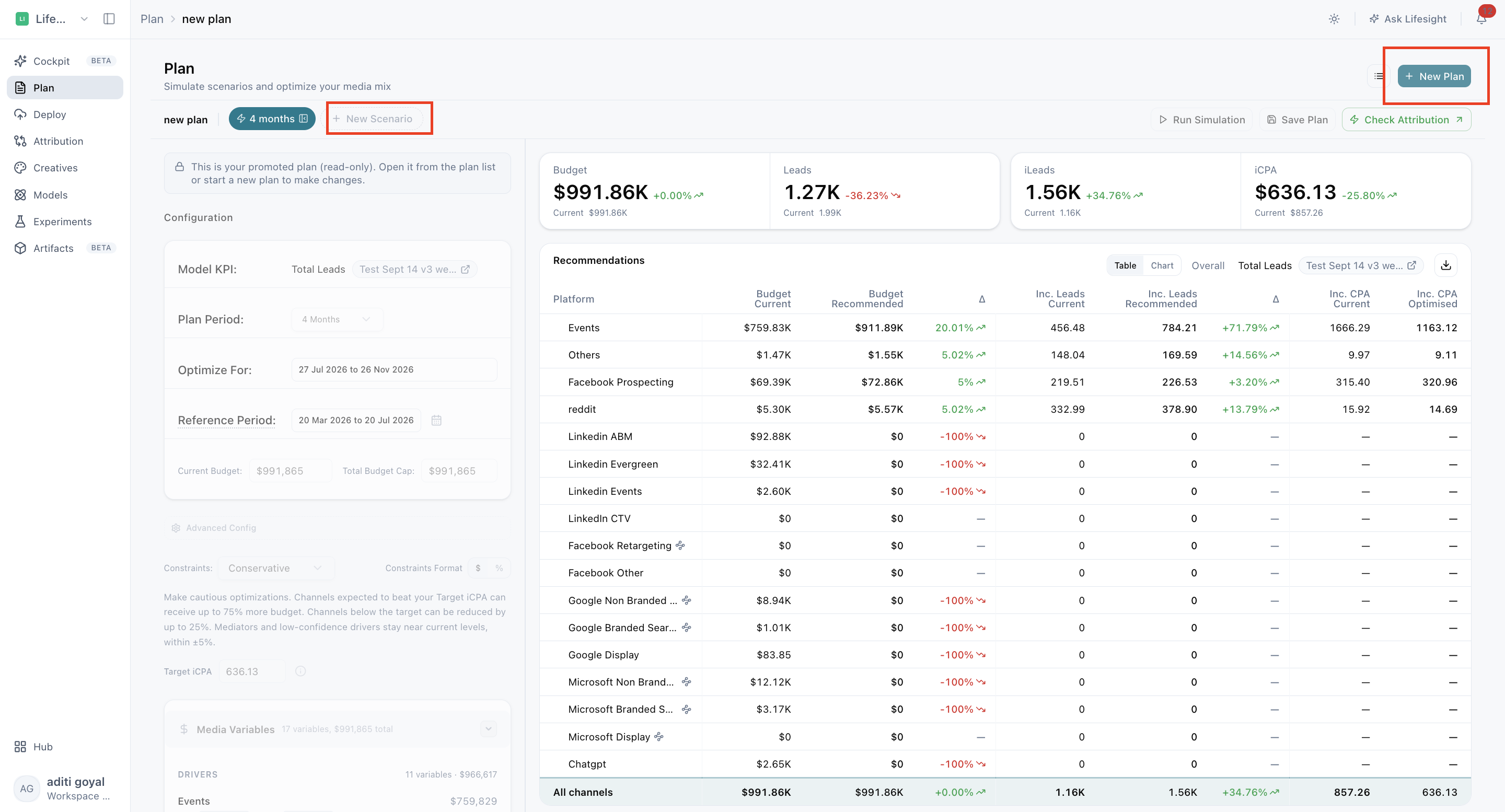
- Select New Plan or New Scenario to open the scenario wizard.
- Complete the three steps below: Basics, Time Period, and Constraints.
- Select Run simulations.
A closer look at each step
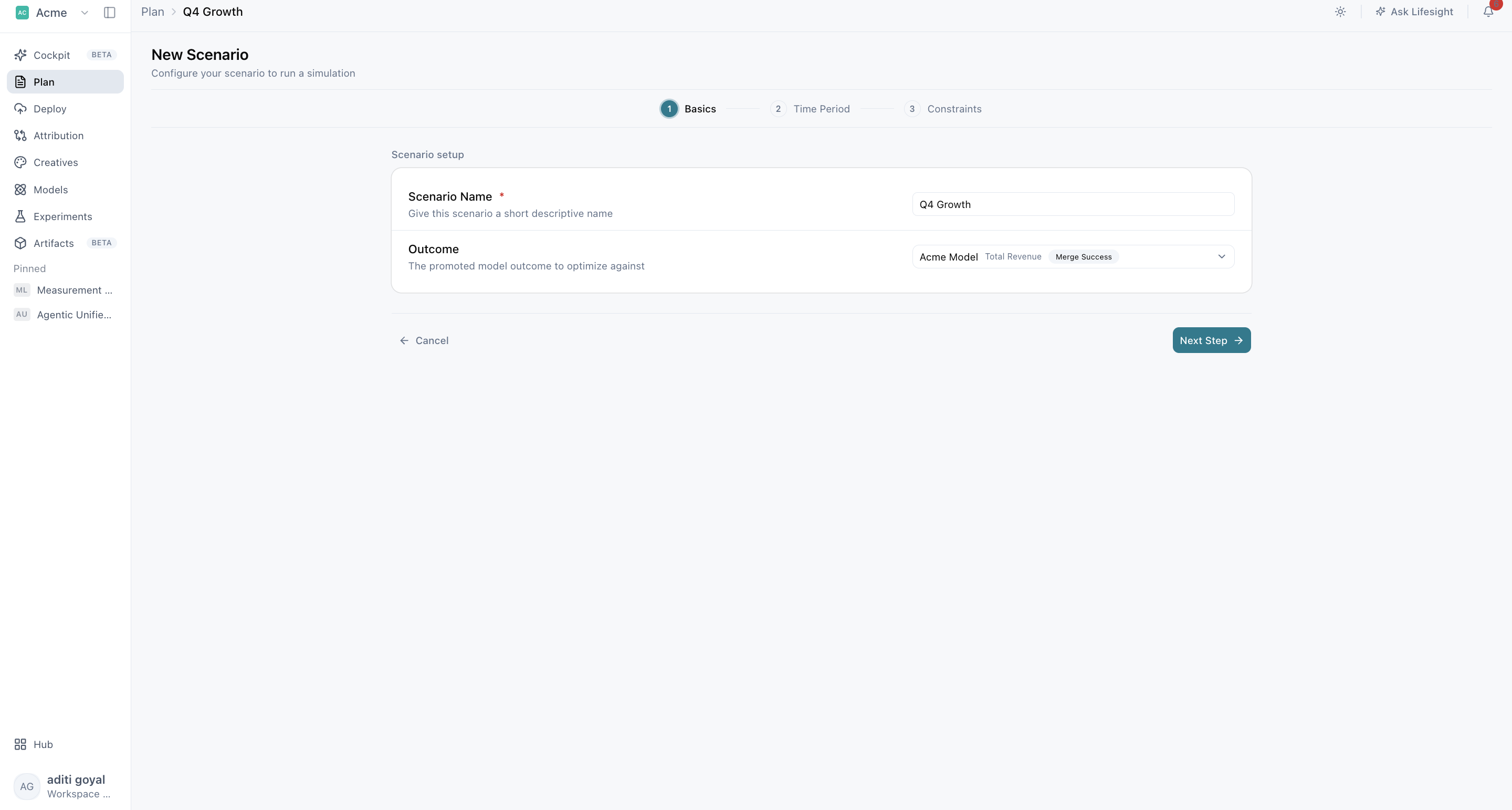
Step 1: Choose your model, goal, and scenario name
In Basics, select the promoted outcome model (the business result, such as revenue or conversions, that your approved Marketing Mix Model measures) you want to plan against.
Next, choose the objective that matches what you need the plan to deliver:
- Optimize Budget when you already know how much you can spend and want Planner to find the allocation across channels most likely to drive the best results.
- Hit Revenue Goal when you have a business target to reach and want Planner to work out the spend and allocation needed to get there.
Then give your scenario a short, unique name so it is easy to recognize when you compare scenarios later, for example "Q4 base budget" or "Q4 plus 20% CTV."
If you opened Planner from a model, that model may already be selected and locked, so your plan stays tied to the model you started from.
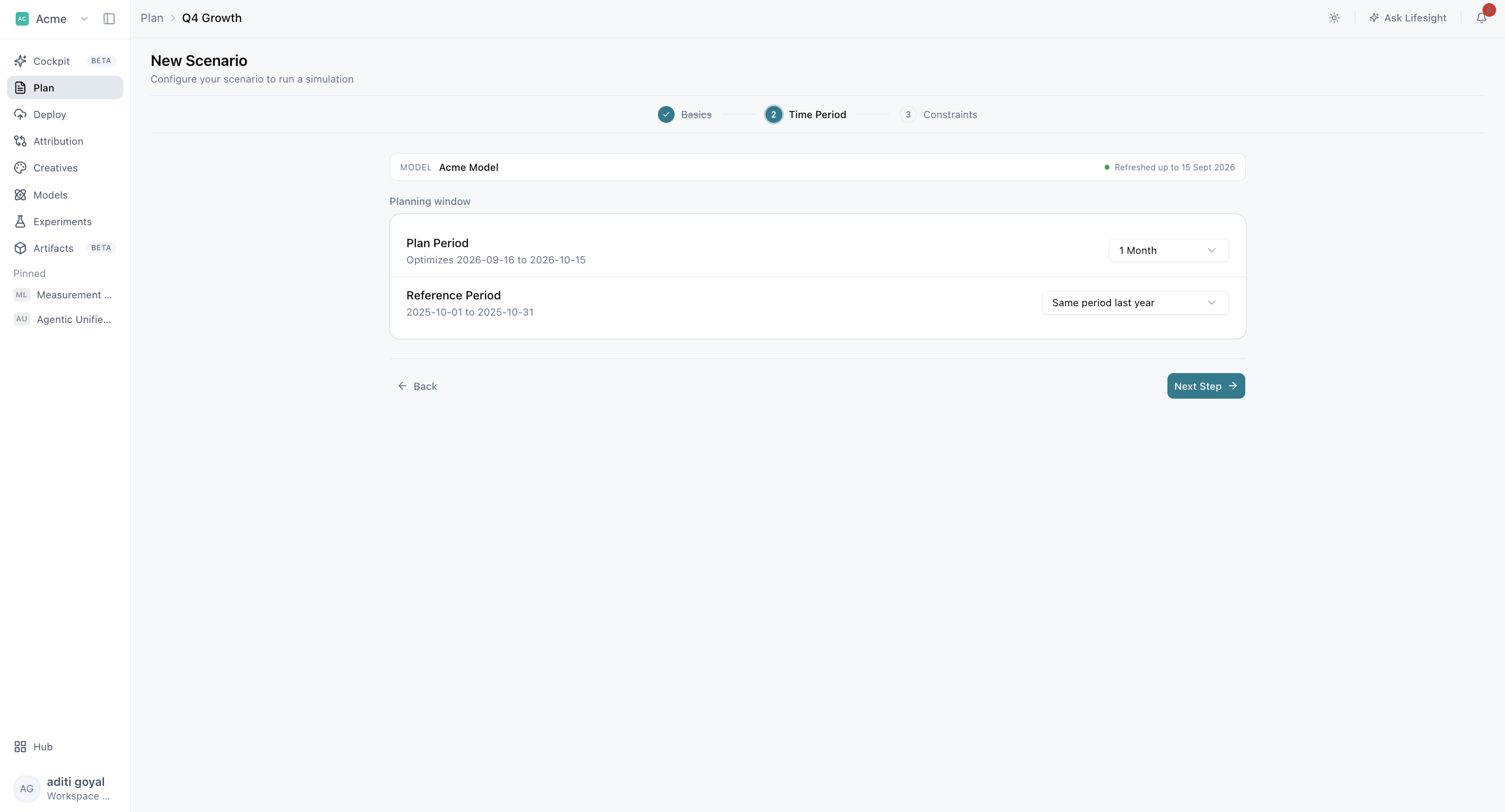
Step 2: Set the time periods that anchor your forecast
In Time Period, choose two windows:
- Planning period: the current or future window you want to optimize spend for.
- Reference period: a past window that provides the baseline allocation and outcome (how budget was spent and what it delivered). Planner compares your recommended plan against this baseline so you can see the expected change.
Choosing the right reference period makes your forecast more reliable:
- Use the same period last year when it reflects the seasonality and market conditions you expect in the planning period, for example planning a holiday quarter against last year's holiday quarter.
- Use a recent period when your business has changed meaningfully since last year, such as after a pricing change, product launch, new market entry, or a major shift in channel mix.
Step 3: Set your budget and constraints to keep recommendations realistic
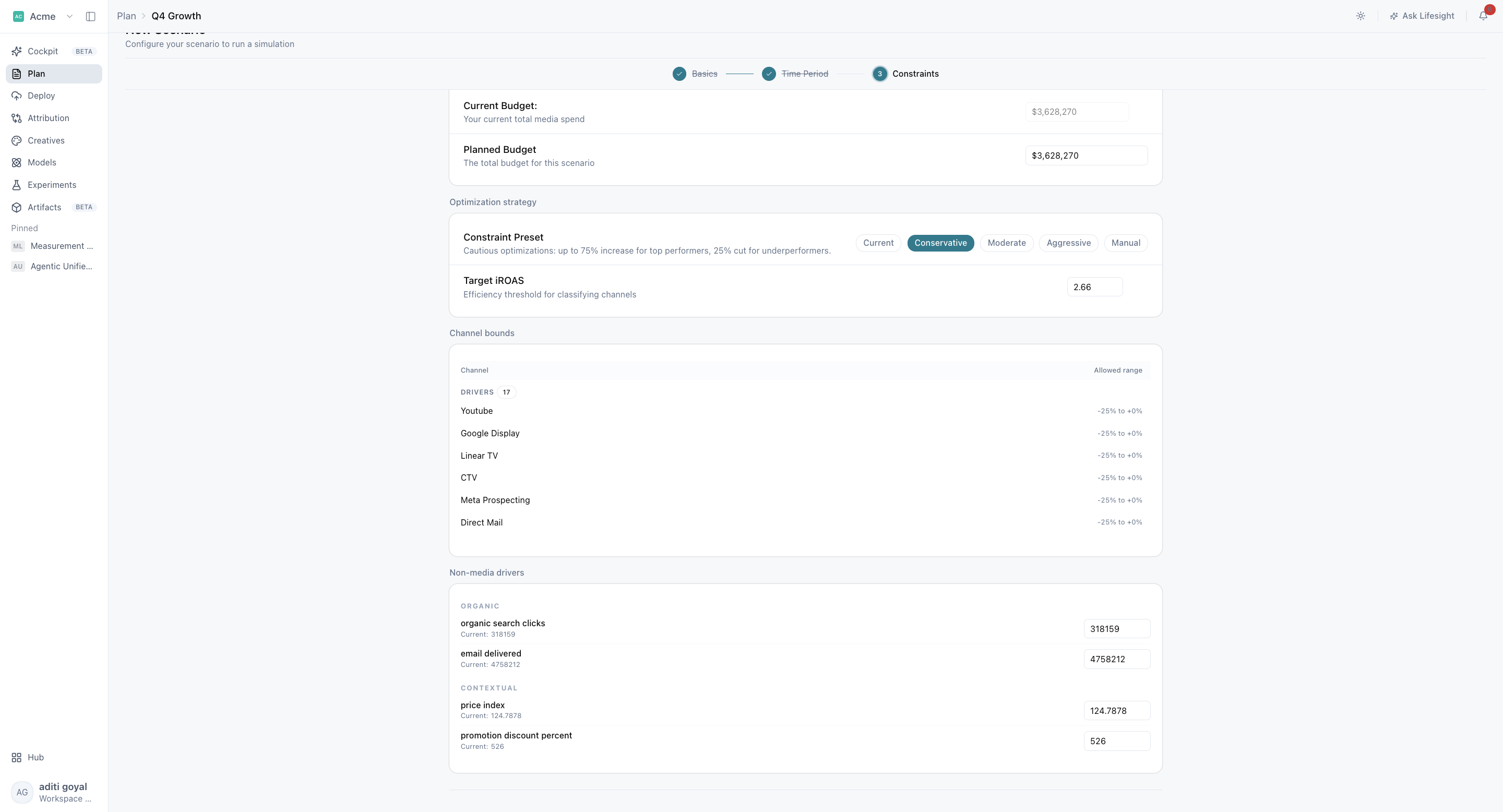
In Constraints, review your current budget (the spend from your reference period), then enter the planned budget for your planning period.
Next, select a constraint preset (a ready-made set of spend rules that controls how far Planner can move budget between channels) and choose the optimization strategy you want Planner to use.
Review the channel minimum and maximum bounds (spend limits per channel). Adjust them to reflect real-world commitments such as media contracts, minimum spends agreed with partners, or caps on channels you are not ready to scale.
Finally, configure non-media drivers (factors outside advertising that affect sales, such as pricing, promotions, or seasonality) if they will differ in the planning period.
If you chose Hit Revenue Goal, also review the efficiency threshold (the minimum return spend should deliver to be worth adding) and the target settings available for your selected model.
[IMAGE PLACEHOLDER: Constraints step with channel bounds]
Run the scenario
Select Run simulations. Planner creates the plan and processes your scenario. Your results appear as soon as the simulation completes.
[VIDEO PLACEHOLDER: Completing the three-step scenario wizard]
[VIDEO PLACEHOLDER: Creating and running a new plan]
Review and refine your results
Once the simulation completes, the results panel shows what your plan is likely to deliver and where to adjust. Review:
- Total budget and forecasted outcome: the spend in your plan and the result it is expected to drive.
- Incremental outcome and iROAS or iCPA: the additional revenue or conversions your media spend is expected to create beyond what would happen without it, and the efficiency of that spend. iROAS (incremental return on ad spend) shows incremental revenue per dollar spent. iCPA (incremental cost per acquisition) shows the cost of each incremental conversion.
- Recommended channel allocation: where Planner suggests increasing or reducing spend.
- Forecast trend and confidence interval: projected performance over time, with a range showing how certain the forecast is. A narrower range means higher confidence.
- Monthly forecast table: expected spend and outcome month by month.
- Budget worksheet: a channel-by-channel view of current versus recommended spend.
- Saturation curves: the point at which more spend in a channel starts to deliver diminishing returns.
- Pacing and dimension breakdowns: how spend is distributed over time, and results broken down by channel, region, or other dimensions in your model.
To refine a scenario, change its configuration in the left panel and select Run Simulation again. Your results update to reflect the new assumptions.
Compare scenarios to find your strongest plan
Adding scenarios to a plan lets you test different strategies fairly, for example a conservative budget versus an aggressive growth push, or a plan with and without a specific channel.
Select New Scenario to add another scenario to the active plan. Every scenario in a plan must use the same model, which keeps comparisons consistent.
You can build a new scenario from scratch or copy the active scenario. Copying is the best option when you want to test a controlled change, such as adjusting only the budget, the time period, or a single constraint, so you can see exactly how that one change affects results.
[IMAGE PLACEHOLDER: Multiple scenario tabs in a plan]
Save, export, and promote your plan
Save the plan. Run every scenario in the plan before saving. Then select Save Plan, enter a plan name, and confirm. Saving is required for your plan to appear in Plan List. Draft plans (plans that have been created but not explicitly saved) do not appear there, so save before leaving Planner to avoid losing your work.
Export results. Select Export to download the available worksheet output and share it with your team or use it in your own reporting.
Promote a scenario. When you have found the scenario you want to move forward with, promote it. The promoted scenario becomes the active input for Decisions and Deploy, so your plan can go straight from forecasting to execution.
Frequently asked questions
How do I build a media plan in Lifesight?
Go to Forecast > Planner and select New Plan or New Scenario. Complete the three-step scenario wizard by choosing your promoted outcome model, objective, and scenario name, setting your planning and reference periods, and entering your budget and constraints. Select Run simulations to create the plan and generate your forecast, then select Save Plan.
What is the difference between a plan and a scenario in Planner?
A scenario is a single version of your media plan built on a specific set of assumptions. A plan holds one or more scenarios that use the same model, so you can compare them side by side. When you run your first scenario, Planner creates the plan automatically.
Should I choose Optimize Budget or Hit Revenue Goal?
Choose Optimize Budget when your spend is fixed and you want the best allocation across channels. Choose Hit Revenue Goal when you have a revenue target and want Planner to estimate the spend and allocation needed to reach it.
Why is the model already selected and locked in the wizard?
If you open Planner from a model, that model can be preselected and locked. This keeps your plan tied to the model you started from.
How do I choose the right reference period?
Use the same period last year when it reflects the seasonality and market conditions you expect in your planning period. Use a recent period when your business has changed meaningfully, for example after a pricing change, product launch, or shift in channel mix.
What is a constraint preset?
A constraint preset is a ready-made set of spend rules that controls how far Planner can move budget between channels. You can select a preset in the Constraints step, then review and adjust individual channel bounds.
What are channel minimum and maximum bounds?
Channel bounds are spend limits you set for each channel. Planner keeps its recommendations within these limits, so you can account for media contracts, partner commitments, or channels you do not want to scale.
What is the efficiency threshold for revenue goals?
The efficiency threshold is available when your objective is Hit Revenue Goal. It sets the minimum return spend should deliver, helping Planner avoid recommending spend that is not efficient enough to be worthwhile.
What do iROAS and iCPA mean in Planner results?
iROAS (incremental return on ad spend) shows the incremental revenue generated for each dollar of media spend. iCPA (incremental cost per acquisition) shows the cost of each incremental conversion. Both measure the efficiency of spend based on the results media actually creates, not results that would have happened anyway.
What does the confidence interval in the forecast show?
The confidence interval shows the range within which your forecasted outcome is expected to fall. A narrower range means Planner is more certain about the forecast.
How do I update results after changing a scenario?
Change the configuration in the left panel, then select Run Simulation again. The results panel updates to reflect your new assumptions.
How do I compare multiple scenarios?
Select New Scenario to add another scenario to the active plan. Build it from scratch or copy the active scenario, change the assumptions you want to test, and run it. All scenarios in a plan use the same model, so you can compare results side by side.
Can scenarios in the same plan use different models?
No. Every scenario in a plan must use the same model. To plan against a different model, create a new plan.
Why doesn't my plan appear in Plan List?
Plans only appear in Plan List after you select Save Plan. Draft plans that have not been explicitly saved do not appear. Make sure all scenarios have finished running, then save the plan.
Can I export my plan?
Yes. Select Export to download the available worksheet output from your plan.
What happens when I promote a scenario?
The promoted scenario becomes the active input for Decisions and Deploy, so your chosen plan moves from forecasting into execution.
Related Articles
Updated about 3 hours ago