
Profit & Cost Settings in Lifesight
Configure cost assumptions for profit-based MMM metrics.
Cost Settings let you turn measured revenue into a clear view of profit. By defining the financial assumptions behind your results, you can see incremental profit, incremental profit margin, iPOAS (incremental profit on ad spend), and LTV-to-CPA (customer lifetime value compared with cost per acquisition) in Lifesight, so you can judge channels by what they actually earn, not just what they bring in.
Open Cost Settings
- Select Config from the sidebar, then open Cost Settings.
- Select the period you want to configure.
- Review default, channel, model-type, and custom cost scopes.
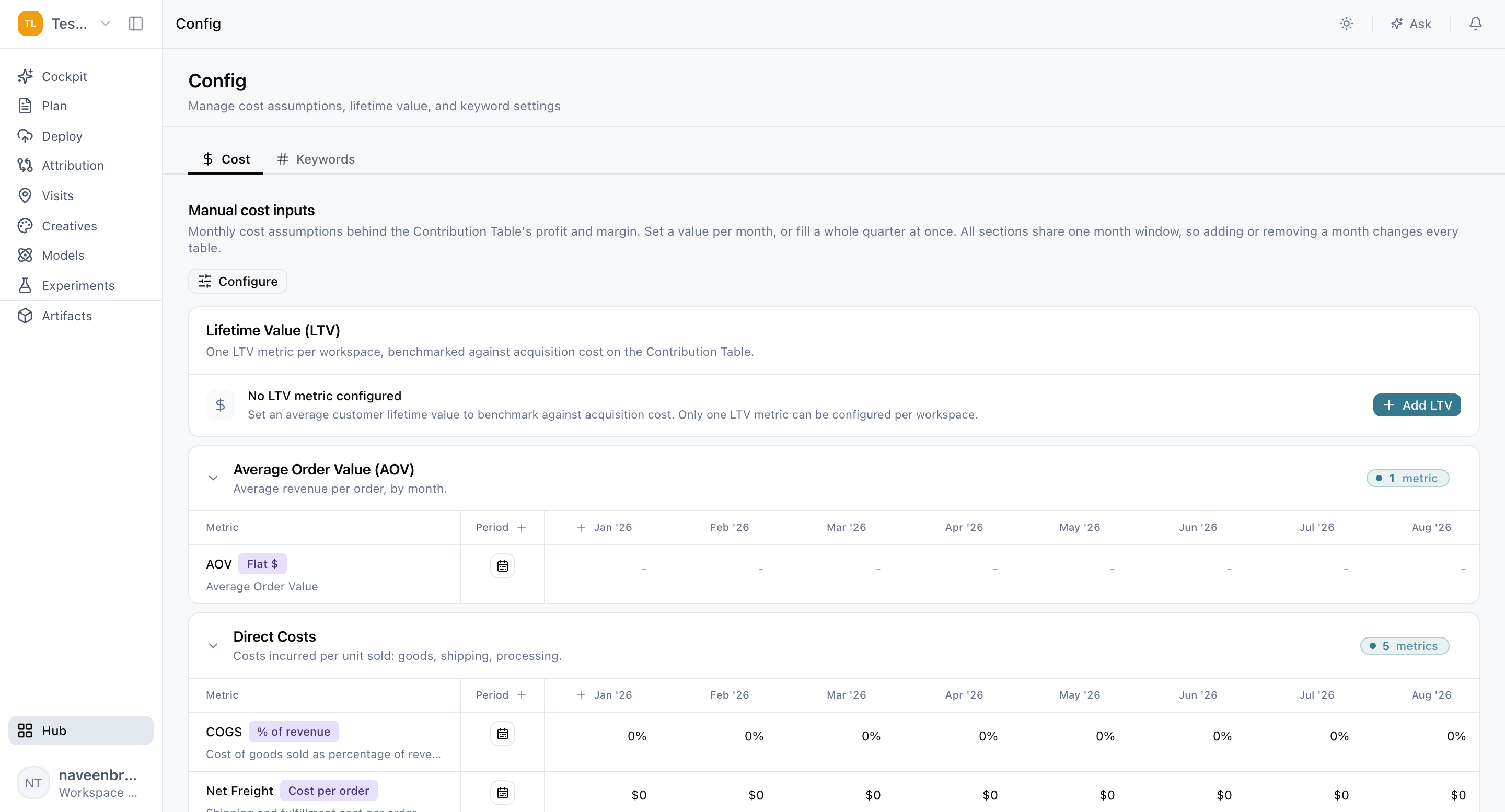
Set costs month by month
Cost assumptions are configured by month, so your profit metrics reflect how your costs actually change over time, such as seasonal shipping rates or a mid-year price increase.
How the month window works
All sections on the page use the same month window. Adding or removing a month updates the period shown across the entire page, so every scope stays aligned to the same timeframe.
Ways to enter values
- Individual month: enter a value for a single month when the assumption changes from month to month.
- Larger period: fill a range of months at once when the same assumption applies throughout. For example, if your cost of goods sold stays the same for a full quarter, fill all three months in one step.
Match costs to how your business works
Cost scopes let you apply assumptions at the right level of detail. Start broad with defaults, then add more specific scopes only where your costs genuinely differ.
Default costs
Default costs apply whenever a more specific channel or model-type value is not configured. Use them for assumptions shared across your business, such as a company-wide cost of goods sold.
Channel costs
Create a channel scope when a standard cost differs for one media channel. Select the channel, the calculation type, and the cost fields you want to track. For example, if a retail media network charges a platform fee your other channels don't, set it up as a channel cost.
Model-type costs
Use a model-type scope when an assumption should apply only to a particular measurement model or business outcome. For example, if you run separate models for online and in-store revenue, each can carry its own margin assumptions.
Custom costs
Add custom costs for financial inputs not covered by the standard cost types. Give each one a clear description so reviewers understand what the value represents and where it applies.
Know which inputs to provide
Depending on the configured calculation, cost settings can include:
- Cost of goods sold (the direct cost of producing or buying the products you sell)
- Fixed or variable operating costs
- Channel-specific fees
- Average order value
- Customer lifetime value and its reporting horizon (the total value a customer is expected to bring, and the period that value is measured over)
Note: Customer lifetime value supports the LTV-to-CPA ratio. It is not automatically subtracted from incremental profit.
See profit in your results
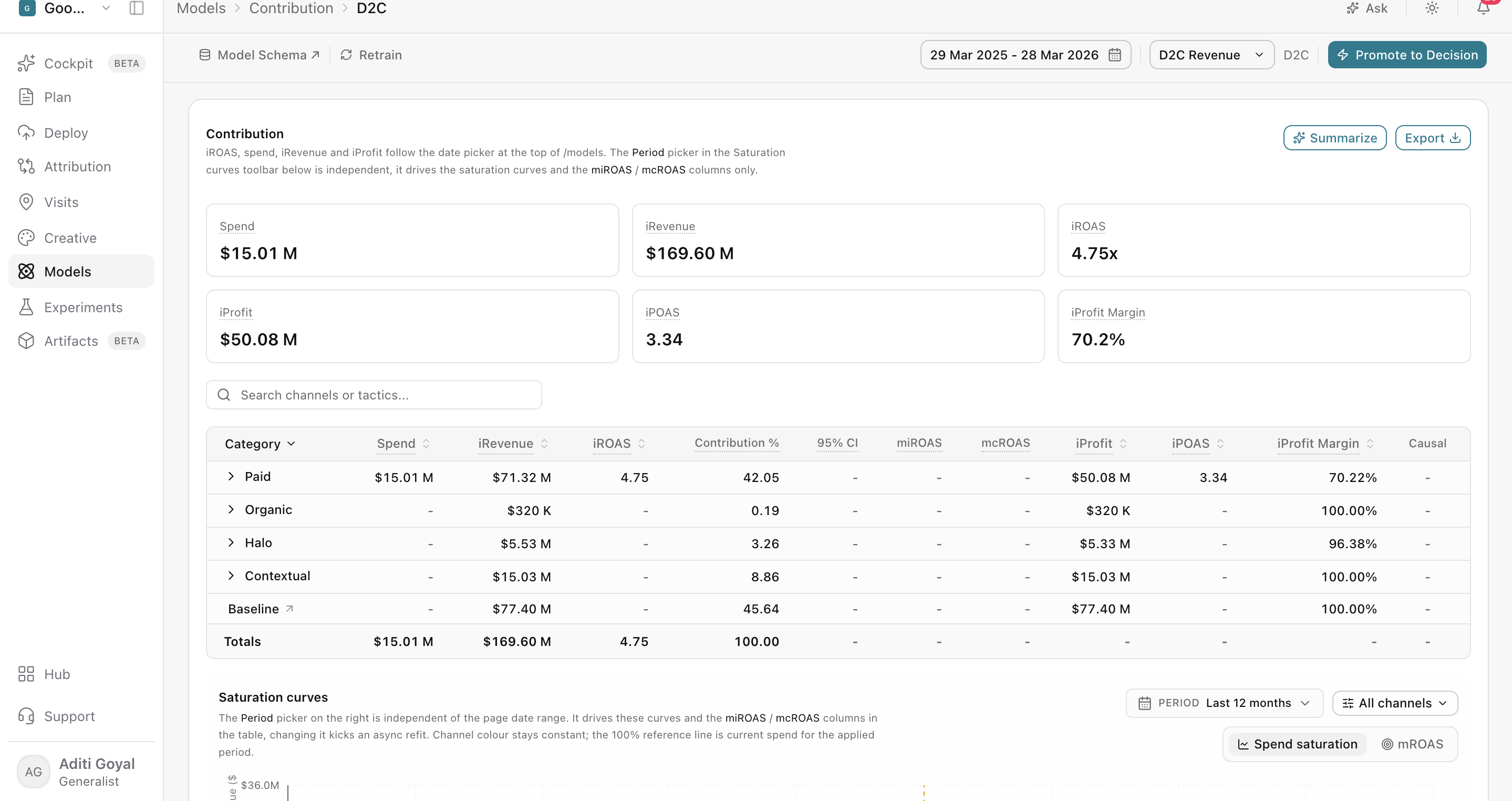
Once your costs are set, Contribution can show profit metrics for revenue and profit outcomes:
- Incremental profit
- Incremental profit margin
- Incremental profit on ad spend
- LTV-to-CPA ratio, where applicable
These values use the active cost assumptions for the selected channel and period. If a profit metric looks unexpected or doesn't appear, review your cost settings first. A missing month or an unconfigured scope is often the cause.
Keep profit metrics reliable
- Align with finance. Keep monthly assumptions consistent with finance-approved values so your profit metrics match the numbers your leadership trusts.
- Use channel scopes sparingly. Add them only when a channel genuinely differs from the default. Fewer scopes are easier to maintain and review.
- Document custom costs. Clear descriptions help reviewers understand each value and prevent confusion later.
- Check the month window. Review it before saving to make sure your values cover the right period.
- Revisit regularly. Update assumptions when prices, margins, fees, or customer value change.
- Confirm coverage before planning. Make sure costs are configured for every relevant channel and period before using profit as a Planner goal.
Frequently Asked Questions
Which metrics depend on Cost Settings?
Incremental profit, incremental profit margin, iPOAS (incremental profit on ad spend), and the LTV-to-CPA ratio all use the assumptions configured in Cost Settings.
Where do I find Cost Settings?
Select Config from the sidebar, then open Cost Settings.
Which cost applies if I've set both a default and a channel cost?
The more specific value applies. Default costs are used only when a channel or model-type value is not configured.
When should I use a model-type scope instead of a channel scope?
Use a channel scope when a cost differs for one media channel. Use a model-type scope when an assumption should apply only to a particular measurement model or business outcome.
What happens when I add or remove a month?
The change applies across the whole page, since all sections share the same month window.
Can I enter the same value for several months at once?
Yes. You can fill a larger period when the same assumption applies across multiple months.
Is customer lifetime value subtracted from incremental profit?
No. Customer lifetime value supports the LTV-to-CPA ratio. It is not automatically subtracted from incremental profit.
Why is a profit metric missing or unexpected in Contribution?
Profit metrics use the active cost assumptions for the selected channel and period. Check that costs are configured for that channel and that the month window covers the period you're viewing.
Can I use profit as a goal in Planner?
Yes. Confirm that cost coverage is complete for the relevant channels and periods first, so Planner works from accurate profit figures.
How often should I update my cost assumptions?
Revisit them whenever prices, margins, fees, or customer value change, and keep them aligned with finance-approved values.
Related Articles
Updated 30 days ago