
Attentive
Integrate your Attentive Account with Lifesight
Attentive is a leading conversational commerce and mobile messaging platform specializing in SMS and MMS marketing for e-commerce and retail brands. It focuses on driving significant revenue and fostering customer loyalty by enabling brands to have personalized, two-way conversations with shoppers via text message. The platform is designed to turn subscribers into repeat, high-value customers.
Setup Guide
- Go to Connect > Integrations page from the navigation bar on the left.
- Search for "Attentive" and click on the tile.
Create a custom app
Complete the following steps to create a custom app for your account:
-
Navigate to the integrations setup page.
-
Click + Create App in the top-right corner.
-
Enter a unique name for your app in the App name field.
-
Enter your email address in the Contact email field.This allows Attentive to contact you if there are any issues.
-
Edit the Permissions (No Access or Write) for the following APIs (by default, all APIs have No Access selected):
- Custom Attributes—Select the permissions for the Custom Attributes API.
- Custom Events—Select the permissions for the Custom Events API.
- eCommerce—Select the permissions for the eCommerce API.
- Privacy Request—Select the permissions for the Privacy Request API.
- Product Catalog—Select the permissions for the Product Catalog API
- Subscribers—Select the permissions for the Subscribers API.
-
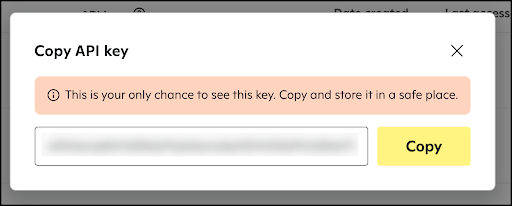
Click Create.The Copy API key modal appears.
-
Click Copy to copy the unique API key to your clipboard.
- Important! This is the only time you will be able to copy this API key.
-
Click X to exit the modal after you’ve saved your API key.
Create a subscription webhook
Complete the following steps to create a subscription webhook:
- Navigate to the integrations setup page.
- Select the custom app (in the Built by you section) that you previously created for the webhook.The app’s Settings tab appears.
- Click the Webhooks tab.
- Slide the Event Webhook Status toggle on to enable webhooks for your app.
- In the Subscribe to event notifications section, select Subscription webhook.
- Copy and save your Signing key to a safe location. (This is a unique key that is shared between your application and Attentive to verify the event notifications sent to your desired URLs. For more information about the signing key, see Webhook authentication.)
- Click Save.
Updated about 1 year ago