
Optimizer
Action Budget changes to achieve your marketing goals
The Optimizer is a powerful tool designed to help you achieve your forecasted revenue, orders, or any other KPI goals. It provides goal-driven budget recommendations, acts as a central hub for manually controlling your campaign budgets across all your ad platforms, and also progressively rolls out automated changes to your campaigns to reach the recommended spend, and consequently your revenue goals.
By unifying your campaign data, Optimizer empowers you to move beyond platform-specific silos and make holistic budget decisions that maximize your marketing performance.
View Interactive Demo
Core Concepts
To use the Optimizer effectively, it's important to understand these key terms:
- Scenario: Scenarios created using planner acts as the base for optimizing campaigns and ad-sets across different ad channels.
- Channels: These are the advertising platforms where your campaigns are running, such as Google Ads, Meta, or Amazon Ads.
- Tactics: Tactics are labels used to categorize your campaigns by their strategic purpose, such as Prospecting, Retargeting, Brand, or Performance.
- Recommendations: These are the specific, actionable suggestions generated by the Optimizer to help you achieve your Scenario's goals. Eg: "Scale up Budget," "Scale down Budget," or "Maintain Budget."
Navigating Optimizer's UI
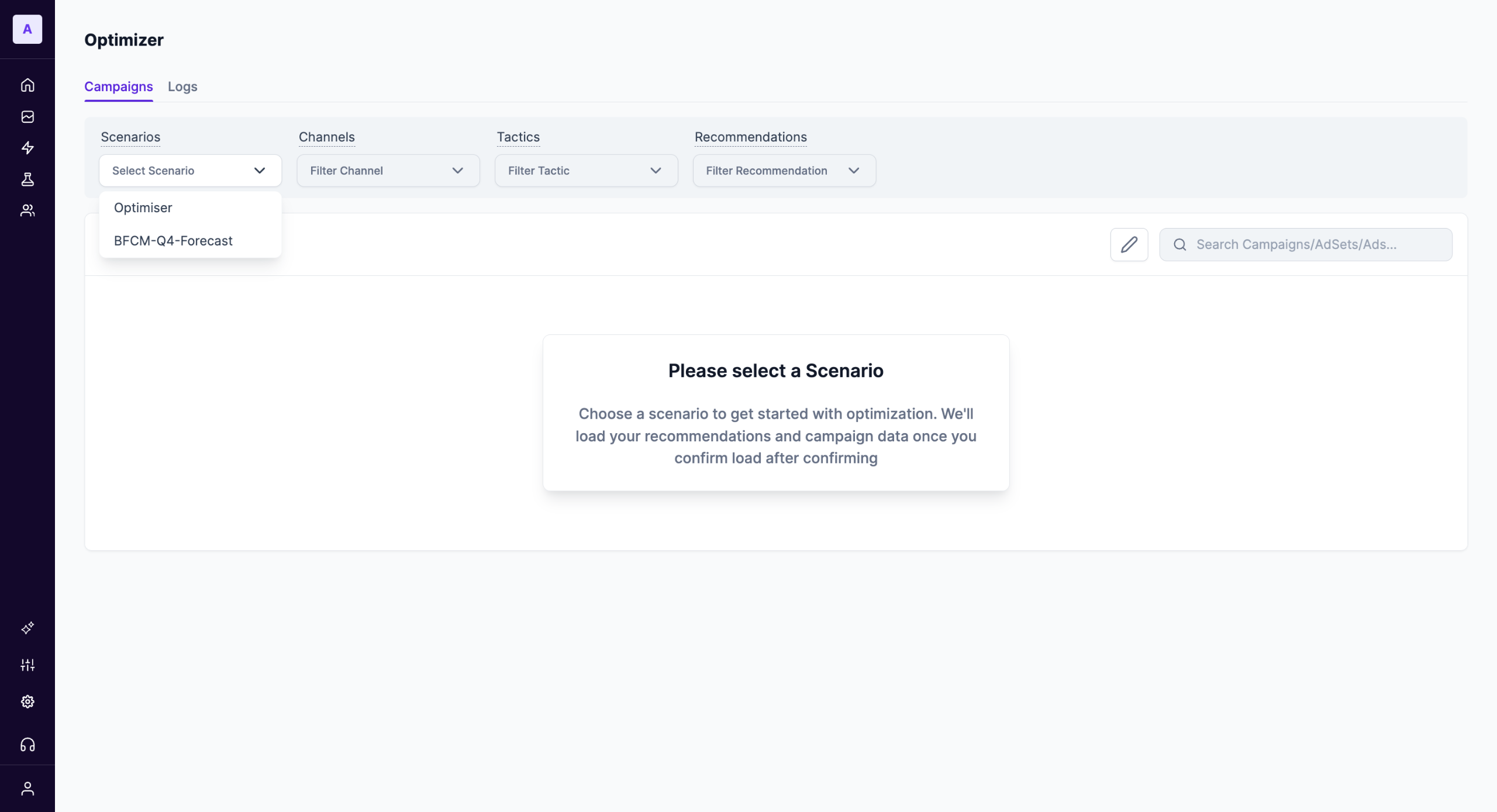
Campaigns Tab: This is the main workspace where you can view your campaigns, filter them, and act on recommendations.
Logs Tab: This section provides a complete history of all actions taken through the Optimizer, including automated changes and manual adjustments made by users.
The Filters Bar
The filters bar allows you to refine the list of campaigns displayed on the screen.
Important: You must select a Scenario to load your campaign data and recommendations. The view will remain empty until a Scenario is chosen.
- Select Scenario: The most important filter. Choose the scenario you want to optimize towards from this dropdown.
NoteOnly Scenarios which have been marked as the default scenario in a plan are displayed in the scenarios filter inside Optimizer. Learn more about default scenario.
- Filter Channel: Narrow the view to campaigns from one or more specific ad channels (e.g., show only Meta campaigns).
- Filter Tactic: Focus on campaigns with a specific strategic purpose (e.g., show only Retargeting campaigns).
- Filter Recommendation: View campaigns that have a specific type of recommendation from the Optimizer
- Search Bar: Use the search field on the right to find specific campaigns, ad sets, or ads by name.
Updated 11 months ago