
Planner
Simulate, Forecast, and action your media plan using our advanced AI-powered scenario planner
Planner is one of the key actioning capabilities of the Lifesight platform. It is a powerful forecasting and budget allocation tool that allows you to project business outcomes based on different spend allocations and marketing strategies. By leveraging Planner, you can
- Forecast potential revenue and other KPIs for future time periods.
- Simulate the impact of different budget scenarios before committing spend.
- Make data-driven decisions to optimize your marketing mix for maximum ROI.
Revenue Forecasts
Revenue forecasts are generated based on the robust learnings from a Marketing Mix Model (MMM). The Planner's projections are not just estimates; they are the result of a sophisticated model that understands the historical performance of your marketing channels.
The accuracy of these forecasts is directly tied to the underlying model's calibration, which is refined by:
- Historical Input Data: The comprehensive data fed to the model during its training phase.
- Incrementality Experiments: Real-world test results that validate and adjust the model's understanding of causal impact.
- Model Refreshes: Periodic updates to the model to incorporate the latest data and market dynamics.
The reliability of your forecasts in Planner is directly dependent on the accuracy and calibration of the selected marketing mix model. A well-trained and recently refreshed model will yield more dependable projections.
Navigating the Planner Dashboard
The Planner dashboard is your central hub for viewing, creating, and managing all your marketing plans.
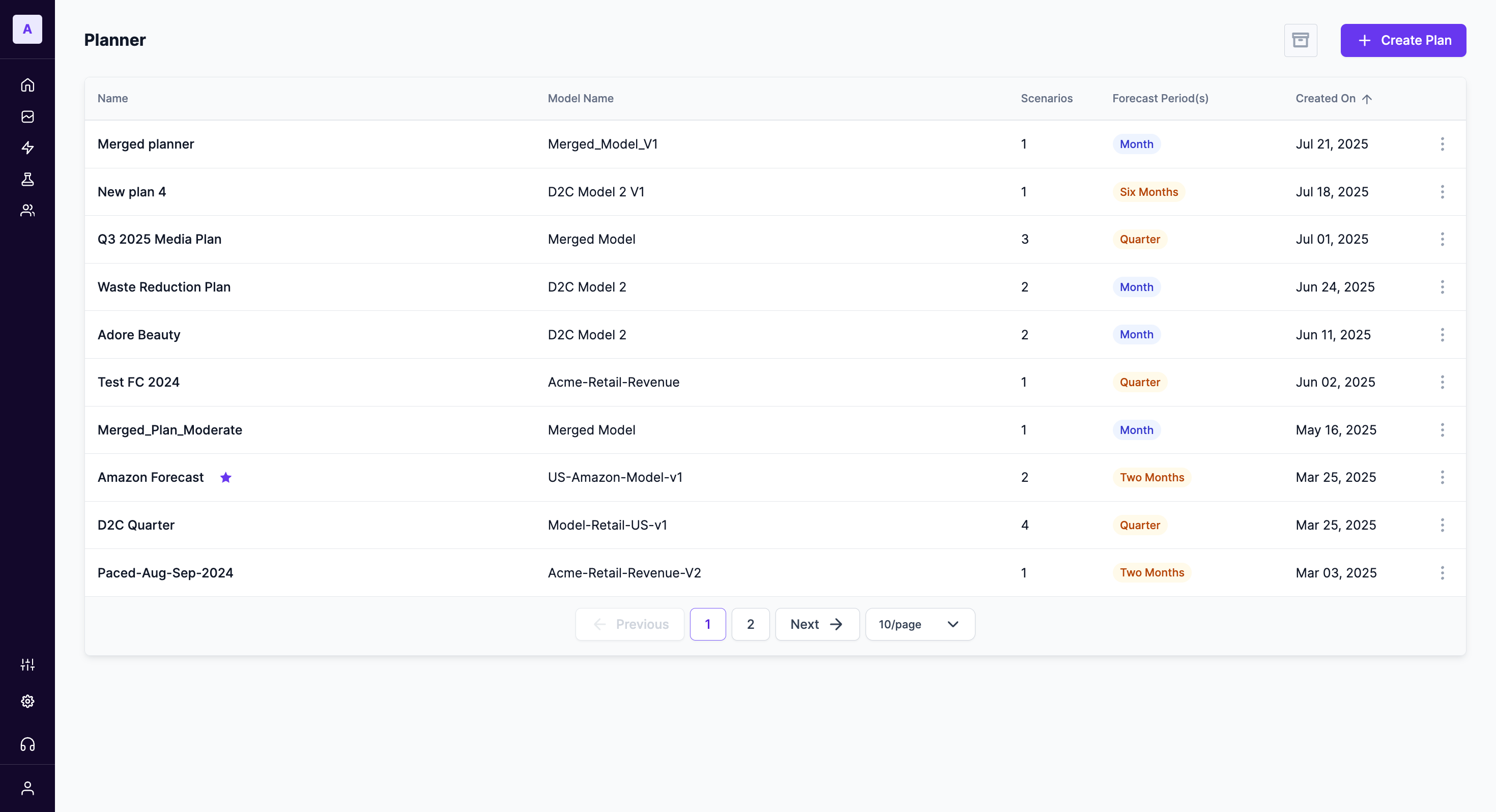
Here’s a breakdown of the main components:
- Plan List: The main table displays all the plans created in your workspace.
- Columns: Each row in the list provides key information about a plan:
- Name: The custom name given to the plan.
- Model Name: The specific MMM used to generate the forecast for this plan.
- Scenarios: The number of different budget or investment scenarios contained within the plan.
- Forecast Period(s): The time frame for the plan's projection (e.g., Month, Quarter, Six Months).
- Created On: The date the plan was initially created.
- + Create Plan Button: Located at the top right, this button opens a wizard to build a new marketing plan. (The creation process is detailed in a separate guide).
- Pagination: At the bottom of the list, you can navigate through multiple pages of plans if you have a large number of them.
Managing Existing Plans
You can manage individual plans by clicking the ⋮ (vertical ellipsis) icon on the right-hand side of any plan in the list. This opens a context menu with the following options.
Archiving a Plan
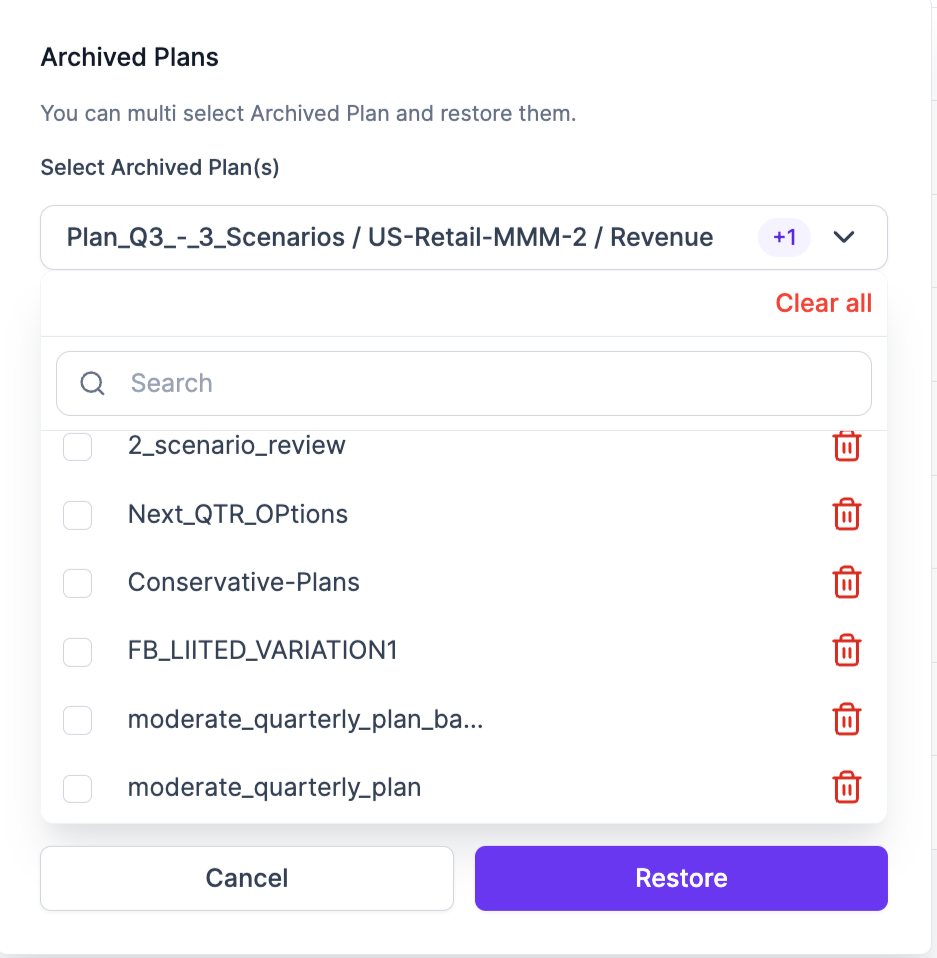
Archiving is a way to hide a plan from the main dashboard view without permanently deleting it. This is useful for decluttering your workspace of old or irrelevant plans while keeping them for historical reference.
- Click the ⋮ icon next to the plan you wish to archive.
- Select Archive from the dropdown menu.
- The plan will be moved to an archived list, which can be accessed separately.
Deleting a Plan
Deleting a plan permanently removes it from your Lifesight workspace. This action cannot be undone.
Once a plan is deleted, it cannot be recovered. Only delete a plan if you are certain you will no longer need it.
- Click the ⋮ icon next to the plan you wish to delete.
- Select Delete from the dropdown menu.
- A confirmation prompt will appear. Confirm the action to permanently delete the plan.
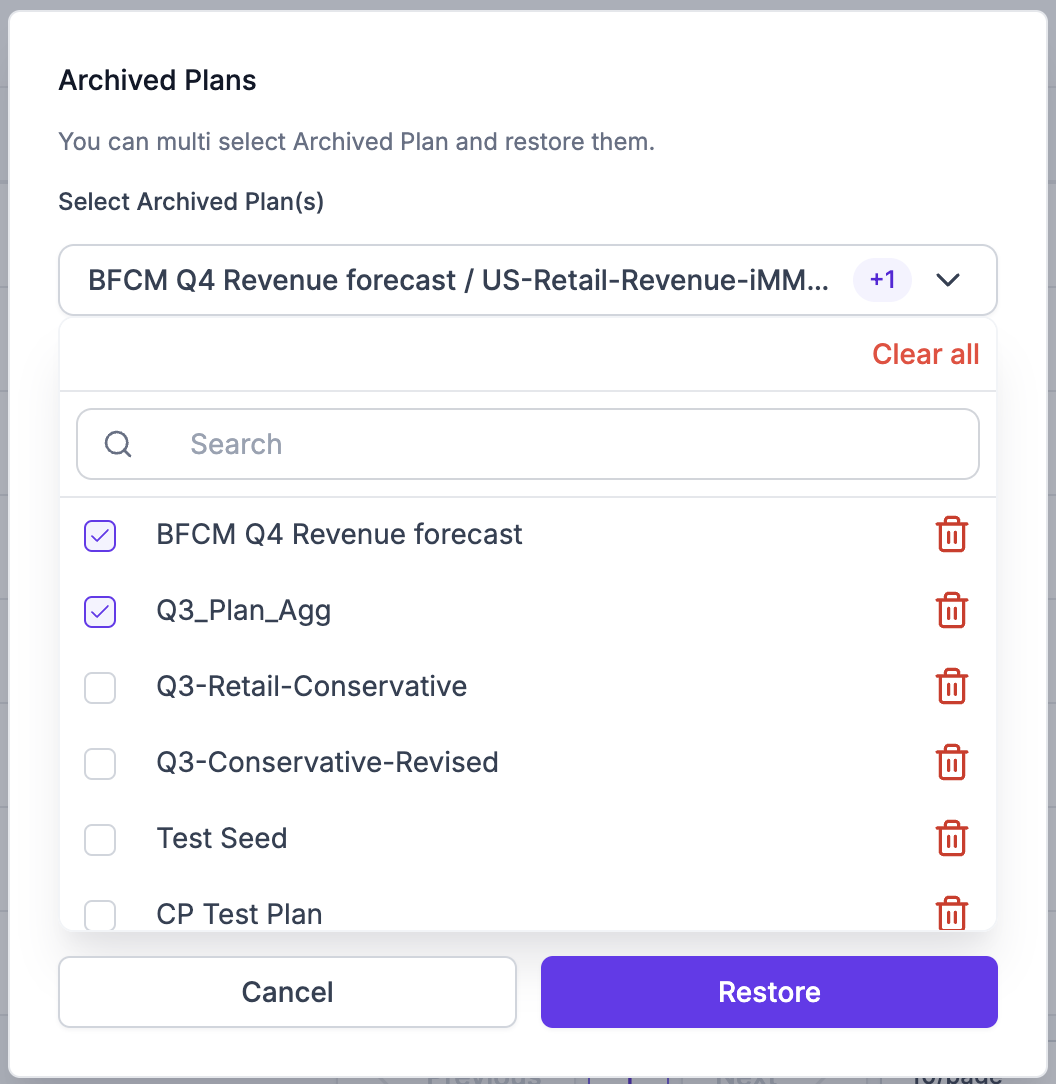
- Click
Restoreto restore your selected plans.
Updated 11 months ago