
Intrepreting a plan
Understand what your forecast, recommendations, and saturation curves mean so you can act on your plan with confidence.
Once your simulation finishes, Planner shows you exactly how your scenario changes your budget allocation, forecasted outcomes, and incremental efficiency compared with your baseline (the reference period you selected as your starting point).
This guide walks you through each part of the results so you can decide whether a scenario is ready to act on.
Get the big picture from your headline metrics
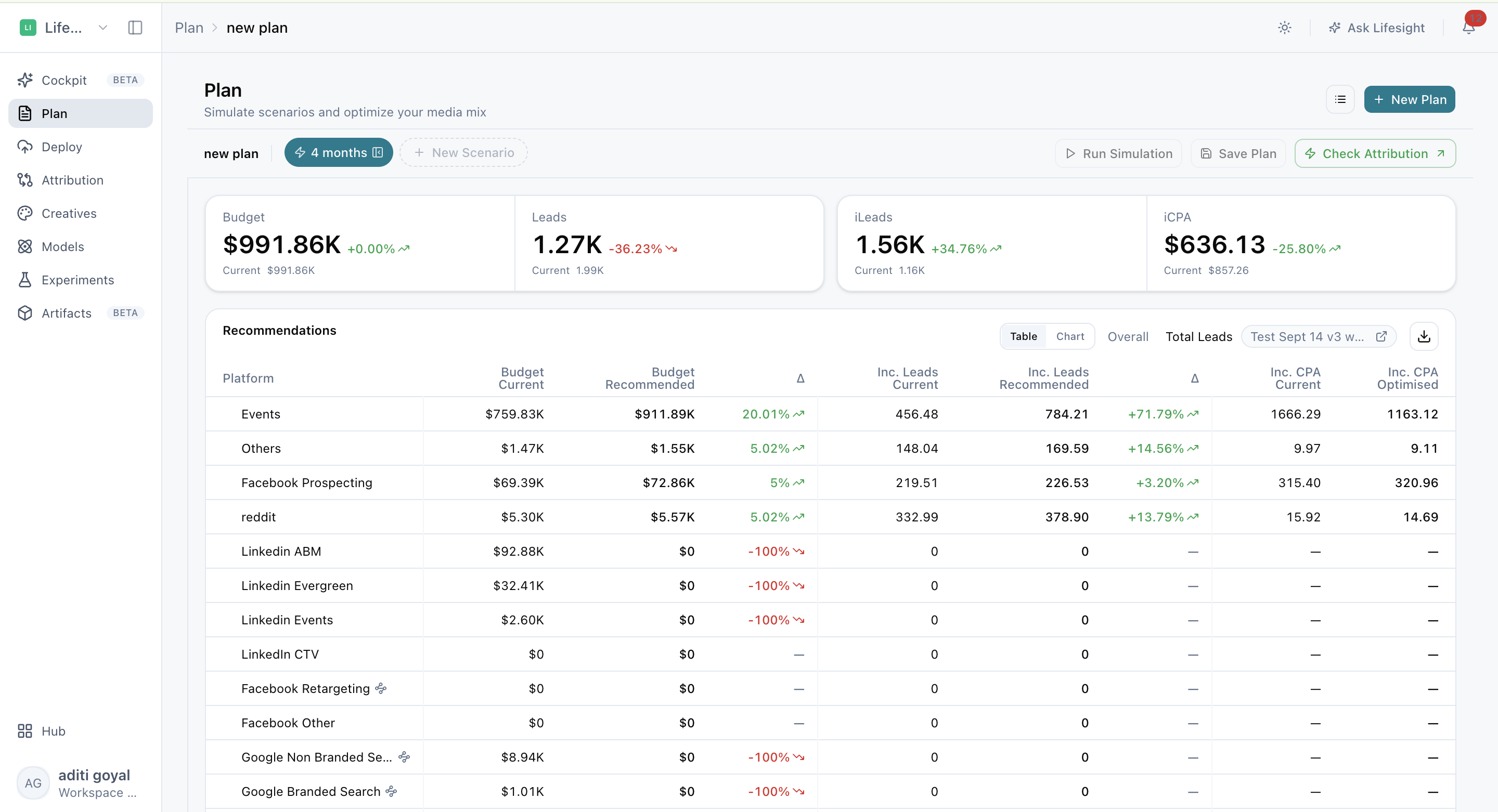
The headline metrics at the top of your results give you a quick read on what your scenario is expected to deliver:
-
Total budget: the total spend in your scenario.
-
Forecasted outcome: the total result your plan is expected to drive, such as Revenue or Leads.
-
Incremental outcome: the additional result your media spend is expected to create beyond what would have happened without it. This is shown as iLeads.
-
Forecasted efficiency: how efficiently your spend drives incremental results. This appears as iROAS (incremental return on ad spend, the incremental revenue per dollar spent) for revenue-oriented models, or iCPA (incremental cost per acquisition, the cost of each incremental conversion) for conversion-oriented models.

Each metric also shows the change from your current values, so you can see at a glance whether the scenario improves on your baseline.
If you change the scenario's configuration after running it, your results become stale (out of date) until you run the simulation again. Rerun before reviewing results to make sure you're looking at numbers that reflect your latest settings.
See where Planner recommends shifting spend
The recommendations table compares your current and recommended values for each channel, so you can see exactly where to invest more and where to pull back. Review:
- Current and recommended budget: how much each channel spends today versus what Planner recommends.
- Budget delta Δ: the change between current and recommended budget. Positive values mean more spend; negative values mean less.
- Current and forecasted incremental outcome: the incremental result each channel drives today versus what it is expected to drive under the recommended plan.
- Current and optimized efficiency: each channel's iROAS or iCPA before and after optimization.
- Induced or mediator effects, when available: the indirect impact a channel has by driving results through other channels. For example, a video campaign that increases branded search.
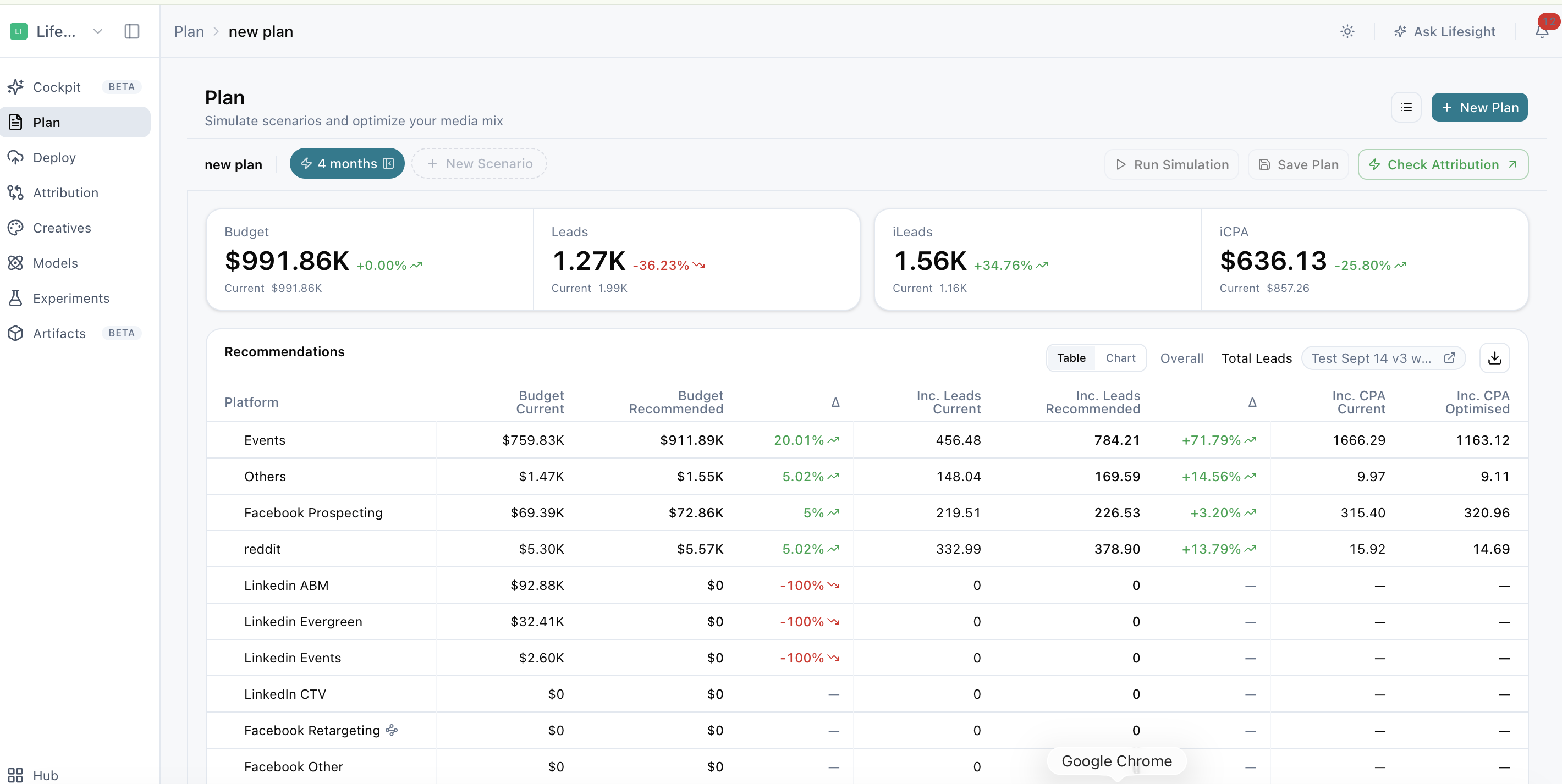
Use this table to understand the reasoning behind the plan. Channels receiving more budget are typically those expected to deliver more efficient incremental results, while channels receiving less are usually closer to saturation or below your efficiency target.
Understand how your results are expected to play out over time
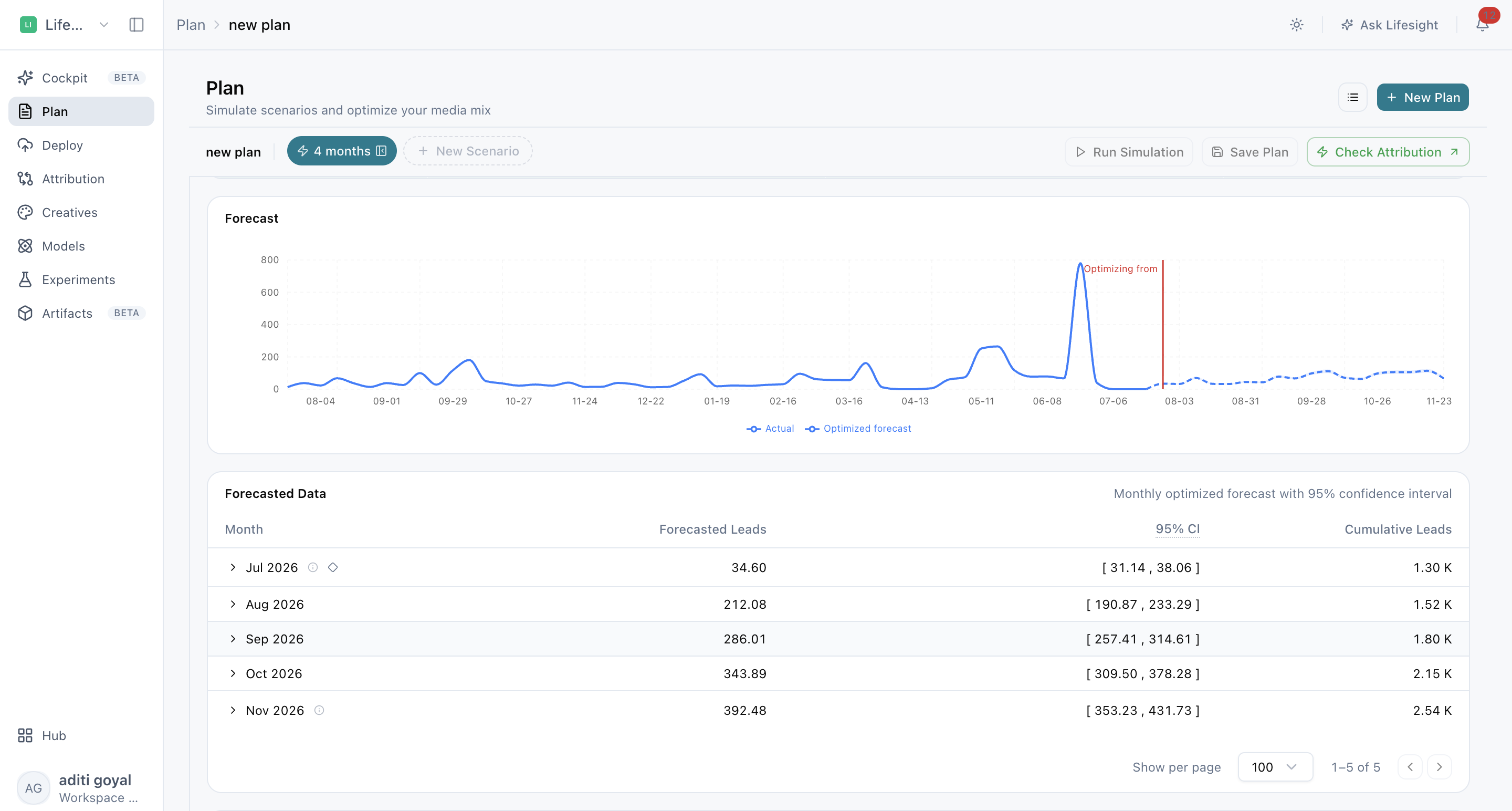
The forecast chart compares your actual or baseline performance with the optimized forecast. It also shows confidence bounds (the range your forecasted outcome is expected to fall within). A narrower range means Planner is more confident in the forecast.
The monthly forecast table breaks this down month by month, showing:
- Baseline: the outcome expected without the plan's changes.
- Forecasted outcome: the outcome expected under your plan.
- Confidence interval: the expected range for the forecasted outcome.
- Cumulative outcome: the running total of your forecasted outcome across the plan period.
Check how budget is allocated and paced
Use the Budget Worksheet to review how budget is allocated across platforms and periods. It gives you a detailed, channel-by-channel view you can check against your own planning.
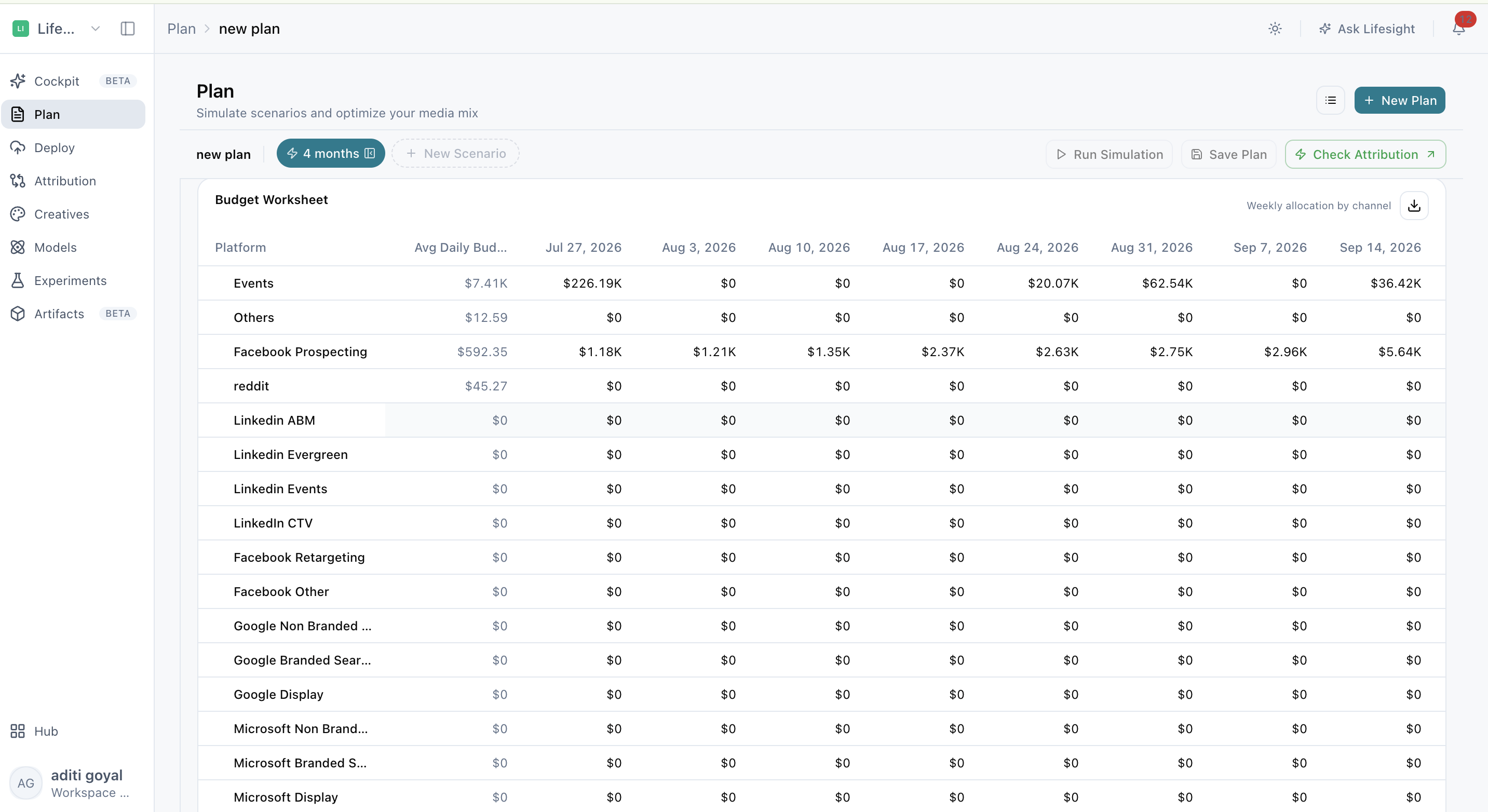
The Pacing Breakdown shows how budget is distributed across your plan window. If you set up custom pacing, this view reflects your monthly budgets, so you can confirm spend lands when you intended.
Find the right spend level for each channel with saturation curves
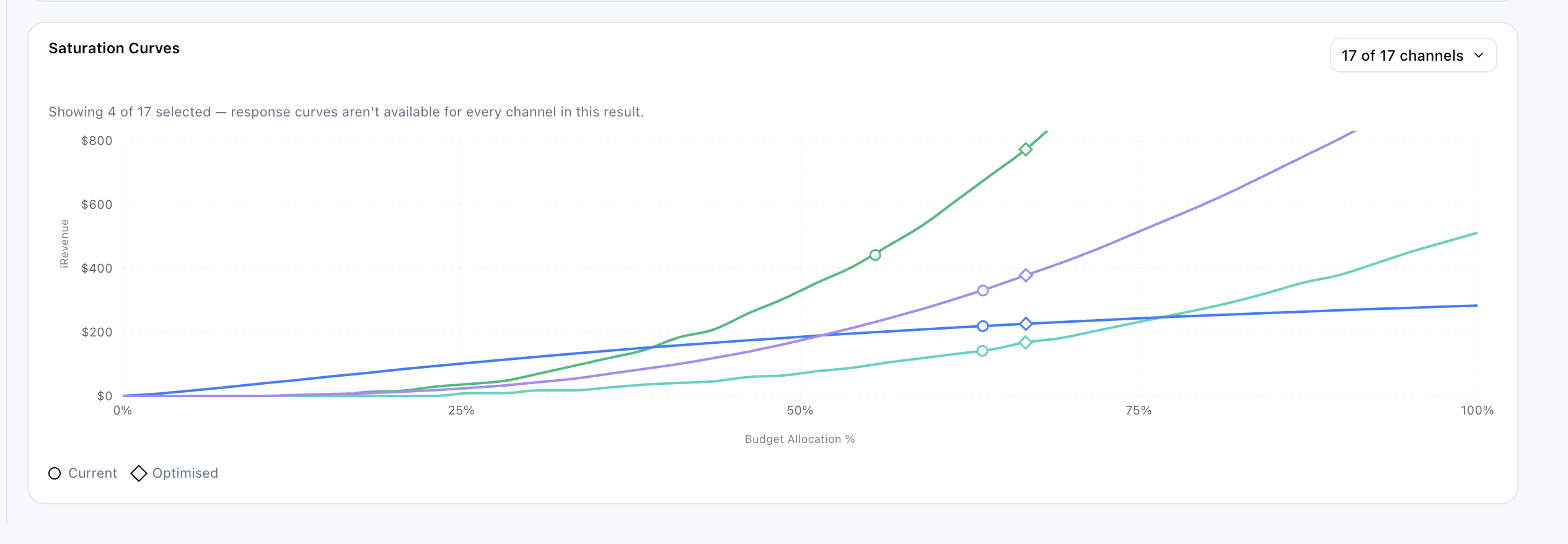
Saturation curves show the relationship between spend and response (the results a channel delivers at different spend levels) for supported channels. As spend increases, each additional dollar typically delivers less, and the curve shows where that happens.
On each curve, compare:
- Current and optimized spend markers: where your channel spends today versus where Planner recommends.
- Constraint ranges: the minimum and maximum spend limits you set for the channel.
- Marginal ROAS: the return from the next dollar spent. When marginal ROAS is low, extra spend in that channel adds little.
- Break-even point: the spend level where the next dollar returns just what it costs. Spending beyond this point loses efficiency.
Use saturation curves to spot channels with room to scale and channels where you may already be overspending.
Compare scenarios to choose your strongest plan
Switch between scenario tabs to compare results side by side. To understand what's driving a difference, change one thing at a time between scenarios, such as budget or a single constraint.
Before crediting a difference to a budget or constraint change, confirm that the model, plan period, and reference period are the same across the scenarios you're comparing. If any of these differ, the results aren't directly comparable.
Once all scenarios have finished running, save the plan, then promote the scenario you want to move forward with to Decisions.
Frequently asked questions about interpreting a plan
How do I read Planner results in Lifesight?
Start with the headline metrics for a quick view of total budget, forecasted outcome, incremental outcome, and efficiency. Then review the recommendations table to see channel-level changes, the forecast chart to see performance over time, and saturation curves to understand how much room each channel has to scale.
What is the difference between forecasted outcome and incremental outcome?
Forecasted outcome is the total result your plan is expected to drive. Incremental outcome is the portion created by your media spend, beyond what would have happened without it.
Why does Planner show iROAS for some plans and iCPA for others?
Planner shows iROAS for revenue-oriented models and iCPA for conversion-oriented models. iROAS measures incremental revenue per dollar spent, while iCPA measures the cost of each incremental conversion.
Why are my Planner results marked as stale?
Results become stale when you change the scenario configuration after running the simulation. Run the simulation again to update your results.
What does the budget delta in the recommendations table mean?
Budget delta is the difference between a channel's current and recommended budget. A positive delta means Planner recommends spending more, and a negative delta means spending less.
What are induced or mediator effects?
Induced or mediator effects are the indirect impact a channel has by driving results through other channels, such as a video campaign increasing branded search. They appear in the recommendations table when available.
What do the confidence bounds in the forecast chart show?
Confidence bounds show the range your forecasted outcome is expected to fall within. A narrower range means Planner is more confident in the forecast.
What is the difference between the Budget Worksheet and the Pacing Breakdown?
The Budget Worksheet shows how budget is allocated across platforms and periods. The Pacing Breakdown shows how budget is distributed over your plan window, including any custom pacing you set up.
What do saturation curves show?
Saturation curves show how a channel's results change as spend increases. They help you see where additional spend starts to deliver diminishing returns, so you can spot channels with room to grow and channels that may be overspent.
What is marginal ROAS?
Marginal ROAS is the return from the next dollar spent in a channel. A low marginal ROAS means additional spend in that channel adds little.
What is the break-even point on a saturation curve?
The break-even point is the spend level where the next dollar returns just what it costs. Spending beyond it reduces efficiency.
How should I compare scenarios in Planner?
Change one thing at a time between scenarios, such as budget or a single constraint, so you can see what's driving the difference. Make sure the model, plan period, and reference period are the same across scenarios before comparing results.
What should I do after reviewing my plan results?
Save the plan once all scenarios have finished running, then promote the scenario you want to move forward with to Decisions.
Related Articles
Updated about 1 month ago