
Custom Budget Pacing
Manually define your monthly budget splits to maximize impact during key periods
The Custom Pacing feature in the Planner module gives you granular control over how your marketing budget is allocated throughout your planning period. Instead of distributing your budget evenly across all months, you can specify the exact budget amount to be spent each month, allowing for more strategic and timely campaign execution.
Custom Pacing overrides the platform's default behavior of pacing your budget evenly, allowing you to align spending with your specific monthly goals. This option can be enabled for forecast periods that are two months or longer.
When to Use Custom Pacing
This feature is particularly useful for aligning your budget with your marketing calendar and anticipated market dynamics.
Consider using Custom Pacing when
- Planning for Seasonality: You can allocate a larger portion of your budget to months with high-profile sales events like Black Friday, or other seasonal peaks relevant to your business.
- Supporting Product Launches: Front-load your budget to maximize impact during a new product launch month.
- Aligning with Promotions: Match your budget allocation to your promotional calendar, spending more during months with significant offers or campaigns.
- Reacting to Market Conditions: Adjust your monthly spend based on historical data that shows which months typically have higher conversion rates or customer engagement.
How to Configure Custom Pacing
Follow these steps to set up custom pacing for your budget plan:
-
Navigate to Your Plan Scenario: From the main dashboard, go to the scenario you wish to configure.
-
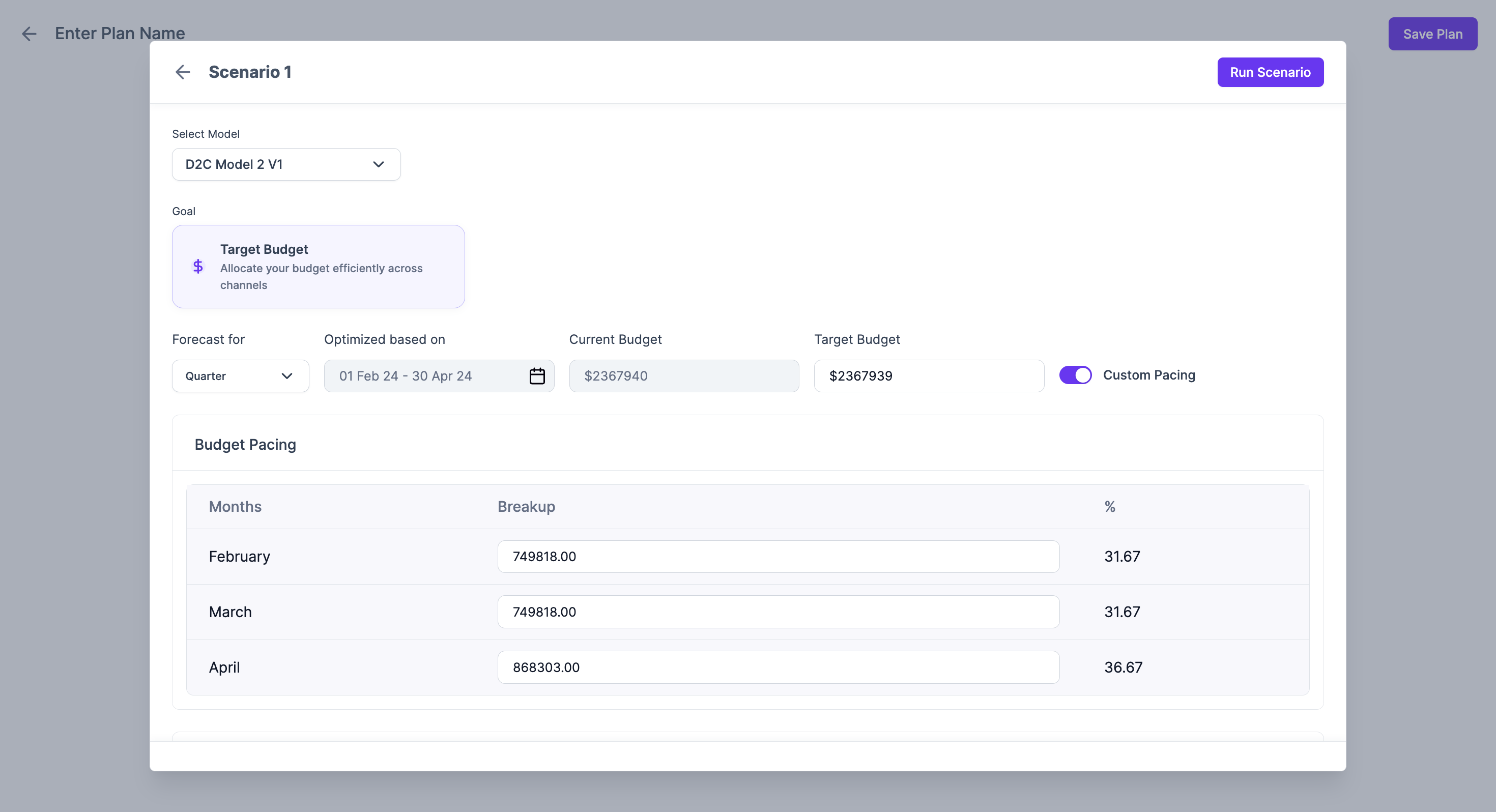
Set Your Target Budget: In the Goal section, ensure you have selected 'Target Budget' and entered the total amount for your planning period. For this example, let's use a budget of
{{TARGET_BUDGET}}.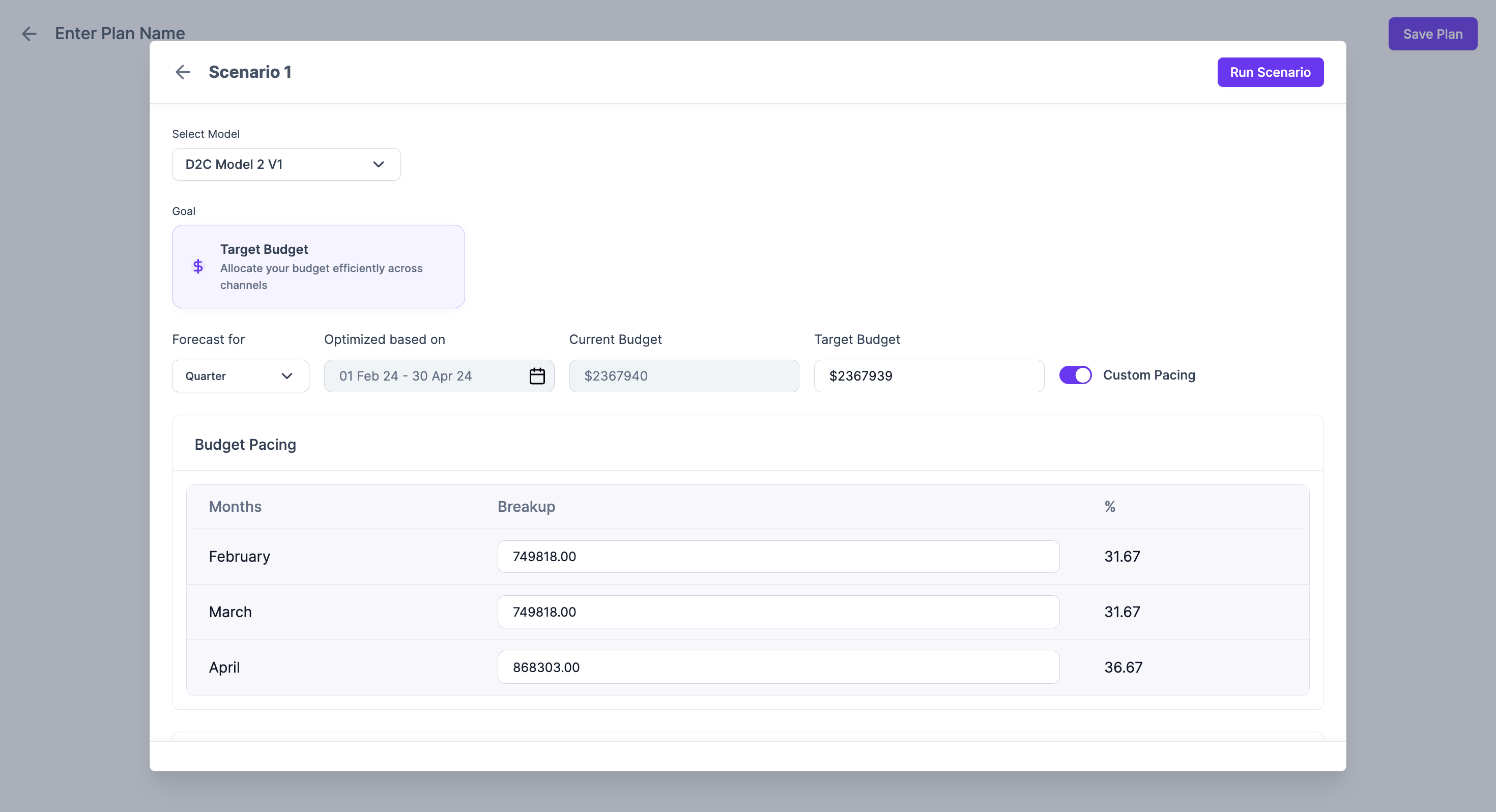
-
Enable Custom Pacing: Locate the Custom Pacing toggle switch next to your Target Budget field and turn it on.
-
Define Monthly Pacing: Once enabled, a Budget Pacing table will appear. This table lists the months included in your forecast period.
-
Enter Monthly Budget Splits: For each month, enter the specific budget amount you wish to allocate in the Breakup column. The platform will automatically calculate and display the corresponding percentage (%) of the total budget.
The sum of the monthly budget splits in the 'Breakup' column must equal your total Target Budget. The platform will show a validation error if the amounts do not match.
- Run Scenario: Once your custom pacing is set, click Run Scenario to see how your tailored budget allocation impacts the forecast.
Updated 11 months ago