
Geo test data schema
Set up and map your data so every Geo Experiment is built on a reliable baseline.
Prepare Your Data for Reliable Geo Experiment Results
Map your historical data correctly so Lifesight can build accurate market comparisons and measure the true incremental impact of your marketing. The Data step lets you bring in your data, match each column to the right field, and confirm everything is ready before you design your test.
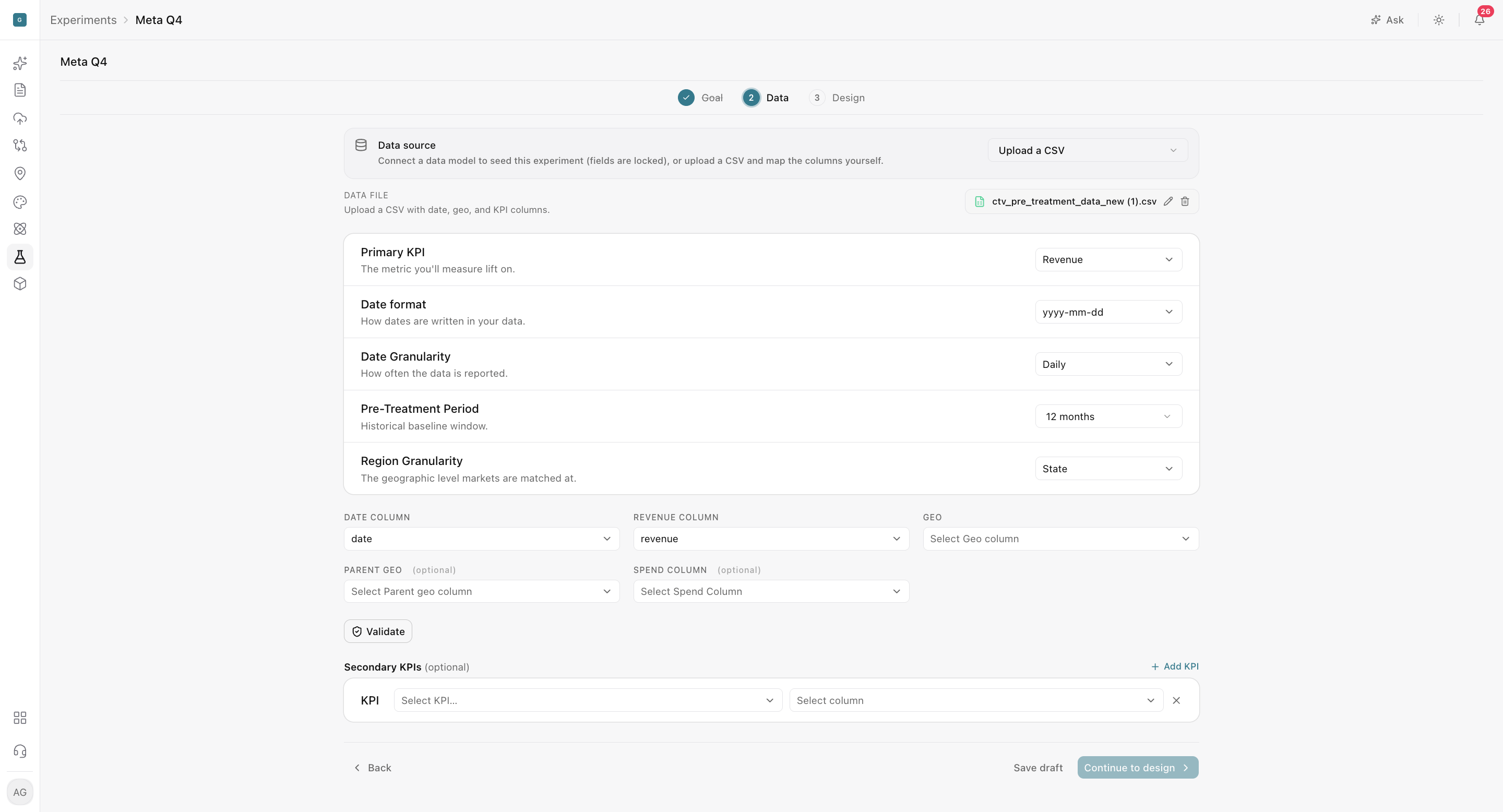
Set up the fields that measure lift
Lifesight needs these settings and column mappings to compare your markets and measure incremental results accurately. Continue to design stays unavailable until they are complete, which prevents you from designing a test on incomplete data.
Data settings
| Field | What it controls | Example |
|---|---|---|
| Primary KPI | The metric you will measure lift on | Revenue |
| Date format | How dates are written in your data | yyyy-mm-dd |
| Date Granularity | How often your data is reported | Daily |
| Pre-Treatment Period | The historical baseline window used before the test starts | 12 months |
| Region Granularity | The geographic level markets are matched at | State |
Column mapping
| Field | What to select | Example column |
|---|---|---|
| Date Column | The column that holds your observation dates | date |
| KPI Column | The column for your primary KPI. The label updates to match the KPI you chose (for example, Revenue Column) | revenue |
| Geo | The column that holds your market names, at the region granularity you selected | state |
Optional fields for deeper insights
| Field | What it adds | Example column |
|---|---|---|
| Parent Geo | The larger region each market belongs to, such as the state for a city | state |
| Spend Column | Cost context, so you can evaluate efficiency metrics such as iROAS alongside lift | spend |
| Secondary KPIs | Additional outcomes to track beyond your primary KPI. Click Add KPI, choose the KPI, and select its matching column | orders |
Adding a spend column is especially useful: without it, you can see how much lift your change created, but not how efficiently your budget created it.
When Parent Geo is required
Parent geo fields become required for granularities that need a geographic hierarchy, such as city-level markets that need to be linked to their state. The mapping interface identifies Parent Geo 1 and Parent Geo 2 when applicable.
Supported KPIs
- Primary KPI: Revenue, Conversions, ROAS, CPA, and Orders (revenue)
- Secondary KPIs: Revenue, Conversions, ROAS, CPA, Orders, New customers, AOV, and Sessions
Format your file for a clean upload
A well-formatted file uploads cleanly and gives Lifesight an accurate picture of each market's history.
- Use a single header row with unique column names. Duplicate names make it unclear which column to map.
- Keep date format and granularity consistent. Use either daily or weekly data throughout, in one date format.
- Include repeated dates for each market. Every market should have a row for each date in the observation period. For example, with 50 states and daily data, each date appears 50 times.
- Use numeric values for KPI and spend fields. Remove currency symbols, commas used as text, and notes from these columns.
- Avoid merged cells, totals rows, formatted titles, and blank header names. These can interfere with how your data is read.
- Keep geo labels consistent across the full pre-treatment period. For example, don't switch between "New York" and "NY" partway through the data.
Give Lifesight enough history
The pre-treatment period (the historical data before the test begins) is what Lifesight uses to build the synthetic control (a benchmark made from comparable markets that shows how your test markets would have performed without the change). The more representative this history is, the more reliable your result.
Choosing a period
The creation flow supports preset pre-treatment periods and custom values from 1 to 24 months. Choose a period that reflects normal business behavior and captures enough variation for Lifesight to tell markets apart.
Before you continue
Review the detected file preview and mappings before continuing to Design. A quick check here helps you catch mismatched columns or formatting issues before they affect your test.
Frequently Asked Questions
Why is Continue to design unavailable?
All required data settings and column mappings must be complete. Check that you've set the Primary KPI, date format, date granularity, pre-treatment period, and region granularity, and mapped the Date, KPI, and Geo columns.
Which KPIs can I use as my primary KPI?
Revenue, Conversions, ROAS, CPA, and Orders (revenue).
Can I track more than one outcome?
Yes. Add secondary KPIs by clicking Add KPI, choosing the KPI, and selecting its matching column. Supported secondary KPIs are Revenue, Conversions, ROAS, CPA, Orders, New customers, AOV, and Sessions.
Do I need to include spend data?
It's optional, but recommended. A spend column lets you evaluate efficiency metrics such as iROAS alongside lift.
When do I need to map Parent Geo?
Parent geo fields become required for region granularities that need a geographic hierarchy. The mapping interface shows Parent Geo 1 and Parent Geo 2 when they apply.
How much historical data do I need?
Provide enough history for Lifesight to build a reliable synthetic control. You can choose a preset period or a custom value from 1 to 24 months.
Can I use weekly data instead of daily?
Yes. Choose daily or weekly granularity, and keep it consistent throughout the file.
Why does each date need to appear more than once?
Each market needs its own row for every date in the observation period, so the same date repeats once per market.
What if my market names change partway through the data?
Standardize them before uploading. Geo labels must stay consistent across the full pre-treatment period so each market's history is read as one continuous series.
What should I check before moving to Design?
Review the detected file preview and your mappings to confirm every column is matched correctly and the data looks as expected.
Updated 30 days ago