
RTB House
Connect RTB House to see what personalized retargeting actually returns, and whether it earns more budget.
RTB House is a demand side platform specialising in personalised retargeting and brand awareness campaigns using deep learning bidding. Its campaigns typically run alongside your other display and programmatic activity, and they are frequently over credited by last click reporting because retargeting reaches people who were already close to buying.
That is precisely the reason to measure it properly rather than trust the platform's own conversion count.
What Lifesight brings in
Lifesight reads the account hierarchy:
- Advertiser the top level account
- Campaign where objective, budget and flight dates are defined
- Creative the individual units served
The data pulled includes:
| Category | Data points |
|---|---|
| Performance metrics | Spend, Impressions, Clicks, Click Through Rate |
| Conversion metrics | Conversions, Conversion Rate, Cost Per Acquisition |
| Cost metrics | Cost Per Click, Cost Per Mille |
| Hierarchy dimensions | Advertiser, Campaign Name, Creative Name |
Before you start
You need an RTB House API token, which is created in the RTB House Clients Panel rather than in Lifesight.
Open API tokens from your account menu in the Clients Panel, or go straight to https://panel.rtbhouse.com/user/api-tokens, and copy the token when it is shown. RTB House does not display it again afterwards.
The token is the only thing Lifesight needs. It determines which advertisers Lifesight can see, so use a token that covers every advertiser you want to measure. If the API tokens page is not there at all, API access has not been provisioned on your account and your RTB House account manager can enable it. Lifesight only reads reporting data, so a read only token is enough.
Connecting RTB House
- Go to Data > Integrations and click Add Integration.
- Search for RTB House and click Connect on the tile.
- On the Authenticate step, paste your token into RTB House Bearer Token. Use the eye icon to confirm it pasted cleanly.
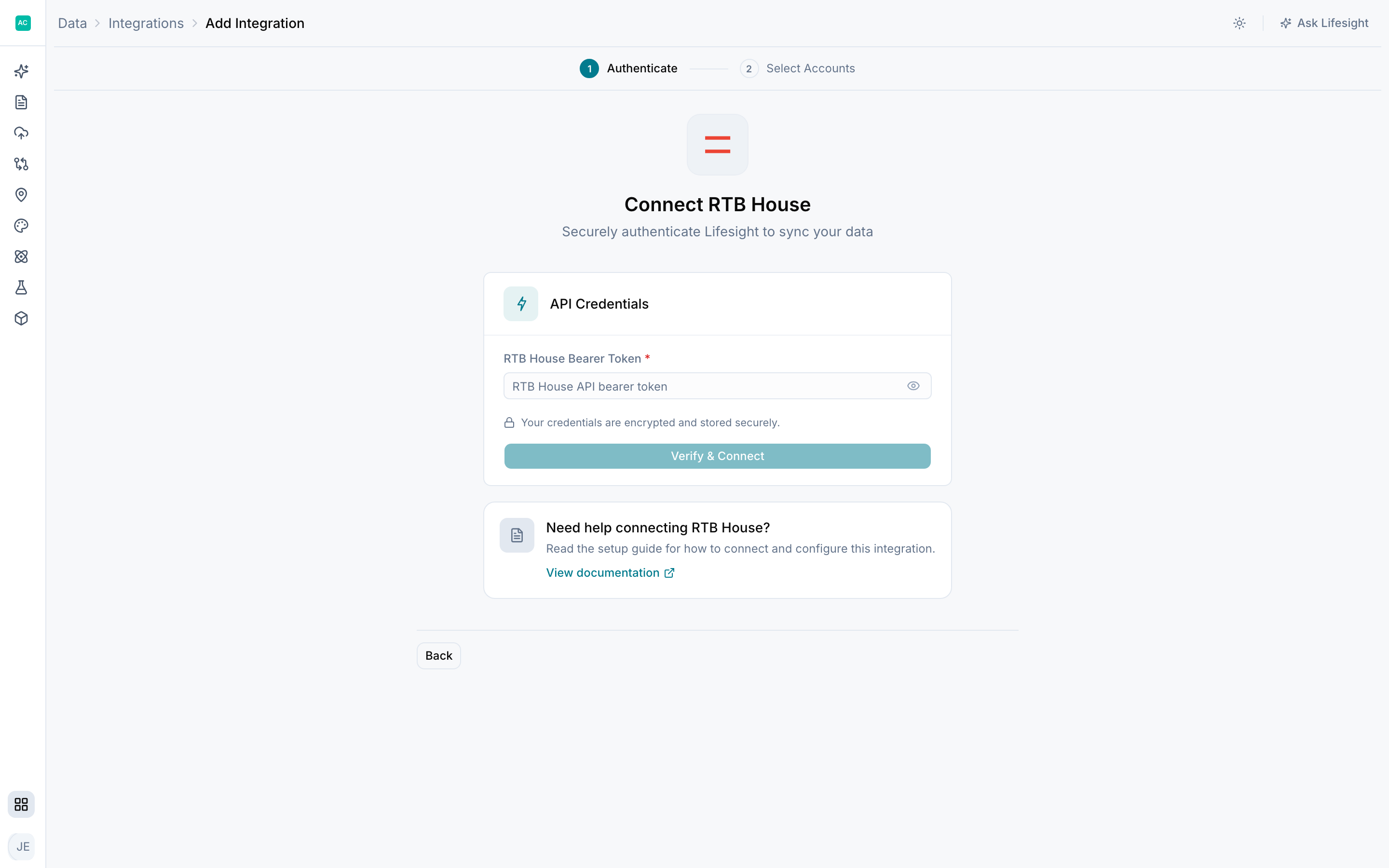
- Click Verify & Connect. Lifesight checks the token against RTB House and discovers every advertiser it can read. If the token is rejected an error appears here and nothing is saved.
- On the Select Accounts step, tick the advertisers you want to sync. Each row shows the advertiser name, its identifier, currency and timezone.
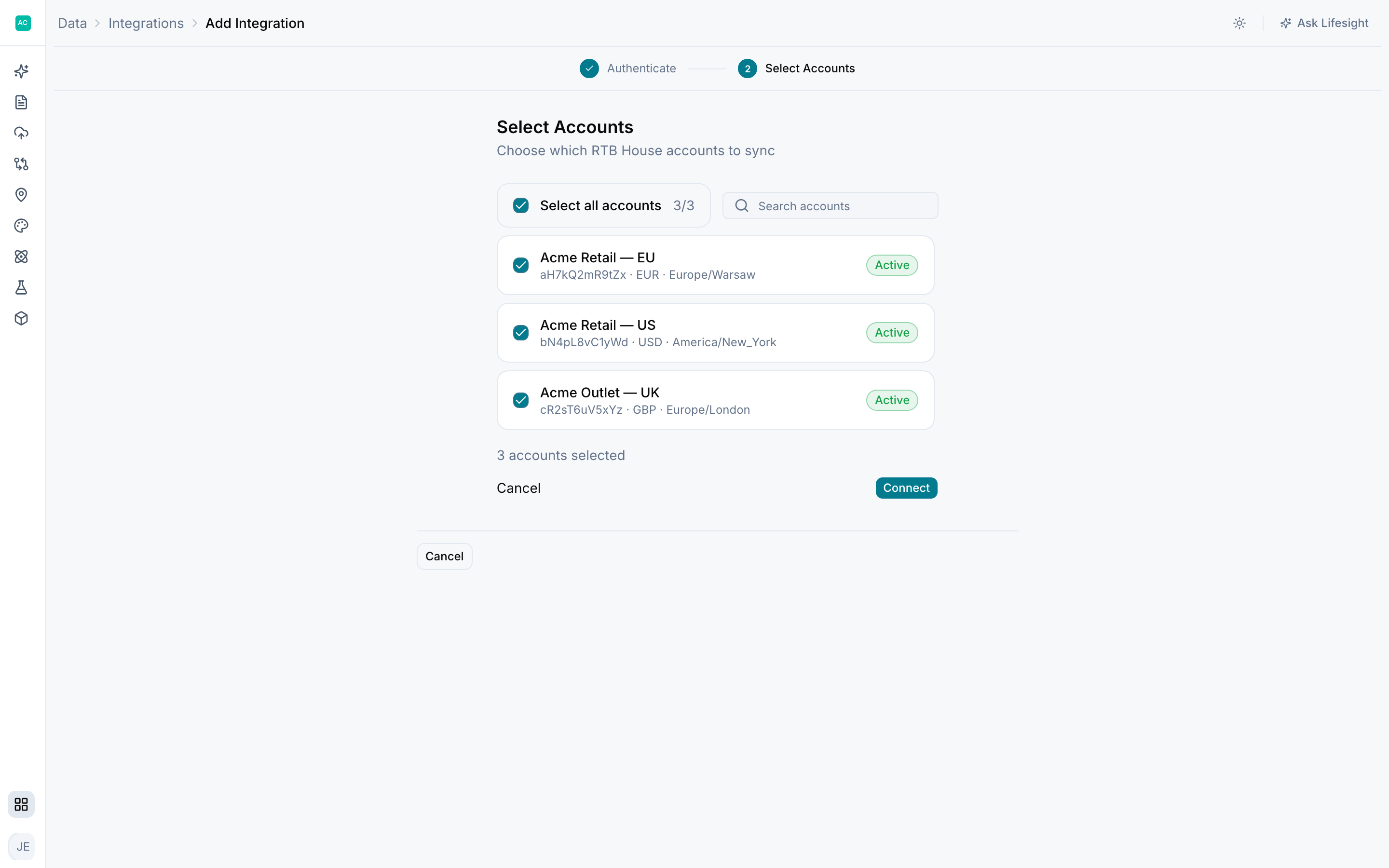
- Click Connect.
Lifesight begins its initial data pull. Depending on how much history you have, this can take some time. The integration shows Syncing while that runs and Healthy once it completes, after which it refreshes daily.
After connecting
Check the field mappings in Data > Data Transformation, then classify the campaigns in Data > Data Taxonomy.
Give RTB House retargeting its own tactic rather than merging it into a general programmatic bucket. Retargeting and prospecting behave so differently that combining them produces an average that describes neither.
To change which advertisers sync later, open the integration and go to Configure > Accounts. Once you apply a change the account selection is locked for 48 hours, so make the full change in one pass.
Troubleshooting
The token is rejected on the Authenticate step. Check it was copied in full with no trailing space. A token that has since been rotated or revoked in the Clients Panel will also fail here.
No advertiser accounts appear. The token does not have reporting access to any advertiser. Contact your RTB House account manager to confirm access is enabled, or generate a token that covers the advertisers you need.
Reported ROAS is much higher than what the model shows. This is expected and is the reason for modelling. RTB House reports conversions it touched, many of which would have happened anyway. A model estimates the incremental portion, which is a different and more useful number.
The integration went to Reconnect required. The API token is no longer valid, usually because it was rotated or revoked. Generate a new token in the Clients Panel and reconnect the integration.
Nothing appears in the Overview after a successful sync. Widen the date range. Overview defaults to the last 30 days, and a backfill may only have loaded older data.
Updated 1 day ago