
Invite, Change, and deactivate Teammates
Invite people to your workspace from Team > Manage Team, change the role a member holds, and deactivate, re-invite or revoke access.
Your team lives in Team > Manage Team. Everything to do with who is in your workspace happens there: bringing someone in, moving them to a different role as their job changes, and removing access when they leave.
Getting roles right on the way in saves work later. Decide what access a person needs before you invite them, because the role you pick at invite decides what they can open from day one. For example, a new analyst who builds models needs a different role from a CMO who only reviews results.
Who can do this
Role: Workspace Admin. Other roles can open the page and view both lists, but the buttons are dimmed with the tooltip "Your role cannot add users. Ask a workspace admin for access."
Where: sidebar user menu > Team > Manage Team
Before you start
- You are signed in as a Workspace Admin.
- Team > Manage Team is open.
- You know which role the person needs. For what each role opens, see Roles and permissions.
- If the person needs a custom role, build it first in Create a custom role. You can't create one from the invite dialog.
Bring someone into your workspace
Invite a teammate
Role: Workspace Admin
- In the sidebar, open the user menu and select Team.
- Manage Team opens by default. If you're on another tab, select it.
- Select Invite User in the top-right corner of the page.
- In Name, enter the person's full name.
- In Email, enter their work email address.
- In Role, select a role. The default is Marketing Scientist.
- In Persona, select a persona. The default is Generalist.
- Optional: in Personal message (optional), enter up to 500 characters.
- Select Invite User.

The button reads Inviting... while it works. If the dialog stays open, a field didn't pass validation. Fix the field shown in red and select Invite User again.
You're done when:
- A confirmation appears: "User invited."
- Under Inactive, a Pending row shows the email address you entered.
- That row's Invited date is today.
Choose from the role list
The list offers Workspace Admin, Data Practitioner, Marketing Scientist, Strategic Planner, and Executive, followed by any custom roles created in this browser session, then + Create Custom Role.
Selecting + Create Custom Role shows the link Configure custom role permissions, which opens Manage Roles. If you submit the invite with it selected, you'll see the error "Please create a custom role in Manage Roles before inviting the user." Build the role first in Create a custom role, then invite the person.
Share the workspace URL
In the current release, no invitation email or link is sent. Share the workspace URL with the person directly so they know where to sign in.
Update or remove a member's access
Change someone's role
Role: Workspace Admin
- On Team > Manage Team, select Open menu on the member's row.
- Select Change role.
- Select the new role. The role they hold now is marked "(current)."
- Select Apply.
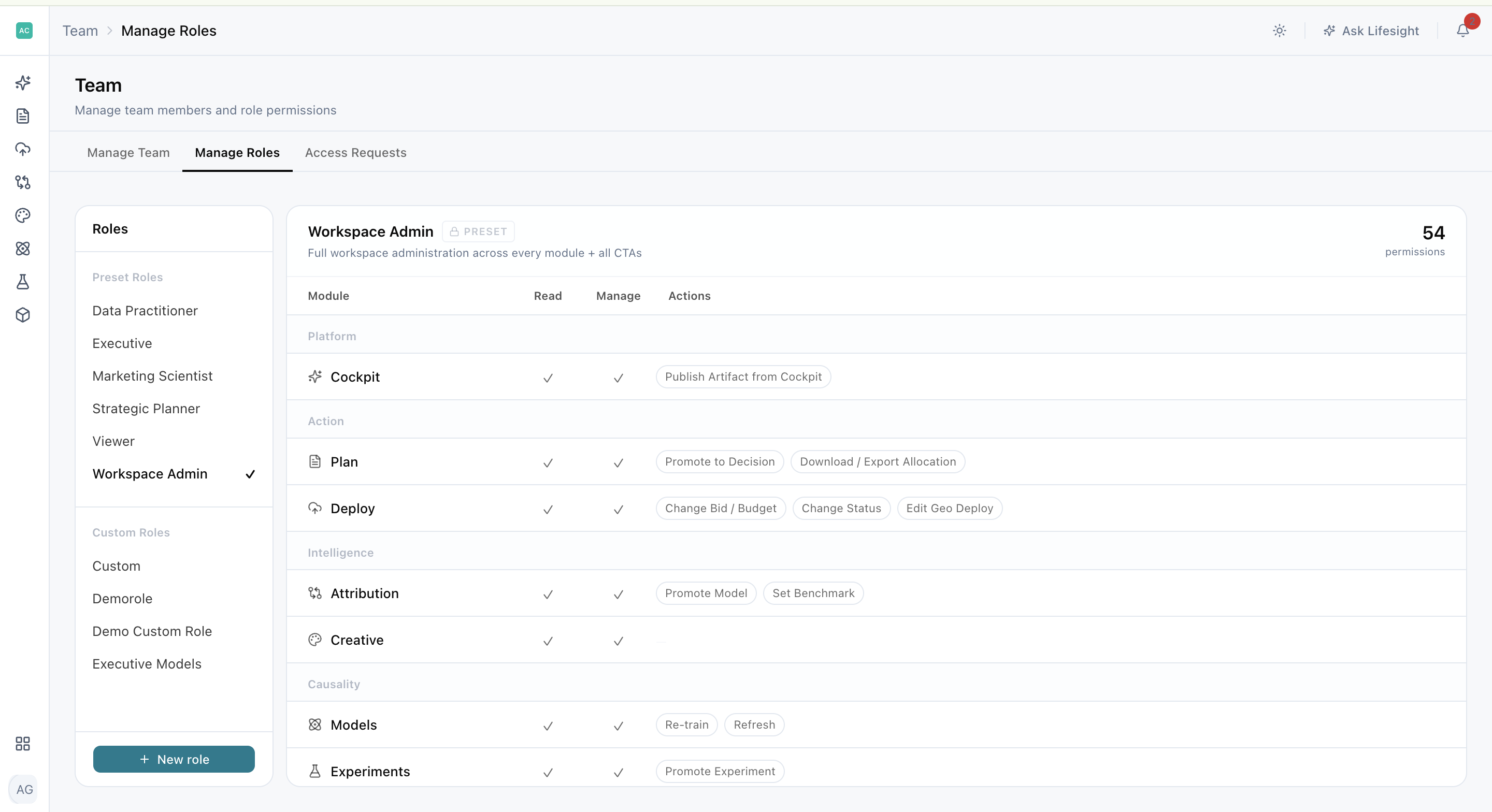
A confirmation appears: "
A person who is already signed in keeps the access of the role they had when they signed in.
Deactivate a member
Role: Workspace Admin
- On Team > Manage Team, select Open menu on the member's row.
- Select Deactivate.
- Read the confirmation: "Are you sure you want to deactivate
- Select Deactivate.
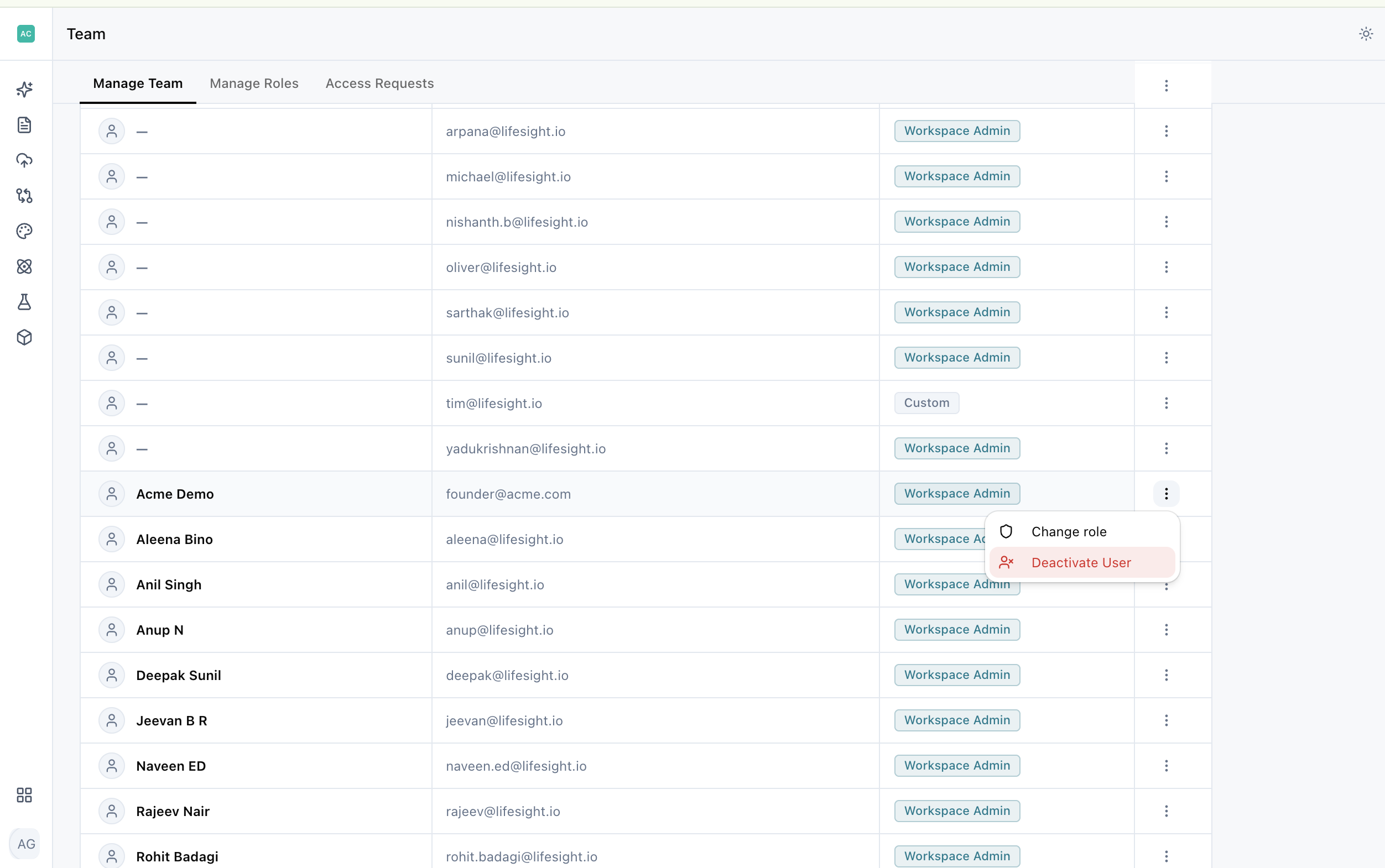
A confirmation appears: "User status updated." The row leaves the Active list and does not reappear under Inactive > Deactivated.
Important: there is no undo. Deactivating removes the member from the list, and there is no reactivate option. To bring the person back, invite them again as a new member. They start as Pending.
Manage invitations that haven't landed
Re-invite an expired invitee
Role: Workspace Admin
- On Team > Manage Team, select Inactive.
- Under Expired, select Open menu on the row.
- Select Re-invite.
- If Role or Persona is blank, select a value for each.
- Select Send Invite.
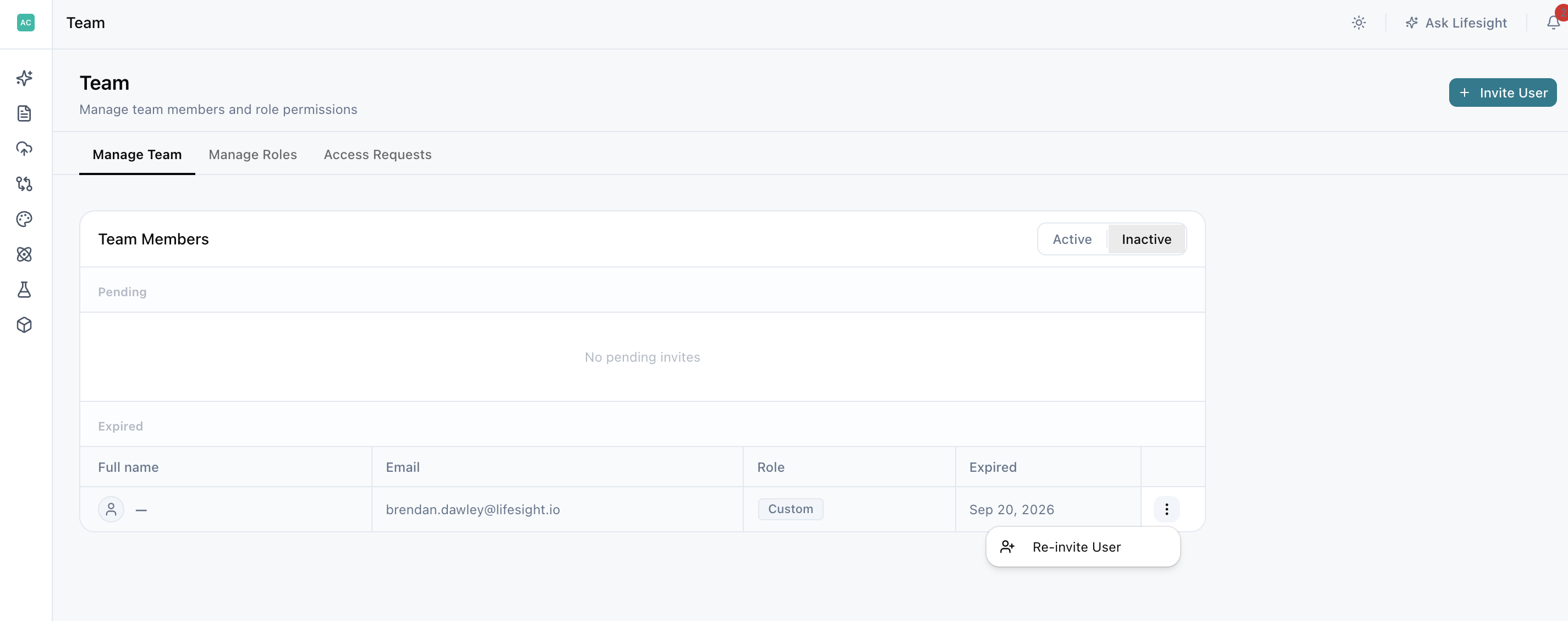
The button reads Sending... while it works. A confirmation appears: "User re-invited," and a new row appears under Inactive > Pending. The Expired row stays, since re-inviting adds a row rather than replacing one, so the same person is listed twice.
Revoke a pending invitation
Role: Workspace Admin
- On Team > Manage Team, select Inactive.
- Under Pending, select Open menu on the row.
- Select Revoke invitation.
- Select Revoke.
A confirmation appears: "Invitation to
Reference
The Team Members toggle and section labels show each person's status.
| Status | Where it shows | What it means | Who acts next |
|---|---|---|---|
| Active | Active toggle | Holds a role in this workspace | Workspace Admin: Change role or Deactivate |
| Pending | Inactive > Pending, date column Invited | Invited, not yet joined | Workspace Admin: Revoke invitation |
| Expired | Inactive > Expired, date column Expired | Invitation is no longer valid | Workspace Admin: Re-invite |
| Deactivated | Inactive > Deactivated, date column Last active | No longer active, and neither invited nor expired | No action available |
For the full grid of what each role can do in each module, see Permissions matrix.
Frequently Asked Questions
Who can invite, change, or remove team members?
Only a Workspace Admin. Other roles can view both lists, but the buttons are dimmed.
Why can't I pick Viewer when I invite someone?
Viewer isn't in the Invite User role list. Invite the person with another role, then use Change role on their row, which lists Viewer alongside the other preset roles.
Can I create a custom role while inviting someone?
No. Build the custom role first in Create a custom role, then invite the person with it.
Does the person get an invitation email?
In the current release, no invitation email or link is sent. Share the workspace URL with the person directly.
Should I change someone's role or approve their access request?
Change the role when the person's job has changed and they need a different kind of access. Approve an access request when they need one more module on top of what they already have. See Access requests.
Can I reactivate a deactivated member?
No. Invite them again as a new member. They start as Pending.
Why is the same person listed twice?
Re-inviting an expired invitee adds a new Pending row and keeps the Expired one.
Why does the role confirmation show a name without spaces?
The confirmation and the access tooltip show the internal role name, so Strategic Planner appears as StrategicPlanner. Both refer to the same role.
I clicked a member's Role tag and saw "No permission data available." What does that mean?
In the current release, the role tag's permissions popover doesn't show details for preset roles. Your permission data isn't missing. To see what a role can do, open Manage Roles or the Permissions matrix.
Someone is missing from the list. Where did they go?
Each section shows up to 10 rows and hides the rest, and deactivating a member removes their row. In the current release, a full page reload can also reset the list and drop members you've recently added.
Updated about 1 month ago