
Google Sheets
Link Google Sheet so data your team maintains by hand refreshes into Lifesight automatically.
A surprising amount of important data lives in a spreadsheet somebody maintains. Cost of goods by product. The promotional calendar. Spend on a channel too small to have a connector. Offline sales typed up from weekly reports.
Linking a Google Sheet means Lifesight re-reads it on a schedule, so that data stays current without anyone remembering to export and upload it. It is the right choice whenever the numbers keep changing.
When to use Google Sheets rather than CSV
Use Google Sheets when the data is maintained on an ongoing basis. Finance updates it monthly, marketing adds a row per promotion, someone appends last week's numbers every Monday.
Use CSV Import when the data is fixed and historical, or a genuine one off.
The rule of thumb: if you would otherwise be re-uploading the same file repeatedly, link the sheet instead.
Preparing your sheet
The same rules that apply to a CSV apply here, with a few extras that matter because the sheet keeps changing.
Put the data on its own tab. Keep the tab Lifesight reads clean and tabular. Charts, notes and working calculations belong on a different tab.
Headers on the first row. One header per column, using letters, numbers and underscores, starting with a letter.
One row per observation, with a date column. Use YYYY-MM-DD consistently.
Append rather than restructure. New data should be added as new rows. If someone inserts a column, renames a header, or reorders columns, the mapping Lifesight set up may no longer line up. Agree that with whoever maintains the sheet before you link it.
Avoid formulas that reference other files. If a linked workbook becomes unavailable, the cells resolve to errors and those errors flow through.
One currency per sheet.
Linking a Google Sheet
The wizard has four steps: Name and Connect, Sheet, Data setup, and Schedule.
- Go to Data > Integrations and click Add Integration.
- Open the Files and Spreadsheets tab, find Google Sheets, and click Connect.
- On Name and Connect, give the integration a recognisable name and an optional note describing what it holds. Then choose the Google account that has access to the sheet. Accounts already connected to the workspace appear in the list, and you can connect a new one if the account you need is not there.
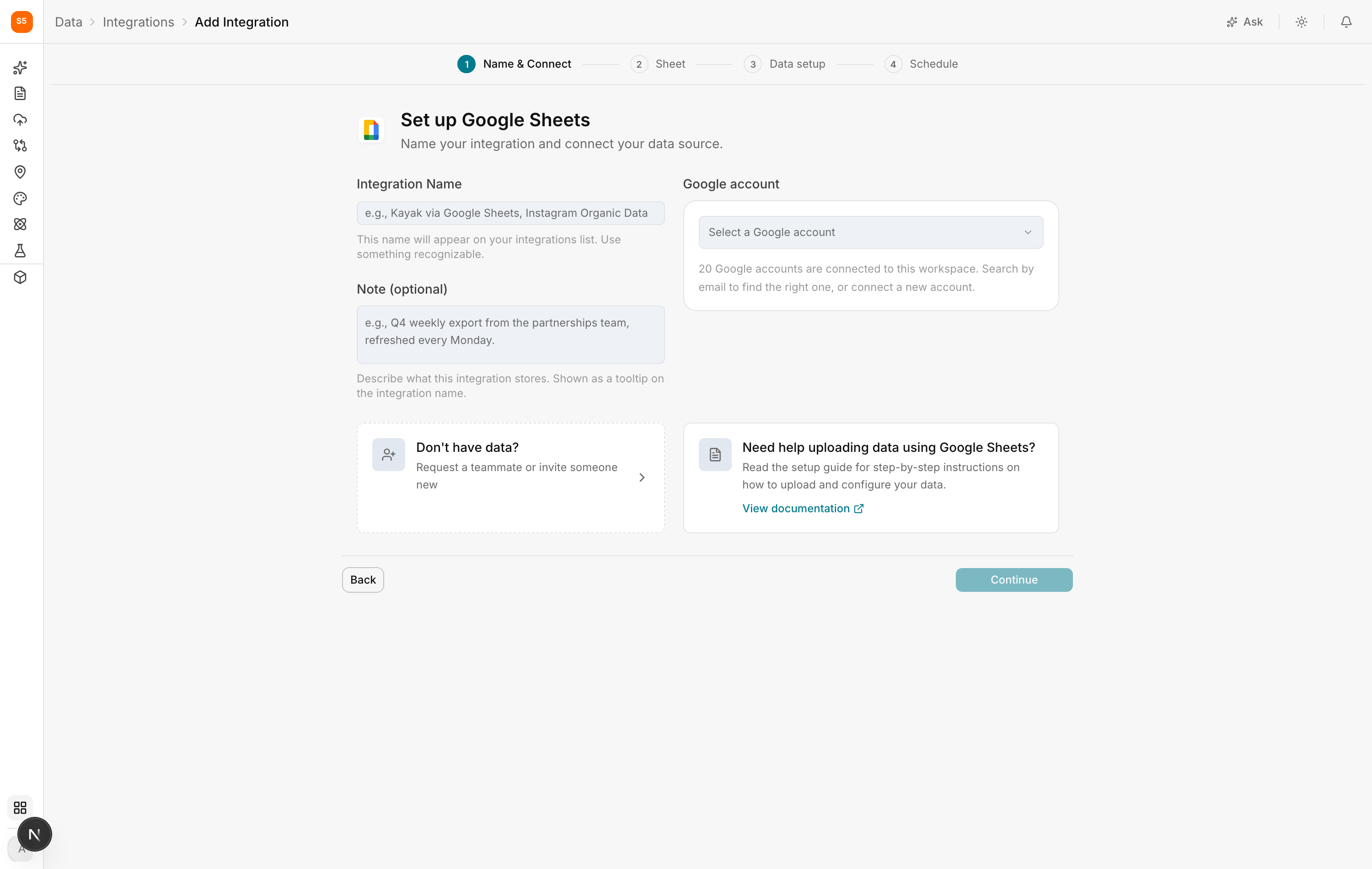
- Click Continue.
- On the Sheet step, pick the spreadsheet and the specific tab Lifesight should read.
- On Data setup, Lifesight previews the data and proposes what each column is. Check and correct the proposals.
- On Schedule, choose how often Lifesight should re-read the sheet, and at what time. Daily, weekly or monthly are the usual choices. Match this to how often the sheet actually changes. Re-reading a monthly file every day achieves nothing.
- Finish the setup.
After linking
Open Data > Data Transformation, find the sheet in the sources list, and map its columns.
As with uploaded files, sheets very often lack a column that is true of the whole sheet, such as the country, the brand, or the channel. Set those with A fixed value for every row in the field editor so the sheet lines up with your other data.
Keeping it working
A linked sheet is a shared dependency, which is its main strength and its main risk. Some habits that prevent problems:
Tell whoever maintains it that it is connected. The most common failure is a well meaning tidy up that renames columns.
Do not reorder or rename columns. Add new columns at the end if you need them.
Do not restrict access. If the sheet's sharing settings change, or the Google account used to connect it loses access, syncing stops.
Check it after any big change. If someone restructures the sheet, confirm the mappings still hold in Data Transformation.
Troubleshooting
The sheet is not in the list. The Google account you selected does not have access to it. Either share the sheet with that account, or connect the Google account that owns it.
Sync stopped working. Usually the sheet was moved, renamed, deleted, or its sharing was changed. Check it still exists and is still accessible to the connected Google account.
Some rows are missing. Check whether the data extends beyond the range Lifesight was pointed at, and whether new rows were added below a blank row, which some tools treat as the end of the data.
Values arrive as errors or blanks. The sheet contains formula errors, or formulas referencing a file the connected account cannot open. Fix them in the sheet and the next refresh will pick up the corrected values.
Numbers changed retroactively. That is expected behaviour for a linked sheet. It reads the current contents on every refresh, so editing a historical row changes the history in Lifesight too. If you want a frozen snapshot, use a CSV upload instead.
Updated about 1 hour ago