
Map a field from a source
Point a column in your source at a Lifesight field, so the number it carries can be read by models and reports.
Most mappings are this simple. A source gives you a column, that column already holds what you want, and you tell Lifesight which field it becomes.
Google Ads reports a column called spend. Lifesight has a field called Spend. Connecting the two is a mapping. Once it exists, anything that asks "how much did we spend" gets the same answer, whatever platform the money went through.
When to use it
Use a field from this source whenever the value changes from row to row and the source actually reports it. In practice that covers almost everything a connector gives you:
- spend, impressions, clicks and video views from any ad platform
- revenue, orders or conversions from your commerce platform
- the date column, which nearly everything else depends on
- descriptive columns such as country, device or campaign name
If the answer would be identical on every row of the source, you want Set a fixed value for a source instead.
How to do it
- Go to Data > Data Transformation.
- Find the source and click View Fields.
- Find the column, open the actions menu at the end of its row, and choose Edit.
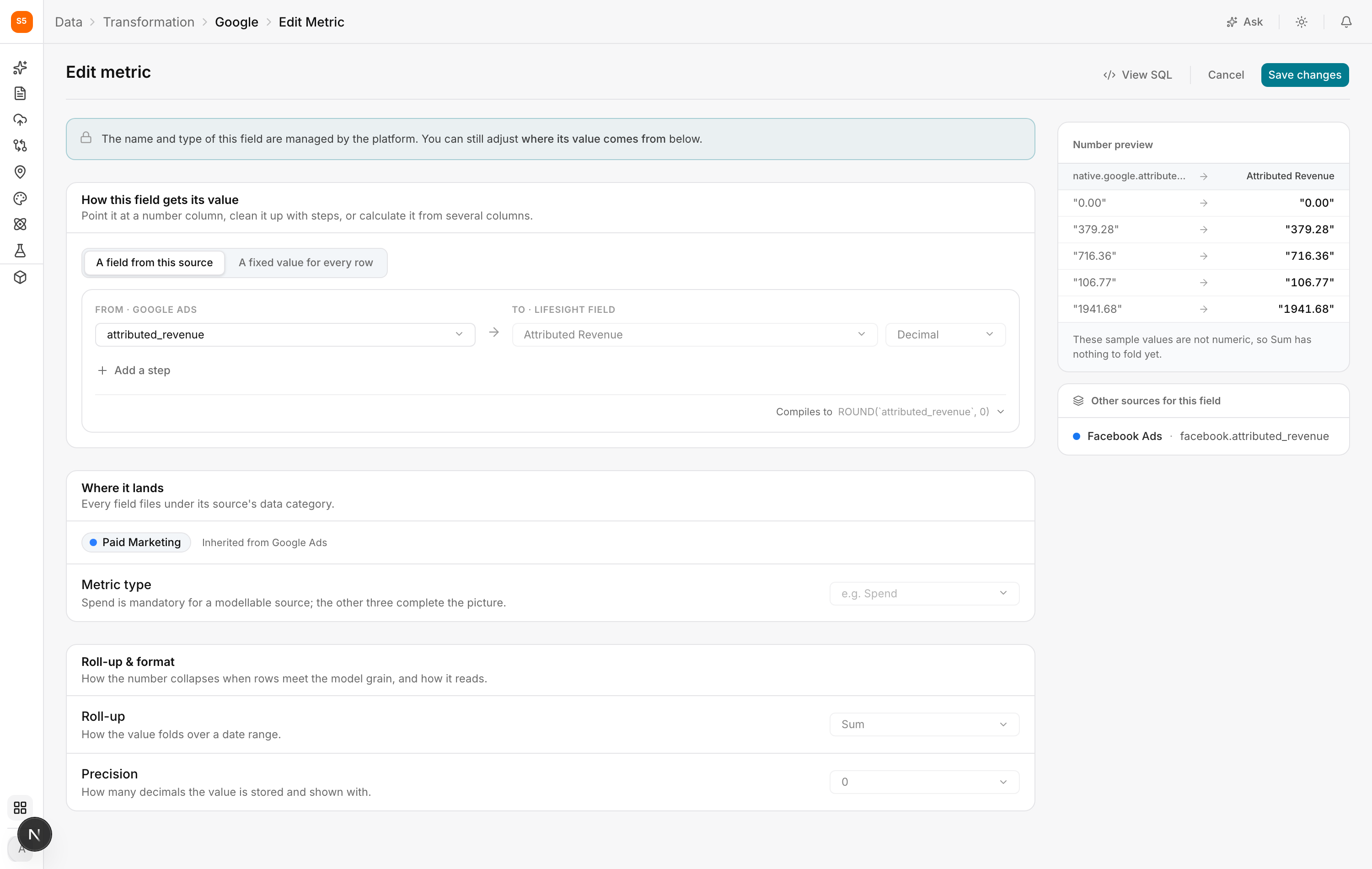
- Under How this field gets its value, make sure A field from this source is selected.
- On the left, under FROM, pick the source column.
- On the right, under TO, pick the Lifesight field it becomes.
- Check the preview panel, then click Save changes.
Mapping one column at a time, or several at once
There are two ways into the same mapping, and they write exactly the same thing. Which you use is only a question of how many columns you are dealing with.
One column at a time
Every unmapped row carries a Map to cell. Pick the Lifesight field in the row and the mapping applies immediately, without opening anything.
This is the fast path, and it is the right one when you are checking a native connector's fields and only one or two need attention. You are not filling in a form, you are correcting a single row and moving on.
If the column needs more than a target, for example the values need cleaning up first or you are creating a new field rather than picking an existing one, the row opens a small draft in place so you can finish without losing your position in the list.
Several columns at once
Select the columns you want, then use Map columns from the toolbar. The toolbar shows how many are selected, and the worklist that opens is scoped to that selection.
This is the right path for a freshly uploaded file, where nothing is mapped and you are working through twenty columns in one sitting. Doing that one row at a time is tedious, and the worklist keeps the whole job in one place.
Both paths offer the same catalogue of target fields, run the same checks, and save the same result. Nothing is lost by starting in the row and nothing is gained by using the worklist for a single column.
Choosing between them
| Situation | Use |
|---|---|
| Checking a connector's fields, one or two need fixing | The row's Map to cell |
| A new file where nothing is mapped yet | Select the columns, then Map columns |
| Changing an existing field's definition | The actions menu, then Edit |
The third row is worth noting. Mapping and editing are different verbs. Mapping picks the target. Editing changes a field's full definition, including its roll-up, its type and its precision, and it opens the full editor.
Reading the preview before you save
The panel on the right runs real sample values from your data through the mapping and shows what will be stored. Read it. It is the cheapest possible check, and it catches the two mistakes that cause most bad numbers later.
The wrong column. Ad platforms often expose several similar looking columns. Seeing actual values makes it obvious whether you picked the one you meant.
The wrong shape. If the column holds text where the field expects a number, the preview says so plainly rather than letting a silently broken field reach a model.
The data type shown next to the Lifesight field is set by the field itself. Spend is always a number, Date is always a date. Choosing the target is choosing the type, so there is nothing extra for you to configure.
A worked example
A retailer opens Google Ads in Data Transformation and edits attributed_revenue.
They set FROM to attributed_revenue and TO to Attributed Revenue. The preview shows values such as 379.28 passing through unchanged, which confirms two things: it is the revenue column they meant, and it is arriving as a number rather than as text with a currency symbol attached.
They save. Every downstream surface now has a revenue figure for Google Ads that means the same thing as the revenue figure for Meta.
Where this shows up in the rest of Lifesight
A mapping is not a filing exercise. It is the reason the rest of the platform can answer a question at all.
Model Schema only offers you fields that have been mapped. When you go to build a model and the KPI you want is not in the list, it is because nothing has been mapped to it yet.
Marketing Mix Modeling reads Spend as the input it decomposes and your KPI as the outcome it explains. If two platforms map spend inconsistently, the model is comparing things that are not comparable, and the contribution it reports for each channel will be wrong in a way that is very hard to spot afterwards.
Attribution groups conversions and revenue by the fields you mapped. Channel, campaign and country all come from here, which is why a missing dimension shows up as an "unknown" bucket in the Attribution dashboard.
Planner and Optimizer recommend and action budget changes in terms of spend. Those recommendations are only as trustworthy as the spend figure underneath them.
Analyze dashboards chart mapped fields. A field that was never mapped simply cannot be charted.
The practical consequence: fixing a mapping here fixes it everywhere at once, and it applies to the history you already hold rather than only to new data.
Frequently asked questions
Do I have to map every column?
No. Map what you will use. Ignoring a column is reversible.
What is the minimum?
For a paid marketing source you intend to model, Spend and a date field. Until those exist the source shows as Unmapped and nothing downstream can use it.
Two platforms report the same thing. Do I map both?
Yes, both to the same Lifesight field. That is what makes them comparable.
Can one column feed two Lifesight fields?
Not from a single mapping row. Map it once, save, then create a second custom field pointed at the same column.
Related Articles
Updated about 1 hour ago