
Merging Models
Go From Five Models to One Set of Numbers You Can Present
Most teams run more than one model, usually one per region, brand, or business unit. That is the right way to build them, but it makes portfolio-level questions awkward: you have to open each model separately and reconcile the numbers by hand.
Merge does that consolidation for you, so you can review performance across models in a single view. The source models stay as they are, so you keep the detail when you need it.
Select compatible models
- Open Model List and click on Merge Models on top right.
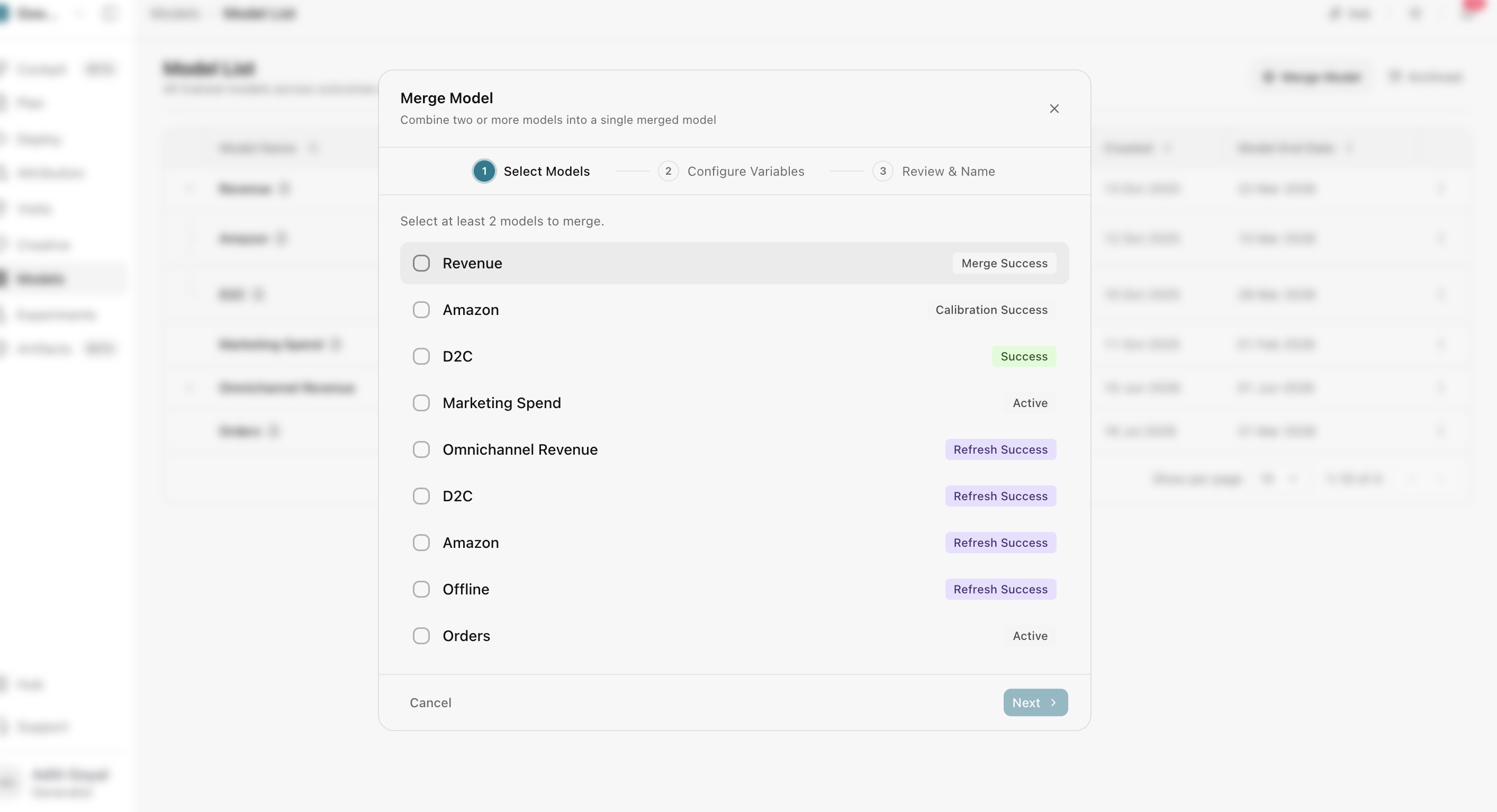
- Select eligible models with successful or refreshed results.
- Confirm that their outcomes, granularity, periods, and structures are compatible.
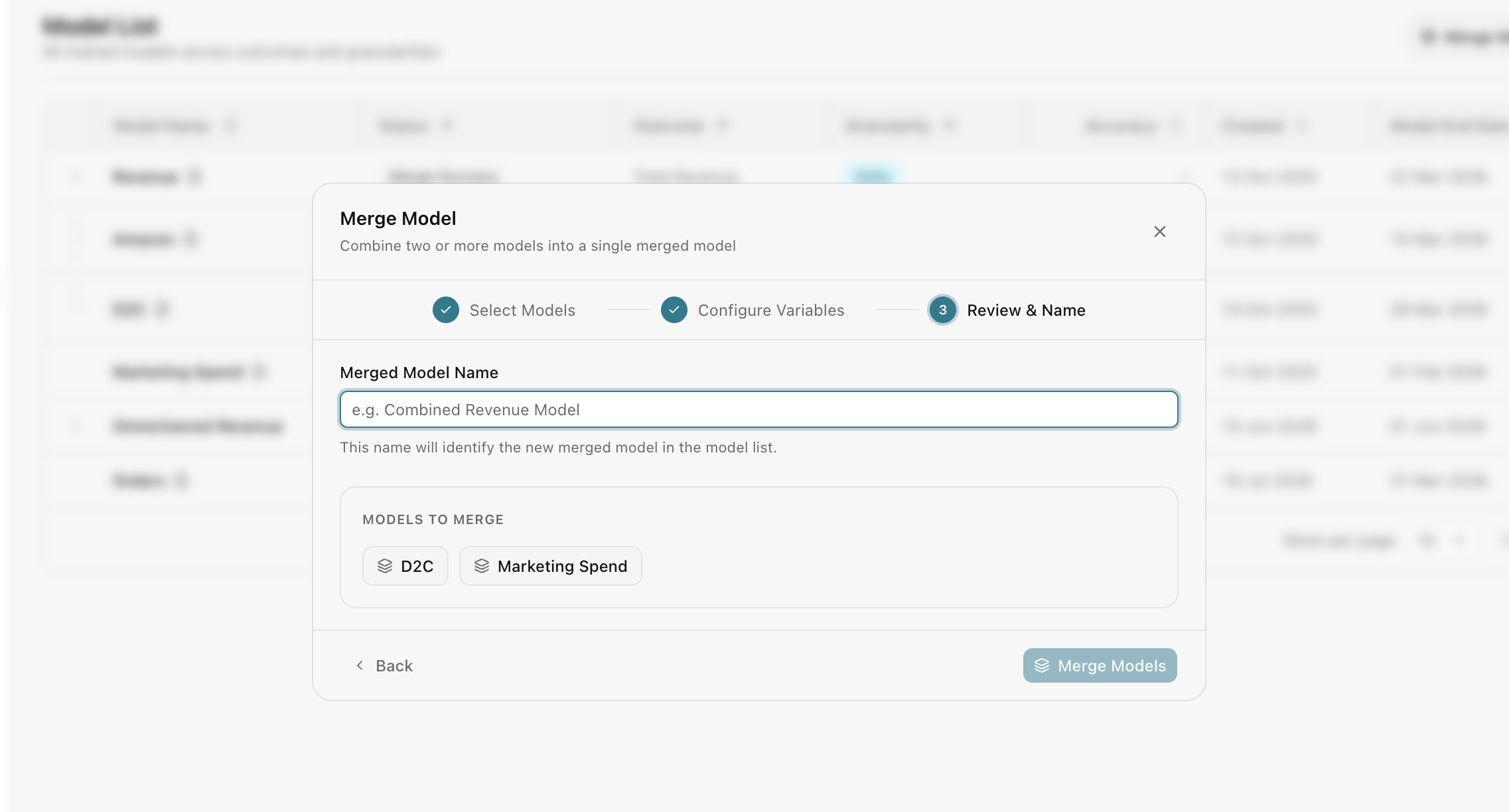
Classify variables
The merge workflow identifies variables that are common across the selected models and variables that are distinct. Review the classification carefully because it determines how results are represented in the merged output.
Review and create
Review the selected models and variable classification, then enter a unique name for the merged model and submit.
Understand merged output
A merged model is intended for consolidated review. Some outputs from a fully trained model are not available, including response curves, confidence intervals, and marginal-efficiency fields.
Do not interpret a missing merged-model field as a zero value. Return to the source models when you need model-specific uncertainty, diagnostics, or response behaviour.
Frequently asked questions
What does Merge Models do in Lifesight?
Merge Models combines results from multiple models into a single view, so you can review performance across regions, brands, or business units without opening each model and reconciling numbers by hand.
Why would I merge models instead of building one large model?
Separate models per region, brand, or business unit usually give you more accurate, detailed results. Merging lets you keep that detail while still answering portfolio-level questions in one place.
Does merging change my source models?
No. Your source models stay exactly as they are, so you can return to them whenever you need model-specific detail.
How do I merge models?
Open Model List and click Merge Models at the top right. Select eligible models, confirm they're compatible, review the variable classification, enter a unique name for the merged model, and submit.
Which models can I merge?
You can merge models with successful or refreshed results. Their outcomes, granularity, time periods, and structures must be compatible.
What makes models compatible for merging?
Compatible models measure a comparable outcome, use the same granularity (such as weekly), cover compatible time periods, and share a compatible structure.
What is variable classification?
During merging, Lifesight identifies which variables are common across the selected models and which are distinct to one model. This classification determines how results appear in the merged output, so review it carefully before submitting.
What results are available in a merged model?
A merged model is built for consolidated review of performance across models. Some outputs from fully trained models aren't available, including response curves, confidence intervals, and marginal efficiency fields.
Why is a field missing or blank in my merged model?
Some outputs, such as response curves, confidence intervals, and marginal efficiency, aren't available in merged models. A missing field doesn't mean the value is zero. Open the source models to see those results.
Where do I find uncertainty and diagnostics for merged results?
Return to the individual source models. They keep their full uncertainty, diagnostics, and response behavior.
Can I use a merged model for budget planning?
Merged models are designed for consolidated review. Since response curves and marginal efficiency aren't available, use your source models when you need detailed planning inputs.
Related Articles
Updated about 2 hours ago