
Model Review
Review model health, performance, contribution, and insights in Lifesight.
Models is where you turn trained models into results you can trust and act on. It brings everything together in one place: you review trained models, compare their results, and manage their lifecycle, from first review through promotion, planning, and archiving.
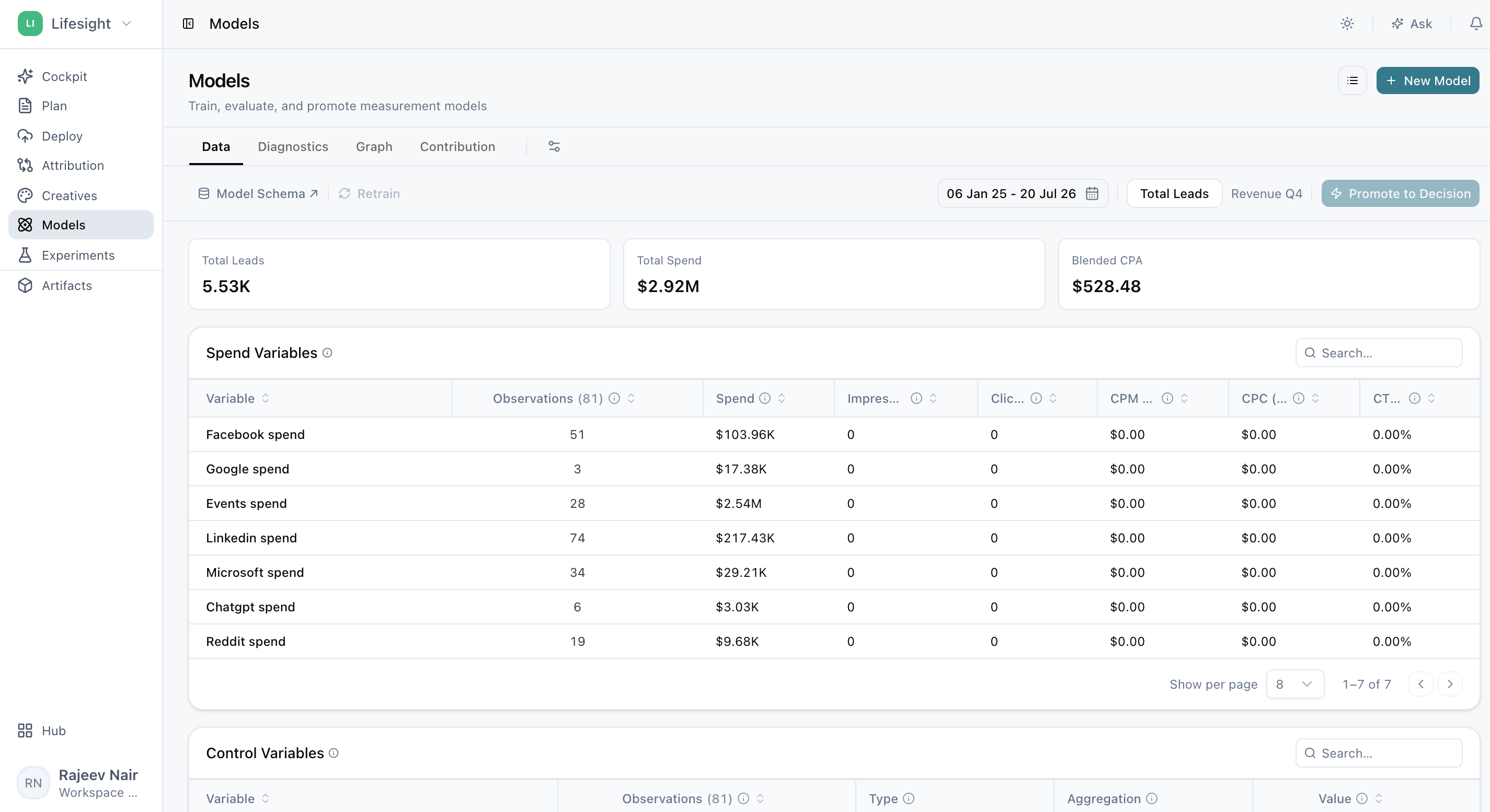
Pick the right model
Choose a promoted model
Use the model selector to choose an available promoted model (the model you've approved as your trusted source of results) for the active workspace and outcome.
Review other models
Open Model List to review models in any other state:
- Trained: models that have completed training.
- Challenger: candidate models that compete with your current promoted model before they can replace it.
- In progress: models still being trained.
- Failed: models that did not complete training.
- Archived: models you've set aside but kept for reference.
- Merged: models created by combining compatible models.
What you'll see for each model
The tabs available depend on the model's status and output:
- In-progress and failed models show only the results that can be loaded.
- Merged models do not include every output produced by a fully trained model.
Focus on the right time period
Use the page date range to scope your analysis in Data, Contribution, Insights, and Interaction. For example, set it to last quarter to see how your channels performed over that period.
When a comparison is available, review changes in spend, outcome, and efficiency together. Looking at all three at once helps you tell whether a change in results came from spending more, spending better, or both.
Note: The Period selector in the response-curve section is separate from the page date range. It controls the response-curve calculation (how outcome changes as spend increases) and marginal efficiency values (the return on the next dollar spent).
Show what you need
Use Customize Tabs to show or hide optional tabs.
- Creatives, Interaction, and Insights are hidden by default.
- A tab may also be unavailable when the selected model does not contain the required output.
Review a model with confidence
Following this order helps you build confidence in a model step by step, from the data it's built on to the results it produces.
- Open Data and confirm that the input period, trends, and variables are plausible.
- Open Diagnostics and review model fit, backtesting, residuals, transformations, and decomposition.
- Open Graph and confirm that the causal structure (how the model connects each channel to your outcome) matches what you know about your business.
- Open Contribution and assess incremental outcome, efficiency, uncertainty, and response curves.
- Enable Creatives, Interaction, and Insights when those outputs are relevant to your decision.
- Promote or plan only after the full review is complete. This makes sure every decision is based on a model you've fully validated.
Keep your models organized
What Model List shows
For each model, Model List shows its name, outcome, status, type, granularity (the level of detail the model works at, such as daily or weekly), accuracy, creation date, and model end date.
Available actions
Depending on the model's status and your permissions, you can:
- View the model schema (the structure and variables the model uses)
- Refresh or retrain the model
- Promote a successful challenger
- Create a plan from a promoted model
- Merge compatible models
- Archive, restore, or delete a model
Where calibration fits in
Calibration inputs (results from incrementality tests, such as geo experiments, that anchor the model to real-world outcomes) are configured during model creation or retraining. Diagnostics displays the calibration evidence used by the selected model.
Frequently Asked Questions
Why don't I see a model in the model selector?
The model selector shows available promoted models for the active workspace and outcome. To see models in other states, such as challengers or in-progress models, open Model List.
Why are some tabs missing for my model?
Available tabs depend on the model's status and output. In-progress and failed models show only the results that can be loaded, and merged models don't include every output of a fully trained model. Some tabs, such as Creatives, Interaction, and Insights, are also hidden by default.
How do I show Creatives, Interaction, or Insights?
Enable them from Customize Tabs. If a tab still doesn't appear, the selected model may not contain the required output.
What is the difference between the page date range and the Period selector?
The page date range scopes your analysis in Data, Contribution, Insights, and Interaction. The Period selector in the response-curve section controls only the response-curve calculation and marginal efficiency values.
What order should I review a model in?
Start with Data, then Diagnostics, Graph, and Contribution. Enable Creatives, Interaction, and Insights if relevant, and promote or plan only after the full review.
What is a challenger model?
A challenger is a candidate model that competes with your current promoted model. You can promote a successful challenger once you've reviewed it.
Can I create a plan from any model?
Plans are created from promoted models.
Why can't I see certain actions for a model?
Available actions depend on the model's status and your permissions.
Where do I add or update calibration evidence?
Calibration inputs are configured during model creation or retraining. You can review the evidence used by a model in Diagnostics.
Can I recover an archived model?
Yes. Archived models can be restored from Model List, depending on your permissions.
Related Articles
Updated about 1 hour ago