
Create a custom role
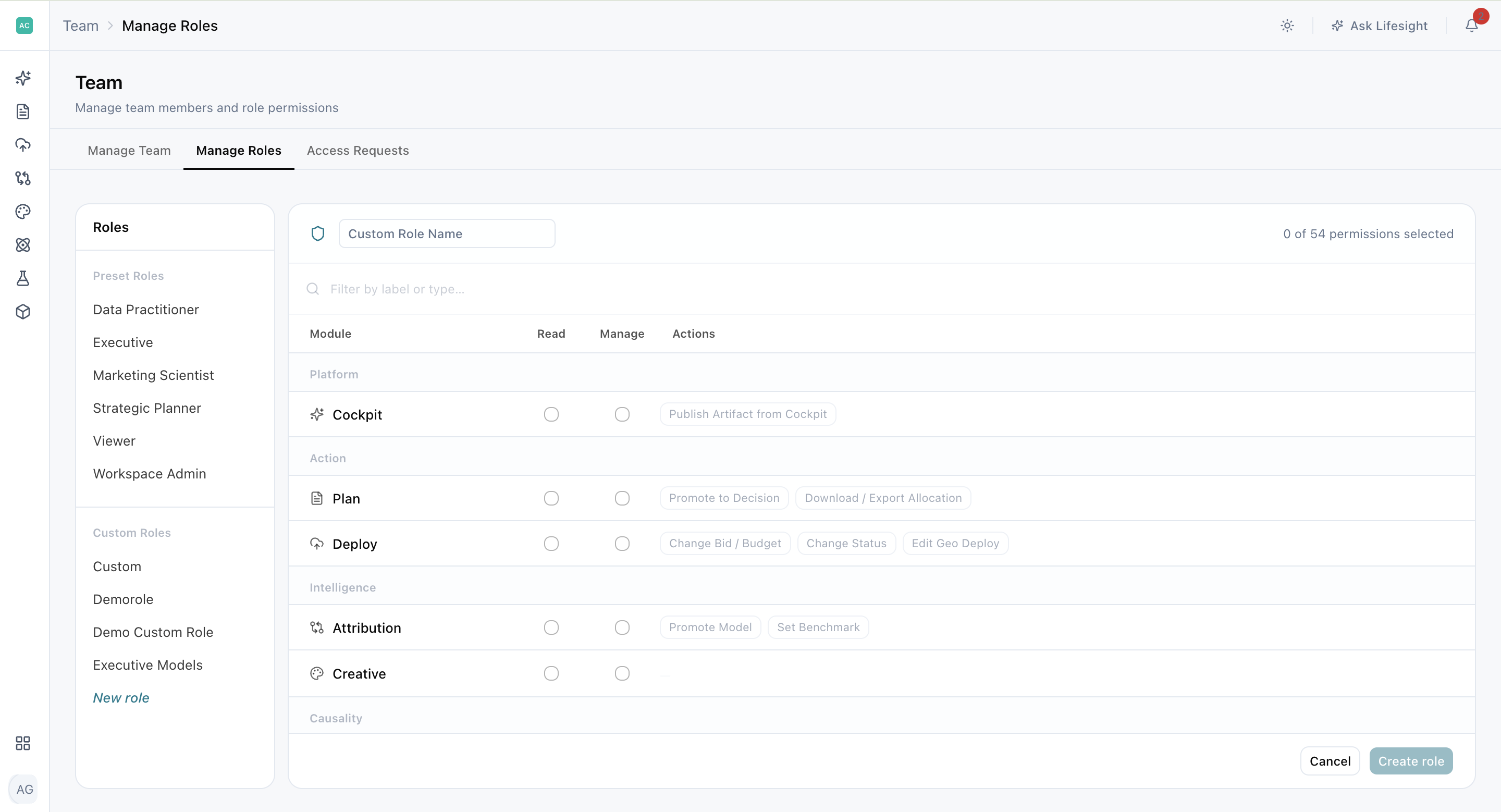
Team > Manage Roles holds the five preset roles and the Read, Manage and Actions grid where a Workspace Admin creates, edits and deletes custom roles.
A role decides what a person can open and change in Lifesight. Five preset roles cover most teams, but when someone needs a combination no preset holds, you can build a custom role: a set of rights you assemble yourself, module by module. For example, you might give an agency partner read-only access to Attribution and Experiments, without access to Plan, Data, or Settings.
Everything happens in Team > Manage Roles, which also shows the five preset roles as read-only. Start by reviewing a preset that comes close to what you need, so you can see the shape you're aiming for before you tick anything.
Who can do this
- Role: Workspace Admin. Every role can open Manage Roles and view the grid. For everyone else, New role is dimmed with the tooltip "Your role (
- Where: sidebar user menu > Team > Manage Roles
- Time: about 3 minutes per role
Before you start
- You are signed in as a Workspace Admin.
- Team > Manage Roles is open.
- You know which modules the person needs to open, which they need to change, and which named actions they need to run.
- You've checked whether a preset already covers it. Moving someone onto a preset takes one step in Manage Team.
Start from a preset
Manage Roles opens on Workspace Admin.
- In the sidebar, open the user menu and select Team.
- Select Manage Roles.
- Under Preset Roles, select a role.
The right pane shows the role name, its tagline, and the number of rights it holds above the caption permissions. Presets are read-only, so there are no checkboxes, filter, or footer.
| Preset role | Tagline | Rights held |
|---|---|---|
| Workspace Admin | Full platform access | 55 of 55 |
| Data Practitioner | Data pipelines & measurement infrastructure | 27 of 55 |
| Marketing Scientist | Attribution, experiments & creative intelligence | 29 of 55 |
| Strategic Planner | Campaign planning & budget deployment | 24 of 55 |
| Executive | Read-only strategic overview | 16 of 55 |
Viewer is a sixth built-in role. See Roles: what each one opens, and what it can do. Under Custom Roles, below the presets, "None yet" shows until you create one.
Create a custom role
Role: Workspace Admin
- In Team > Manage Roles, select New role.
- Enter a name for the role.
- Optional: in Filter by label or type…, enter a label, a right code such as LS-DA-03, or "read," "manage," or "action" to narrow the grid.
- Tick Read on every module the role should open.
- Tick Manage on every module the role should also change.
- Select the chips in Actions that the role should be able to use.
- Select Create role.
A confirmation appears: "Role "
If something goes wrong
- Create role stays unavailable until you enter a name. Pressing Enter in an empty name field shows "Enter a role name."
- If you see "A role with that name already exists," change the name and select Create role again.
You're done when:
- The role appears under Custom Roles in the left pane.
- The counter matches the rights you meant to grant.
- The role is available in Invite User and Change role in Manage Team.
Grant the right level of access
The grid has four columns: Module, Read, Manage, and Actions. Rows are grouped under Platform, Action, Intelligence, Causality, System, Artifacts, and Workspace.
There are 55 rights in total: a read and a manage right for each of the 16 modules, plus 23 action rights.
| Column | What it grants | The rule |
|---|---|---|
| Read | Opens the module for viewing | Unticking Read also unticks Manage on that module |
| Manage | Changes and configures the module | Ticking Manage also ticks Read on that module |
| Actions | One named button, such as Connect Integration | Chips are independent of Read and Manage, but an action stays denied while the module has no Read |
Always grant Read before actions
Because of that last rule, always grant Read on a module before selecting its action chips. An action chip on a module without Read grants nothing.
Which modules have actions
Nine modules carry actions: Cockpit (1), Plan (2), Deploy (3), Attribution (2), Models (3), Experiments (1), Data (4), Team (4), and Settings (3). The other seven, Creative, Agents, Profiles, Segments, Brain, Config, and Artifacts, have none, and their Actions cell always reads "—".
How a saved role is displayed
- Outside edit mode, the grid lists only modules that hold at least one right.
- A cell shows ✓ when the right is granted and "—" when it isn't, and granted actions appear as chips.
- A custom role with nothing ticked shows "No permissions granted" with the line "Use the pencil beside this role to add permissions."
- A filter that matches nothing shows "No rights match your search."
For the full grid of every role, module, and right, see Permissions matrix.
Frequently Asked Questions
Who can create a custom role?
Only a Workspace Admin. Other roles can view Manage Roles, but New role is dimmed.
Should I create a custom role or move the person onto a preset?
Move the person onto a preset when one of the five covers their needs, which takes one step in Manage Team. Create a custom role for a combination no preset holds.
How many rights are there in total?
55: a read and a manage right for each of the 16 modules, plus 23 action rights across nine modules.
Why did Read tick itself when I ticked Manage?
You can't change a module you can't open, so Manage always includes Read. The reverse also applies: removing Read removes Manage.
Can I grant an action without granting the module?
You can select the chip, but it won't work. An action stays denied while the module has no Read.
Can I edit a preset role?
No. Preset roles are read-only. Create a custom role if you need a different combination.
Can two custom roles have the same name?
No. If a name is already taken, you'll see "A role with that name already exists."
Where can I use a custom role once it's saved?
It appears in Invite User and Change role in Manage Team. See Invite, change, and deactivate teammates.
Can I create a custom role from the invite dialog?
No. Selecting + Create Custom Role there brings you to Manage Roles. Build the role first, then invite the person.
Updated about 2 hours ago