
Google Ads
Connect your Google Ads accounts to measure search, shopping, video and Performance Max spend alongside every other channel in Lifesight.
Google Ads reaches people at the moment they are looking for something, across Search, Shopping, YouTube, Display and Performance Max. For most advertisers it is both the largest line in the budget and the hardest to read honestly, because brand search takes credit for demand that already existed while prospecting campaigns do the work of creating it.
Connecting Google Ads gives Lifesight the campaign level detail needed to separate those two, rather than treating Google as one undifferentiated block of spend.
What Lifesight brings in
Lifesight reads the full account hierarchy so that spend can be attributed at the level you actually manage it:
- Account - the ad account, useful when you run several campaigns.
- Campaign - where objective, budget and bidding live.
- Ad Group - targeting and keyword themes.
- Ad - the individual creative.
The data pulled includes:
| Category | Data points |
|---|---|
| Performance metrics | Spend, Impressions, Clicks, Click Through Rate, Video Views |
| Conversion metrics | Conversions, Conversion Value, Attributed Revenue |
| Cost metrics | Cost Per Click, Cost Per Mille |
| Hierarchy dimensions | Account Name, Campaign Name, Ad Group Name, Ad Name |
| Targeting dimensions | Country, Region, Device, Advertising Channel Type, Objective |
Before you start
You need a Google account with access to the Google Ads accounts you want to sync. Read access is enough. If you manage clients through a manager account, sign in with the manager account and you will see everything underneath it in one go.
Worth confirming beforehand: which ad accounts actually carry the spend you want measured, and what currency each one reports in. Mixing currencies in a single model is a common and avoidable mistake.
Connecting Google Ads
- Go to Data > Integrations and click Add Integration.
- Search for Google Ads and click Connect on the tile.
- On the Authenticate step, click Sign in.
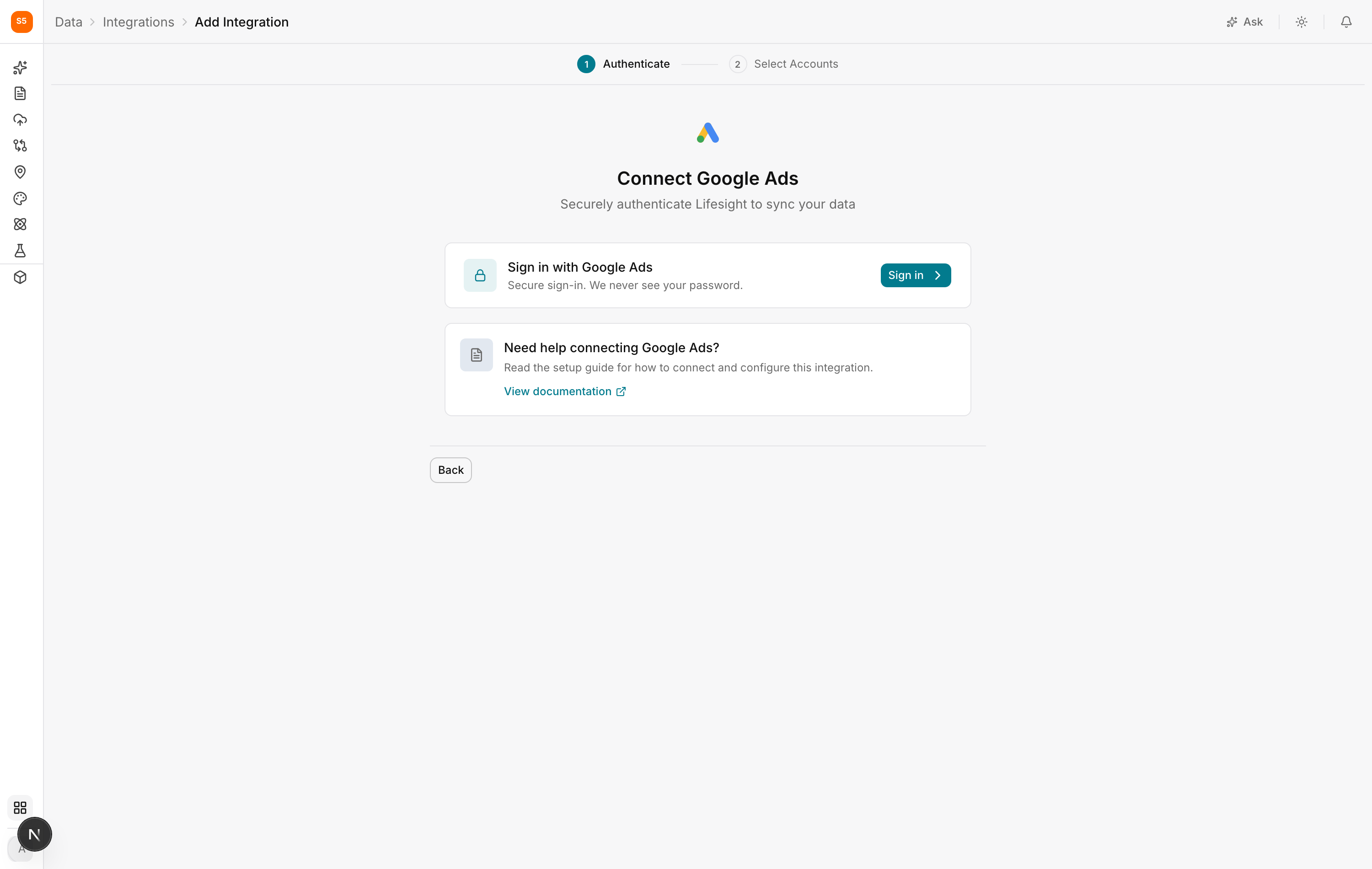
- You are taken to Google's sign in screen. Log in and approve the access Lifesight requests. Lifesight asks for read access to your reporting data. It never sees your password and cannot change campaigns through this connection.
- Back in Lifesight, the Select Accounts step lists every Google Ads account your login can reach. Tick the ones you want to sync.
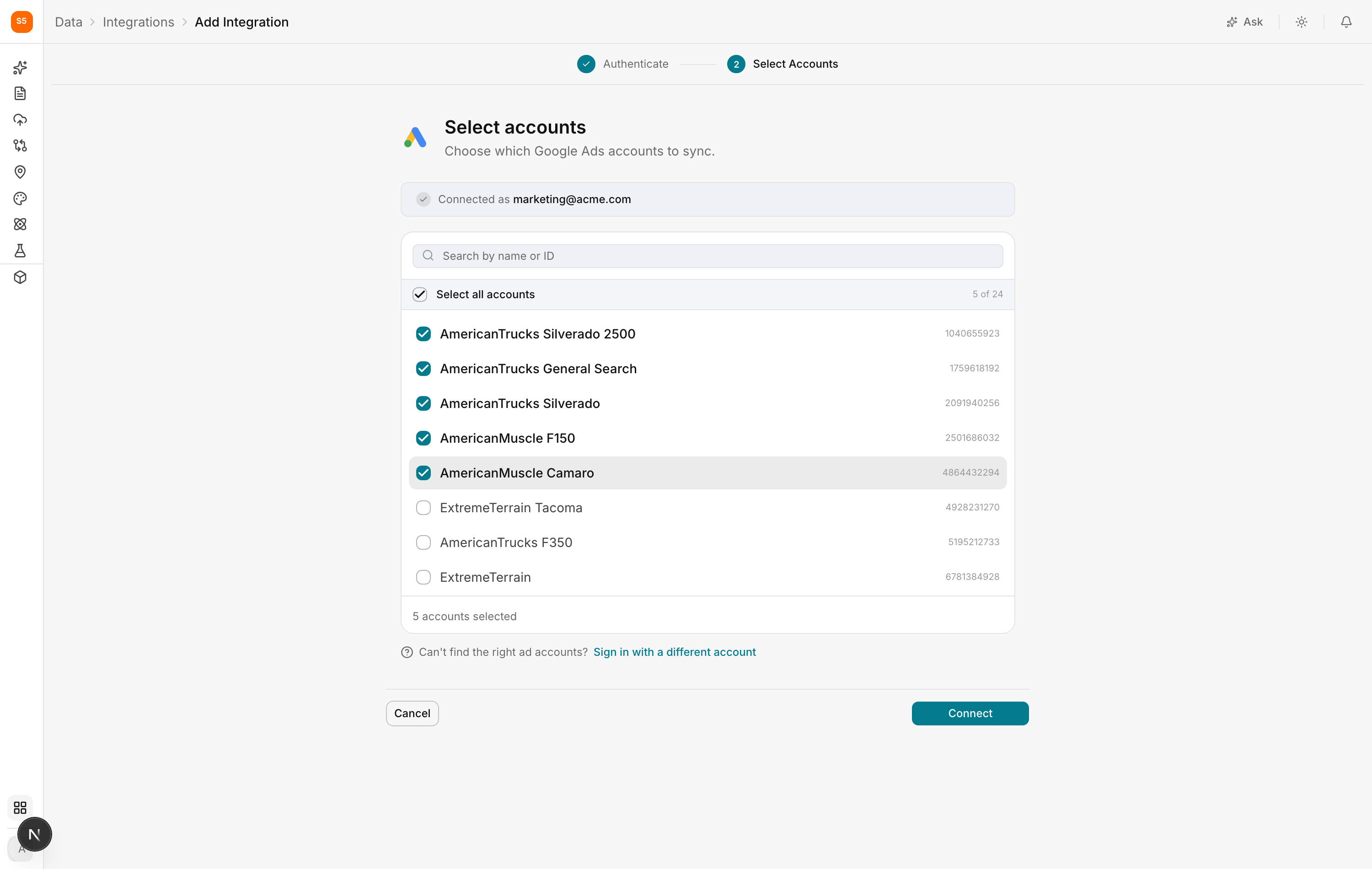
- Click Connect.
Lifesight then starts its first pull, which covers your history and can take a while on a large account. The integration shows Sync in Progress until it is done, then Healthy.
After connecting
Two things are worth doing straight away.
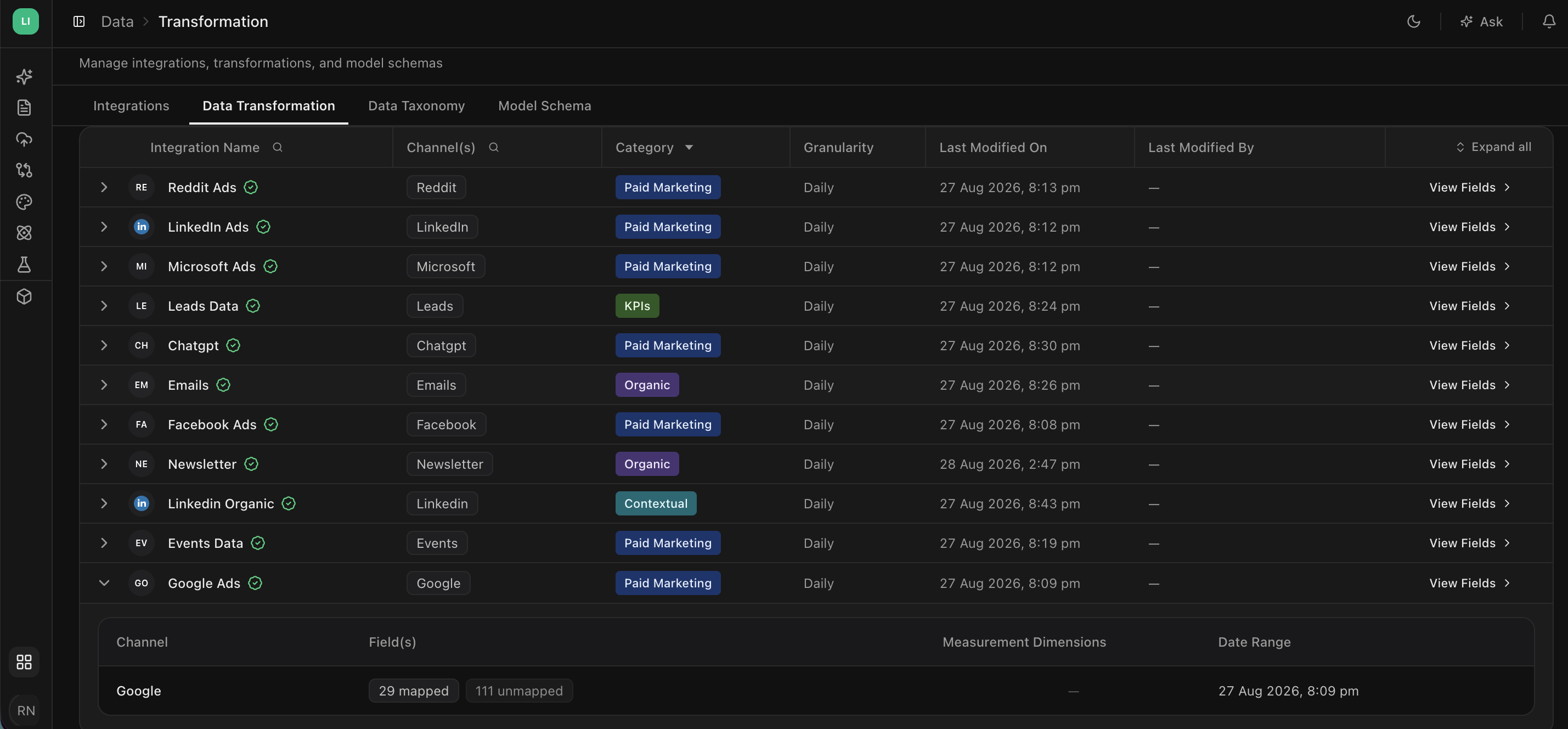
Check the fields - Open Data > Data Transformation, find Google Ads, and click View Fields. Most columns are mapped for you. Confirm that spend and your revenue field landed on the fields you expect.
Classify the campaigns - Open Data > Data Taxonomy. Google is where the brand and non-brand split matters most, so this is the highest value place to spend ten minutes. Sort by spend and work down.
Troubleshooting
Not all my accounts are listed
The Google login you used does not have access to them. Sign in with a manager account that covers them, or have someone grant your user access in Google Ads first.
Spend does not match the Google Ads interface
Check three things in order: the timezone the account reports in, whether every account is selected, and whether the date ranges truly match. Small differences are normal because platforms finalise numbers over several days.
The integration went to Reconnect
The Google account's authorisation expired or was revoked, which commonly happens when someone changes a password or leaves the company. Open the integration and sign in again. Nothing already synced is lost.
Conversions look lower than in Google Ads
Google reports conversions on its own attribution window and back-dates them to the click. That is a different question from the one Lifesight is answering, and a difference here is expected rather than a fault.
Next up
Connect your:
- Microsoft Ads
- Snapchat Ads
- Reddit Ads
Updated about 1 hour ago