
Lifesight Connector for Claude
Bring your marketing measurement insights into Claude make confident marketing decisions, faster.
Every Lifesight workspace can now connect to Claude in a few minutes. Once connected, your team can ask about budgets, channels and experiments in plain language, right where they already work.
This guide walks you through setup, explains what the connector can do, and helps you fix common issues.
What it is
The Lifesight Connector is built on the Model Context Protocol (MCP). Once you connect it, Claude can read your Lifesight measurement data for you and answer questions about:
- Marketing mix models
- Causal attribution
- Geo-lift experiments
- Budget optimization and saved plans
- Data source health
- Spend anomalies
- Creative performance
Every answer follows two rules.
First, the numbers always come from the Lifesight platform. Some are calculated from platform numbers by the Lifesight server, and those are clearly labeled. Each result includes a provenance block that shows where each number came from, along with its unit and currency, so you can always check it.
Second, every request is limited to the workspace you have selected. Lifesight checks your membership and permissions on every request. Claude cannot access a workspace you don't belong to, or do anything your account isn't allowed to do.
Install
Choose the app you use. The server URL is the same for all of them:
https://ask.lifesight.io/mcp
Use the right URL. A configuration pointing tohttps://mcp.lifesight.io/mcpuses a different, legacy endpoint.
Claude.ai and Claude Desktop
- Open Claude's Customize → Connectors settings.
- Choose Add custom connector, or select the Lifesight Connector if your organization administrator has already added it. Your Claude organization may need an administrator to add the connector first.
- If adding it yourself, enter Lifesight Connector as the name and paste the URL above.
- Follow Claude's prompts to connect and sign in. See Your first connection below.
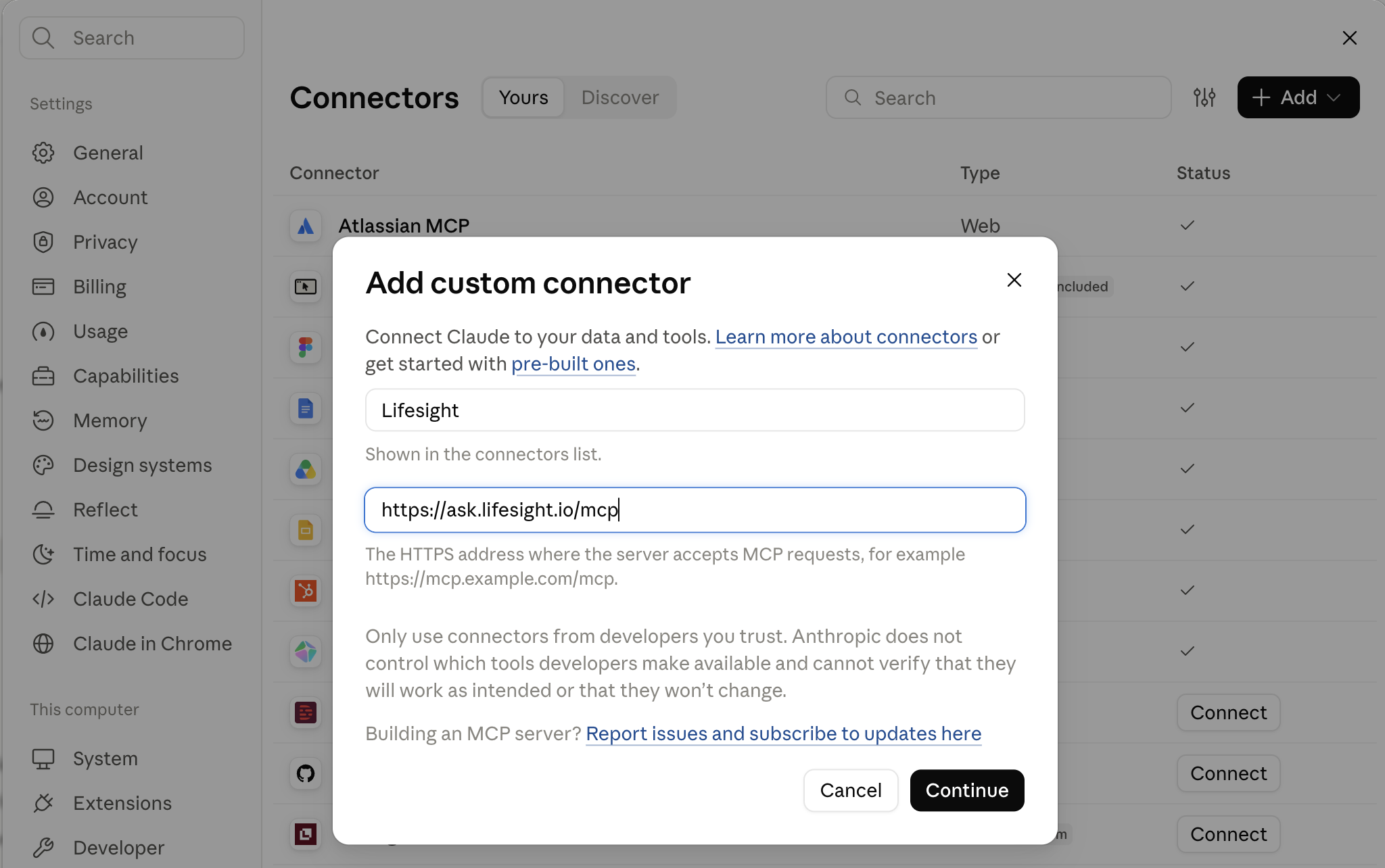
For Claude's current setup steps, including administrator steps, see Get started with custom connectors using remote MCP.
Claude Code
Add the server directly:
claude mcp add --transport http ask-lifesight https://ask.lifesight.io/mcpThen enter /mcp, select ask-lifesight, and follow the browser sign-in prompts.
If the connector is already available through your connected Claude account, you can use that connection without adding a duplicate.
A plugin is not required. If you also want the twelve guided workflows as Claude Code skills, you can install the optional plugin:
/plugin marketplace add lifesight/ask-lifesight-plugin
/plugin install ask-lifesight@lifesight
For Claude Code's current MCP setup steps, see the Claude Code MCP docs.
Other MCP clients
Any app that supports streamable HTTP with OAuth 2.1 can connect. This includes Cursor, VS Code, Windsurf, Zed, Codex and others. Add the URL above, and the app will find the server and handle sign-in for you.
{
  "mcpServers": {
    "ask-lifesight": {
      "type": "http",
      "url": "https://ask.lifesight.io/mcp"
    }
  }
}
Headless use (CI, SDKs)
If you can't sign in through a browser, create a personal access token in the Lifesight console under Settings → Claude & MCP. Then send it as a bearer token:
Authorization: Bearer pat_...Tokens expire after a set time. You can revoke them from the same page.
Your first connection
The first time Claude uses the connector, your browser opens Lifesight's connection page.
- Sign in the way you usually do. Single sign-on and multi-factor authentication work just like they do in the product.
- On the Lifesight consent screen, review the app requesting access and the permissions it asks for.
- Authorize the connection.
You don't need to copy or store an API key, or paste a password or token into a conversation.
Always start from the sign-in flow in your assistant. Opening the Lifesight connection page on its own does not start a connection, because it needs the link your assistant generates.
Your connection includes every workspace you belong to. A good first question is:
What can you tell me about my marketing in Lifesight?
Claude will run get_workspace_context to understand your setup. This shows your workspaces, which one is active, its champion models (with their KPI, currency and data window), channels, the promoted plan, what your connection is allowed to do, and three questions that workspace can answer today. It doesn't return any measurement numbers. It just gives Claude the context it needs before answering.
Workspaces
If you belong to more than one workspace, you start in the workspace you signed in to. To switch, just ask:
Switch to the Acme workspace
Claude runs switch_workspace, and everything after that happens in the new workspace until you switch again. The connection remembers your choice while you keep using it. To ask one question about a different workspace without switching, every tool also accepts a workspace_id.
Workspaces are added when you connect. If someone adds you to a new workspace after you connected, remove the connector and add it again so the new workspace shows up.
What it can do
The connector has 22 tools. Most only read data. A few change something, and the table shows exactly what each one changes.
| Tool | What it does | Effect |
|---|---|---|
| Orientation | ||
get_workspace_context | Workspace context | Reads context |
switch_workspace | Switch workspace | Changes the workspace for this connection |
| Models and measurement | ||
list_mmm_models | List MMM models | Reads data |
get_mmm_report | MMM report | Reads data |
get_attribution_report | Causal attribution report | Reads data |
get_channel_saturation_curves | Channel saturation curve | Reads data |
compare_channel_measurements | Compare a channel's measurements | Reads data |
get_geo_experiments | Geo experiments | Reads data |
get_creative_performance | Creative and tactic performance | Reads data |
| Budget and planning | ||
get_current_budget_allocation | Current budget allocation | Reads data |
start_budget_optimisation | Start a budget optimization | Creates a scratch scenario; does not save or promote a plan |
get_budget_optimisation | Read a budget optimization | Reads job status and results |
compare_budget_scenarios | Compare up to six budget scenarios | Creates scratch scenarios; does not save or promote a plan |
get_saved_plans | Saved budget plans | Reads data |
save_budget_plan | Save a budget plan | Writes a saved plan; does not make it the default |
request_plan_promotion | Request a plan promotion | Opens an approval request; does not promote on its own |
get_approval_status | Read an approval's decision | Reads status and results |
| Data and health | ||
get_data_source_health | Data source health | Reads data |
detect_spend_anomalies | Spend anomalies | Reads data |
get_cue_cards | Cue cards | Reads data; card actions stay in Lifesight |
| Checks and feedback | ||
check_figures | Check a draft's figures | Reads recorded results |
send_feedback | Send feedback on an Ask Lifesight answer | Writes answer feedback |
You don't need to know any tool names. Just ask your question in plain language, such as "Where should next quarter's budget move?", and Claude picks the right tools.
What the connector does not include
The connector does not run Ask Lifesight investigations, free-form ads data queries, Lifesight documentation search, or support tickets. It cannot open or check a support ticket for you. Claude can still analyze every result the tools above return.
Long tasks don't hold you up
If a budget optimization finishes quickly, you get the answer right away. If it takes longer, Claude gets a task ID and checks back with get_budget_optimisation. Each response includes poll_after_s, which tells Claude how many seconds to wait before checking again, so it doesn't check too often.
A failed or lost job is not a finished plan. If a save reports an uncertain outcome, check its status or your saved plans in Lifesight before asking again.
Writes and approvals
Three tools make changes in Lifesight. Each one can only do a limited set of things.
save_budget_plansaves an optimized plan under a name you choose. It shows up in the console under your name. It does not change the plan your workspace is working from.request_plan_promotionnever promotes a plan on its own. It prepares the plan and then waits for a human decision. Claude gives you a link to the request in the Lifesight product, and it also shows up in your conversation list as "Claude connection." You approve or reject it there. Claude then usesget_approval_statusto see your decision. Treat the plan as promoted only when the status shows it was approved.send_feedbackrecords your verdict on an existing answer from Ask Lifesight in the product. It does not create a support ticket.
No money ever moves. Promoting a plan only sets your workspace's default plan, the one your team plans against. It is not a financial transaction. No payment is made, and no spend changes on any ad platform. The connector has no tool that can transfer money or change spend on an ad platform.
Permissions
By default, a connection can only read data. A workspace admin can give it more access. There are three levels:
| Access | What the connection can do | Granted by |
|---|---|---|
Read (lifesight.read) | Use every read tool. Always included. | Automatic |
Write (lifesight.write) | Save budget plans. Some budget planning can also need write access. | Workspace admin |
Decide (lifesight.decide) | Use request_plan_promotion (still needs approval in the product) | Workspace admin |
Granting access to the connection never goes beyond your own permissions in that workspace.
Admins set these for each workspace in Settings → Claude & MCP. From there, they can also turn the connector off for the whole workspace, or choose which AI assistants are allowed to use it. If a connection doesn't have the access a tool needs, the tool won't run, and you'll see a message telling you where to turn it on. Nothing is partly saved.
New access needs a fresh connection. Your access is set when you sign in. If an admin gives you write or decide access later, remove the connector and add it again. Until you do, write actions will keep being refused.
Guided workflows
The connector comes with twelve ready-made workflows. They are available as MCP prompts, and as skills in Claude Code when you install the optional plugin. Each one covers a question teams ask often, and already knows which data to pull to answer it.
- Weekly performance readout
- Budget reallocation
- Saturation and headroom
- Scenario planning
- Model health check
- Data health
- Experiment readout
- Experiment roadmap
- Attribution reconciliation
- Anomaly triage
- P&L translation
- Board briefing
Example prompts
Each of these works as written in any workspace that has a marketing mix model. You don't need to name your channels, because Claude gets them from your workspace. Each prompt asks several things at once. Claude answers every part, and tells you if one part can't be answered.
Which workspace and models do I have?
Which Lifesight workspace am I connected to, and which MMM models are available?
You get your active workspace, any other workspaces you can switch to, and the models available in each.
Which models can I use, and what do they cover?
List the champion MMM models in my workspace, including their KPIs and available data periods.
You get each champion model with its KPI and the data period it covers, so you know which periods you can ask about.
How are my channels performing?
For my champion MMM model, show channel contributions and model accuracy for a period with data. Explain the units and identify any unavailable sections.
You get each channel's contribution and how accurate the model is, with units explained. If a section isn't available, Claude tells you.
Where should next quarter's budget go, and why?
Reallocate next quarter's budget across my channels at the same total spend. Show me what moves, what the expected outcome is, and explain each move from the response curves rather than just giving me the split.
Claude runs the model's optimizer and explains each change using the saturation curves behind it. Nothing is saved unless you ask.
Where am I saturated, and where is there still room?
Which of my channels are saturating and which still have headroom? Give me the marginal return at current spend for each, and tell me where the next unit of spend works hardest.
You get the marginal return and headroom for each channel, taken from the model's response curves.
What did the experiment prove, and what changes because of it?
What did our most recent geo experiment show? Give me the lift, how confident we should be in it, and what we should change in the plan as a result.
You get the lift with its confidence interval and significance, plus a recommendation based on the result. If the result isn't statistically significant, Claude tells you so instead of treating it as final.
Can I trust this channel's number?
Take my largest channel by spend. Put the MMM contribution, the causal read, the channel's own reporting and the last lift test side by side. Do they agree? Tell me which to plan on and what would settle it.
You get four measurements of the same channel, each with its own context (confidence interval, attribution window, significance). You also see how far apart they are and which one to plan on. They are never averaged into one number.
Is my data healthy?
List my connected data sources and show which need attention. Then show recent sync health for Meta Ads, if it is connected.
You get every connected source with the ones that need attention flagged, plus recent sync health for the source you named.
What's behind my recent spend anomalies?
Review recent spend anomalies in my workspace and check data-source health. Summarize the reported anomalies, cite the available evidence, and explain what needs further investigation. Clearly distinguish observed facts from possible explanations.
You get a summary of recent anomalies with the evidence behind each one. What Claude observed is kept separate from what might explain it.
What does my model measure for creatives?
Show the creative tactics my selected MMM model measures and the first page of reported spend by tactic. Tell me whether another page is available.
You get the tactics your model measures and a first page of reported spend by tactic. This is reported spend, not an MMM contribution estimate.
What happens if I move spend?
What happens to the outcome if I cut my smallest channel by 30% and move that spend into my largest? Show me the before and after per channel, and tell me how confident the model is at that spend level.
You get a scenario run against the model, along with how confident the model is at the spend level you're proposing.
How do I explain the plan to the CFO?
Translate our current plan into finance terms: the spend, the forecast outcome, the return per unit of spend, and how we are tracking against plan so far. No jargon. This is going to the CFO.
You get the plan explained in terms of spend, return and variance. Every number still shows its source, so finance can check where any figure came from.
Results depend on your workspace's data, your model and your permissions. A missing model, a disconnected source, or a date range outside your data can return an unavailable or no-data result.
Tip: ask for everything at once. "Give me the quarterly plan, tell me which channel needs calibration, and explain it for the CFO" is three questions. Claude works through each one, and if one can't be answered, it tells you instead of skipping it.
Limits
- One optimization at a time per connection. If it finishes quickly, you get the answer right away. If not, Claude checks back when it's ready.
- Large results may be shortened. If a result is cut, the warnings tell you what was left out and how to narrow your question, such as asking for one section, a shorter time period, a filter, or
response_format: concise. The Lifesight product always shows the full result. - Rate limits apply to each member in each workspace, and separately to sign-in. If you go over the limit, you'll get a 429 response and Claude will try again shortly. In normal use, you shouldn't notice this.
- Session length: your access token refreshes on its own while you use the connector. If you don't use it for a long time, the connection expires and you'll be asked to sign in again. Until then, it keeps your selected workspace and conversation threads.
- Personal access tokens expire, and you can revoke them from Settings → Claude & MCP.
You can see the current values for each of these in the console under Settings → Claude & MCP.
Troubleshooting
Why do most tools suddenly fail with a message about additional properties?
If almost every tool returns an error like data must NOT have additional properties, your app is checking results against an old copy of our schema. It saved that copy when you first connected, and we've since added a new field.
To fix it, remove the connector and add it again. Server updates don't fix a connection that's already open. Only reconnecting refreshes the saved schema and tool list.
Reconnect in every app you use. Claude.ai, Claude Desktop and Claude Code each keep their own saved copy. Reconnecting in one app doesn't fix the others.
Why is a write refused even though my admin gave me access?
Your access is set when you sign in. If your admin gave you access after you connected, remove the connector and add it again. If it still fails, ask your admin to check that Settings → Claude & MCP shows write or decide access for that workspace. Access is set per workspace, not per account.
What does "Workspace … is not one you hold" mean?
Your workspaces are added when you connect. If you were added to this workspace later, remove the connector and add it again. If it still happens, ask your admin to make sure your membership is active and not still a pending invite.
What does "MCP is switched off for this workspace by its admin" mean?
An admin has turned off the connector for this workspace in Settings → Claude & MCP. Your other workspaces aren't affected. Use switch_workspace to move to a workspace where it's turned on.
What does "… cannot be served right now: its MCP settings could not be read" mean?
This is a different issue. We couldn't read the workspace's settings, so we pause access instead of guessing. This usually clears up quickly. Try again in a little while. Nobody needs to change anything.
Why is the sign-in page missing connection details?
Start from the connect or sign-in step in your assistant. Don't open the Lifesight connection page on its own as a login link.
Why does a result look cut off?
Large results are shortened to fit. Check the warnings, which tell you what was left out and how to narrow your question. Asking for one section, a shorter time period, or a single channel usually gets you the full result.
Why does Claude say it can't answer because there's no model?
Most questions need a champion marketing mix model in your workspace. Without one, you can still ask about data health, experiments and saved plans. Promote a model in the product to unlock everything else.
Why does sign-in open but never finish?
Make sure your browser isn't blocking the pop-up, and that you're signing in to the Lifesight account that has the workspace you want. If your organization limits outside network access, allow ask.lifesight.io.
What should I do if a tool fails unexpectedly?
Note the tool name and any support reference in the error, then contact Lifesight support. Never include passwords or tokens.
Privacy and security
What Claude receives: only the results of the tools it uses, from the workspace you've selected, and only within your permissions. Lifesight reads your workspace using your sign-in. Your marketing data warehouse is read by Lifesight using its own service credentials, limited to your workspace's dataset.
What Lifesight receives and stores: the inputs to each tool request, along with the results. These are saved in a thread linked to your account and workspace. Lifesight also keeps one audit record per request. Each record shows:
- Who made the request
- Which workspace, assistant and tool were used
- A one-way digest of the inputs
- The result and how long it took
The audit record doesn't include the inputs themselves.
What Lifesight does not receive: the rest of your conversation with the assistant, your other files, or your other connected services.
How long data is kept: threads and audit records are kept for two years.
Sign-in: uses OAuth 2.1 with PKCE. No API key is created or stored. The assistant never sees your Lifesight password.
Revoking access: disconnect in your assistant, or revoke access from Settings → Claude & MCP → Your connected clients in the Lifesight console. An admin can also turn off the connector for a whole workspace from Settings → Claude & MCP.
You can find full details in the Lifesight privacy policy. For privacy questions, email [email protected].
FAQs
Can Claude see data I can't see?
No. Every request is limited to the workspace you've selected, and your membership and permissions are checked before anything is read.
Can Claude spend money or change my ad campaigns?
No. There's no tool that can transfer money, make a payment, or change spend on an ad platform. The most a change can do is propose a plan, which you then approve inside the Lifesight product.
Where do the numbers come from?
Always from the Lifesight platform. Every result includes a provenance block that shows where each number came from, along with its unit and currency. You can also ask Claude to run check_figures on any draft, and it will tell you which numbers are actually backed by the results in that conversation.
Can I use it with more than one workspace?
Yes. Every workspace you belong to is included. Switch by just asking, or name a workspace for a single question.
Can my whole team use it?
Yes. Each person connects with their own account and sees only what their permissions allow. Admins decide, for each workspace, whether the connector is on, which assistants can use it, and whether connections can make changes.
Does it work in ChatGPT or other assistants?
It's a standard MCP server, so any app that supports streamable HTTP and OAuth can connect. Workspace admins choose which assistants are allowed for each workspace.
What happens to a conversation thread?
It belongs to your account and workspace. It shows up in your Lifesight conversation list next to your product conversations, so you can go back and see what Claude asked and what came back.
Still stuck? Contact Lifesight support through the console or at support.lifesight.io.
Updated 6 days ago