
Model Refresh: Refresh your marketing model with the latest data
Refresh a successful model with newly available observations.
A model refresh keeps your model current by adding new periods of data while retaining its existing structure. You get up-to-date results without rebuilding or reconfiguring anything, as long as your data schema (the format and set of columns your data follows) and the underlying business relationships are still a good fit.
Choose the right update
Refresh and retraining both update your model, but they solve different problems. Picking the right one saves time and keeps your results reliable.
Refresh when:
- New data follows the existing schema.
- You want to extend the model's results into more recent periods.
- Your channel mix, markets, and business relationships look much the same as when the model was built.
For example, you've just closed a month and want your contribution and ROI results to include it.
Retrain when a deeper change is needed, such as:
- Adding, removing, or redefining variables.
- A shift in the relationships between channels and outcomes.
- New calibration evidence (results from incrementality tests, such as geo experiments, that anchor the model to real-world outcomes).
- Changes to model configuration.
- A change in market behavior, such as entering new markets or a major shift in how customers buy.
Run your first refresh
You start the first refresh from the model's action menu in Model List.
Which models can be refreshed
Models with Success, Refresh Success, or Refresh Failed status can be eligible for a refresh.
Steps to run a refresh
- Open Model List.
- Open the action menu for the model.
- Select the refresh action.
- Upload and review the updated data.
- Submit the refresh.
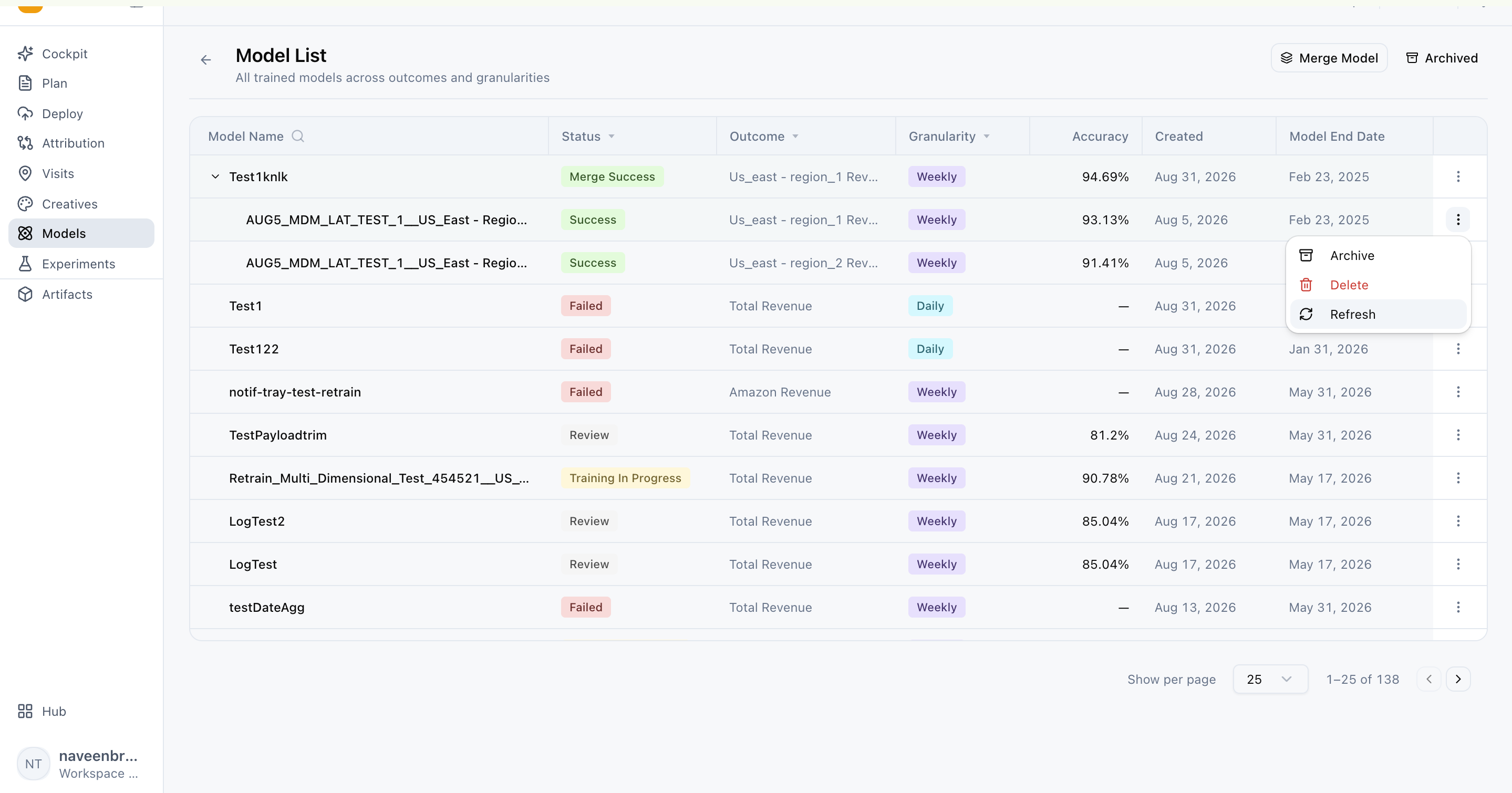
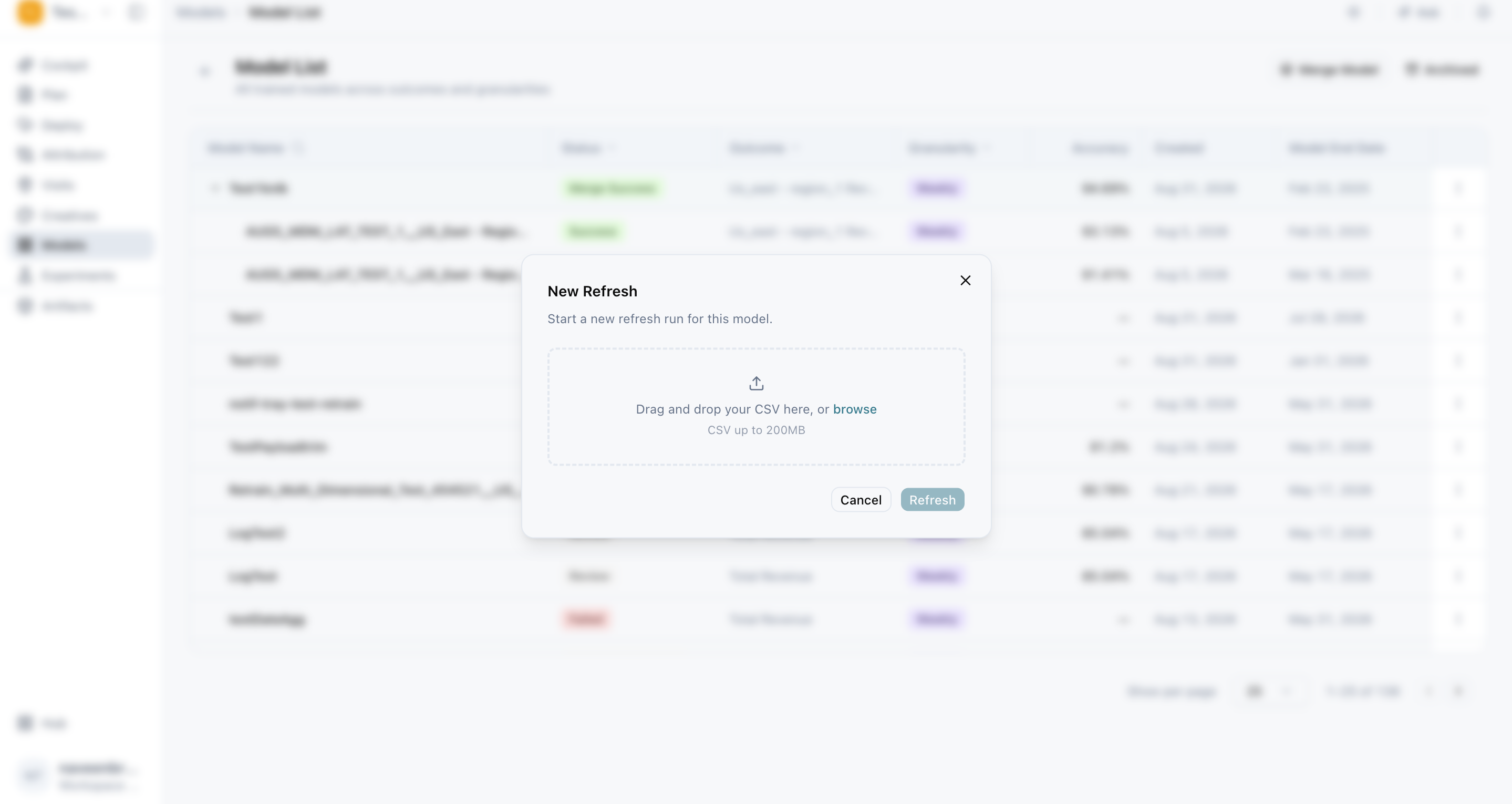
Before you submit, take a moment to review the uploaded data. Checking that it matches the original schema and covers the right dates helps you avoid a failed refresh.
Track and repeat refreshes
The Refresh tab gives you one place to see how your model has been updated over time and to keep it current going forward.
When it appears
The Refresh tab becomes available once a refresh result exists. It is shown for models with Refresh Success or Refresh Failed status.
What you can do
- Review your refresh history.
- Start a subsequent refresh without going back to Model List.
What to review
- Refresh window: the period of new data added in the refresh.
- Status: whether the refresh succeeded or failed.
- Changes in available variables: any variables that were added, dropped, or no longer match.
- Comparison output: how the refreshed results compare with the previous version.
After a successful refresh, check Contribution and Diagnostics before using the updated results. This confirms that the new data has been absorbed as expected and that model quality has held up.
Account for unmatched contribution
If a refresh cannot match every contribution component (a part of your results attributed to a specific channel or factor), the unmatched amount can appear in the Unknown group in Contribution.
What to check
- Schema changes: columns that were renamed, added, or removed in the new file.
- Taxonomy changes: changes to how channels, campaigns, or tactics are named or grouped.
- Variable changes: variables that no longer appear in the new data.
Investigate these before relying on the refreshed result. A large Unknown group usually means the new data no longer lines up with the model's structure.
Fix a failed refresh
Most failed refreshes come down to the new data not matching what the model expects.
Check that the new file:
- Uses the original schema and aggregation (the level at which data is summarized, such as daily or weekly, and by market or nationally).
- Has a continuous date range with no gaps.
- Contains all the required variables.
When to switch to retraining
If your business structure has changed, use retraining instead of repeatedly refreshing the old structure. Refreshing a model that no longer reflects how your business works will not produce reliable results.
Frequently Asked Questions
What is the difference between a refresh and a retrain?
A refresh adds new periods of data while keeping the model's structure the same. A retrain creates a new model where you can change variables, calibration evidence, configuration, or assumptions. Refresh to keep a model current; retrain when the model itself needs to change.
Which models can I refresh?
Models with Success, Refresh Success, or Refresh Failed status can be eligible for a refresh.
Why can't I see the Refresh tab?
The Refresh tab only appears after a refresh result exists, for models with Refresh Success or Refresh Failed status. Run your first refresh from the model's action menu in Model List, and the tab will become available.
Where do I start my second refresh?
Once the Refresh tab is available, you can start subsequent refreshes directly from it.
Why is there an Unknown group in Contribution after a refresh?
The refresh couldn't match every contribution component, so the unmatched amount was placed in Unknown. This usually points to changes in schema, taxonomy, or variables. Investigate these before relying on the refreshed result.
Why did my refresh fail?
The most common causes are a file that doesn't follow the original schema or aggregation, gaps in the date range, or missing required variables. Correct the file and run the refresh again.
Can I keep refreshing if my business has changed?
If your business structure has changed, retraining is the better choice. Repeatedly refreshing an outdated structure will not give you reliable results.
What should I check after a successful refresh?
Review Contribution and Diagnostics before using the updated results. Also look at the comparison output in the Refresh tab to see how results have shifted from the previous version.
Does a refresh change my model's configuration or calibration?
No. A refresh retains the current model structure. To change configuration or calibration evidence, retrain the model.
Related Articles
Updated 30 days ago