
Lifesight Tracking Pixel
Instructions to setup Lifesight Tracking Pixel for Attribution
The Lifesight Tracking Pixel, referred to as Custom JS in the platform, is a critical component for understanding user behavior on your website. It is a smart JavaScript snippet that, once installed, identifies and tracks user activities and touchpoints.
This is a foundational step for enabling attribution and measurement on the Lifesight UMM Platform.
Before You Begin
To complete the installation, you will need one of the following:
-
For the GTM method: Administrator access to your website's Google Tag Manager (GTM) account.
-
For the Manual method: The ability to add JavaScript code to the section of your website's HTML source code.
Step-by-Step Installation Guide
1. Locating the Custom JS Integration
Access the tracking chip by searching for the Custom JS integration within the Lifesight platform.
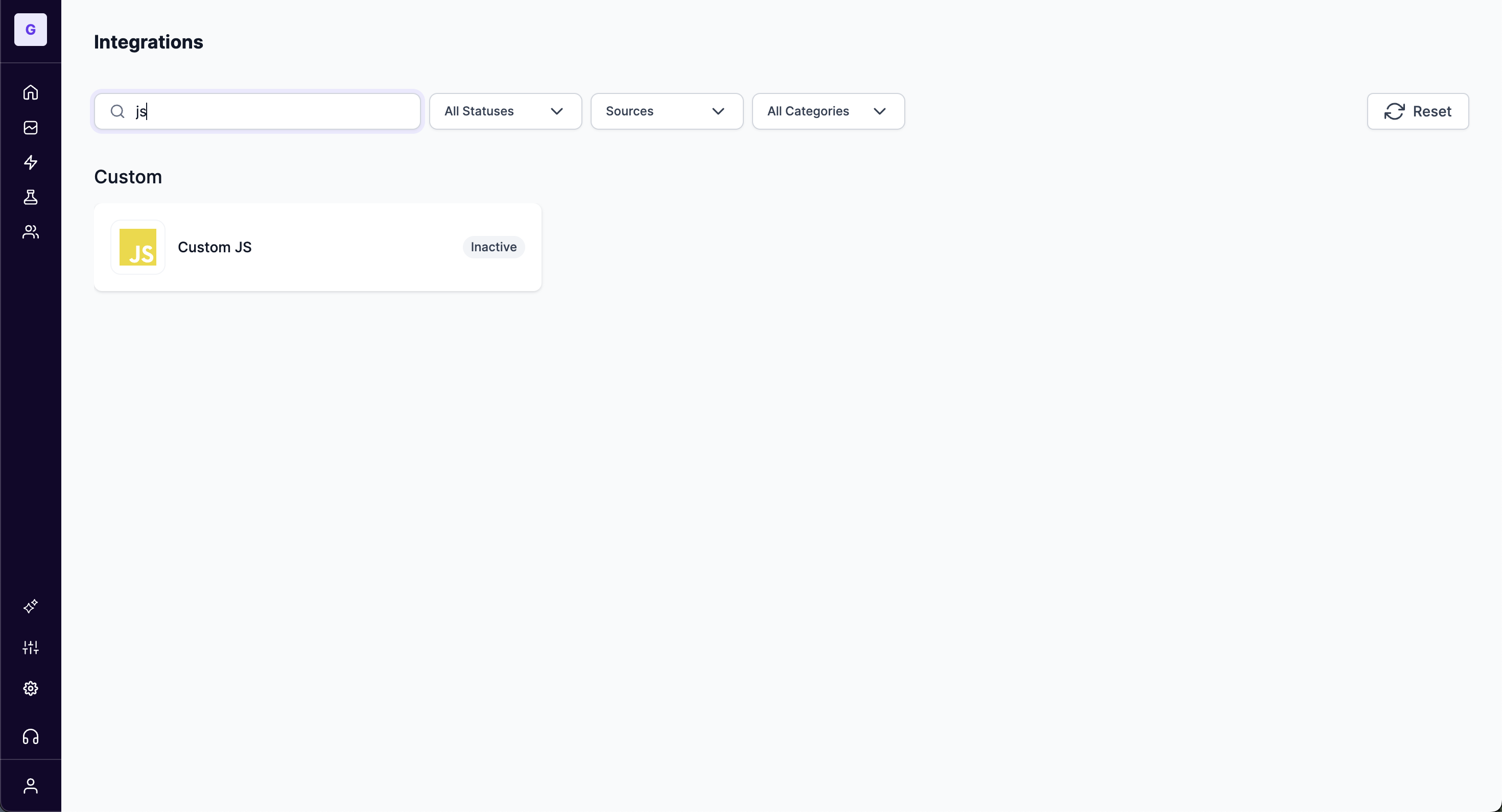
2. Choosing Your Setup Method
After clicking the card, a setup window will appear for your website. You have two options for installing the tracking pixel.
[Recommended] Google Tag Manager
This is the fastest and the recommended method to install the tracking chip. It uses a pre-built Google Tag Manager container with all the necessary tags, triggers, and variables for common tracking needs.
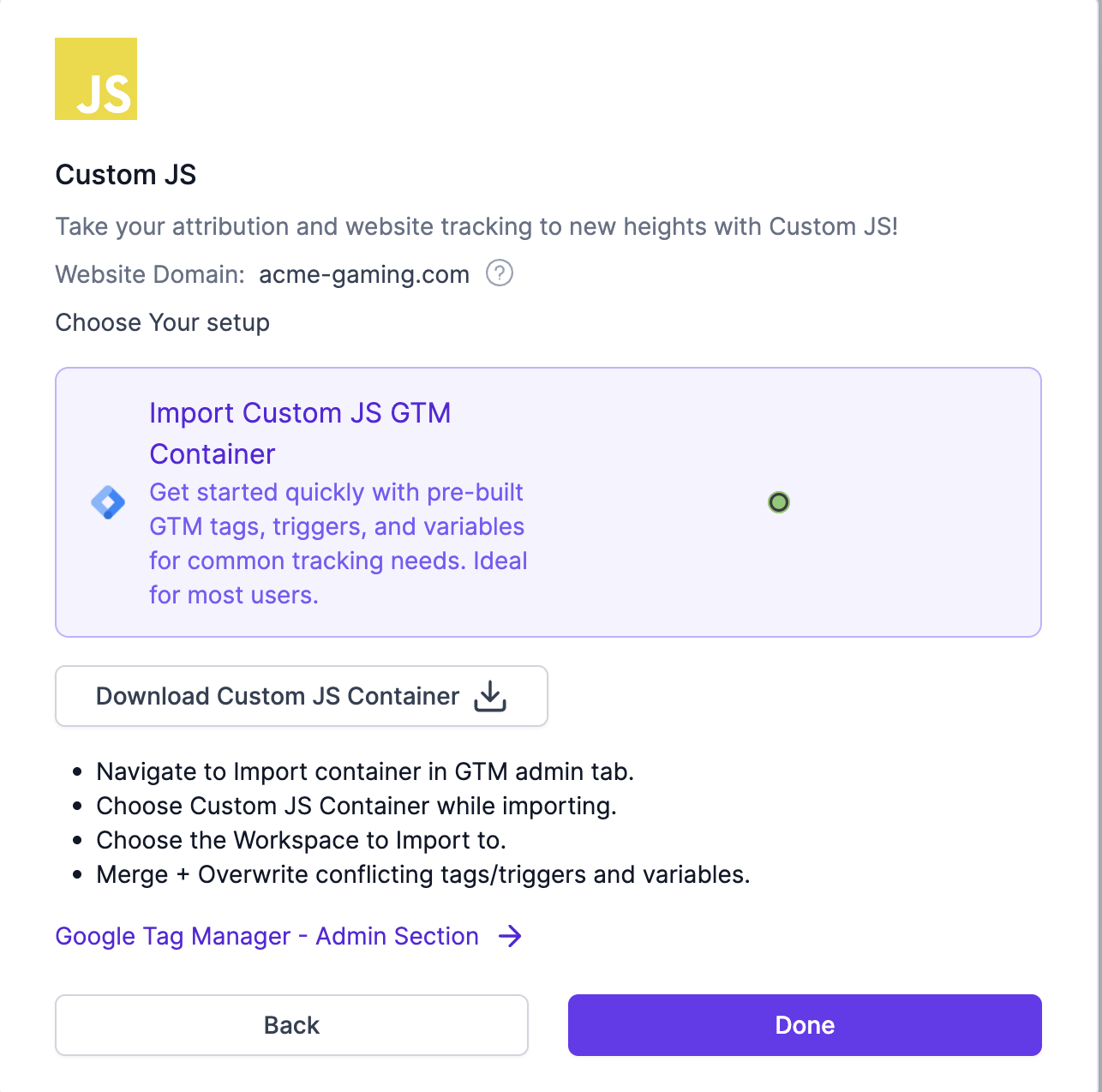
- In the setup window, select the Import Custom JS GTM Container option.
- Click the Download Custom JS Container button to save the container.json file to your computer.
- Open your Google Tag Manager account in a new tab.
- Navigate to the Admin section of your GTM container.
- Under the Container column, click on Import Container.
- Click Choose container file and select the file you downloaded from Lifesight.
- Choose the Workspace you want to import into (typically 'Default Workspace').
- Select the Merge import option, and then choose Overwrite conflicting tags, triggers and variables. This will update your existing setup without removing your current tags.
- Review the import preview and click Confirm.
- Finally, click Submit and then Publish in your GTM workspace to make the changes live on your site.
[Alternate Method] Manual JavaScript Setup
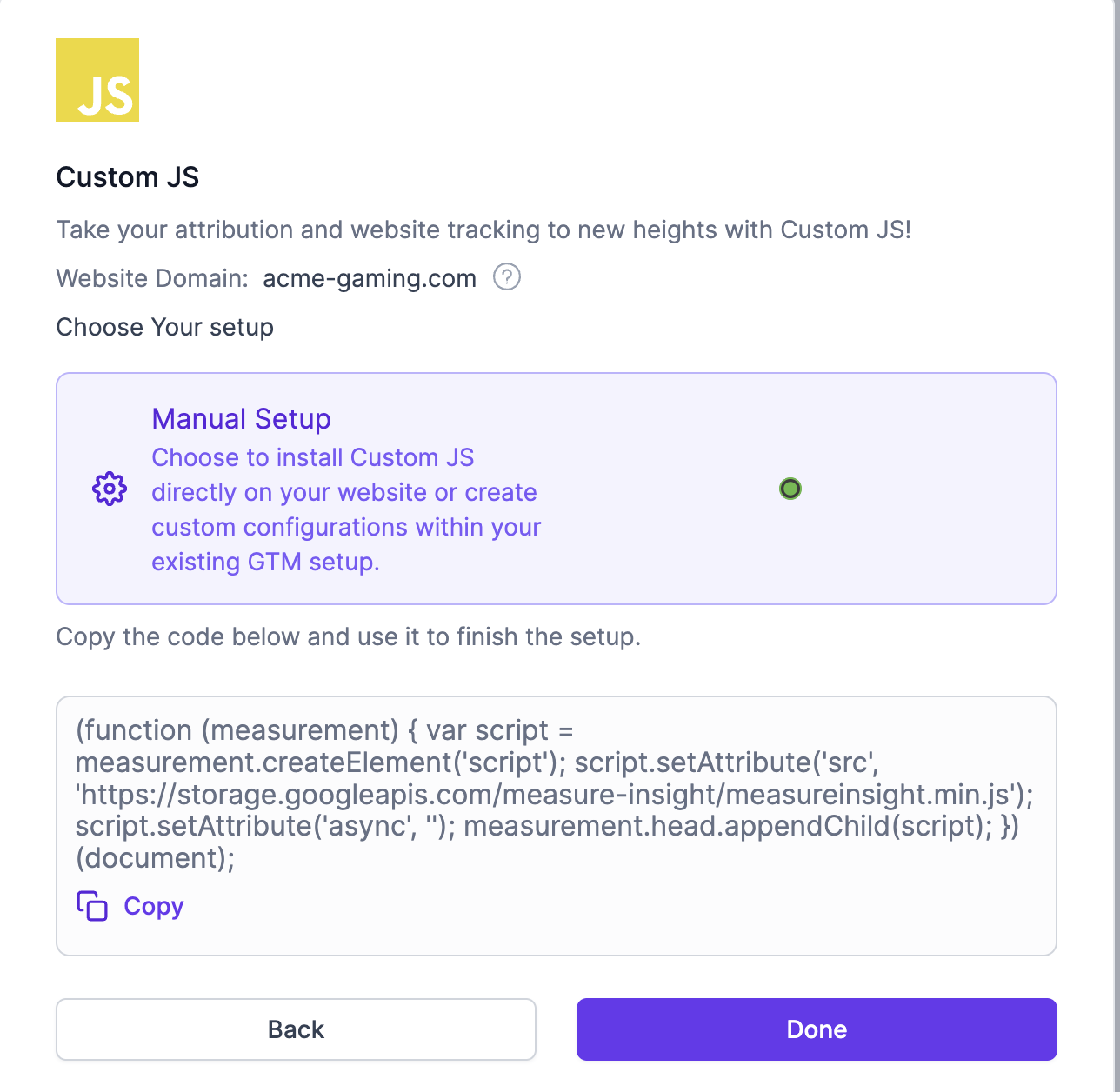
Choose this method if you do not use Google Tag Manager or if you need to create custom configurations within an existing GTM setup.
- In the setup window, select the Manual Setup option.
- A JavaScript code snippet will be displayed in a text box.
- Paste this snippet into the HTML source code of your website. It must be placed before the closing tag on every page you wish to track.
Warning
Placing this script in the footer or body of your HTML may lead to incomplete data collection, as it may not load in time to capture all user activity.
Verifying Your Installation
After installing the pixel using either method, you can verify that it is loading correctly on your website.
- Open your website in a new browser tab.
- Open your browser's Developer Tools (Right-click on the page and select Inspect).
- Navigate to the Network tab within the tools.
- In the filter/search box for the network requests, type measureinsight.
- Refresh your webpage.
- You should see measureinsight.min.js appear in the list with a status code of 200, which indicates it has loaded successfully.
Frequently Asked Questions (FAQ)
Q: What data does the tracking pixel collect?
A: The pixel is designed to collect anonymous and first-party data about user interactions on your website, such as page views, session information, and referral sources. This data is essential for powering Lifesight's attribution models.
Q: How long does it take for data to appear in Lifesight?
A: Once the pixel is installed and verified, you should begin to see data populating in your Lifesight dashboards within a few hours. However, please allow up to 24 hours for the initial data to be fully processed and reflected.
Updated 10 months ago