
Add/Remove users
Learn how you can invite your teammates to work collaboratively on your projects.
Once you have configured your workspace, invite your teammates to work on analyzing and optimizing your marketing efforts collaboratively. You can add users by inviting them to your workspace.
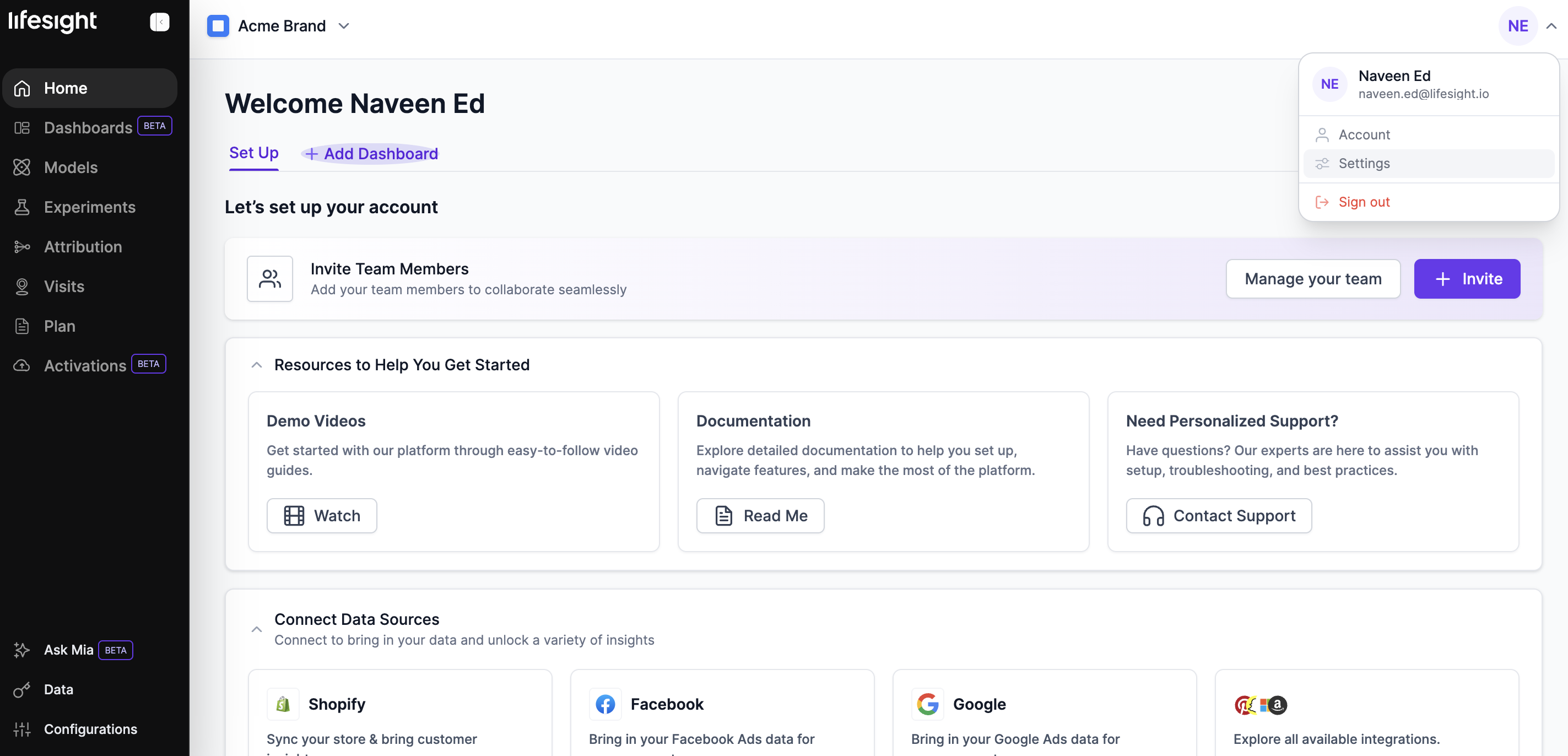
Add a new user:
- Select
Settingsby clicking the profile icon on the top right corner of the page, in the top-bar. - In the Users tab, click on the
Invite Userbutton in the upper right corner. - Add the email ID of the person you’re looking to invite and mention the user access level.
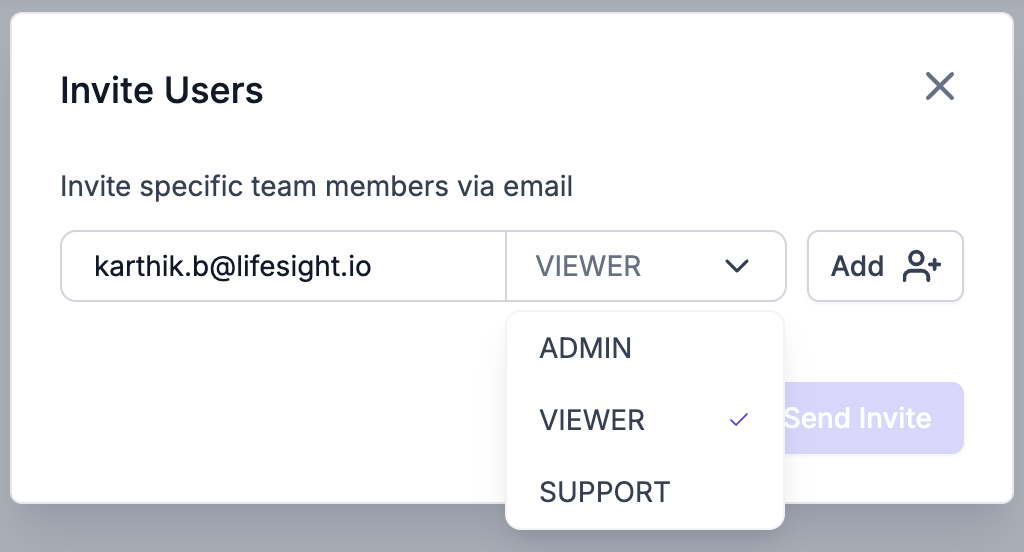
Learn more about user permissions here
- Click on the
Addbutton to add the new user to a invite list. - Repeat this step to add more people that you’d like to invite to your workspace.
- You can delete any entries by clicking on the delete button on the left of the email ID.
- Click on
Send Inviteto send a workspace invite email to the mentioned users.
Congratulations! You have invited your team to your workspace and are all set to collaborate on your upcoming projects.
What happens next for the invited user?
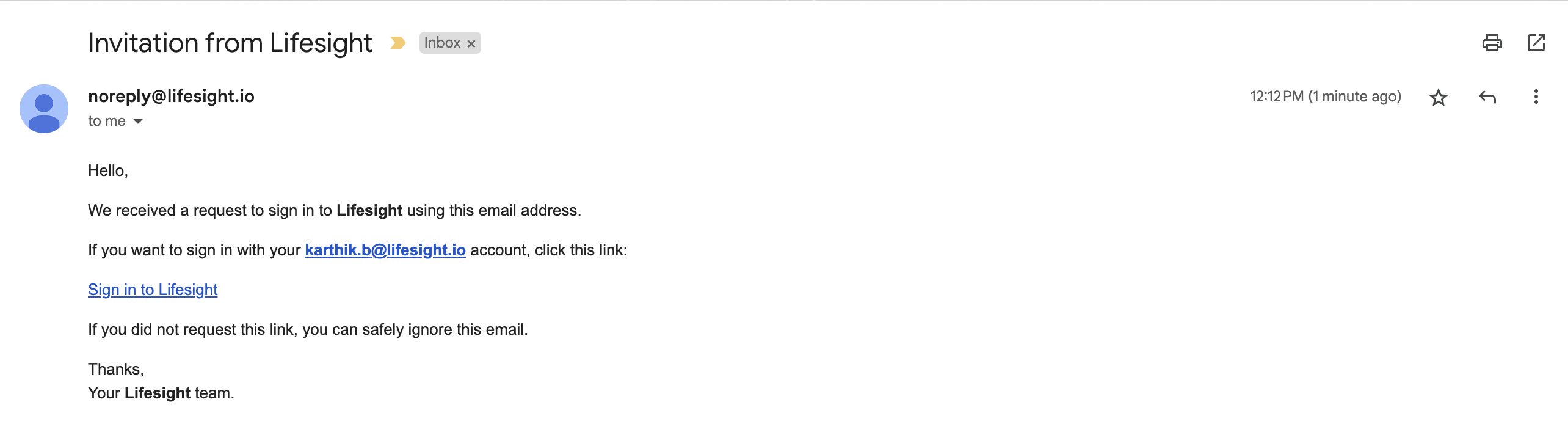
- The invited user gets a signup email immediate with the subject line: Invitation from Lifesight
- Next, verify your email ID and click on the "sign in to Lifesight" link.
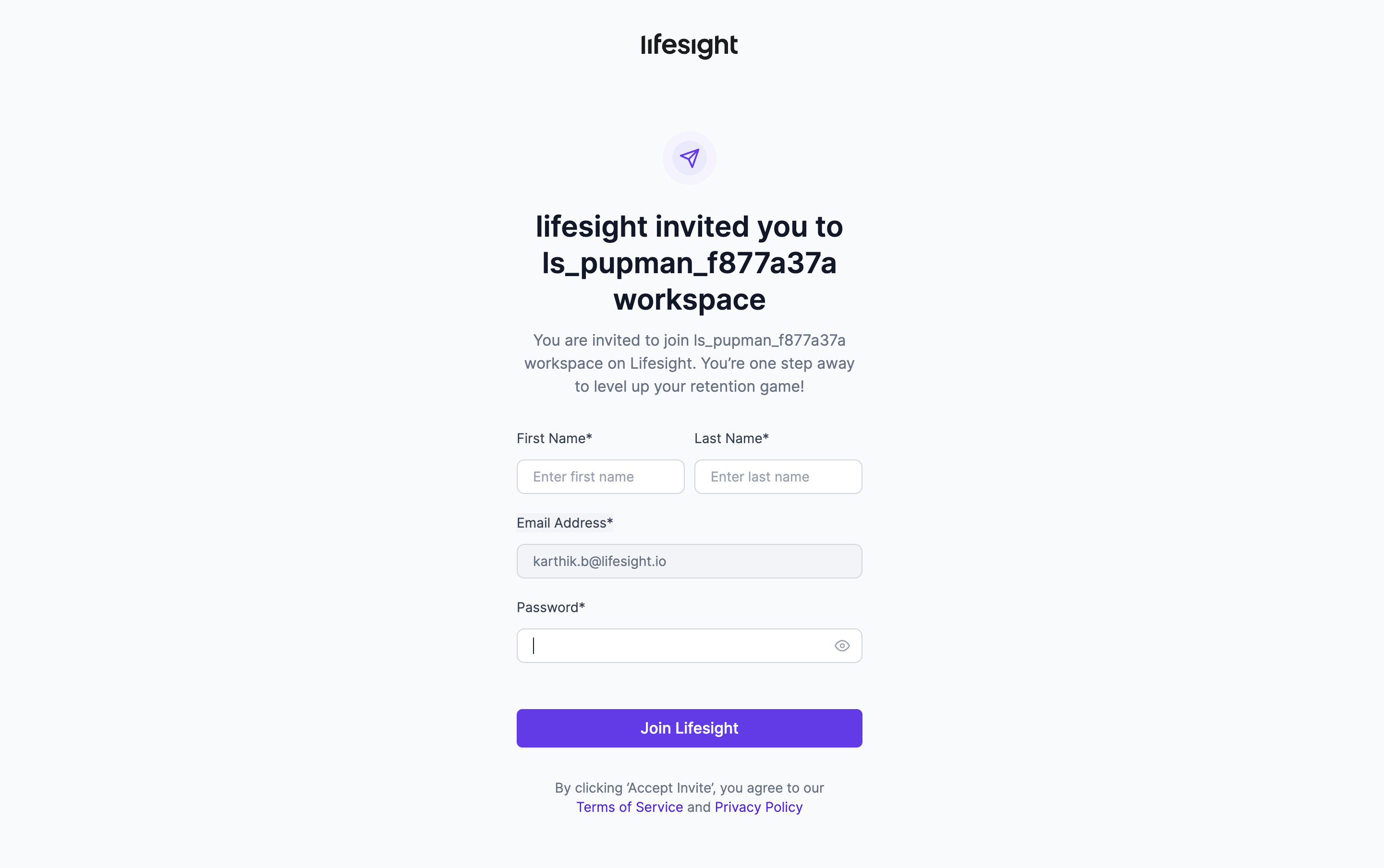
- You will be taken to the platform signup page where you have to enter your name and set a password.
- Complete the process by clicking the
Join Lifesightbutton to view the Lifesight platform homepage.

The signup link expires in 6 hoursIf an invitee's signup link expires, an admin can resend the invitation. Go to the Expired section of the Users tab, open the menu next to the invitee's email, and select Resend.
Removing Users
Removing a User is an admin-only feature. (The admin of your account is generally the user who initially created the Lifesight dashboard. To find out who your admin is, go to the Settings > Users and find the email denoted with an "Admin" label.
To remove a User, navigate to the Settings > Users tab and use the "Delete" icon on the right side of the user.
Updated 5 months ago