
Setup Guide Claude
Connect Lifesight MCP to Claude in 2 minutes.
Before You Start
Ensure you have the following before proceeding:
- An active Lifesight workspace. If you're evaluating Lifesight, book a demo.
- Claude Desktop (latest version)
- Lifesight MCP URL: https://mcp.lifesight.io/mcp
Steps to Connect Claude with Lifesight MCP
-
Fire up Claude Desktop and make sure you’re on the latest version.
-
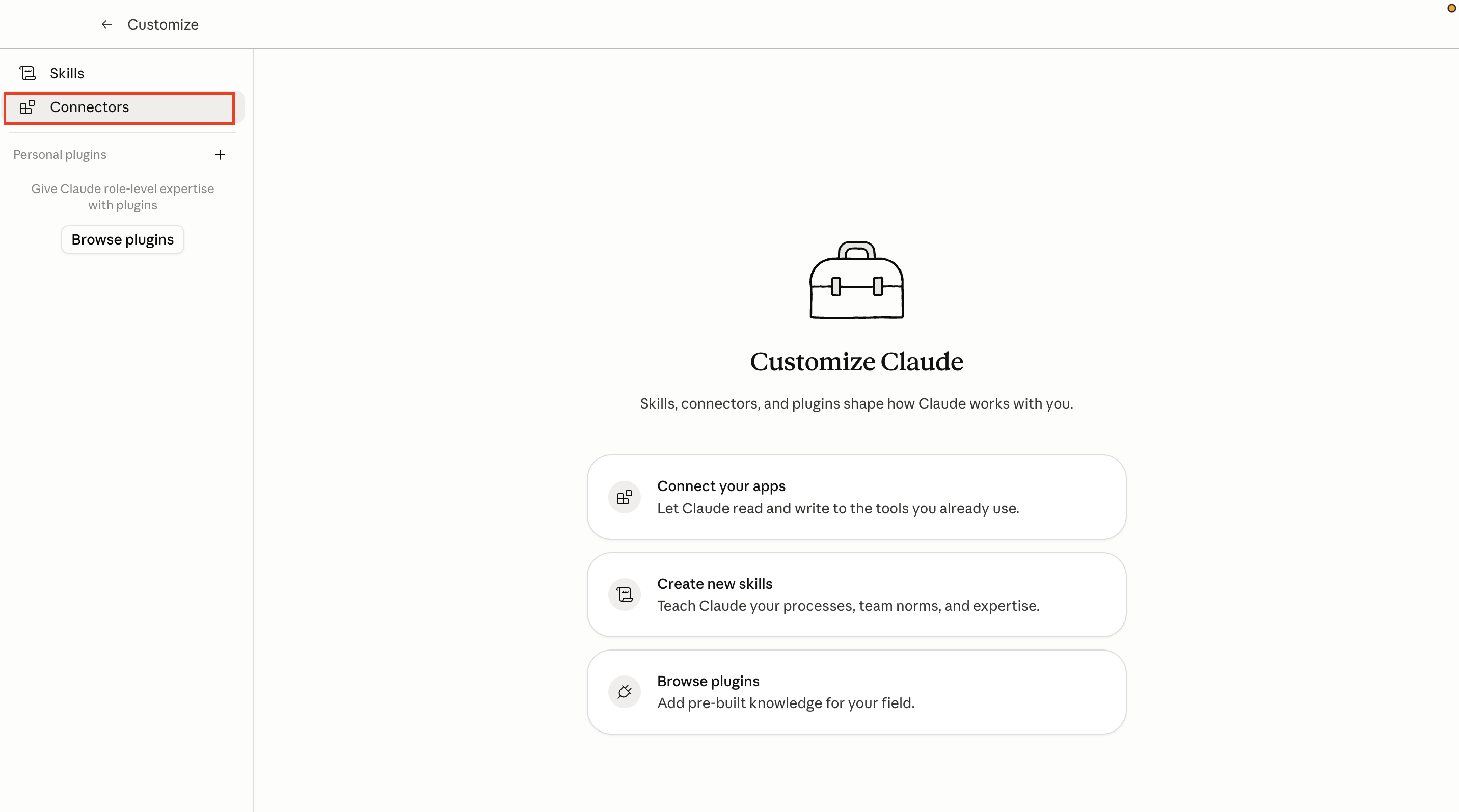
Navigate to Customize → Connectors
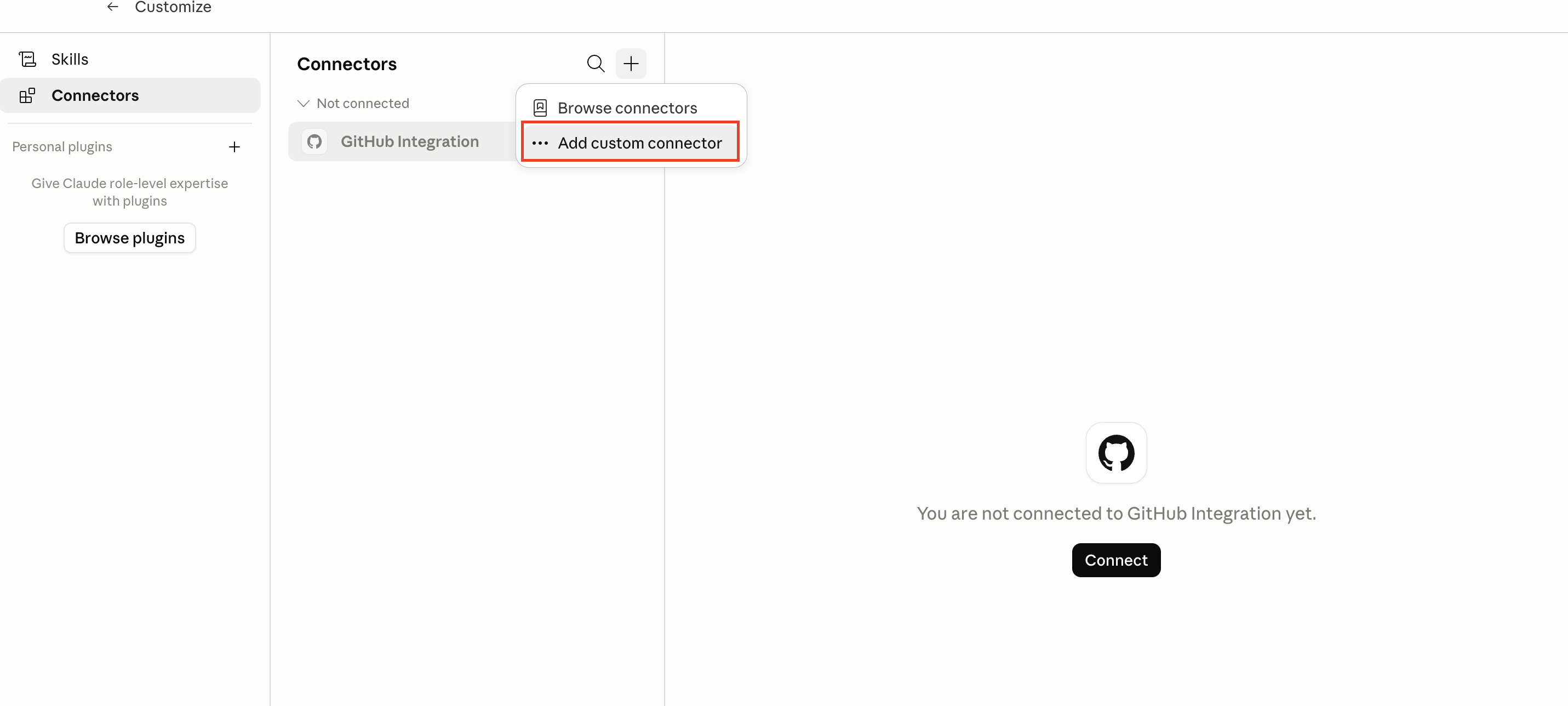
- Then click on Add Custom connectors
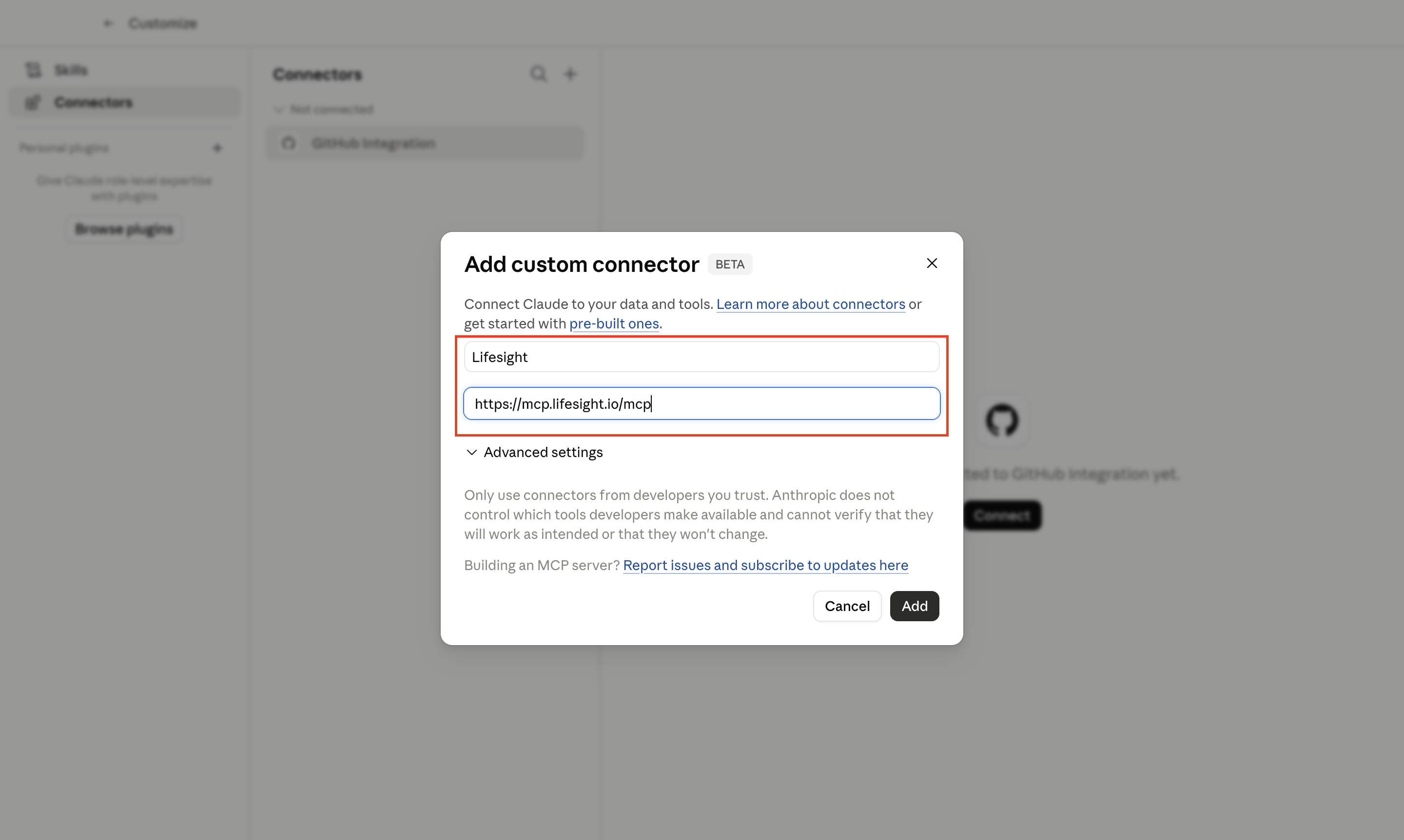
- Give the connector a name you’ll recognise, e.g. Lifesight MIA MCP.
- Add the URL and hit Add and Connect.
- Claude will redirect you to https://console.lifesight.io/mia-connect.
- Existing users: Log in with your Lifesight credentials. You're all set!
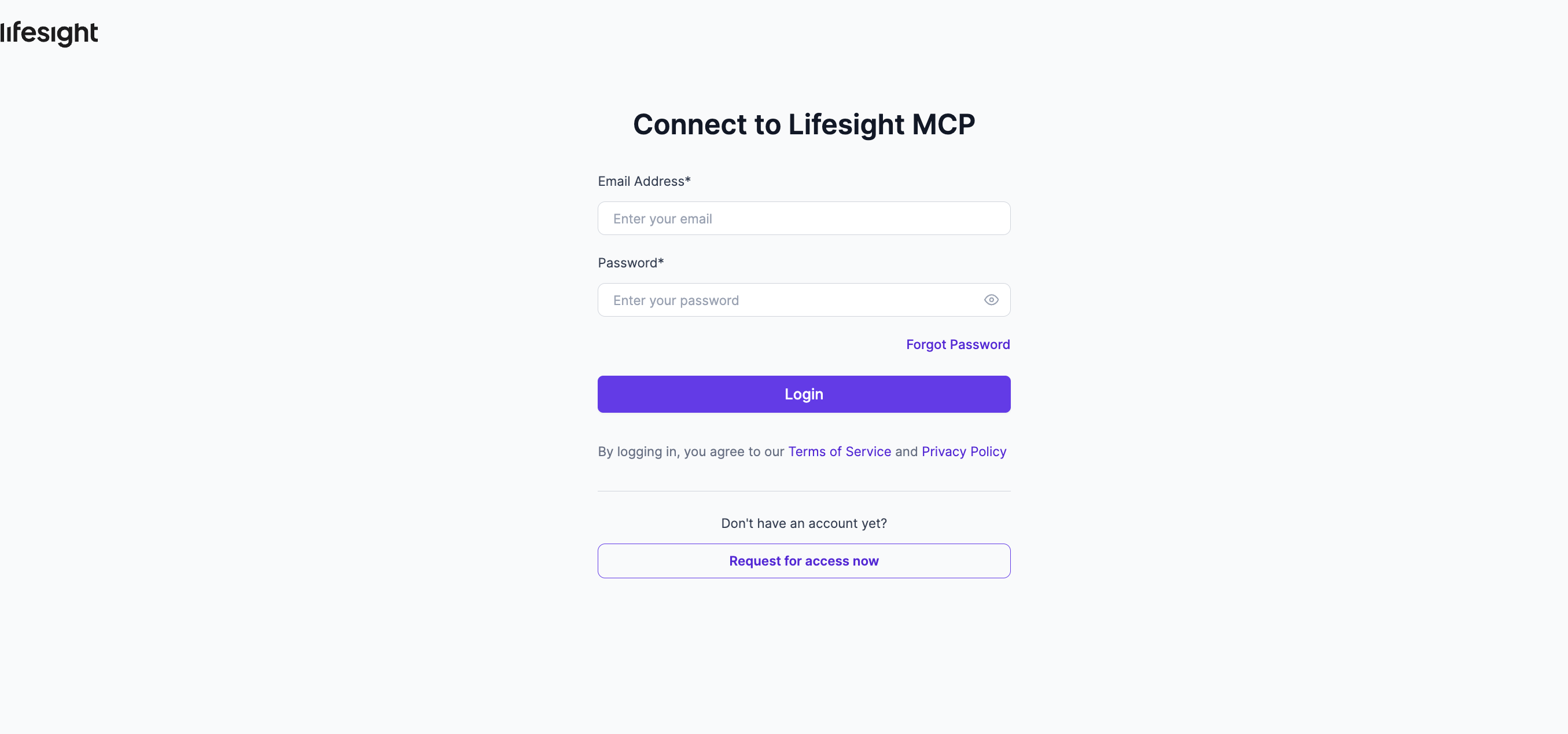
- New users: Click Request for access to be redirected to the Lifesight demo page to get started.
That’s it! Start asking questions in your language. Not sure where to begin?
| Try any of these |
|---|
| "What’s my [Quarter] budget allocation by channel?” “Which channel drove the highest iROAS last week?” “I have [ $200K] to reallocate, where should it go to maximize revenue?” “Show me how [Ad Channel 1] has been performing compared to [Ad Channel 2] over the last [N days]. |
Verify Your Setup
These three prompts work in both Claude Desktop and ChatGPT. If you get structured output from your account, you’re good to go.
| Prompt | Expected Outcome |
|---|---|
| List every causal model in my workspace. | Markdown table: model names, last-run date, confidence range. |
| What was my best-performing channel last week by iROAS? | Ranked answer with methodology footnote. |
| Find the methodology document for geo-lift testing. | Doc summary with link back to Lifesight. |
Updated 17 days ago
Did this page help you?