
Get Started with Cockpit
Start every day with the decisions that matter, and get answers to anything about your marketing in one place.
The Cockpit gets you to your next best decision faster. It's the first thing you see when you open Lifesight, and instead of a wall of dashboards, it shows you what needs your decision right now and gives you one place to ask anything.
Most analytics tools tell you what happened and leave you to figure out what to do next. The Cockpit works the other way around: your agents bring the important things to you, and you can see exactly why each one matters before you act.
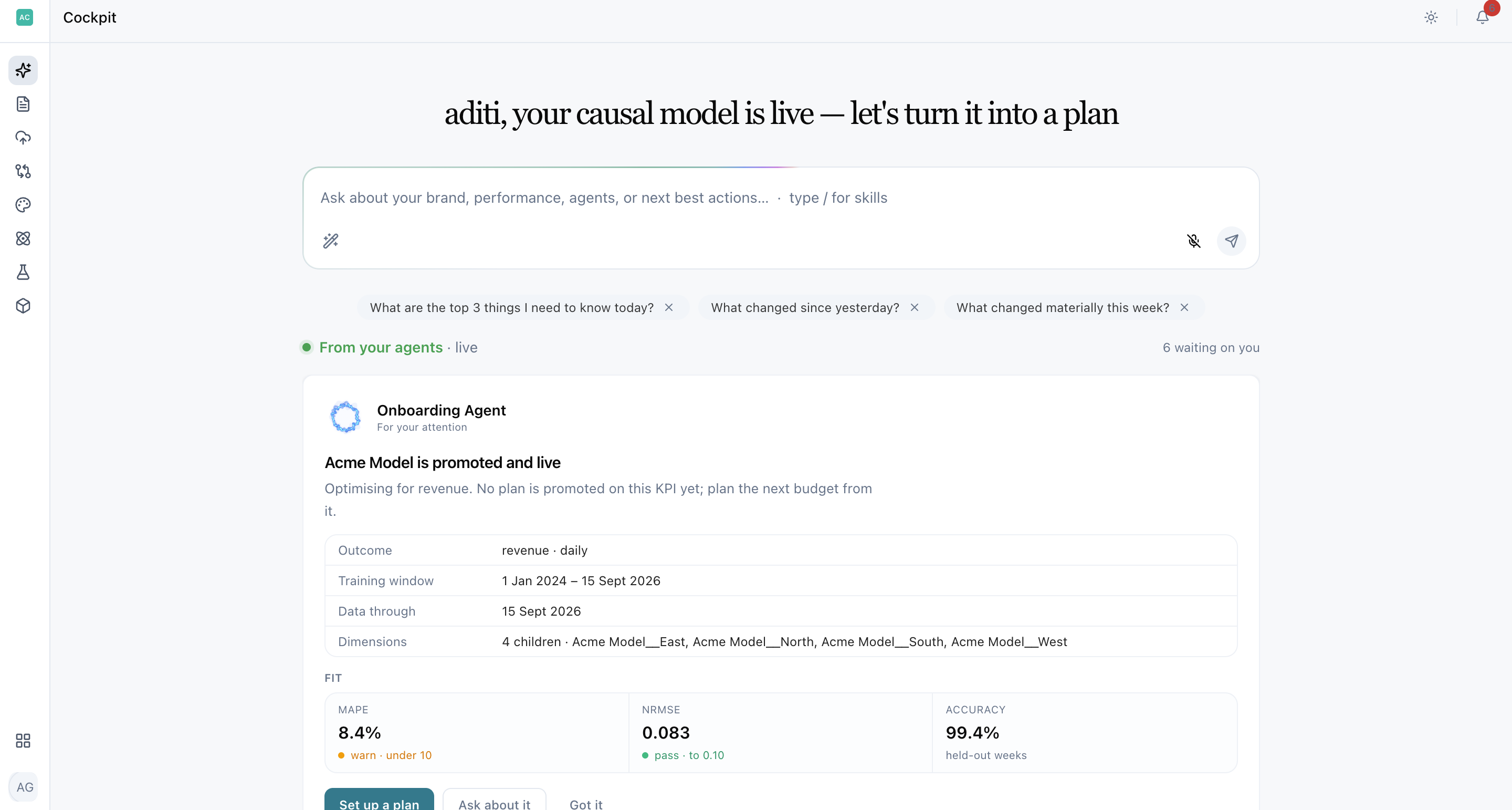
See where your workspace stands at a glance
The Cockpit has three parts:
- Headline: One line that tells you where your workspace is today. It updates as you connect data, promote a model (make it the one your plans use), and adopt a plan.
- Ask box: Ask a question, run a skill (a ready-made analysis), or pick up a past conversation. Answers appear right on the page.
- Your agents: Cards your agents have raised for you. The top three are shown in full, and the rest wait in a queue below.
| Part | What it does |
|---|---|
| Headline | A single line summarising where your workspace is right now. It changes as you connect data, promote a model, and adopt a plan. |
| Ask box | The chat composer. Type a question, run a skill, or pick up a previous session. The answer opens in place. |
| Your agents | The cards your agents have raised. Three are shown in full; the rest wait in a queue underneath. |
Your Cockpit is tailored to your role.The cards you see first and the questions suggested under the Ask box are based on your persona: Measurement Analyst, Growth Marketer, Media Planner, Marketing Ops, Marketing Leader, or Generalist. Your persona is set when you're invited, and you can change it anytime in Settings → Profile.
Let your agents flag what needs you
Every card reflects something happening in your workspace right now, like a data connection that stopped working, or experiments waiting on your call. Once the issue is resolved, the card disappears on its own, so you never have to clear out old notifications.
Three agents keep watch for you:
- Onboarding Agent helps you get a new workspace up and running with its first model.
- Data Agent makes sure your data keeps flowing in from your connected platforms.
- Growth Agent keeps an eye on everything that data powers: models, plans, budget changes, and experiments.
Each card also tells you what kind of response it needs:
- For your attention: Something happened. Act on it or acknowledge it.
- Needs your input: A decision only you can make.
- Needs your approval: A recommendation that affects your spend.
Anatomy of a card
Every card follows the same layout, so you always know where to look:
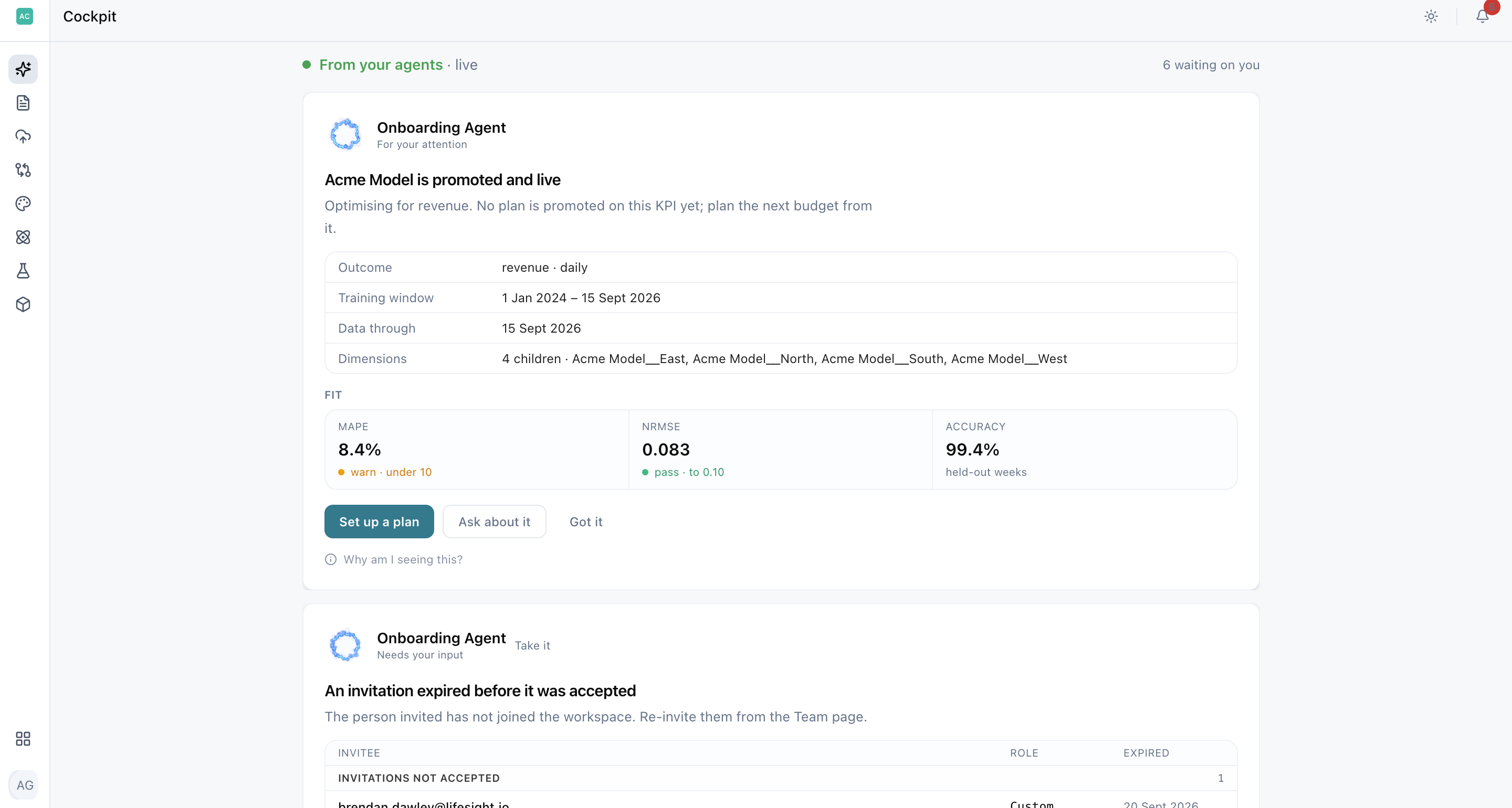
| Part | What it is |
|---|---|
| Agent and kind | Who raised it, and what it wants from you |
| Deadline | A pill on the right when the card is time-sensitive Reconnect today, expires in 7 days |
| Title and line | What happened, in one sentence |
| Evidence | The facts the card is making its case on, read live from your workspace |
| Actions | One primary step, an Ask button, and one quiet way to set it aside |
Clicking an action doesn't close a card on its own.For example, clicking Reconnect takes you to the connection, but the card stays until the connection is actually fixed. A card closes when you make the decision, dismiss it, or the underlying issue is resolved.
Have a follow-up question? Click Ask on any card, and it opens a conversation with that card already attached. You can ask something like "what does this affect?" without explaining the context again.
Know why every card is in front of you
Click Why am I seeing this? at the bottom of any card to see:
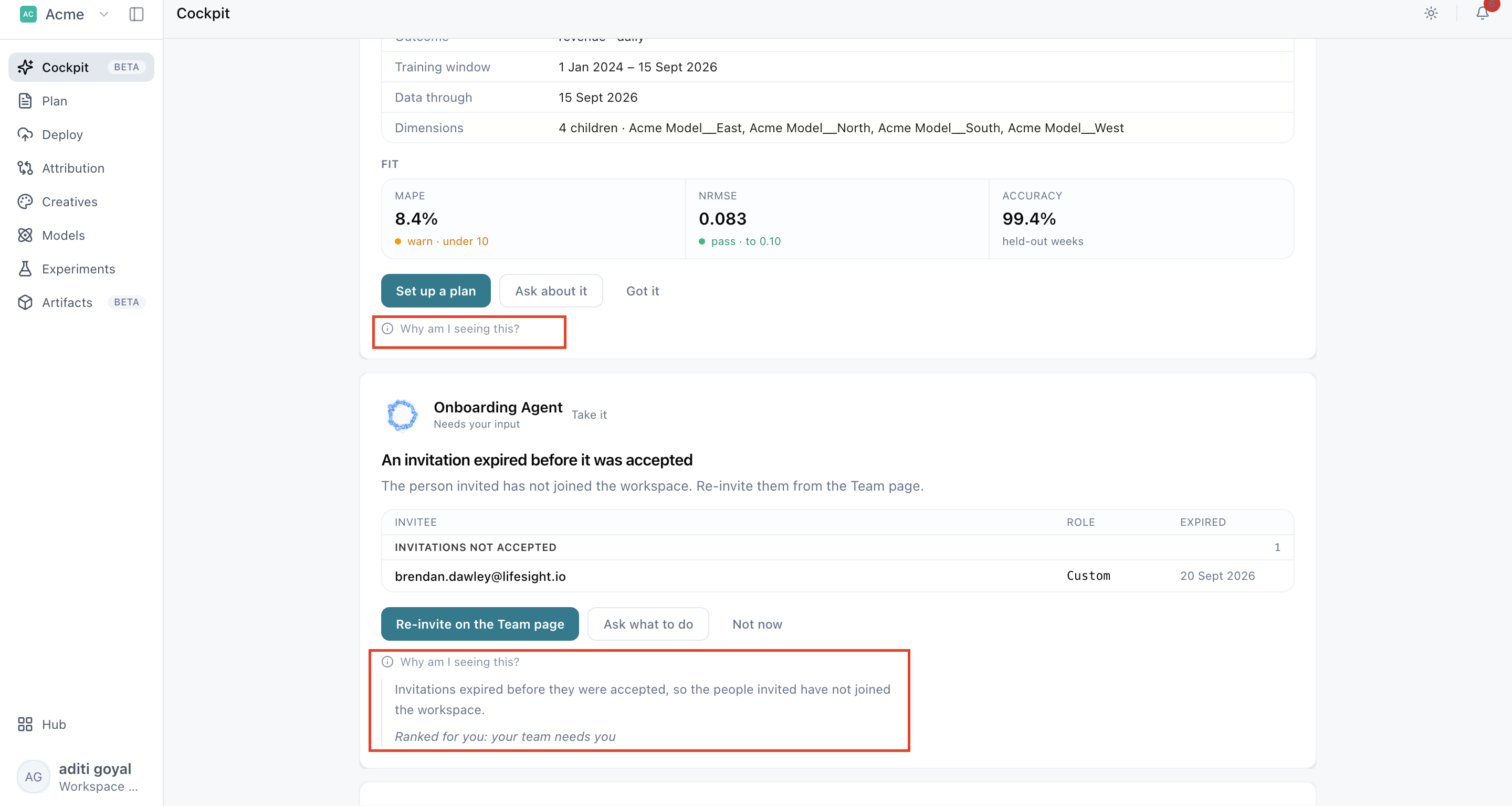
| Line | What it tells you |
|---|---|
| The explanation | The evidence that raised the card |
| Ranked for you | Why it is this high in your list |
| Rows from | Which reads the evidence was pulled from |
| Dismiss | What the quiet button will actually do |
Cards are ranked for you personally, not the same for everyone. Cards about areas you own come first, and cards addressed to you rank above ones a teammate is already handling. Questions and approvals move up the longer they wait, and anything close to expiring jumps to the top. Critical issues always get a spot, even outside your area, because a broken data connection affects everyone.
Stay on top of everything else in your queue
Your top three cards are shown in full. Everything else sits in a queue underneath, in the same priority order.
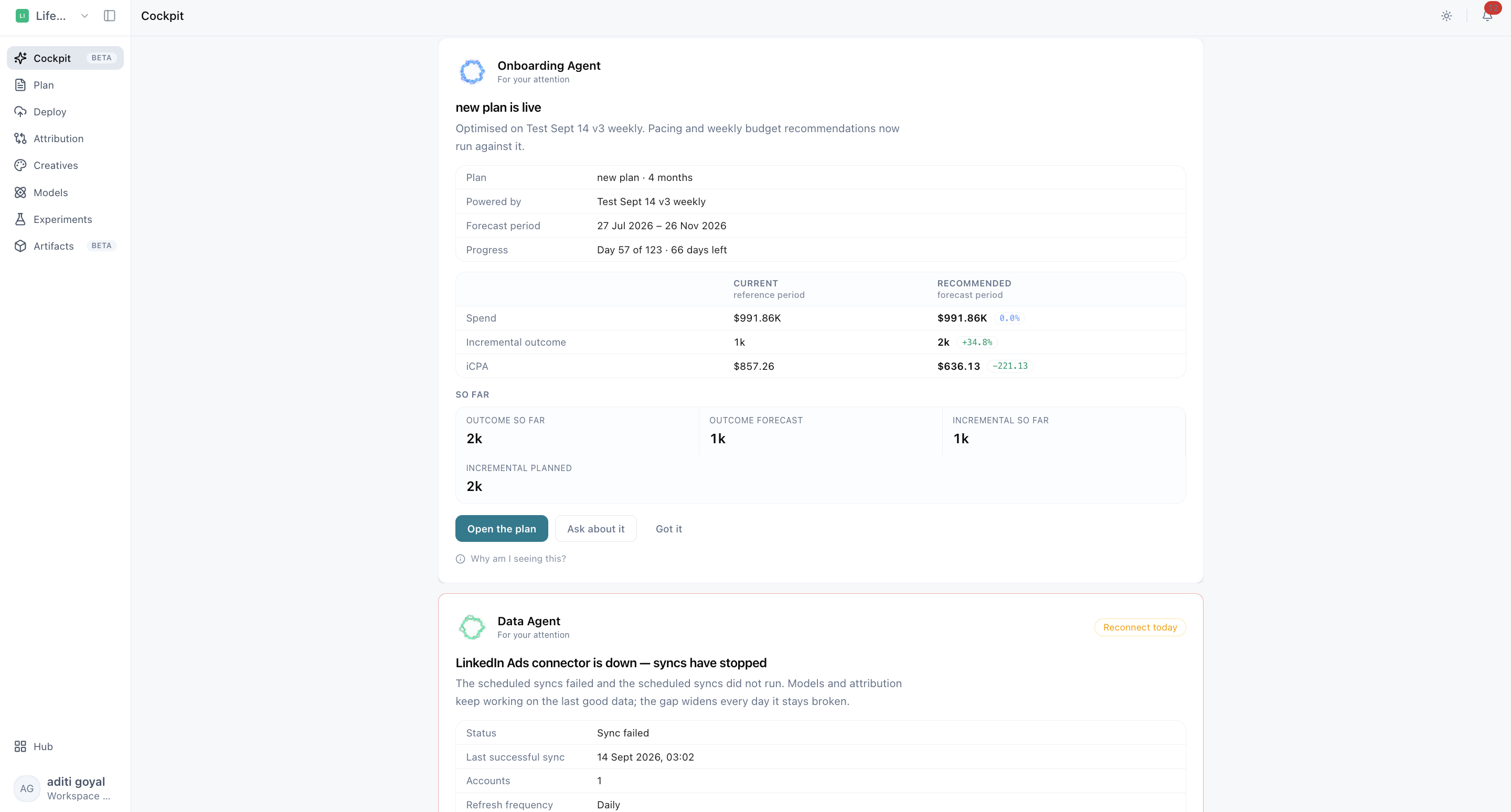
Click the queue to open it. Each row carries the title, the agent, what it wants, and why it ranked where it did. Click any row to open it as a full card, and Fold back into the queue to collapse it again.
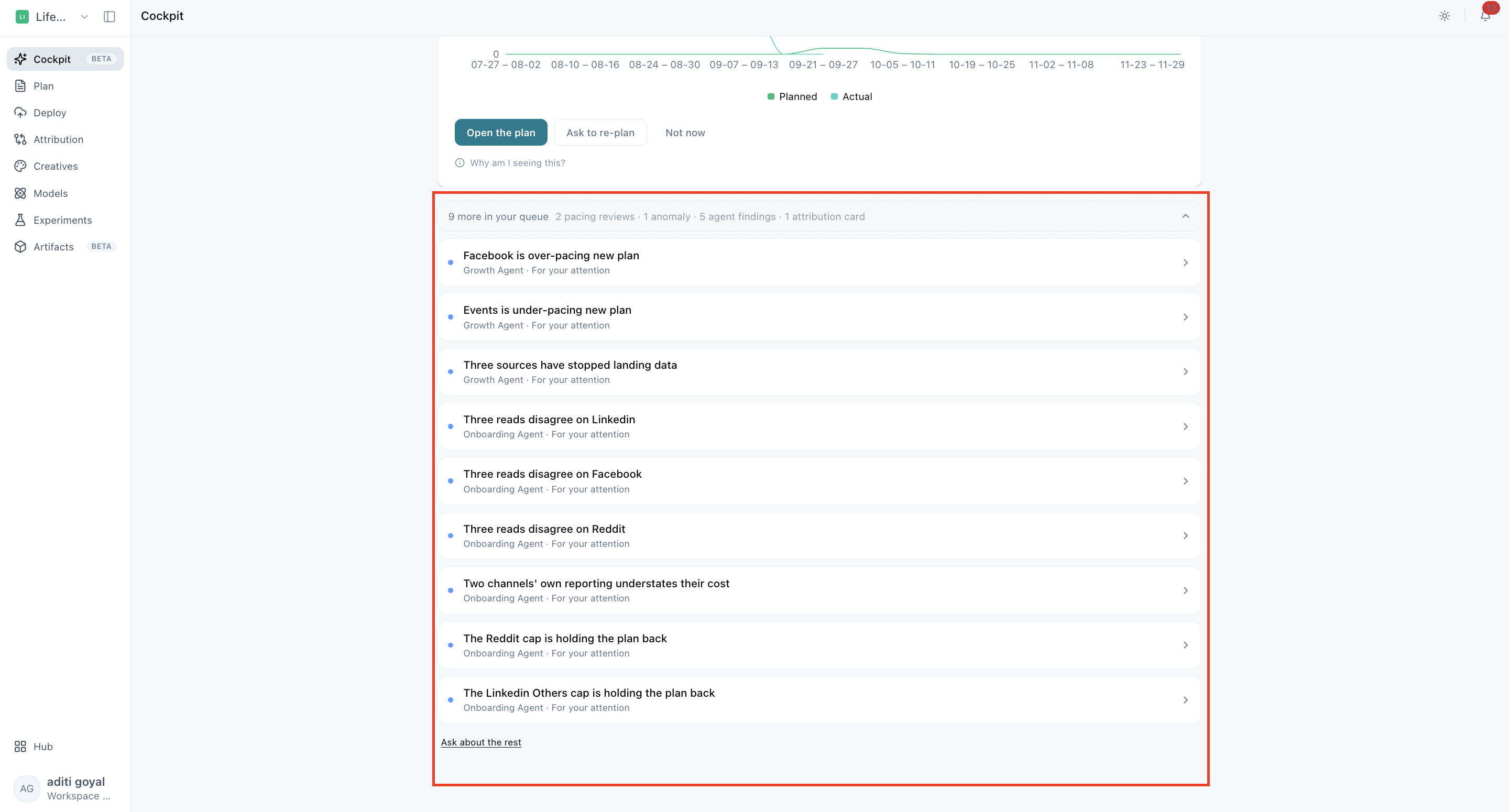
When you act on one of the three cards on screen or set it aside the top of the queue moves up to take its place.
Get a new workspace running in three steps
In a new workspace, the Onboarding Agent walks you through setup one card at a time. As you finish each step, the next one appears.
| Step | The card asks you to | What completes it |
|---|---|---|
| 1 | Connect your ad platforms | One ad platform reporting healthy |
| 2 | Onboard your conversion data | Shopify connected, or a conversion file uploaded |
| 3 | Build a model | A trained model |
If you are uploading conversions as a file, it must match one of these two shapes:
| Format | Required columns |
|---|---|
| National | date, orders, revenue |
| Geographic | date, state, orders, revenue |
You don't have to do anything twice.If you connect a platform from Data → Integrations or train a model from Models, the matching setup card completes automatically.
You'll also see a card inviting you to bring your team in. Measurement moves fastest when Marketing Ops manages the data and a Measurement Analyst manages the models. The card shows which areas don't have an owner yet.
Act on what matters once your data is in
After setup, your cards shift to what matters day to day:
| What you will see | Raised when |
|---|---|
| A model is promoted and live | You have a champion model but no plan built on it yet |
| Models trained and none promoted | Candidates are waiting for you to pick a champion |
| A plan is live | A scenario is promoted and pacing is running against it |
| A channel is off its pace | Spend is running ahead of or behind the plan |
| This week's budget changes are ready | The plan has recommendations waiting to be applied |
| A connector is down | Syncs have stopped and the data gap is widening |
| Experiments are waiting on you | Results to read out, or designs ready to schedule |
Get answers without leaving your workflow
The Ask box on the Cockpit is not a separate chatbot. It is the same conversation that follows you around the platform.
Ask a question
- Type into the box and press Enter.
- The Cockpit switches to the thread view and the answer streams in place.
- Use the buttons at the top: Home takes you back to the Cockpit and keeps your conversation, New thread starts fresh, and History shows your past conversations.
The three suggestions under the Ask box are questions you might want to ask. Click one to ask it, or click × to dismiss it.
Pick up where you left off
Your three most recent conversations appear under the Ask box. Click one to reopen it, or click the history icon to search all your past conversations by title.
Rate answers and keep going
Rate any answer with 👍 / 👎. A thumbs-down lets you tell us what went wrong. You'll also see suggested follow-up questions to keep the conversation moving.
Your conversation goes wherever you go. Start a question in the Cockpit, move to Attribution, and the same conversation is waiting in the side panel. Open it anywhere with the Ask button in the top bar or press Alt + C. (The button is hidden on the Cockpit, since the whole page is already your Ask space.)
Skip the setup when you ask
When you ask from anywhere in Lifesight, Ask automatically includes what you're looking at, like your brand, the page and tab you're on, your date range, and filters. You don't have to explain it.
You can see exactly what's included in the context panel. Click Remove to ask without it, or Restore to add it back.
Troubleshooting
A card is still asking me to connect an ad platform. The step only counts an integration that is genuinely active. If a connector is still authorising, or its authorisation has expired, it will not complete. Open Data → Integrations and check its status.
I acted on a card, but it's still there. Opening a page from a card doesn't close it. The issue has to be resolved, whether that's reconnecting the source, promoting the model, or applying the changes. The card will clear at the next check.
A card came back after I dismissed it. Dismissing hides that card for you. If something new happens, like a connection failing again or a new week of recommendations arriving, a new card appears.
I can't find my platform. Browse the full list in Data → Integrations. If it's not there, raise a ticket with Lifesight, and upload your data as a CSV in the meantime.
I do not have access to integrate. Connecting a platform usually needs admin access on that platform. Invite the person who has it from Settings → Team, and they can complete the step for you.
Frequently asked questions
What is the Cockpit in Lifesight?
The Cockpit is the home screen of Lifesight and the first thing you see when you log in. Instead of a set of dashboards, it shows what needs your decision right now and gives you one place to ask questions about your marketing performance. It has three parts: a headline showing where your workspace stands, an Ask box for questions and skills (ready-made analyses), and cards raised by your agents.
How is the Lifesight Cockpit different from a regular analytics dashboard?
A regular analytics dashboard shows what happened and leaves you to work out what to do next. The Lifesight Cockpit works the other way around: agents monitor your workspace, bring the items that need your action to you, and show the evidence behind each one before you decide.
What are agents in the Lifesight Cockpit?
Agents are AI assistants that watch your Lifesight workspace and raise cards when something needs your attention. There are three: the Onboarding Agent helps you set up a new workspace and build your first model, the Data Agent makes sure data keeps flowing in from your connected platforms, and the Growth Agent monitors your models, plans, budget changes, and experiments.
What are cards in the Lifesight Cockpit?
Cards are alerts your agents raise about something happening in your workspace right now, such as a data connector that stopped syncing or experiment results waiting to be read out. Each card shows which agent raised it, what happened, the supporting evidence, and one primary action. Cards clear on their own once the underlying issue is resolved.
What do the card labels "For your attention," "Needs your input," and "Needs your approval" mean in Lifesight?
The label tells you what kind of response a card needs. "For your attention" means something happened that you should act on or acknowledge. "Needs your input" means a decision only you can make. "Needs your approval" means a recommendation that affects your ad spend.
How does Lifesight decide which Cockpit cards to show first?
Cards in the Lifesight Cockpit are ranked for each user individually. Cards about areas you own rank first, and cards addressed to you rank above ones a teammate is already handling. Questions and approvals move up the longer they wait, anything close to expiring jumps to the top, and critical issues such as a broken data connection always get a spot because they affect everyone.
Why is the Lifesight Cockpit different for each user?
The Lifesight Cockpit is tailored to your persona (your role in the platform): Measurement Analyst, Growth Marketer, Media Planner, Marketing Ops, Marketing Leader, or Generalist. Your persona decides which cards appear first and which questions are suggested under the Ask box. It is set when you are invited, and you can change it anytime in Settings → Profile.
How can I see why a card appeared in my Lifesight Cockpit?
Click "Why am I seeing this?" at the bottom of any Cockpit card. It shows the evidence that raised the card, why it ranks where it does in your list, which data the evidence was pulled from, and what dismissing the card will actually do.
Why is a card still showing in the Lifesight Cockpit after I clicked its action?
Clicking an action on a Cockpit card, such as Reconnect, only takes you to the right page. The card stays until the underlying issue is resolved, for example the connection is fixed, the model is promoted, or the budget changes are applied. It then clears at the next check.
Why did a dismissed card come back in the Lifesight Cockpit?
Dismissing a Cockpit card hides that specific card for you. If something new happens, such as the same connection failing again or a new week of budget recommendations arriving, the agent raises a new card.
Where do I find Cockpit cards that aren't shown on screen?
The Lifesight Cockpit shows your top three cards in full, and the rest wait in a queue underneath in the same priority order. Click the queue to open it and see each card's title, agent, request, and ranking reason. When you act on or set aside one of the top three, the next card in the queue moves up.
How do I set up a new Lifesight workspace from the Cockpit?
In a new workspace, the Onboarding Agent guides you through three steps, one card at a time: connect your ad platforms, onboard your conversion data (connect Shopify or upload a conversion file), and build a model. Each step completes when the setup is actually live, and the next card appears automatically.
What format should a conversion data file be in when uploading to Lifesight?
A conversion file uploaded during Lifesight onboarding must match one of two formats. National data needs the columns date, orders, revenue. Geographic data needs the columns date, state, orders, revenue.
Do I need to complete Lifesight setup steps from the Cockpit?
No. If you connect a platform from Data → Integrations or train a model from Models, the matching setup card in the Cockpit completes automatically, so you never have to do a step twice.
Why is the Lifesight Cockpit still asking me to connect an ad platform?
The setup step only counts an integration that is fully active. If a connector is still authorizing or its authorization has expired, the step will not complete. Open Data → Integrations in Lifesight and check the connector's status.
What if I don't have access to connect an ad platform to Lifesight?
Connecting a platform to Lifesight usually requires admin access on that ad platform. Invite the teammate who has admin access from Settings → Team, and they can complete the connection for you.
What if my platform isn't listed in Lifesight integrations?
Browse the full list in Data → Integrations first. If your platform isn't there, raise a ticket with Lifesight and upload your data as a CSV in the meantime so your measurement isn't held up.
What cards will I see in the Lifesight Cockpit after setup is complete?
Once your data is in, Cockpit cards shift to day-to-day decisions. These include a model that is promoted but has no plan yet, trained models waiting for you to pick a champion (the model your plans use), a channel spending ahead of or behind plan, weekly budget changes ready to apply, a connector that is down, and experiments waiting to be read out or scheduled.
How does the Ask box work in the Lifesight Cockpit?
Type a question into the Ask box and press Enter, and the answer streams in right on the page. You can also run a skill (a ready-made analysis) or reopen one of your three most recent conversations shown under the box. Use Home to return to the Cockpit, New thread to start fresh, and History to search past conversations.
Can I ask a follow-up question about a specific Cockpit card?
Yes. Click Ask on any Lifesight Cockpit card to open a conversation with that card already attached, so you can ask something like "what does this affect?" without explaining the context again.
Can I use Lifesight's Ask feature outside the Cockpit?
Yes. Your Ask conversation follows you across Lifesight. Start a question in the Cockpit, move to Attribution, and the same conversation is waiting in the side panel. Open it anywhere with the Ask button in the top bar or by pressing Alt + C.
Does Lifesight Ask know which page and filters I'm looking at?
Yes. When you ask from anywhere in Lifesight, Ask automatically includes your brand, the page and tab you're on, your date range, and your filters. You can see exactly what's included in the context panel, and click Remove to ask without it or Restore to add it back.
How do I give feedback on an answer in Lifesight Ask?
Rate any answer with a thumbs up or thumbs down. A thumbs down lets you tell Lifesight what went wrong. Suggested follow-up questions also appear under each answer to keep the conversation going.
Related Articles
Related Articles
Updated about 1 hour ago