
Deploy: Review and Apply Budget Changes
Review what your measurement recommends, adjust it, and send the change to your ad platforms.
Deploy is where your plan turns into action. It shows you how your live plan is pacing, recommends what to change in each campaign and ad set, and lets you apply those changes to your ad accounts, so every budget move is easy to review, apply and verify.
Deploy answers three questions:
- How is the plan pacing? See spend to date against the plan, with today marked on the plan window.
- What should change? Get a Scale, Reduce or Maintain recommendation for each campaign and ad set, for the next 7 days.
- What happens when you apply it? Push changes to the ad platform and track every change in Logs.
It has three tabs: Budget & Bid for budget and bid changes at campaign and ad set level, Geo Targeting for market-level targeting, and Creative for pausing ads that are losing money or wearing out.
What you need first
Recommendations come from Causal Attribution, measured against your promoted plan. They unlock once you have two things:
- A calibrated incrementality source: a promoted model or an adopted geo experiment.
- A promoted plan.
Without calibration, there is nothing to recommend against. Without a plan, there is no target to pace toward.
Put your plan into action
-
Select Deploy in the left navigation.
-
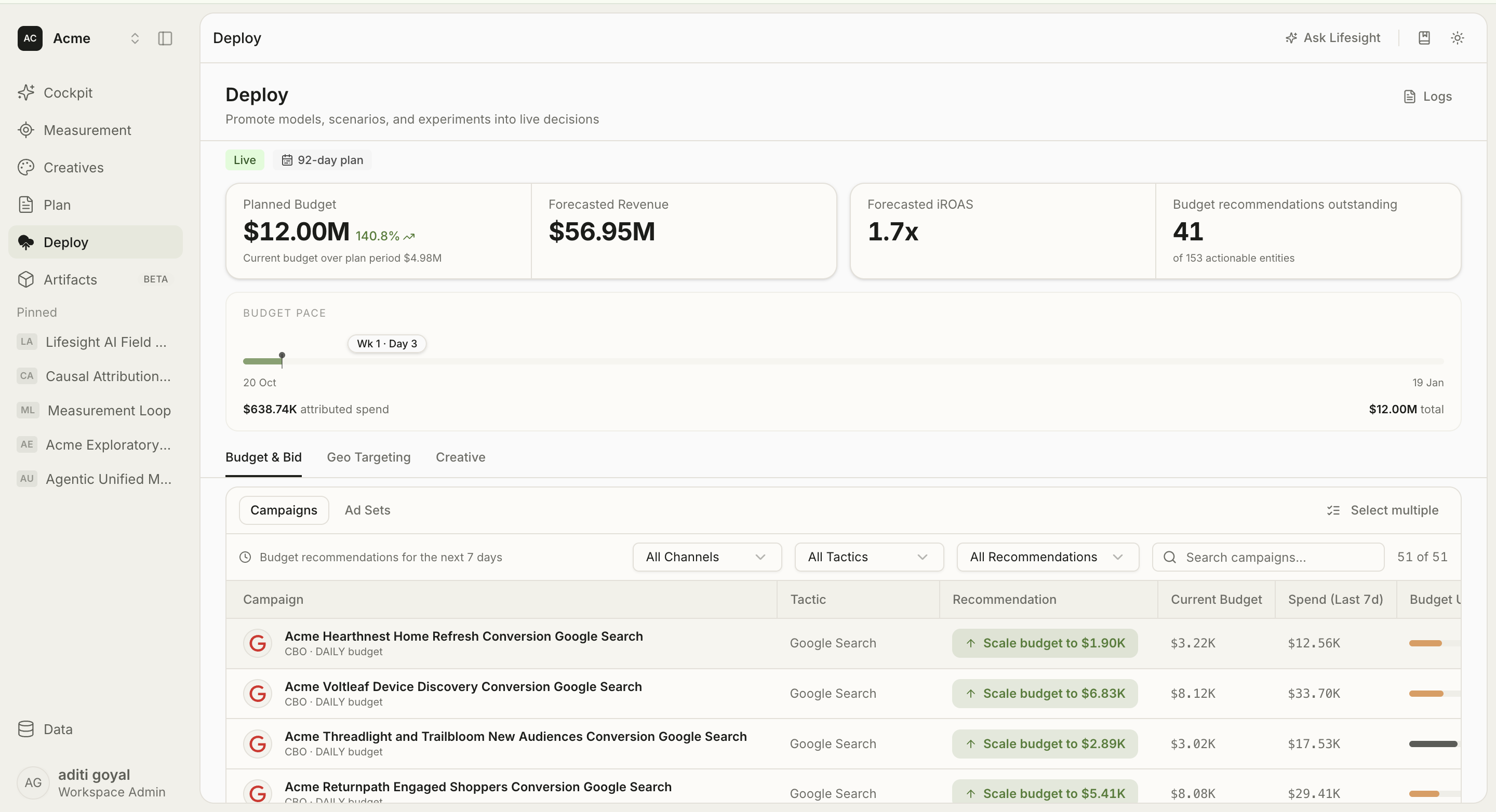
Check where your plan stands. Read the header first. Compare Planned Budget with your current budget, check the forecasted outcomes, and look at Budget Pace to see if spend is on track.
-
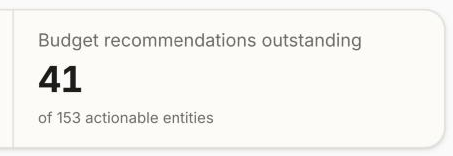
See how much needs action. The Budget recommendations outstanding card shows how many recommendations are waiting, out of all actionable entities (campaigns or ad sets that can take a change).
-
Pick the right view. In Budget & Bid, choose Campaigns or Ad Sets. Each entity shows in the view where its budget lives.

-
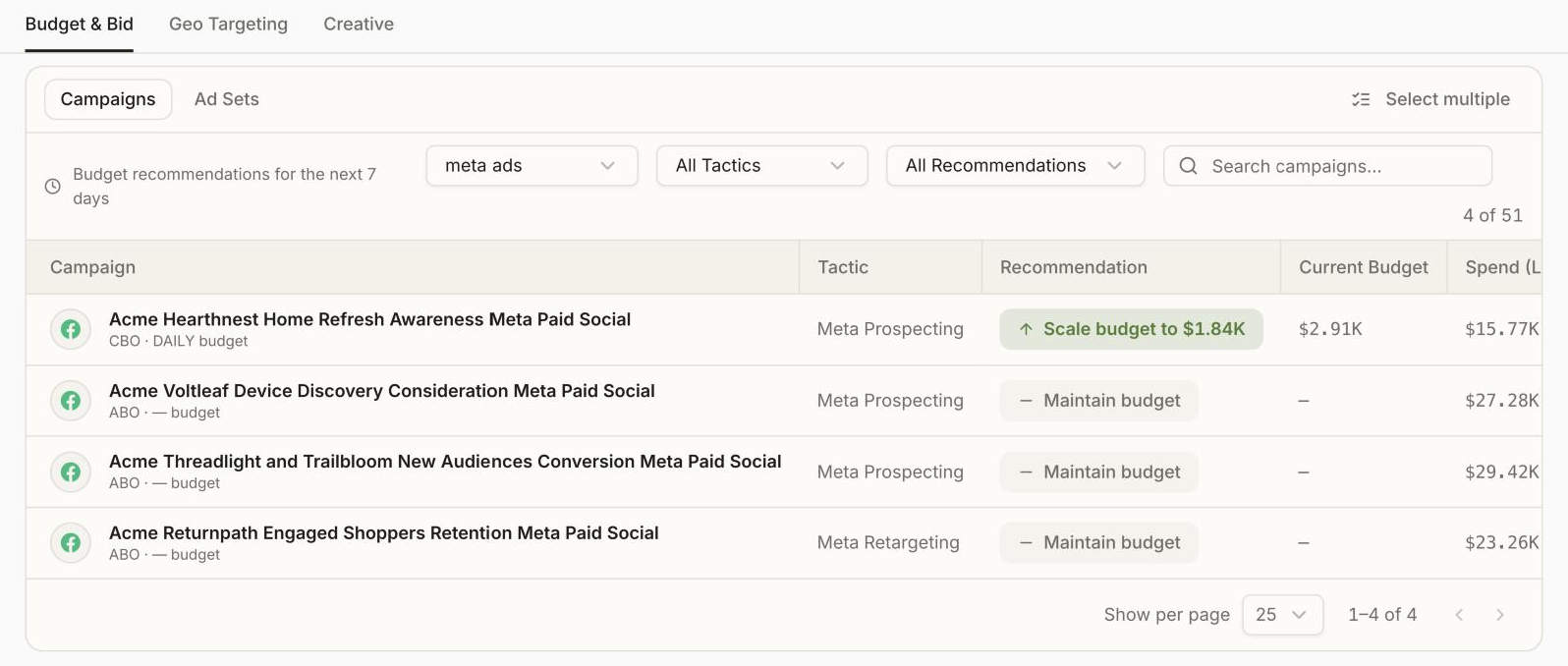
Narrow the list. Filter by channel, tactic or recommendation type, or search by campaign name.
-
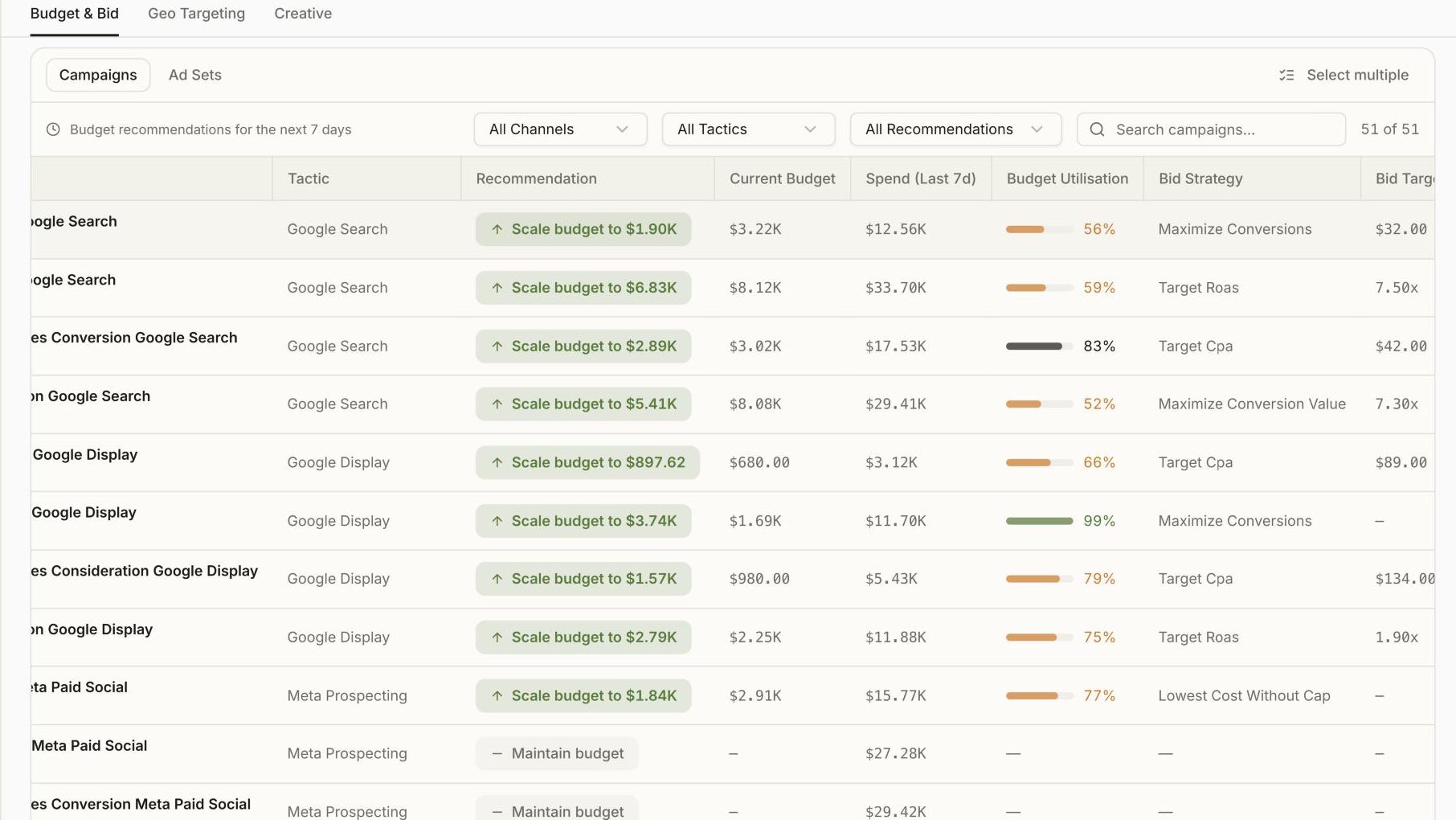
Review each recommendation. Compare the recommended budget with the current budget, spend in the last 7 days and budget utilization before you act.
-
Apply changes. Open a row's menu to change one entity, or use Select multiple to apply the same action to several rows. Take the recommended figure or switch to Custom to enter your own.
-
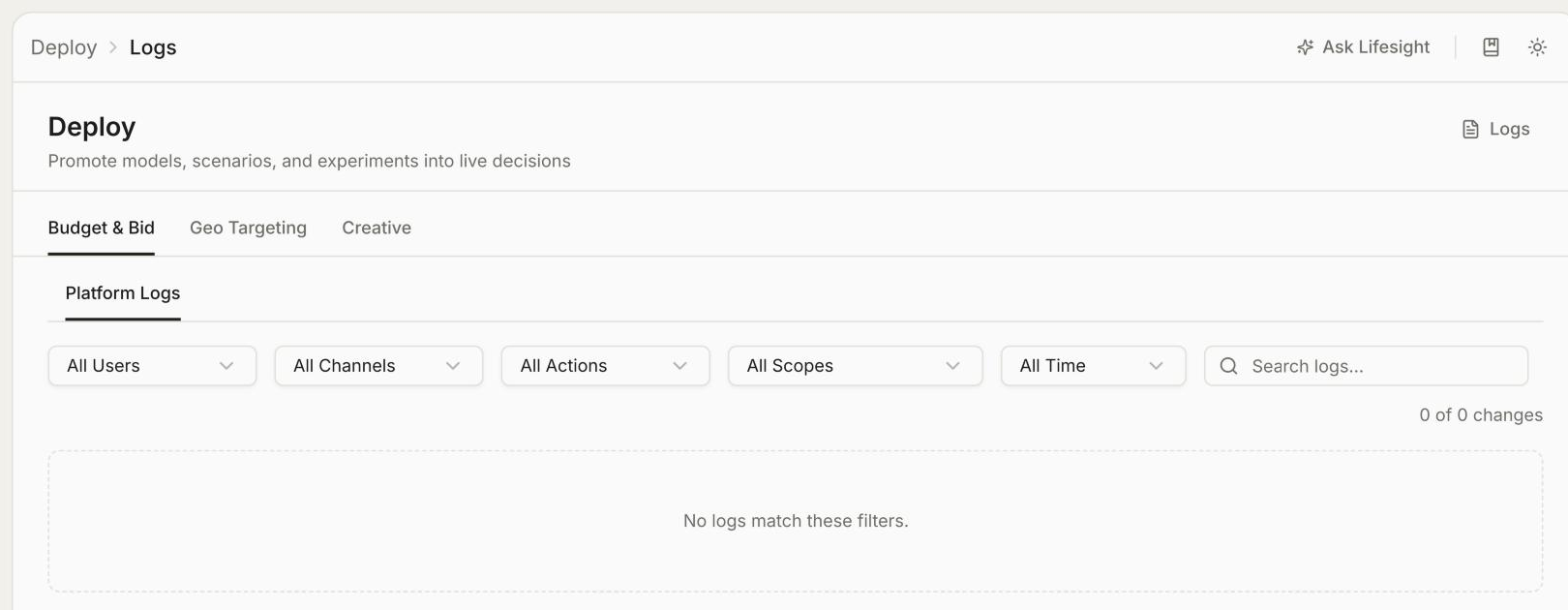
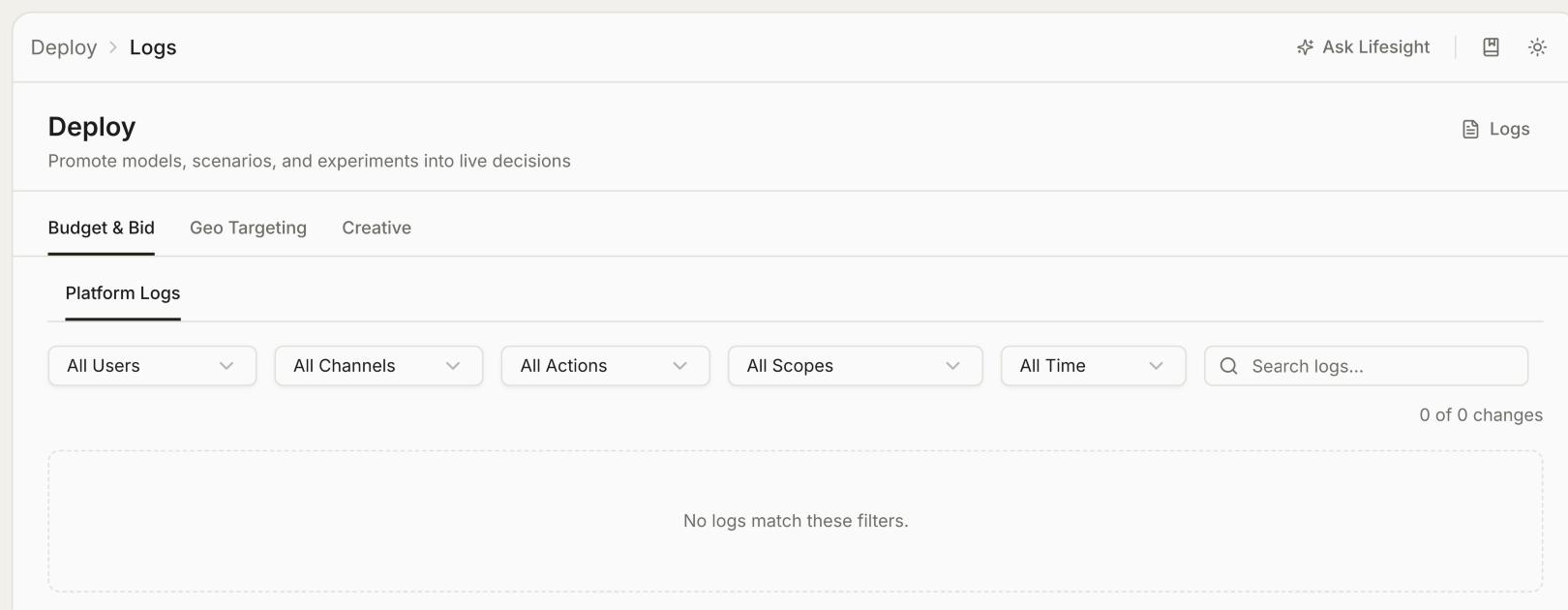
Confirm and verify. Check current against new values in the confirmation step, apply, then open Logs from the Deploy header to see what changed, who changed it and when.
-
Come back in a few days. Recheck pacing and new recommendations. Deploy works best as a regular loop.
See where your plan stands
The plan badge shows the plan's state and length, for example Live, 92-day plan. Four cards then give you the shape of the period before you read a single row.
Planned Budget is what the plan allocates. It also shows the percentage change against your current budget over the plan period.
Forecasted Revenue and Forecasted iROAS are the outcomes the plan projects. If your workspace optimizes for conversions, you see conversions and iCPA (incremental cost per acquisition) in their place.
Budget recommendations outstanding shows how many recommendations are waiting for action, out of all actionable entities.
Budget Pace runs across the full plan window, with today marked on the bar (for example Wk 1, Day 3). It shows attributed spend to date against the plan total. It only compares the days that have passed, so being early in a long plan reads as early, not as underspend.
[IMAGE PLACEHOLDER: Campaigns table with recommendations]
Budget & Bid: know what to change, and where
Budget & Bid shows budget recommendations for the next 7 days. It has two views: Campaigns and Ad Sets. Each entity (a campaign or an ad set) appears in the view where its budget actually lives. You can see this beneath each name, for example CBO, DAILY budget or ABO, DAILY budget.
- CBO (campaign budget optimization): the campaign holds the budget, so the campaign appears and its ad sets do not.
- ABO (ad set budget optimization): each ad set holds its own budget, so the ad sets appear and the campaign does not.
Every entity appears in exactly one view: the level where you can actually make a change. If your workspace runs entirely on campaign budgets, the Ad Sets view will be empty, and that is correct.
What each row shows
- Tactic: the role the campaign plays, such as prospecting or retargeting, from your taxonomy mapping.
- Recommendation: Scale, Reduce or Maintain, with the target budget. It comes from the plan's allocation measured against the entity's incremental return, not from platform-reported performance.
- Current Budget: what is set on the platform today.
- Spend (Last 7d): delivery over the last 7 days. It tells you whether a recommended change is a small correction or a large swing.
- Budget Utilization: how much of the current budget is being spent.
- Bid Strategy and Bid Target: the entity's current bidding setup, for example Target CPA at $42.00. Entities on automated bidding show no target, because there is none to set.
- Deploy Status: whether the recommendation has been actioned, for example Pending.
Find the rows you need
Filter by channel, tactic or recommendation type, or search by name. The count beside the filters shows how many rows you are looking at out of the total.
[IMAGE PLACEHOLDER: Row menu and the Change Campaign Budget dialog]
Apply changes in a few clicks
Open a row's menu and choose Change Budget, Change Bid Value or Change Status. To change several rows at once, use Select multiple, tick the rows, and apply the same action to all of them from the bar that appears.
The budget dialog opens on Recommended. It lists each selected entity with its current budget, the new budget, and the size of the move, for example $1K to $2K, +84%. Switch to Custom to type your own figure for each entity instead. Confirm with Apply Budget Change.
Every applied change is recorded in Logs, which you can open from the Deploy header.
Manage bids yourself, for now
You can see and edit bid targets in Deploy, but Lifesight does not recommend them yet. If you open the bid dialog in Recommended mode, every entity shows "no recommendation". Use Custom to set a bid target yourself, using the current value shown as your reference.
Bid target recommendations are planned. Until they arrive, read the Recommendation column as being about budget only.
Geo Targeting and Creative
Geo Targeting lists the campaigns and ad sets from your plan, with their ad account, current geo targeting and last geo change. Live geo targeting edits from Deploy are coming soon.
Creative shows pause candidates from Creative Intelligence, split by cause, with the estimated spend you can recover each week:
- Underperforming: ads losing money against breakeven. Pause them and reallocate the budget.
- Fatigued: ads with a worn-out audience, for example a declining CTR. Rotate in a replacement.
Each row shows weekly spend, KPI against the average, strength, fatigue status and the reason to pause, with a Pause ad action.
Get the most from Deploy
- Read the header first. If pacing is already off plan, that changes how you read every row below it.
- Work through the Reduce recommendations before the Scale ones. The budget you recover funds the increases.
- Check spend against the recommended change. A large move on an entity that has been delivering heavily is worth a second look.
- Apply changes in bulk where the reasoning is the same across rows, and one at a time where it is not.
- Come back and check pacing again after a few days. Deploy is a loop, not a one-time exercise.
Recommendations reflect your promoted plan and your promoted incrementality source. Treat them as a considered starting point, not an instruction. Platform delivery behavior, seasonality and commitments outside the plan are context only you have.
Frequently Asked Questions
What does Deploy do?
Deploy connects your promoted plan to your ad accounts. It shows how the plan is pacing, recommends what to change in each campaign and ad set, and lets you apply those changes from Lifesight.
How do I get started with Deploy?
Select Deploy in the left navigation, read the header to check pacing, then review the recommendations in Budget & Bid and apply the ones you agree with.
Why can't I see any recommendations?
Recommendations need two things: a calibrated incrementality source (a promoted model or an adopted geo experiment) and a promoted plan. If either is missing, Deploy has nothing to measure against.
What time period do recommendations cover?
Budget recommendations cover the next 7 days.
What does Budget recommendations outstanding mean?
It shows how many recommendations are waiting for action, out of all actionable entities in the plan.
What do Scale, Reduce and Maintain mean?
Scale means move the budget up, Reduce means lower it, and Maintain means keep it as it is. Each recommendation shows the target budget.
Why does a campaign appear but not its ad sets?
The campaign uses CBO (campaign budget optimization), so the budget sits at campaign level. Deploy shows each entity only at the level where you can change its budget.
Why is my Ad Sets view empty?
Your workspace runs entirely on campaign budgets, so all entities appear in the Campaigns view. This is expected.
Does Budget Pace show underspend early in a plan?
No. Budget Pace only compares the days that have passed. Being early in a long plan reads as early, not as underspend.
Can I change budgets for several campaigns at once?
Yes. Use Select multiple, tick the rows you want, and apply the same action from the bar that appears.
Can I use my own budget figures instead of the recommended ones?
Yes. In the budget dialog, switch from Recommended to Custom and type your own figure for each entity.
Does Lifesight recommend bid targets?
Not yet. You can see and edit bid targets in Deploy, but the Recommendation column is about budget only.
Can I edit geo targeting from Deploy?
Not yet. The Geo Targeting tab shows current targeting for each campaign and ad set. Live edits from Deploy are coming soon.
What does the Creative tab show?
Ads that Creative Intelligence flags as pause candidates, split into underperforming and fatigued, with the spend you can recover each week.
How do I check what was changed?
Open Logs from the Deploy header. Every applied change is recorded with what changed, who changed it and when.
Should I apply every recommendation as it is?
Treat recommendations as a considered starting point. Platform delivery behavior, seasonality and commitments outside the plan are context only you have, so review before you apply.
Updated 18 minutes ago