
Model Calibration: Make the model agree with your experiments
Feed incrementality evidence into the model so its paid-media estimates match what your tests actually proved. evidence during model creation or calibration.
Calibration makes your model's channel results more trustworthy by grounding them in experiments you've actually run.
Without calibration, the model works out each channel's contribution by looking at patterns in your historical spend and sales. That works, but it's still an estimate based on correlation.
Calibration gives the model something stronger: the result of a real experiment. If a geo holdout showed that Meta drove a specific incremental lift, calibration tells the model to stay close to that number instead of estimating it from patterns alone.
Your channel results are then anchored to something you tested, not just something the data suggested.
Know when calibration will improve your model
Use calibration when a reliable incrementality experiment covers a channel and time period included in your model data. For calibration to be accurate, the experiment should:
- Measure a comparable outcome to your model's Outcome KPI, such as revenue or orders
- Have a clearly defined start and end date
- Cover a channel or tactic that exists as a paid media variable in your model
Add calibration evidence to your model
You can add calibration in the Calibration step when creating a new model or retraining an existing one.
- Select Add calibration.
- Choose the paid media variable the experiment tested.
- Enter the experiment's start and end dates.
- Enter the incremental ROAS (the incremental revenue generated for each dollar spent, as measured by the experiment) or another supported incremental efficiency value.
- Enter the confidence value for the experiment result.
- Review your entries before submitting the model.
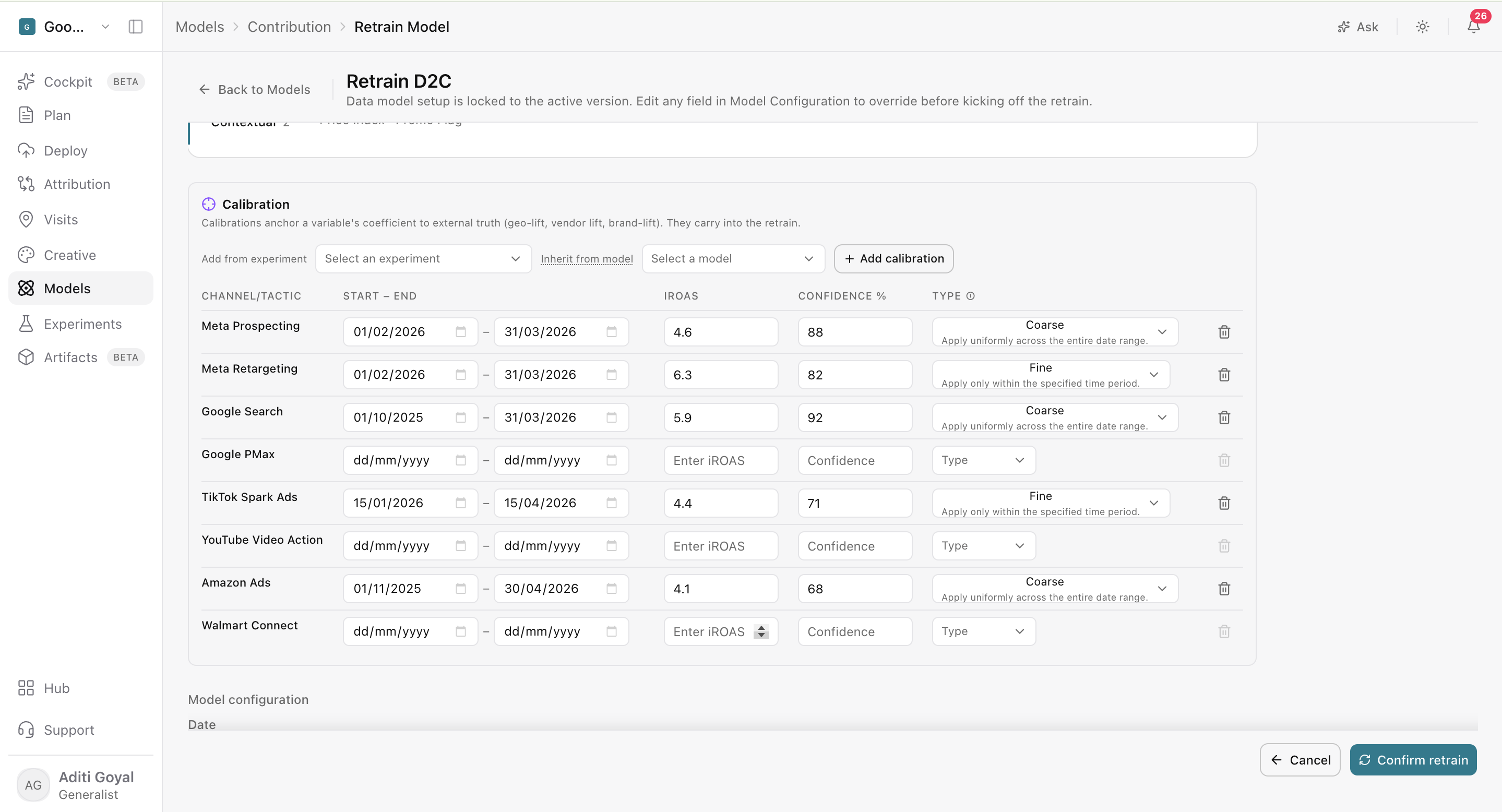
You can also inherit eligible calibration values from the champion model (your current best-performing model) when creating or retraining a model.
Note: Experiment results are entered manually. Adding an experiment directly from the experiment picker isn't available yet.
Confirm your calibration was applied correctly
After your model finishes training, open Diagnostics and review the calibration summary. Check that the channel, dates, incremental efficiency, and confidence match the experiment results you entered.
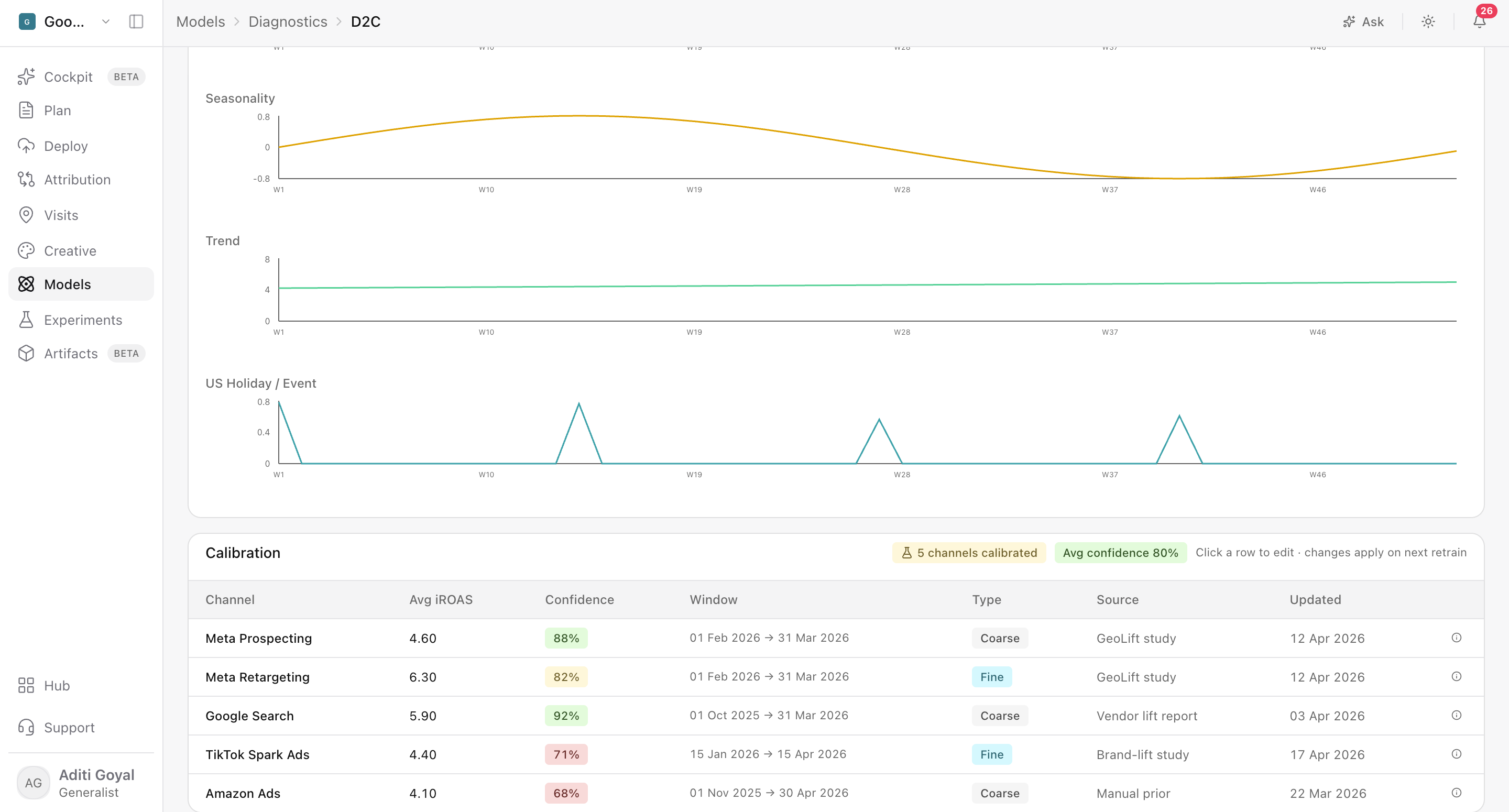
Review calibration alongside the model's backtesting, uncertainty, causal structure, and contribution results. Calibration strengthens the link between your model and observed lift, but it doesn't replace validating the model as a whole.
Update calibration as new evidence comes in
To change the calibration for an existing model, start a retraining workflow and edit the Calibration step. The existing model's Diagnostics view is read-only, so calibration can't be edited there.
Frequently asked questions about
What is calibration in marketing mix modeling?
Calibration uses results from incrementality experiments, such as geo holdouts or lift studies, to anchor a model's channel estimates to observed lift. It helps the model reflect what experiments actually measured rather than relying only on patterns in historical data.
Why should I calibrate my model?
Without calibration, the model estimates channel contribution from correlations in your historical spend and sales. Calibration adds real experiment results, so your channel results are grounded in measured incrementality.
When should I use calibration?
Use calibration when you have a reliable incrementality experiment that covers a channel and time period included in your model data, measures a comparable outcome, and has a clearly defined experiment window.
Is calibration required to build a model?
No. Calibration is optional. If you don't have suitable experiment results, you can build your model without it.
What types of experiments can I use for calibration?
You can use incrementality experiments such as geo holdouts, geo experiments, and lift studies, as long as they measure a comparable outcome over a clearly defined period.
Where do I add calibration?
Add calibration in the Calibration step when creating a new model or retraining an existing one.
What information do I need to add a calibration entry?
You need the paid media variable the experiment tested, the experiment's start and end dates, the incremental ROAS or another supported incremental efficiency value, and the confidence value for the result.
What does the confidence value mean?
The confidence value reflects how certain you are in the experiment result. It tells the model how closely to follow the calibration evidence.
Can I reuse calibration from another model?
Yes, you can inherit eligible calibration values from the champion model when creating or retraining a model.
What is a champion model?
The champion model is your current best-performing model, and eligible calibration values can be inherited from it.
Can I add an experiment directly from Experiments?
Not yet. Experiment results need to be entered manually.
How do I check that calibration was applied?
After training, open Diagnostics and review the calibration summary. Confirm the channel, dates, incremental efficiency, and confidence match the evidence you entered.
Does calibration guarantee my model is accurate?
No. Calibration strengthens the connection to observed lift, but you should still review backtesting, uncertainty, causal structure, and contribution results to validate the model.
How do I update calibration for an existing model?
Start a retraining workflow and edit the Calibration step. Calibration can't be edited in the existing model's Diagnostics view, which is read-only.
What happens if my experiment covers a period outside the model's data?
Calibration works best when the experiment covers a channel and period included in your model data. Evidence from outside that window may not be usable for calibration.
Related Articles
Updated 30 days ago