
Google sheets
Automate your MMM data & COGS data refresh from your google sheets
Integrating Google Sheets will enable your data to help onboard MMM, Spends and Product COGS Data within Lifesight.
Navigation:
- Go to the Connect module > Integrations.
- To integrate your MMM data search for "Google Sheets MMM" in the search box. To integrate your COGS and product data search for "Google Sheets".
- Select your desired integration to open up the integration page.
Integrate Google Sheets:
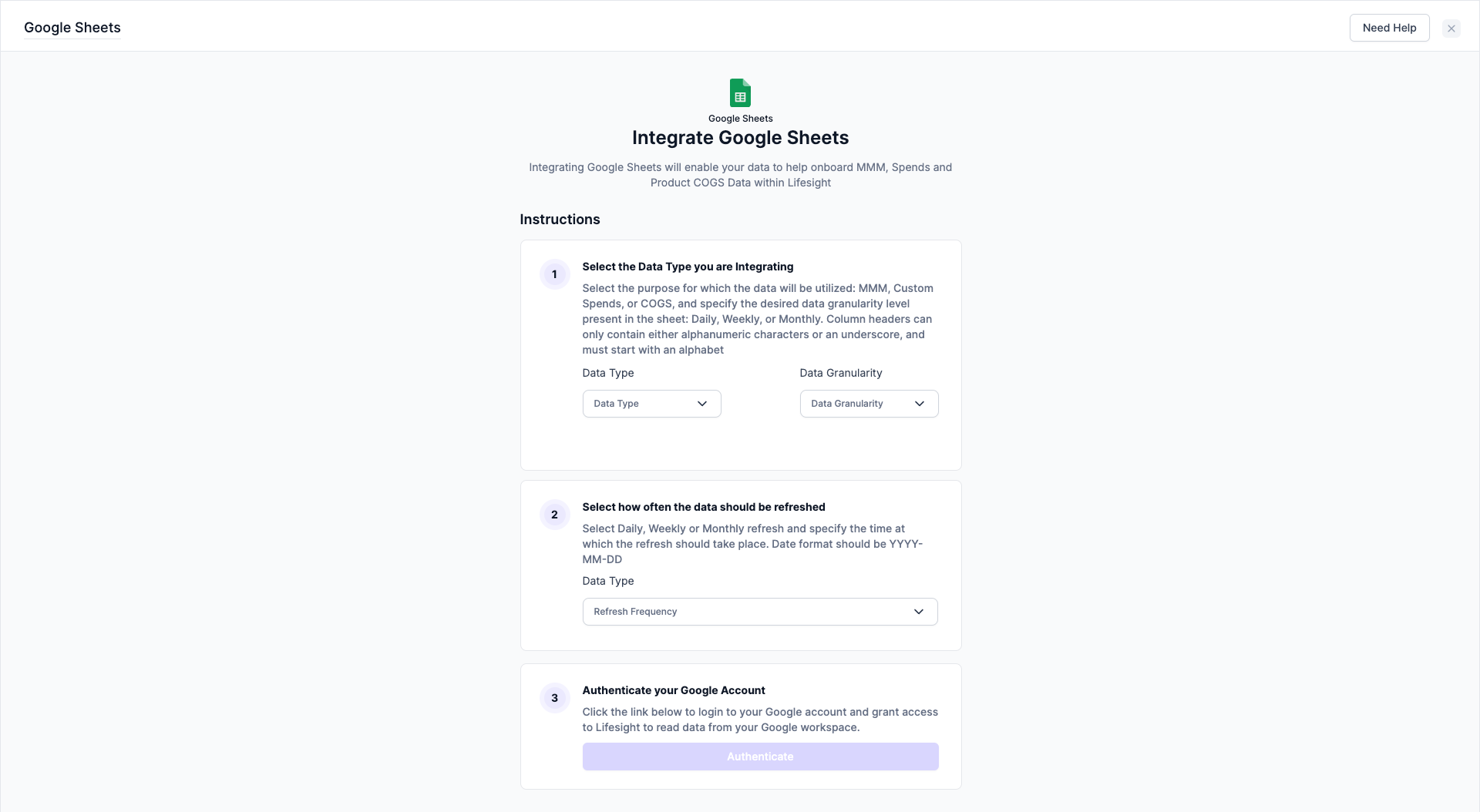
Step 1: Select the Data Type
Select the purpose for which the data will be utilized: MMM, Custom Spends, or COGS, and specify the desired data granularity level present in the sheet: Daily, Weekly, or Monthly. Column headers can only contain either alphanumeric characters or an underscore, and must start with an alphabet
- Data type - Select if your data is COGS or custom costs.
- Data granularity - Choose from daily, weekly, and monthly granularity.
Step 2: Select your data refresh frequency
Select your refresh frequency to either be daily, weekly or monthly and specify the time at which the refresh should take place. Date format should be YYYY-MM-DD
Step 3: Authenticate your Google Account
Click the Authenticate button to authorize your Google account.
Integrate Google Sheets MMM
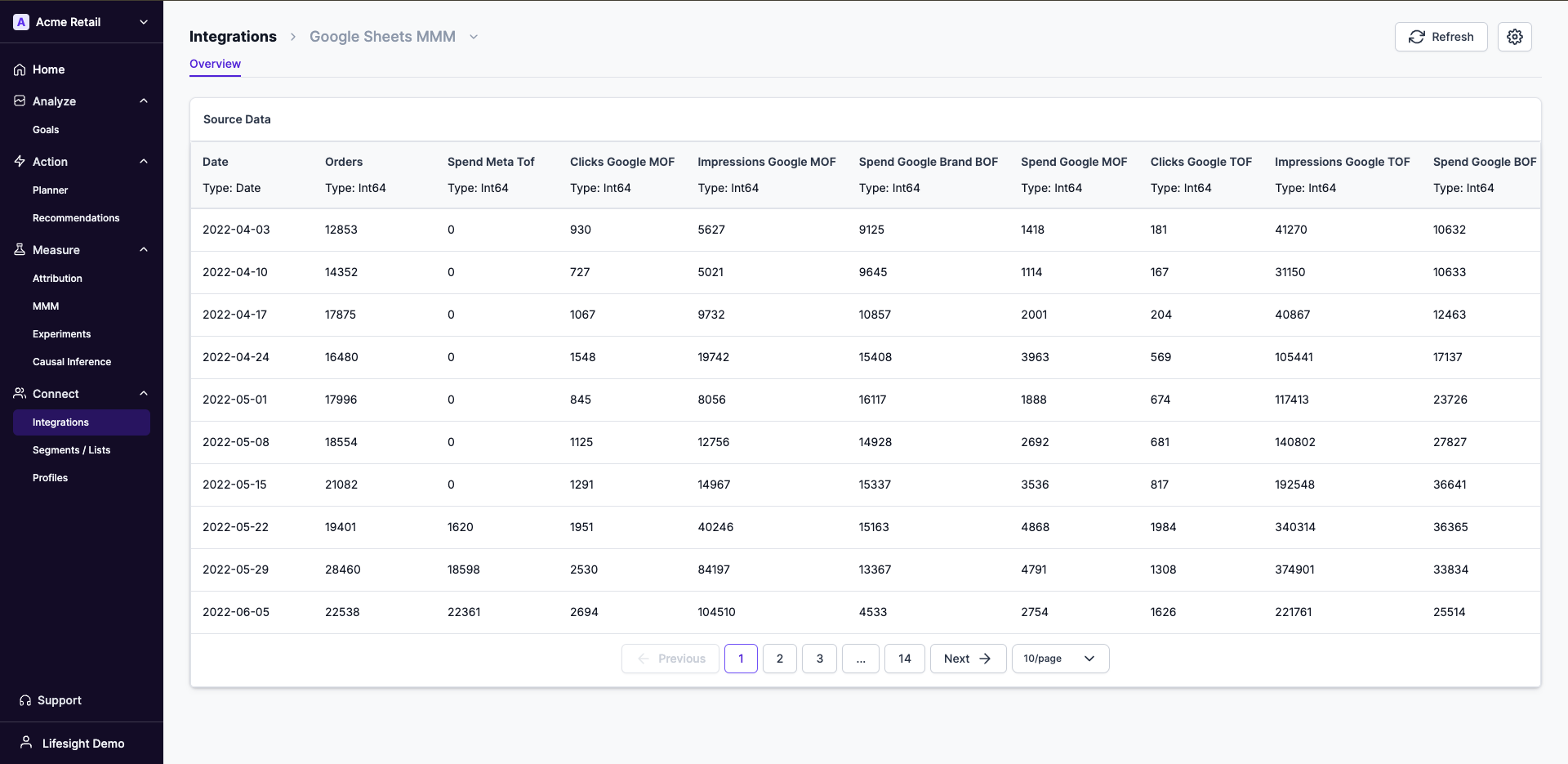
Step 1: Upload the MMM google sheet
Ensure your data is as per the MMM data schema template in CSV format.
Step 2: Select your data refresh frequency
Select your refresh frequency to either be daily, weekly or monthly, and specify the time at which the refresh should take place. Date format should be YYYY-MM-DD
The MMM model will refresh automatically based on the set frequency.
- Select
Settingsbutton from the top-right to update the refresh frequency or data type. - Click the
Refreshbutton to refresh your data manually.
Updated over 1 year ago