
Logger
Gather all the changes made using the Optimizer across Ad platforms
The Optimizer Logger provide a comprehensive and transparent record of every modification made to your advertising campaigns using the Optimizer.
Whether a change is executed automatically by a recommendation or manually by a user, it is recorded here. This allows you to audit your campaign history, track performance shifts, and verify that changes were implemented successfully.
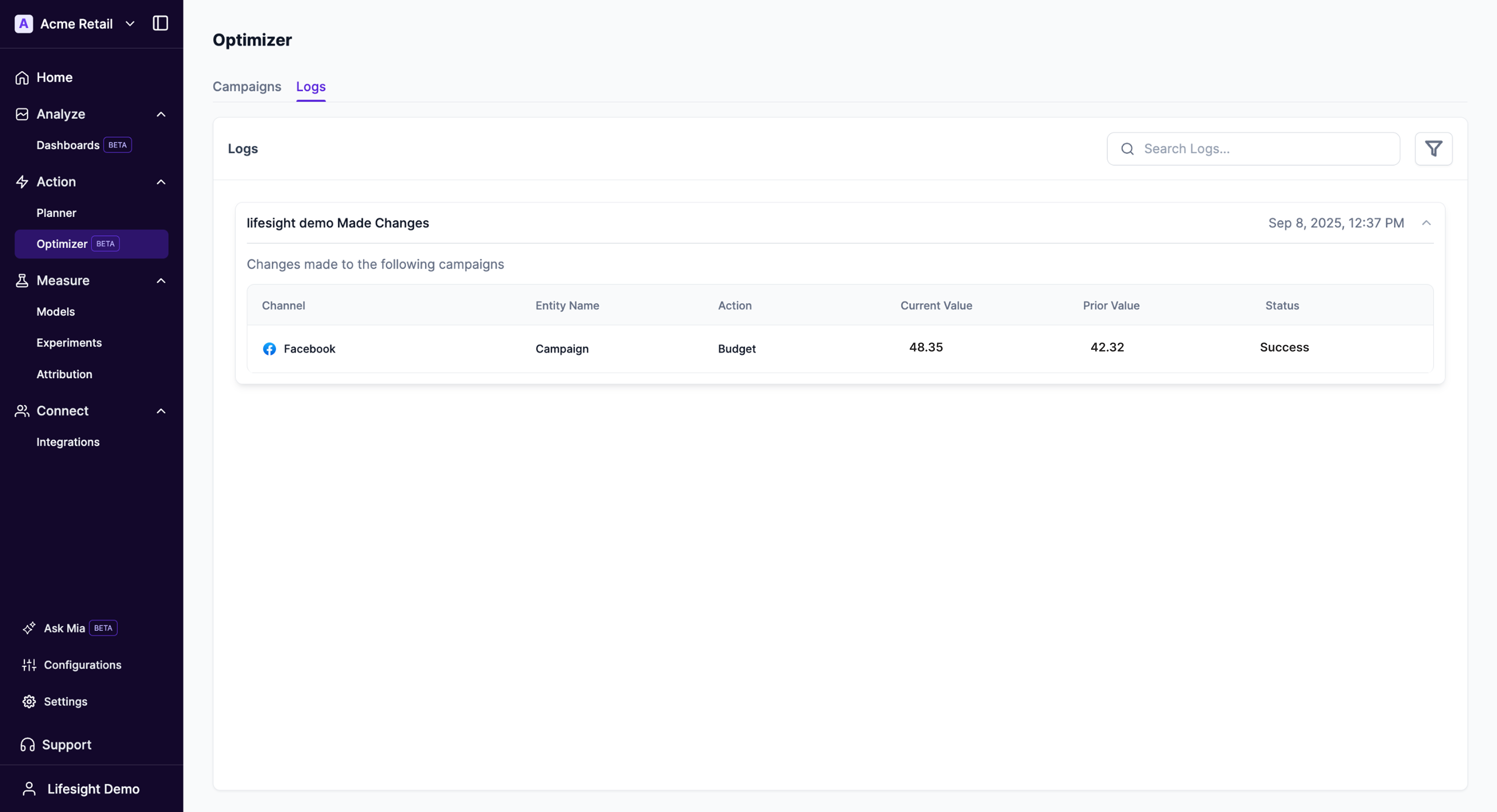
Manual vs. Automatic ChangesThe logs capture both manual adjustments you make directly within the Optimizer and automated changes applied by the platform based on accepted recommendations. This ensures a complete audit trail of all optimization activities.
Accessing the Logs**
To view the change logs, Click on the Logs tab inside Optimizer.
Understanding the Log Details
Each entry in the log provides specific details about a change. The logs are grouped by the date and time of execution.
Here is a breakdown of each column in the logs table:
Channel: The advertising platform where the change was made (e.g., Facebook, Google Ads).
Entity Name: The specific campaign, ad set, or ad that was modified.
Action: The parameter that was adjusted (e.g., Budget, Bid Strategy).
Current Value: The new value of the parameter after the change was applied.
Prior Value: The original value of the parameter before the change.
Status: The result of the change implementation.
Searching and Filtering Logs
To find specific changes quickly, use the tools at the top of the logs table:
Search Logs: Use the search bar to find logs containing a specific keyword, such as a campaign name or action type.
Filter: Click the filter icon to narrow down the log entries based on specific criteria. This helps in isolating changes for detailed analysis. The available filter options are: [List available filter options here, e.g., by Channel, Action, Status, or Date Range].
Updated 11 months ago