
Artifacts (Manual Upload)
Upload your dashboards, reports, and decks to Lifesight so your team can find and share them right next to the data they were built from.
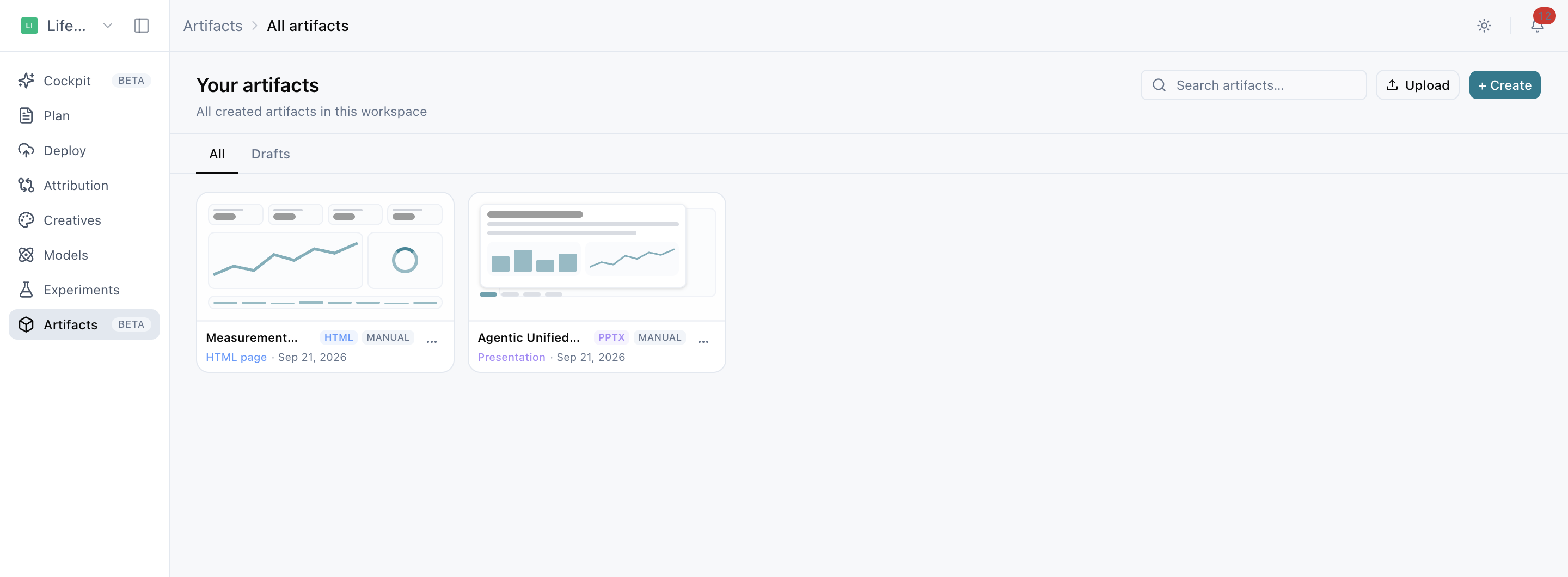
Artifacts gives your team one place to find the reports, dashboards, and decks that matter, right alongside the data they were built from. An artifact is anything you can hand to someone else, such as a dashboard, a report, a deck, or a page. You'll find them under Artifacts in the left navigation.
Today, most reporting lives wherever it was made. A quarterly deck sits in someone's Drive, last month's PDF is buried in an inbox, and the dashboard link only reached half the team. Artifacts gives every one of them a single address your team can return to.
In this release, you add artifacts by uploading a file you already have. Keep creating your reports wherever you create them today. Uploading simply puts them somewhere your whole team can find them.
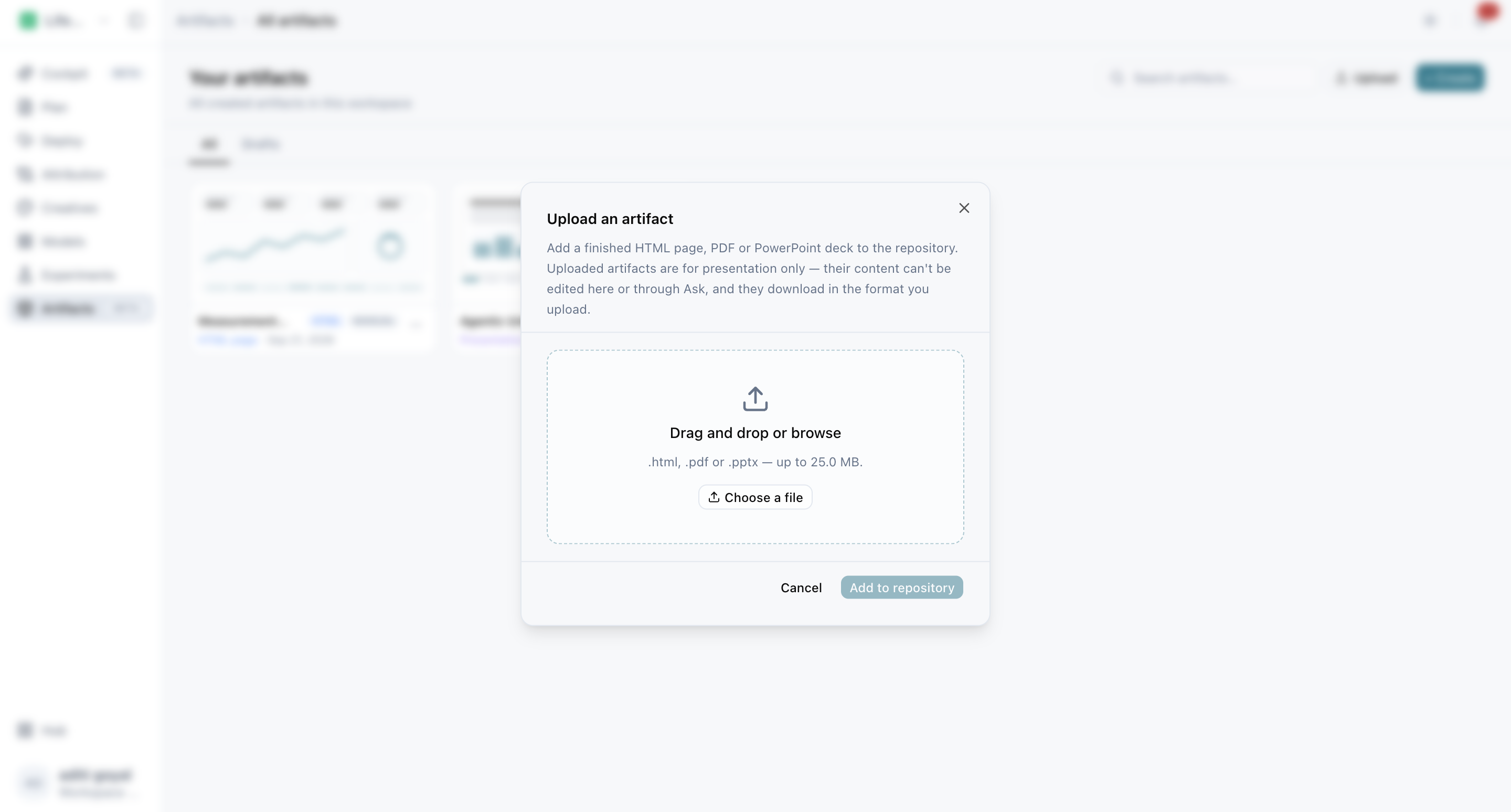
See which files you can upload
| Format | Extensions | What happens when someone opens it |
|---|---|---|
| HTML page | .html, .htm | Displays directly in the page |
| PDF document | Displays directly in the page | |
| PowerPoint deck | .pptx | Available as a download, since browsers can't display decks in the page |
Files can be up to 25 MB.
Note: Uploaded artifacts are presentation-only (view and share, not edit). Your file is stored and returned exactly as you uploaded it, with no editing, no rearranging charts, and no conversion between formats. The PDF you upload is the PDF your team downloads.
Upload a file to share with your team
- Go to Artifacts in the left navigation.
- Click Upload at the top right of the page.
- Choose your file by dragging it onto the dialog or clicking to browse.
- Give it a name. The filename is filled in for you with the extension removed, and you can change it to whatever your team is most likely to search for.
- Click Add to repository.
Your artifact opens as soon as it's saved and appears in your artifacts list right away. Uploads aren't drafts, so there's nothing else to save.
Tip: Name your artifact for the person reading it, not for the file. "Q3 Board Review EMEA" is much easier for a colleague to find than "qbr_v4_final_FINAL.pptx." Renaming never changes the file itself, so it still downloads under its original filename.
View your artifact with everything you need at hand
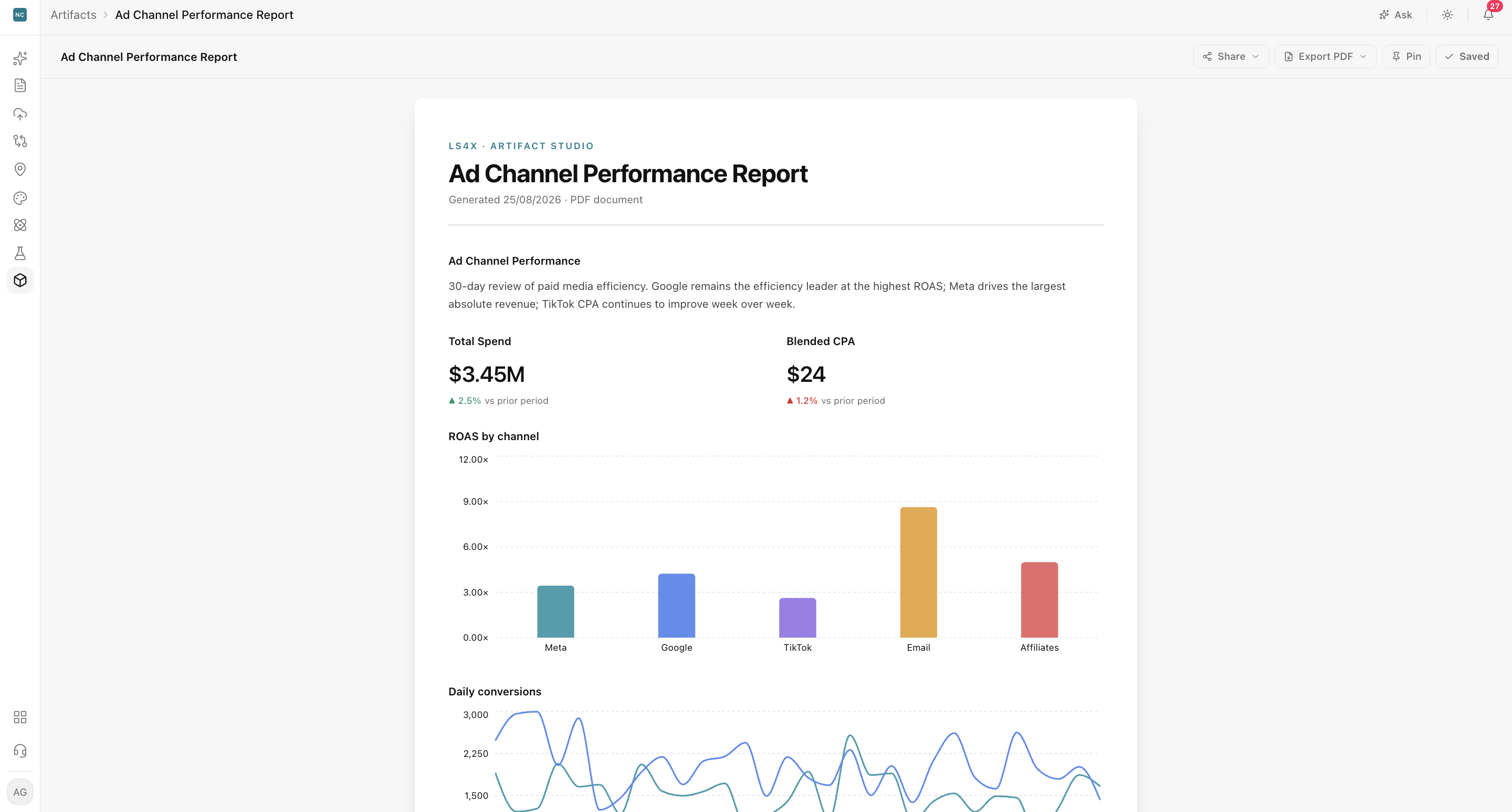
Open an artifact from the list to see the file itself, with a small toolbar above it.
| Control | What it does |
|---|---|
| Name | Click the title to rename it. Press Enter to save or Esc to cancel. |
| Manually uploaded | A badge showing this was uploaded rather than built in Lifesight |
| Share | Copy a private link, or create, copy, and revoke a public read-only link |
| Download | Download the original file under its original name |
| Pin | Pin it to the left sidebar for one-click access |
Below the toolbar, you'll see the format, file size, and original filename, so it's always clear what you're looking at and what will download.
Note: Uploaded HTML pages run in a sandbox (a secure, isolated space). Scripts inside the page can't access your Lifesight session or anything else in the app. This is also why a page that depends on its original website for data may display without that data.
Share your artifact with the right people
Open the Share menu on any artifact:
| Option | Who can open it |
|---|---|
| Copy private link | Only people who can sign in to your workspace |
| Create / Copy public link | Anyone with the link, read-only, with no sign-in needed |
| Revoke public link | Stops the public link from working, immediately |
A public link opens a clean, read-only view showing the artifact name and a Shared · read-only badge, with no editing and no app navigation around it.
Important: where artifacts are stored today. In this release, your artifact repository is stored in the browser where it was created. This means a share link only opens in that browser, and artifacts don't yet carry over between devices or teammates. When you need a file to open anywhere, use Download and send the file directly.
Find and organize your artifacts quickly
The Artifacts page shows your most recent artifacts. Click See all for the full list. From there, you can:
- Search by name.
- Switch between All, Yours, and Shared with you.
- Pin or Unpin any artifact from the ⋯ menu on its card. Pinned artifacts appear under Pinned in the left sidebar.
- Delete an artifact from the same menu.
Every card shows the format, an Uploaded badge, and when it was last updated.
Fix common upload and display issues
My file was rejected.
Only .html, .htm, .pdf, and .pptx files are accepted. Files must also be under 25 MB and not empty. If you have a .ppt or .doc file, re-save it in the newer format or export it to PDF.
My deck won't display.
This is expected. Browsers can't display PowerPoint files in the page, so a .pptx artifact shows a download card instead. If you want your deck to display in the page, export it to PDF before uploading.
The file is no longer stored in this browser.
The artifact's record is still there, but the file behind it isn't. This usually happens when browser storage has been cleared, or when the artifact was created in a different browser or on a different device. Upload the file again to restore it.
My uploaded page looks broken.
An HTML file that loads its charts, fonts, or data from the website it originally lived on won't find them here. Export a self-contained version (one with everything built into the file) and upload that instead.
Frequently asked questions about Artifacts
What are Artifacts in Lifesight?
Artifacts are reports, dashboards, decks, and pages you can share with others, stored in one place in your Lifesight workspace. You'll find them under Artifacts in the left navigation.
What file types can I upload to Artifacts?
You can upload HTML pages (.html, .htm), PDF documents (.pdf), and PowerPoint decks (.pptx).
What is the maximum file size for an artifact?
Files can be up to 25 MB.
How do I upload a file to Artifacts?
Go to Artifacts in the left navigation, click Upload, and drag in or browse for your file. Give it a name and click Add to repository. Your artifact opens as soon as it's saved.
Can I edit an artifact after uploading it?
No. Uploaded artifacts are presentation-only. Your file is stored and returned exactly as uploaded, with no editing or format conversion. You can rename it, and renaming doesn't change the original file.
Why won't my PowerPoint deck display in the page?
Browsers can't display .pptx files in the page, so PowerPoint artifacts show as a download instead. To display a deck in the page, export it to PDF before uploading.
Does renaming an artifact change the downloaded file name?
No. Renaming only changes how the artifact appears in Lifesight. The file still downloads under its original filename.
How do I share an artifact?
Open the Share menu on the artifact. Copy a private link for people who can sign in to your workspace, or create a public read-only link that anyone can open without signing in.
Can I stop a public link from working?
Yes. Select Revoke public link in the Share menu, and the link stops working immediately.
Why doesn't my share link open on another device?
In this release, artifacts are stored in the browser where they were created, so share links only open in that browser. To share a file with someone on another device, use Download and send the file directly.
Why does my artifact say the file is no longer stored in this browser?
This usually happens when browser storage has been cleared, or when the artifact was created in a different browser or on a different device. Upload the file again to restore it.
Why does my uploaded HTML page look broken or show no data?
Uploaded HTML pages run in a secure, isolated space and can't load charts, fonts, or data from the website they originally lived on. Export a self-contained version with everything built into the file, and upload that instead.
Why was my file rejected?
Files are rejected if they aren't .html, .htm, .pdf, or .pptx, are larger than 25 MB, or are empty. Re-save older .ppt or .doc files in the newer format, or export them to PDF.
How do I pin an artifact for quick access?
Click Pin in the artifact's toolbar, or select Pin from the ⋯ menu on its card. Pinned artifacts appear under Pinned in the left sidebar.
How do I find an artifact?
On the Artifacts page, click See all, then search by name or filter by All, Yours, or Shared with you.
Related Articles
Updated about 1 hour ago