
Setting up your Workspace
Settings > Workspace carries the workspace reporting defaults and the one-time week start lock.
Your workspace is where your data, models, and reporting live in Lifesight. Setting it up correctly on day one means every report, model, and weekly check that follows lines up with the calendar your team already works to.
Set up your workspace before you invite your team or connect a data source.
Settings > Workspace holds your reporting defaults, including the day each reporting week begins.
The Week start day is the one setting you choose here. It sets the day your reporting week starts and can be set only once, so agree on it internally before you change it.
Who can do this
- Role: everyone can open Workspace and read every row. Set & lock requires a Workspace Admin. If your role doesn't have access, you'll see: "Your role (
- Where: sidebar user menu > Settings > Workspace
Before you start
- You are signed in to the workspace you want to set up.
- Settings is open on Workspace.
- To lock the week start day, the Week start day row should still show a day selector and a Set & lock button. If it shows a lock pill instead, someone has already locked it.
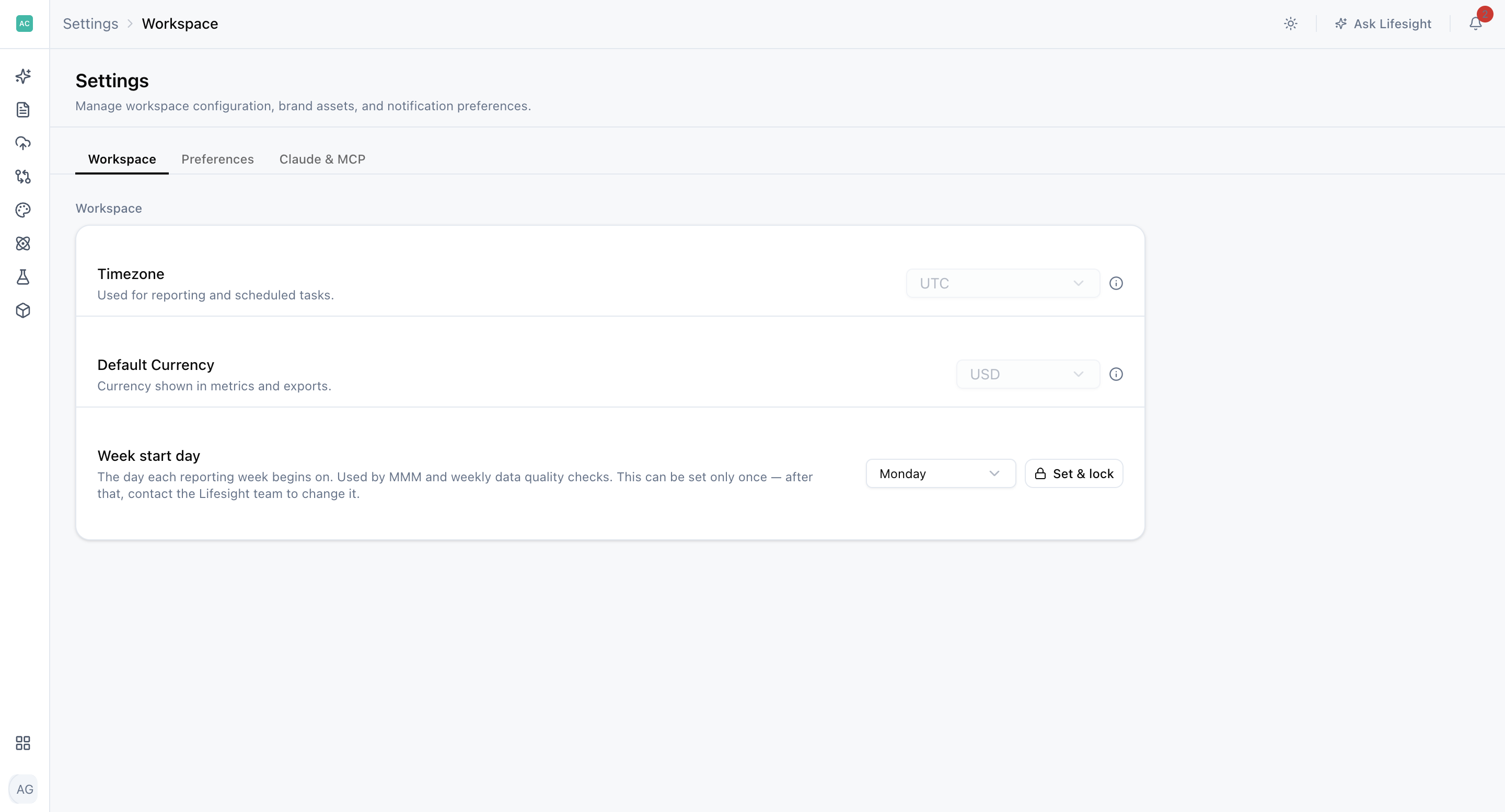
Find your workspace settings
Role: everyone
- In the sidebar, open the user menu and select Settings.
- Select Workspace.
- Review the Timezone and Default Currency rows on the Workspace card.
You're in the right place when you see the Workspace card with three rows: Timezone, Default Currency, and Week start day.
Everything here applies to the workspace you are currently in. If your organization runs more than one workspace, check the workspace name in the sidebar before you change anything.
Lock your reporting week
Role: Workspace Admin for Set & lock
The Week start day row reads: "This can be set only once. After that, contact the Lifesight team to change it." Models and the weekly data quality checks use this day, so it shapes how every weekly result in your workspace is grouped. For example, if your finance team reports Sunday to Saturday, choose Sunday so your model results line up with their numbers.
Choose your day
- On Settings > Workspace, find the Week start day row.
- Select a day. The list offers Monday through Sunday and starts on Monday.
Your selection is not stored until you lock it. If you leave the page without selecting Set & lock, the row returns to Monday.
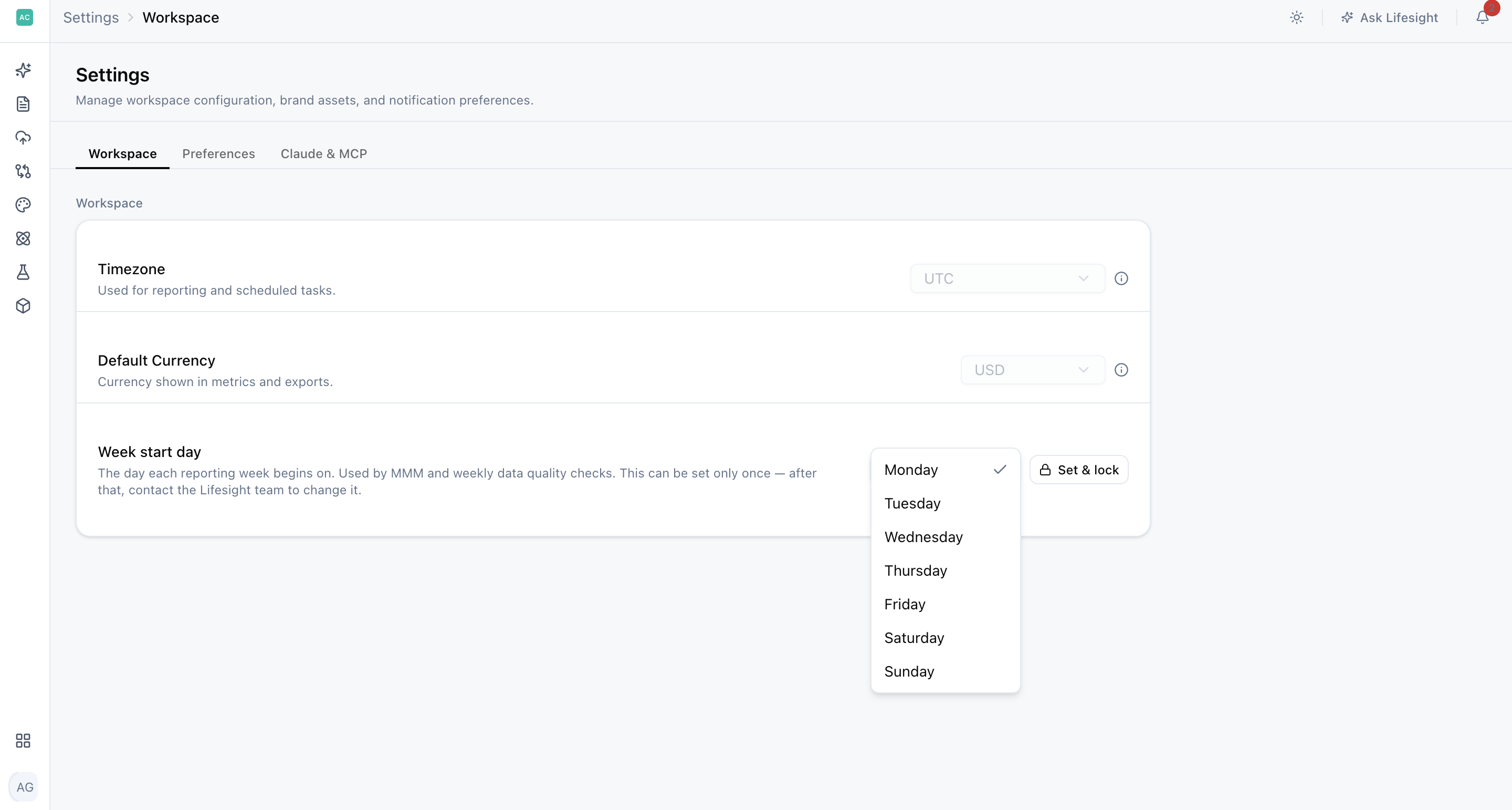
Lock it in
- Select Set & lock.
- In Lock reporting week start?, type the day name exactly as it appears in the list, for example "Monday". The match is case-sensitive, and Lock stays unavailable until it matches.
- Select Lock.
You're done when:
- A confirmation appears: "Reporting week start locked to
- The Week start day row shows a lock pill with the day you chose.
- A line under the row description reads "Locked on DD Mon YYYY. Contact Lifesight to change.", for example "Locked on 12 Sep 2026."
Important: this is a one-time action. Once locked, there is no unlock option in Settings. That's why you're asked to type the day name before confirming. To change a locked week start day, contact Lifesight.
Reference
| Row | Value shown | Helper text on the row | Who can change it |
|---|---|---|---|
| Timezone | Asia/Kolkata | Used for reporting and scheduled tasks. | Contact Lifesight |
| Default Currency | USD | Currency shown in metrics and exports. | Contact Lifesight |
| Week start day | Monday, until a Workspace Admin locks another day | The day each reporting week begins on. Used by Models and weekly data quality checks. | A Workspace Admin, once |
Frequently Asked Questions
Why can't I change the timezone or currency?
Timezone and Default Currency are view-only for every role, including Workspace Admin. Contact Lifesight to change them.
Who can lock the week start day?
Only a Workspace Admin. Everyone else can view the setting but not change it.
Should I lock the week start day now, or wait?
Lock it once your reporting calendar is agreed. Waiting costs nothing, since the day stays Monday until you lock it. Locking the wrong day means contacting Lifesight to change it.
Which day should I choose?
Choose the day your team's reporting week already starts on, so your models and weekly checks match the calendar your marketing and finance teams use.
What does the week start day affect?
It sets the day each reporting week begins. Models and weekly data quality checks use it.
Why is the Lock button unavailable?
The day name you typed doesn't exactly match the one in the list. The match is case-sensitive, so type it exactly as shown, for example "Monday".
I selected a day but it went back to Monday. Why?
Your selection is only stored once you lock it. If you leave the page without selecting Set & lock, the row returns to Monday.
I locked the wrong day. How do I unlock it?
There is no unlock option in Settings. Contact Lifesight to change it.
Do these settings apply to all my workspaces?
No. They apply only to the workspace you're currently in. Check the workspace name in the sidebar before making changes.
Updated about 2 hours ago