
Set up your profile and preferences
Set your persona, hide sidebar modules you never open, and change your profile photo, from Settings > Preferences and Edit Profile.
Your profile and preferences decide how Lifesight looks and behaves for you. Pick the persona that matches how you work, and Lifesight puts the right things first in your Cockpit, Ask answers, and alerts. Hide the modules you never open, and your sidebar carries only what you use.
Set them in Settings > Preferences, and in Edit Profile.
Who can do this
- Role: everyone. No control on Preferences or Edit Profile is limited by role.
- Where: sidebar user menu > Settings > Preferences
Before you start
- Make sure you are in the workspace and browser you want these preferences to apply to. Your persona and hidden modules are stored there, so they won't follow you to a different browser or device.
Edit your profile
- On Preferences, find the Your profile card.
- Select Edit profile (the pencil button).
- Make your changes on the Edit Profile page, headed "Update your profile photo, persona, and password."
- Select Save changes.
A confirmation appears: "Profile updated." Select Back to Settings to return to Preferences.
What you can update
The page holds three rows: Profile photo, Persona, and Password.
- Profile photo: offers Upload, Replace, and Remove profile photo. The photo is described as "Shown on your profile card and anywhere your account appears." In the current release, treat the photo as a preview only. It shows in the tab you uploaded it in and is not kept after a reload.
- Password: the row reads "We'll email a reset link to
. It expires in 1 hour." Selecting Reset password opens a confirmation, Send a password reset link?, and Send reset link confirms it. The row then shows "Reset link sent" and the button reads Send again. In the current release, no reset email is delivered, and your current password keeps working.
Choose your persona
Your persona tailors your Cockpit, Ask answers, and alerts to the work you actually do. For example, a Media Planner sees planning and pacing insights first, while a Marketing Leader sees the headline results that matter for leadership decisions.
- On Edit Profile, open the Persona selector.
- Select a persona.
- Select Save changes.
A confirmation appears: "Profile updated." The label under your name in the sidebar user menu changes to your new persona.
Persona is not access
Persona changes what Lifesight puts first, not which modules you can open. Your role decides what you can open. See Roles: what each one opens, and what it can do.
Available personas
| Persona | Starting persona for |
|---|---|
| Measurement Analyst | Marketing Scientist |
| Growth Marketer | No role starts here |
| Media Planner | Strategic Planner |
| Marketing Ops | Data Practitioner |
| Marketing Leader | Executive |
| Generalist | Workspace Admin, Viewer |
These six are the full list, in the order they appear. Until you pick one, Lifesight uses your role's starting persona.
Hide modules you don't use
- In the sidebar, open the user menu and select Settings.
- Select Preferences.
- Under Customize Menu, find the module's row.
- In the Action column, select the eye button on that row.
- Select Save changes in the footer.
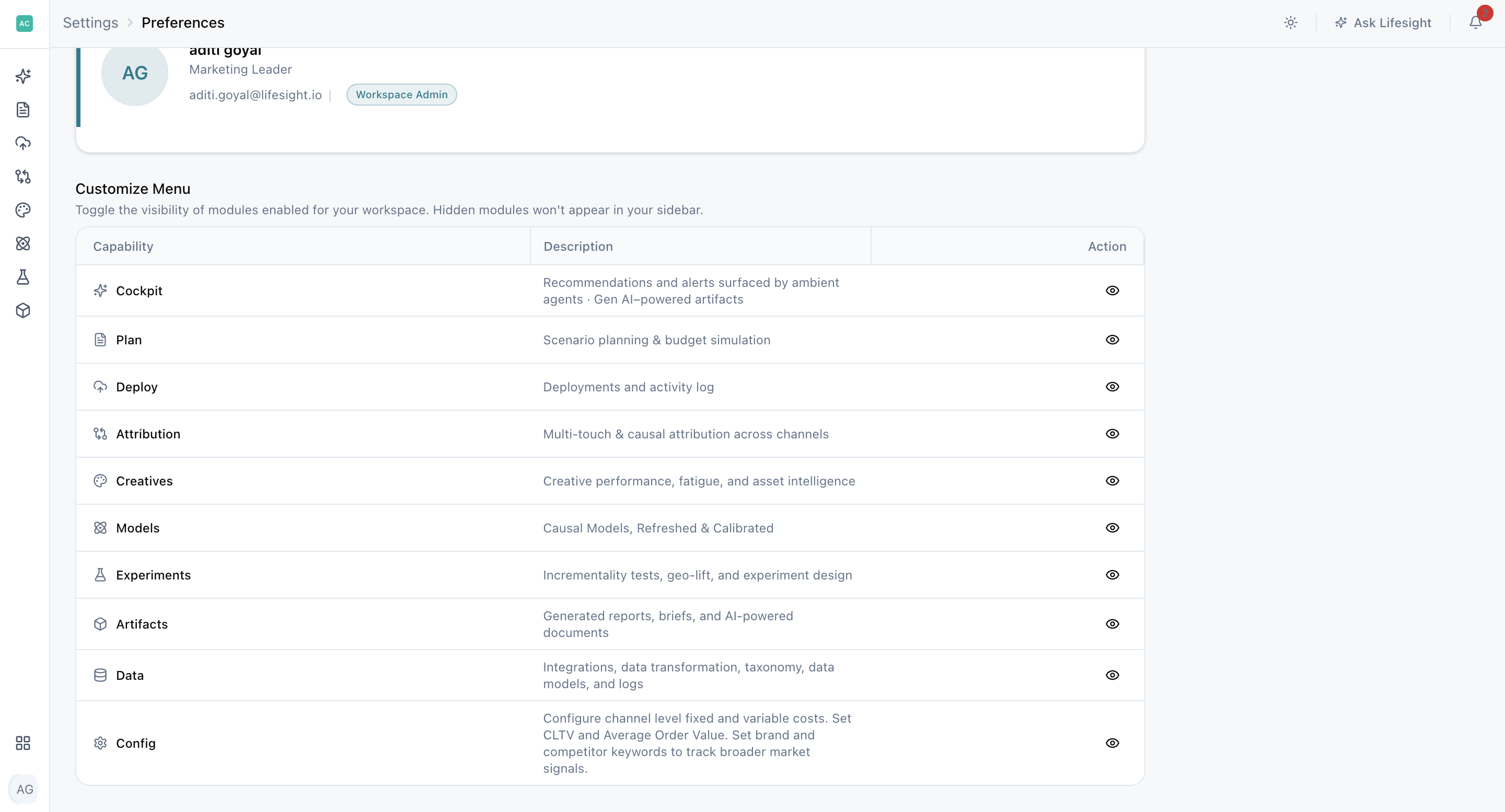
A confirmation appears: "Capabilities saved." The module disappears from your sidebar.
Customize Menu is described as "Toggle the visibility of modules you have access to. Hidden modules won't appear in your sidebar." Hiding a module only tidies your own sidebar. It doesn't remove your access, and you can show it again at any time by selecting the eye button and saving.
Request access to more modules
Below Customize Menu, a second table, Additional Capabilities, lists modules outside your current role, headed "Modules not included in your current role. Request access to enable them." A Workspace Admin never sees this table, because no module is closed to that role.
Send a request that reaches an admin
To raise a request, open the module from the sidebar and use the dialog on the Access Restricted screen:
- Open the module from the sidebar. The Access Restricted screen appears.
- Select Request Access.
- In the Request Access: dialog, choose Read-only or Manage / Edit.
- If the module has a Special Actions checklist, tick the actions you need. The list is dimmed under Read-only and available under Manage / Edit.
- Select Submit Request.
Frequently Asked Questions
Should I hide a module or request access to it?
Hide a module you can open but never use, so it leaves your sidebar. Request access to a module your role can't open. Those modules are grayed out in the sidebar, show Access Restricted when selected, and appear under Additional Capabilities rather than Customize Menu.
Does my persona change what I can open?
No. Persona tailors your Cockpit, Ask answers, and alerts to how you work. Your role decides which modules you can open and which actions you can take.
What persona do I have if I haven't picked one?
Lifesight uses your role's starting persona. For example, an Executive starts as a Marketing Leader.
Why are my hidden modules back?
Hidden modules are stored in the browser you saved them in. A different browser, device, private window, or cleared site data all start with every module visible. Hide them again in Settings > Preferences > Customize Menu.
Why does my profile card show someone else's name?
In the current release, the profile card shows a sample Workspace Admin record, and its persona line always reads Generalist. Your real name, persona, and role appear in the sidebar user menu.
Why didn't my profile photo stay?
In the current release, the profile photo is a preview only. It shows in the tab where you uploaded it and is not kept after a reload.
I asked for a password reset link and nothing arrived.
In the current release, no password reset email is sent, whichever screen you request it from. Your current password keeps working. See Find your symptom for more help.
Where do I request access to a module?
Open the module from the sidebar and use Request Access on the Access Restricted screen. This is the request that reaches an admin.
Do my preferences apply to every workspace?
No. Your persona and hidden modules apply to the workspace and browser where you saved them.
Updated about 2 hours ago