
Custom Budget Pacing
Align your monthly spend with seasonality, promotions, and media commitments.
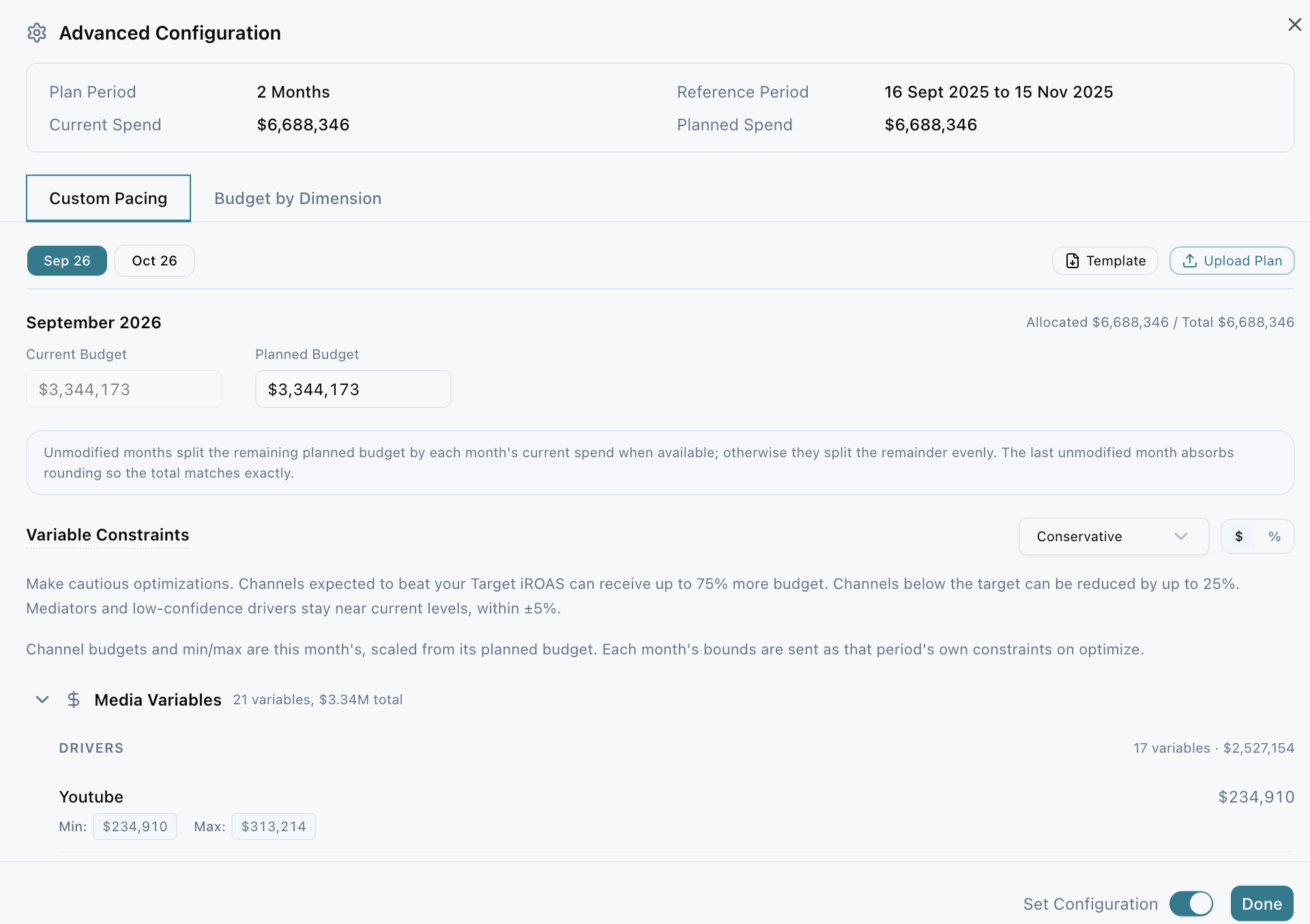
Custom budget pacing lets you control how your planned budget is spread across each month of your plan period, instead of splitting it evenly. You can set a budget for each month and apply month-specific channel constraints (spend limits per channel), so your scenario forecasts results based on when you actually plan to spend.
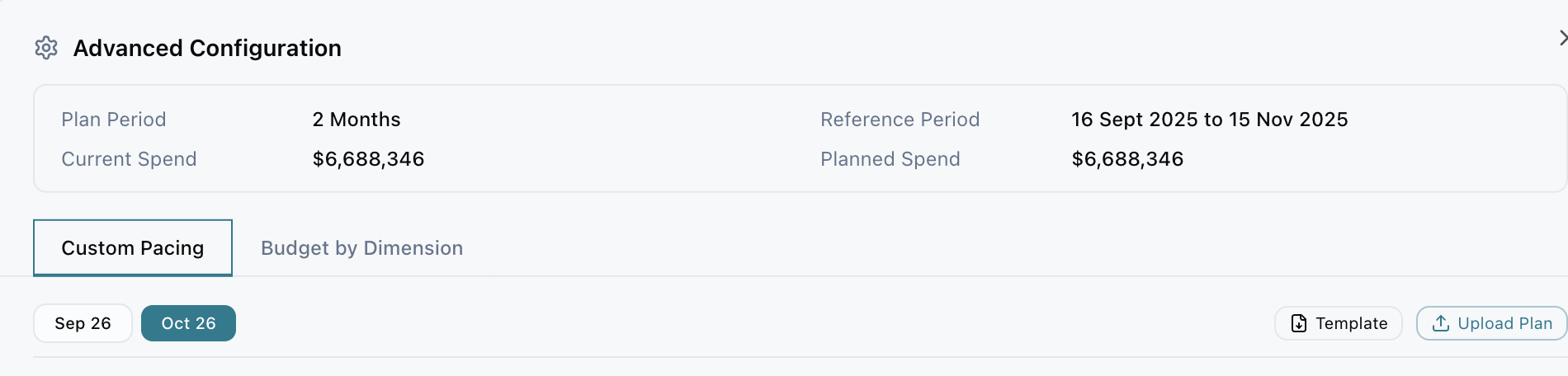
[IMAGE PLACEHOLDER: Advanced Configuration Custom Pacing tab]
Know when custom pacing will improve your plan
Use custom pacing when your spend should not be spread evenly across the plan period. Common reasons include:
- Seasonality: increasing spend ahead of peak demand periods, such as holidays or back-to-school.
- Launches: concentrating budget around a new product or campaign launch.
- Promotions: supporting sales events or limited-time offers with heavier spend.
- Inventory limits: pulling back spend when stock is limited, so you don't drive demand you can't fulfill.
- Contractual media commitments: reflecting spend agreed with media partners for specific months.
Pacing your budget this way gives you a more realistic forecast, since Planner models results based on when spend actually happens.
Set up custom pacing for your scenario
-
Open a Planner scenario.
-
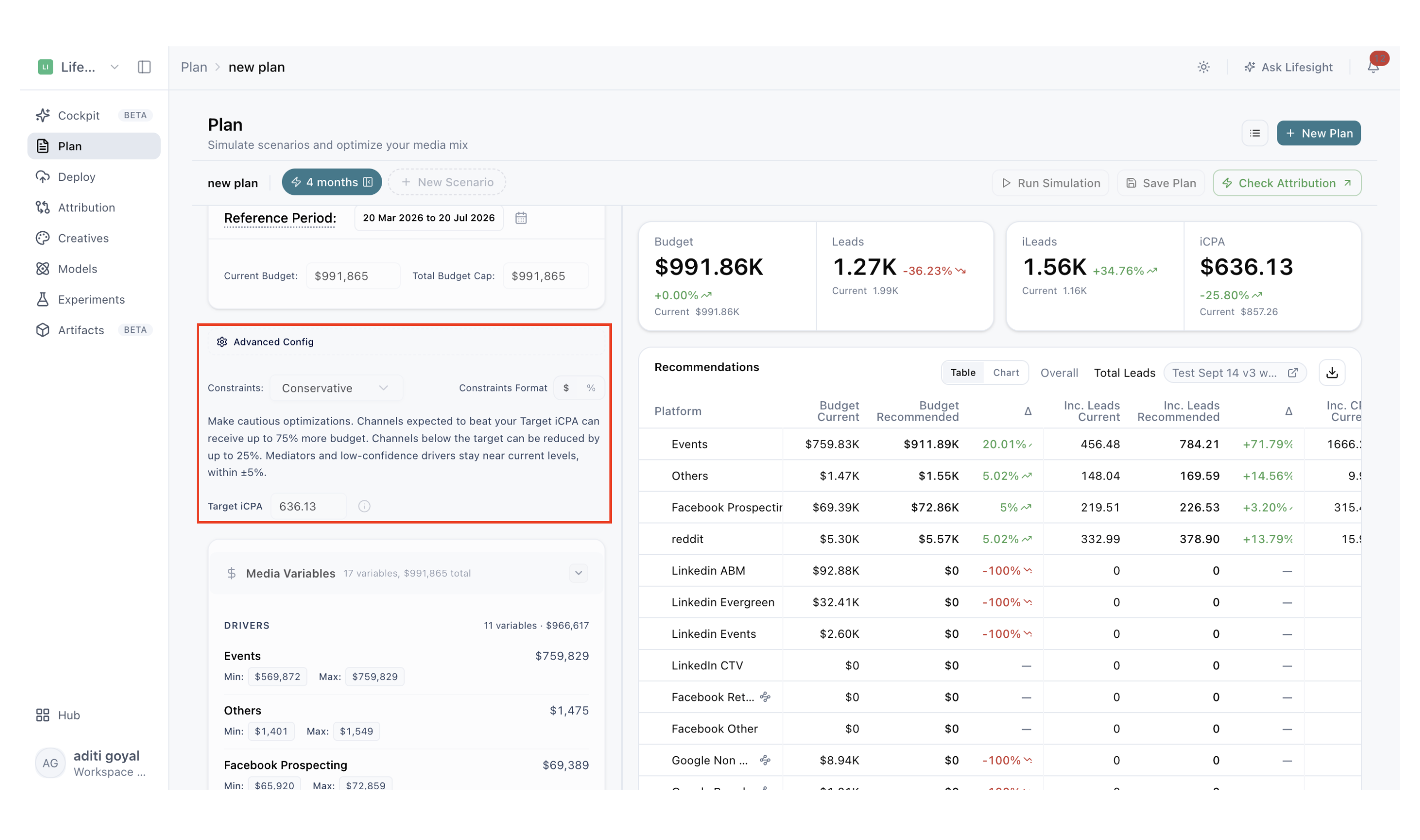
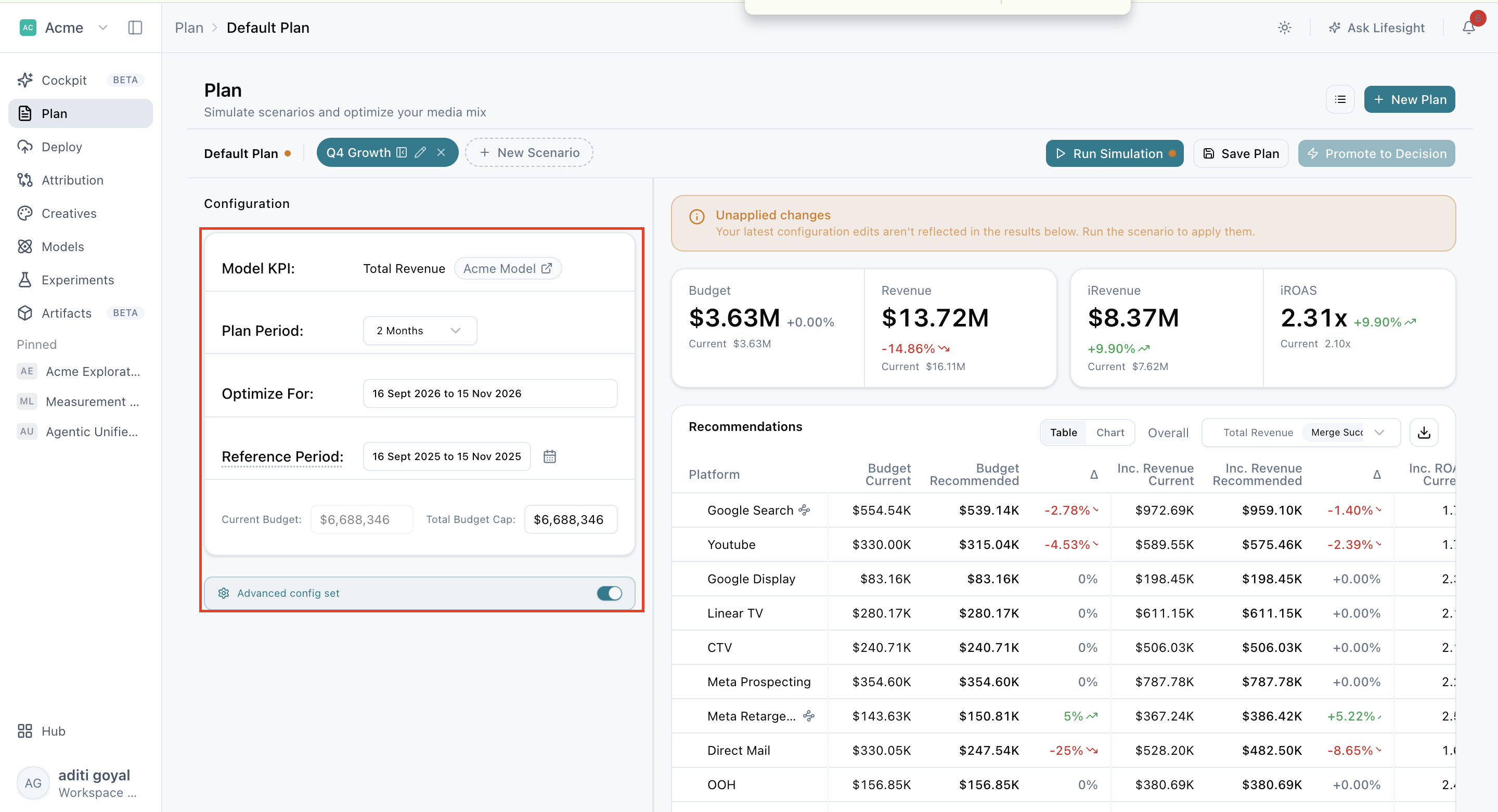
If you select plan period as 1 month in configuration custom pacing wont appear. To edit the custom pacing setting ensure to select the plan period more than 1 month. Then select Advanced Config.
-
Open Custom Pacin tab.
-
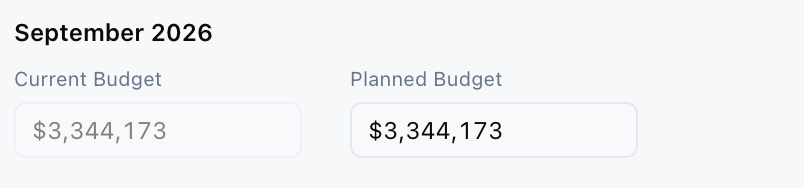
Review the current and planned budget for each month. Current budget reflects spend from your reference period (the past window used as your baseline).
-
Edit monthly budgets directly, or upload a pacing plan.
-
Review channel constraints for each month and adjust them where needed.
-
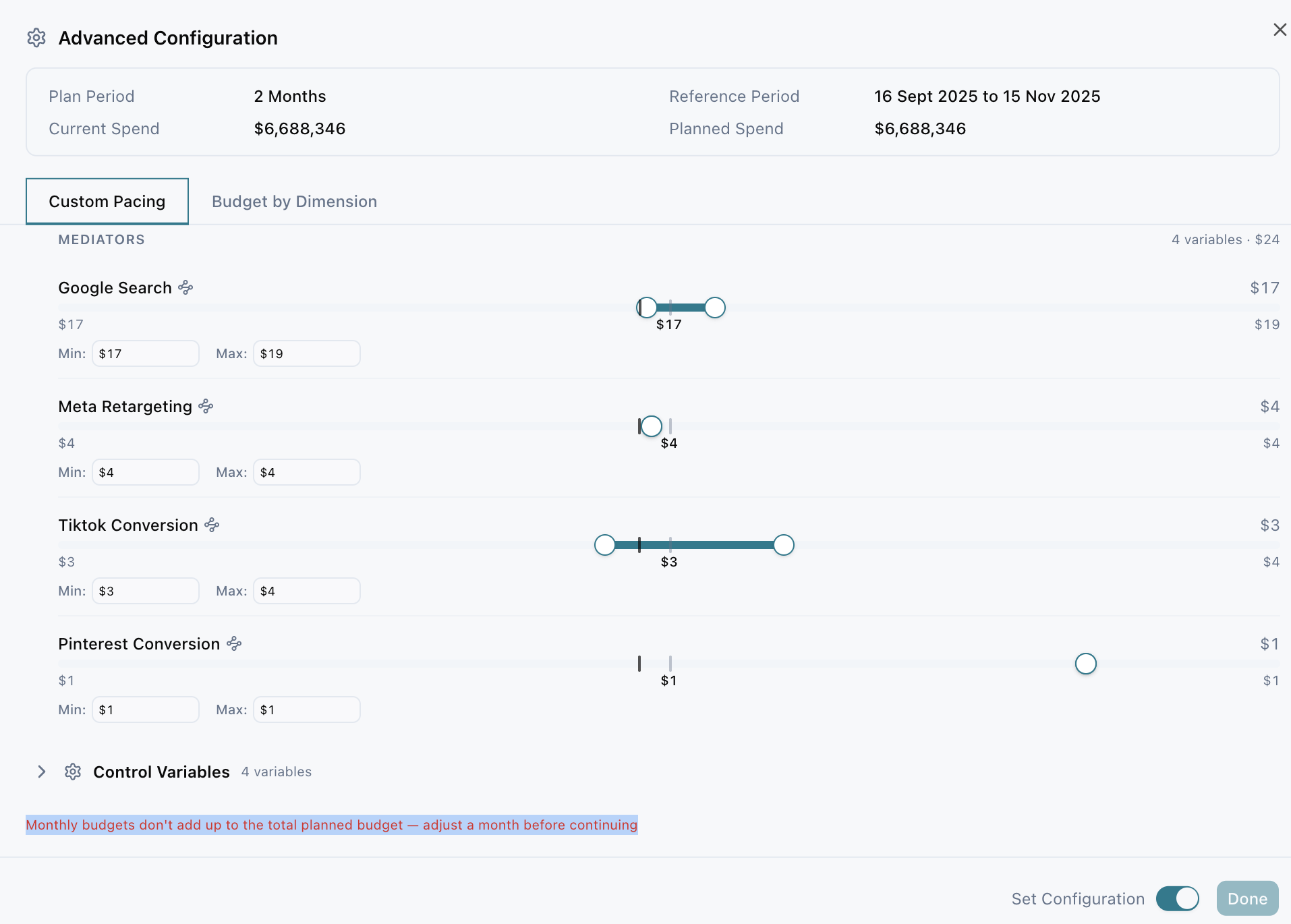
Confirm that your monthly budgets add up to the total planned budget.
-
Select Apply or Done, then run the simulation to see your updated forecast.
Understand how Planner fills in the months you don't edit
You don't need to set a budget for every month. Planner distributes the remaining budget across any months you leave unchanged:
- If current monthly spend is available, Planner divides the remaining planned budget across unmodified months in proportion to that spend, so your existing seasonal patterns carry forward.
- If current monthly spend is not available, Planner divides the remaining budget evenly across unmodified months.
- The final unmodified month absorbs any rounding, so your monthly budgets always add up exactly to the total planned budget.
Channel bounds are also set month by month. Each month's channel limits are scaled from that month's planned budget and applied as constraints for that period, so a lighter month gets proportionally smaller channel limits and a heavier month gets larger ones.
Make sure your pacing plan is valid
Before you can apply custom pacing, your plan needs to meet a few rules:
- Every monthly budget must be greater than zero.
- Monthly budgets must stay within allowed limits.
- All monthly budgets must add up to the total planned budget.
- Channel minimums cannot be negative.
- Channel minimums cannot be higher than their maximums.
If these are not met you might face errors such as appearing in the image below like Monthly budgets don't add up to the total planned budget — adjust a month before continuing.
Each month has its own tab at the top of Custom Pacing (for example, Sep 26 and Oct 26), and each month has its own planned budget. The channel budgets you set within a month cannot add up to more than that month's planned budget.
For example, if Sep 26 has a planned budget of $1,000,000 and your channel budgets for September add up to $1,200,000, Planner shows an error because you've assigned $200,000 more than the month allows. Reduce one or more channel budgets until the total is $1,000,000 or less, then repeat the check for each month.
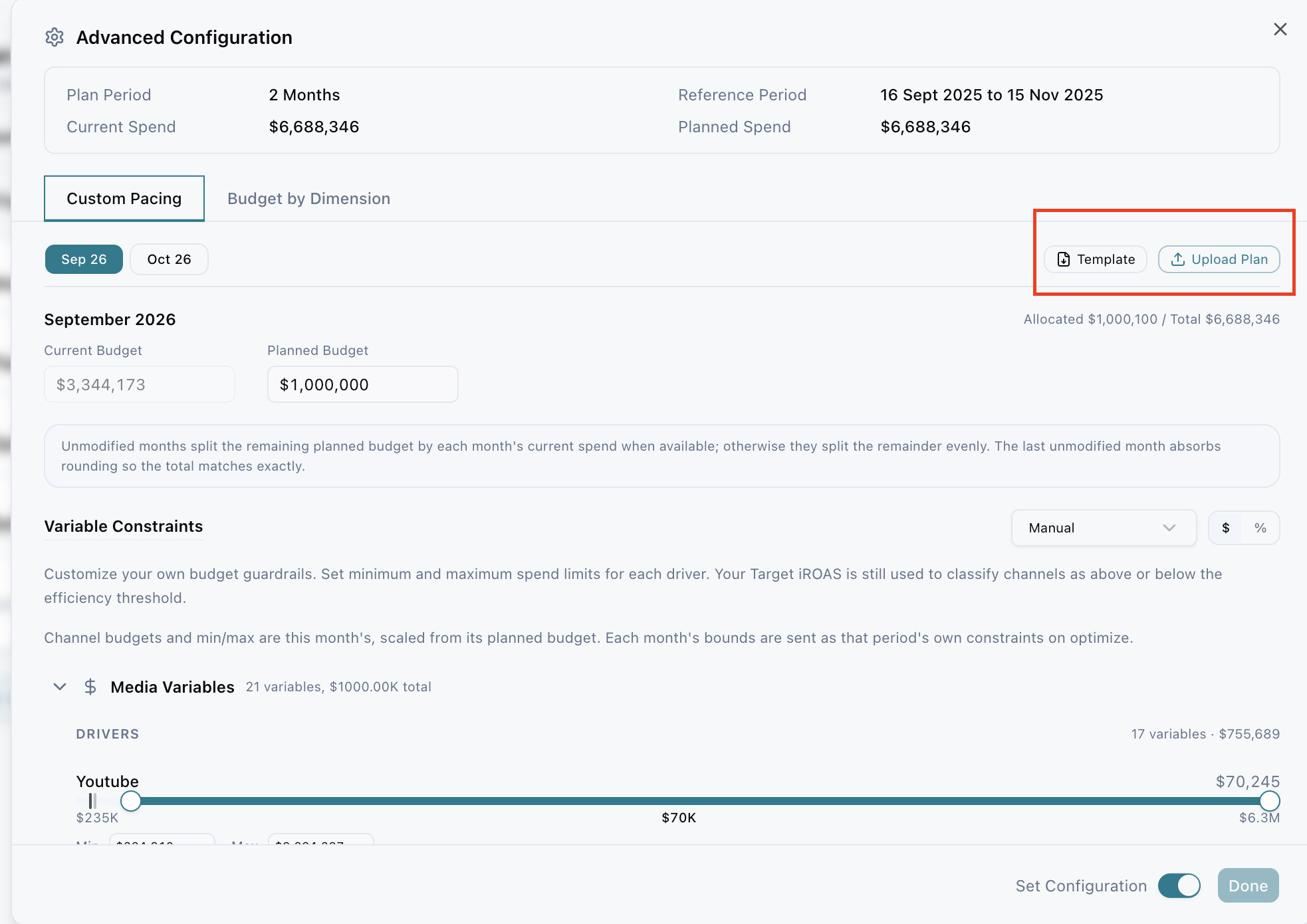
Also,if you are uploading a pacing plan, start from the provided template and keep the CSV file under the file-size limit shown in the platform. Using the template makes sure your file is in the right format to upload.
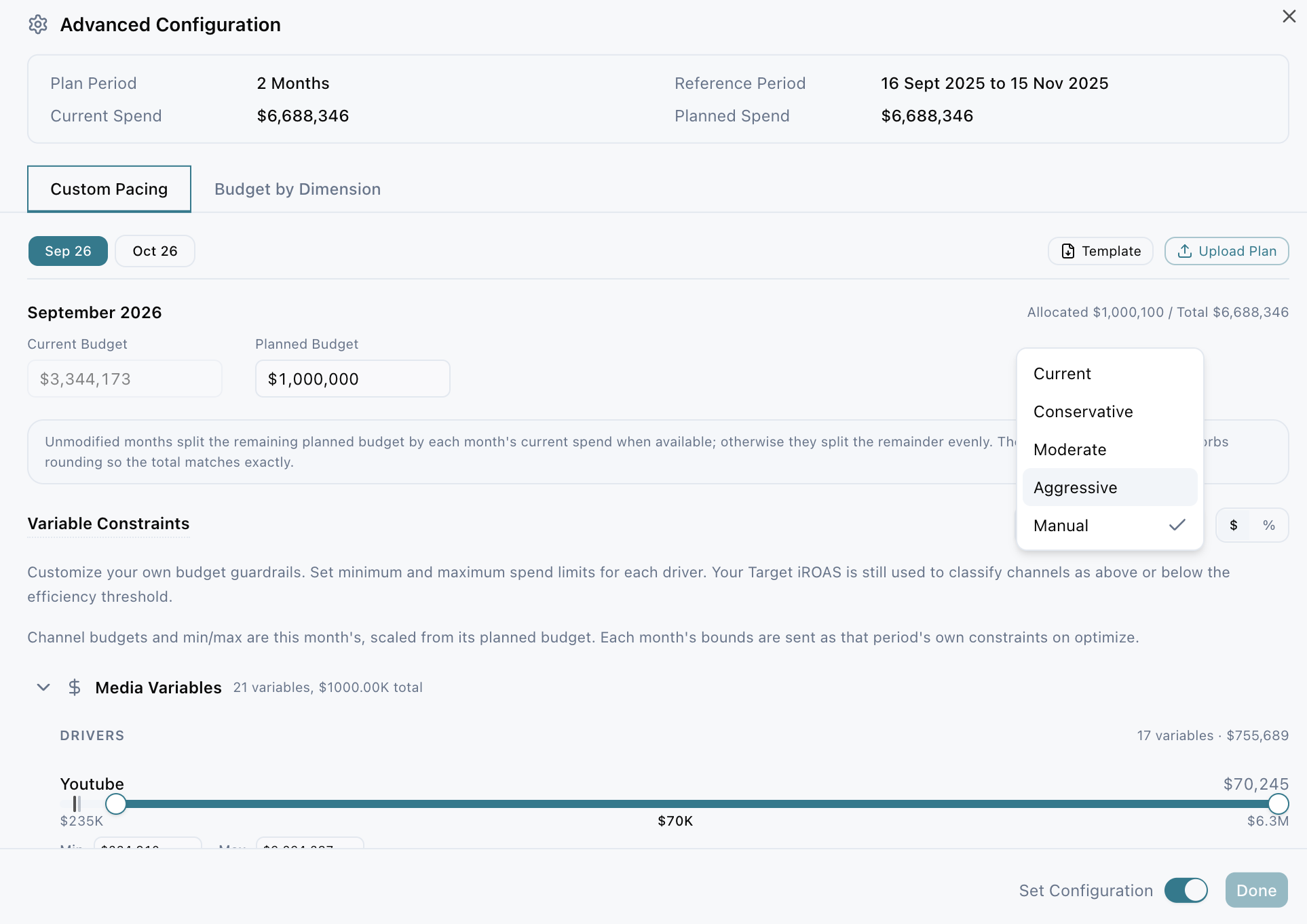
If you are not able to edit the variable constraints ensure you have selected the manaual option from the dropdown on the right.
Frequently asked questions about custom budget pacing
What is custom budget pacing in Lifesight?
Custom budget pacing lets you distribute a scenario's planned budget across individual months instead of evenly across the plan period. You can also apply month-specific channel constraints, so Planner forecasts results based on when you actually plan to spend.
When should I use custom pacing?
Use custom pacing when your spend should not be spread evenly. Common reasons include seasonality, product launches, promotions, inventory limits, and contractual media commitments.
How do I set up custom pacing in Planner?
Open a Planner scenario with a plan period longer than one month, select Advanced Config, and open Custom Pacing. Review the current and planned budget by month, then edit monthly budgets or upload a pacing plan. Review channel constraints for each month, confirm the monthly totals match your planned budget, select Apply or Done, and run the simulation.
Why can't I see Custom Pacing in Advanced Config?
Custom pacing is only available when your plan period is longer than one month. If your plan period is set to one month, update it to two months or more in your scenario configuration, then open Advanced Config again.
Do I need to set a budget for every month?
No. Planner distributes the remaining budget across months you leave unchanged. It uses current monthly spend to split the remainder when that data is available, and divides it evenly when it is not.
What happens to rounding differences in monthly budgets?
The final unmodified month absorbs any rounding, so your monthly budgets always add up exactly to the total planned budget.
How are channel constraints applied with custom pacing?
Each month has its own tab in Custom Pacing, such as Sep 26 and Oct 26, with its own planned budget. Each month's channel limits are scaled from that month's planned budget and applied as constraints for that period. Months with larger budgets get proportionally larger channel limits.
Why can't I edit the variable constraints?
Make sure Manual is selected in the dropdown on the right of Variable Constraints. Once Manual is selected, you can set your own minimum and maximum spend limits for each channel.
Why am I seeing an error when I apply custom pacing?
Errors appear when your pacing plan doesn't meet the validation rules. A common one is "Monthly budgets don't add up to the total planned budget," which means you need to adjust a month before continuing. Errors also appear when the channel budgets within a month add up to more than that month's planned budget.
What happens if my channel budgets add up to more than the month's planned budget?
Planner shows an error. For example, if Sep 26 has a planned budget of $1,000,000 and your channel budgets for September add up to $1,200,000, you've assigned $200,000 more than the month allows. Reduce one or more channel budgets until the total is $1,000,000 or less, then check each remaining month.
Why can't I apply my custom pacing plan?
Your pacing plan must meet validation rules before it can be applied. Every monthly budget must be greater than zero, stay within allowed limits, and add up to the total planned budget. Channel budgets within a month cannot exceed that month's planned budget, and channel minimums cannot be negative or higher than their maximums.
Can I upload a pacing plan instead of editing months manually?
Yes. Select Template in Custom Pacing to download the template, fill in your monthly budgets, and select Upload Plan to upload it as a CSV file.
Is there a file-size limit for uploading a pacing plan?
Yes. Keep your CSV file under the file-size limit shown in the platform. Starting from the provided template also makes sure your file is in the right format to upload.
Do I need to rerun the simulation after changing pacing?
Yes. After selecting Apply or Done, run the simulation so your forecast and recommendations reflect the new monthly pacing.
Related Articles
Updated about 3 hours ago