
How to add Integrations
Connect your ad platforms, files, and warehouses to Lifesight, and keep an eye on whether the data is still populating..
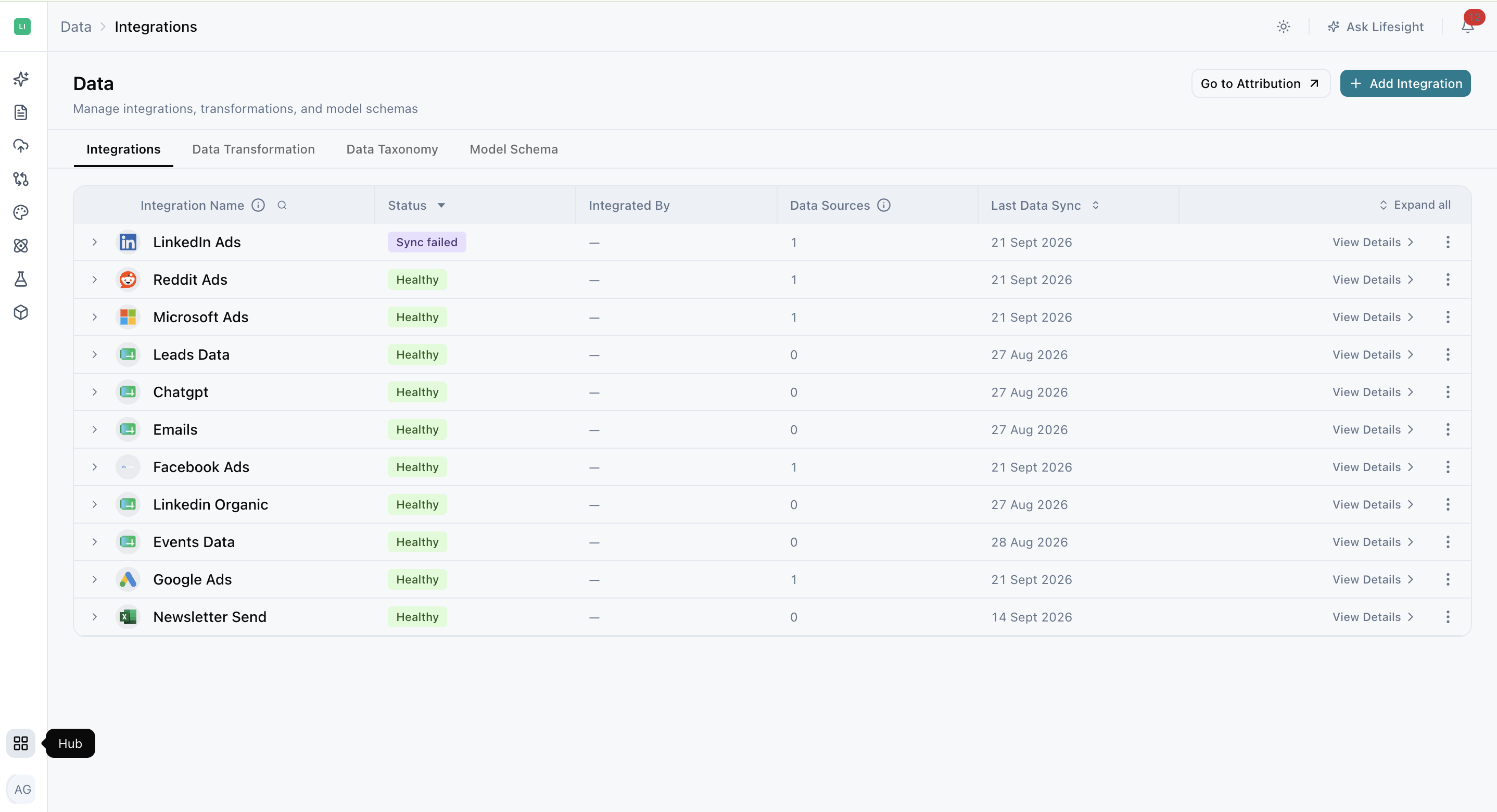
An integration is a standing permission for Lifesight to read data from another platform on your behalf. You connect the source once, and Lifesight refreshes it on a set schedule, so your reports and models stay updated with the latest data without anyone exporting a CSV every Monday.
Integrations serves two purposes: it is where you connect new data sources, and where you confirm that the sources you already connected are still syncing as expected.
Three Kind of Data Sources
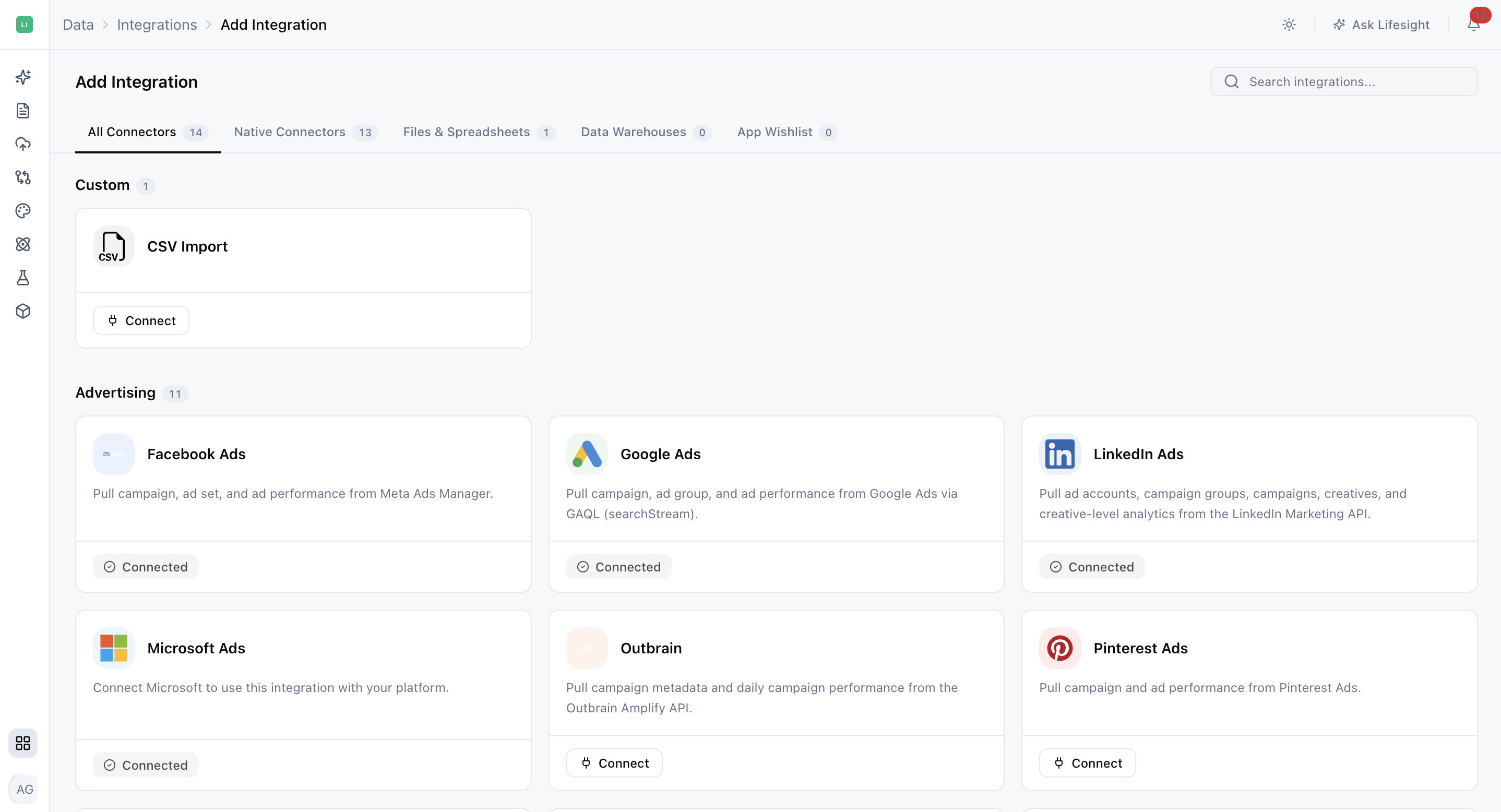
When you click Add Integration you land on the catalogue, which is grouped into tabs.
Native Integrations are direct connections to a platform's API: Google Ads, Meta Ads, Snapchat Ads, Reddit Ads, Microsoft Ads, RTB House, StackAdapt and many more. These give you the richest data, because Lifesight reads the full campaign hierarchy rather than a flattened export. Most of them connect by signing in. A few use an API key you generate inside the platform.
Files and Spreadsheets cover the data that does not live in a platform: a CSV of offline sales, a Google Sheet where finance maintains cost of goods, an export from a system nobody has built a connector for yet. CSV uploads are one off or re-uploaded manually. Google Sheets stays linked and refreshes on a schedule.
Data Warehouses connect Lifesight to BigQuery or Snowflake and let you choose specific tables. Use this when your team has already done the modelling work and you want Lifesight to read the result rather than rebuild it.
App Wishlist is where you tell us about a platform we do not support yet. Requesting it registers a vote, and requests with the most demand get built first.
Adding an Integration
The exact steps depend on how the platform authenticates, but the mostly its always the same.
Platforms you sign in to
To add any integration follow these steps:
- From the navigaton bar go to Hub in the bottom left Data > Integrations and click Add Integration.
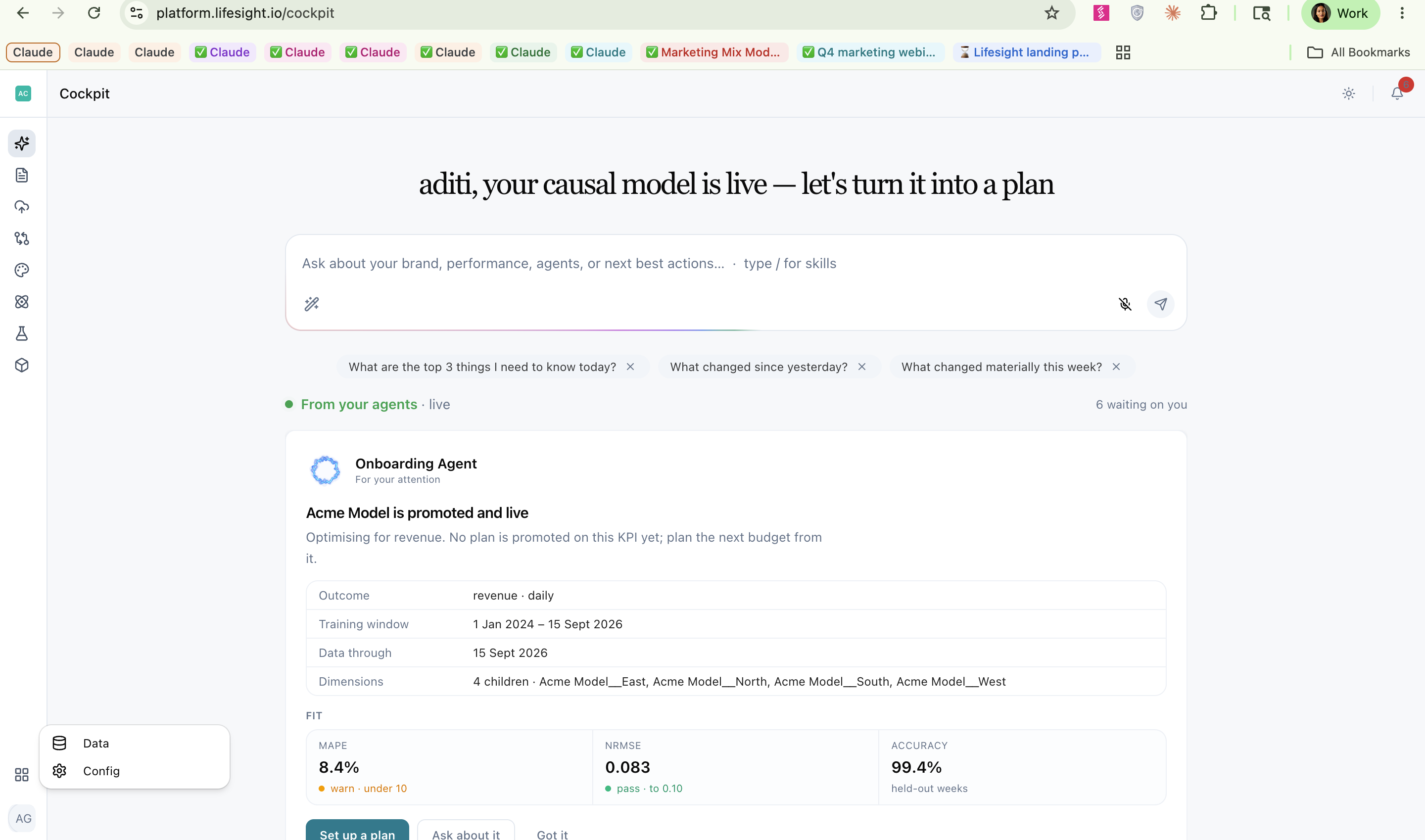
- Search for the platform and click Connect on its tile.
- On the Authenticate step, click Sign in. You are redirected to the platform's own login screen that you want to integrate.
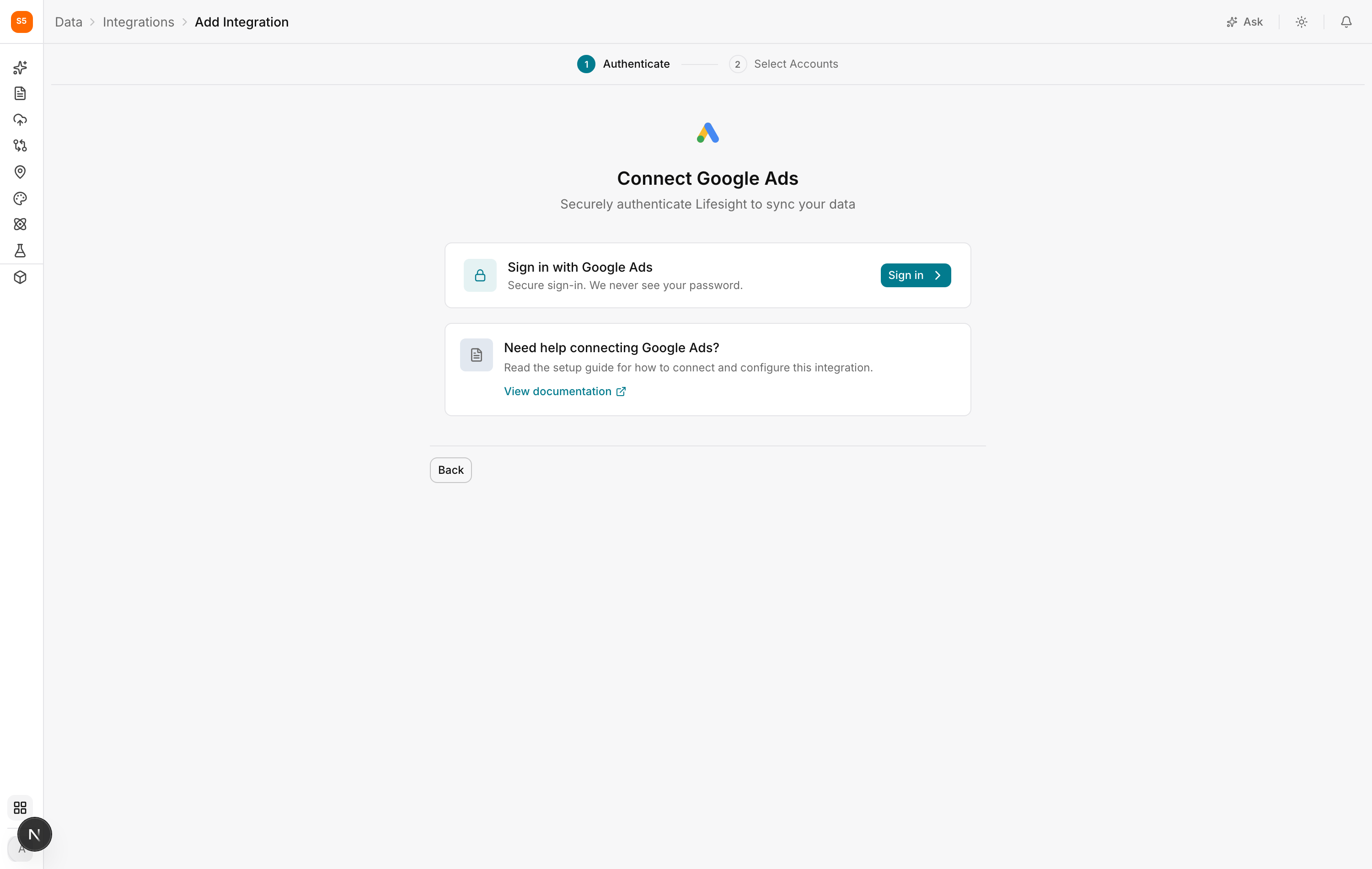
- Log in with an account that has access to the ad accounts you care about, and approve the permissions Lifesight asks for. Lifesight requests read access only. It never sees your password, and it cannot change your campaigns from this connection.
- You are returned to Lifesight on the Select Accounts step, which lists every ad account your login can reach. Tick the ones you want to sync.
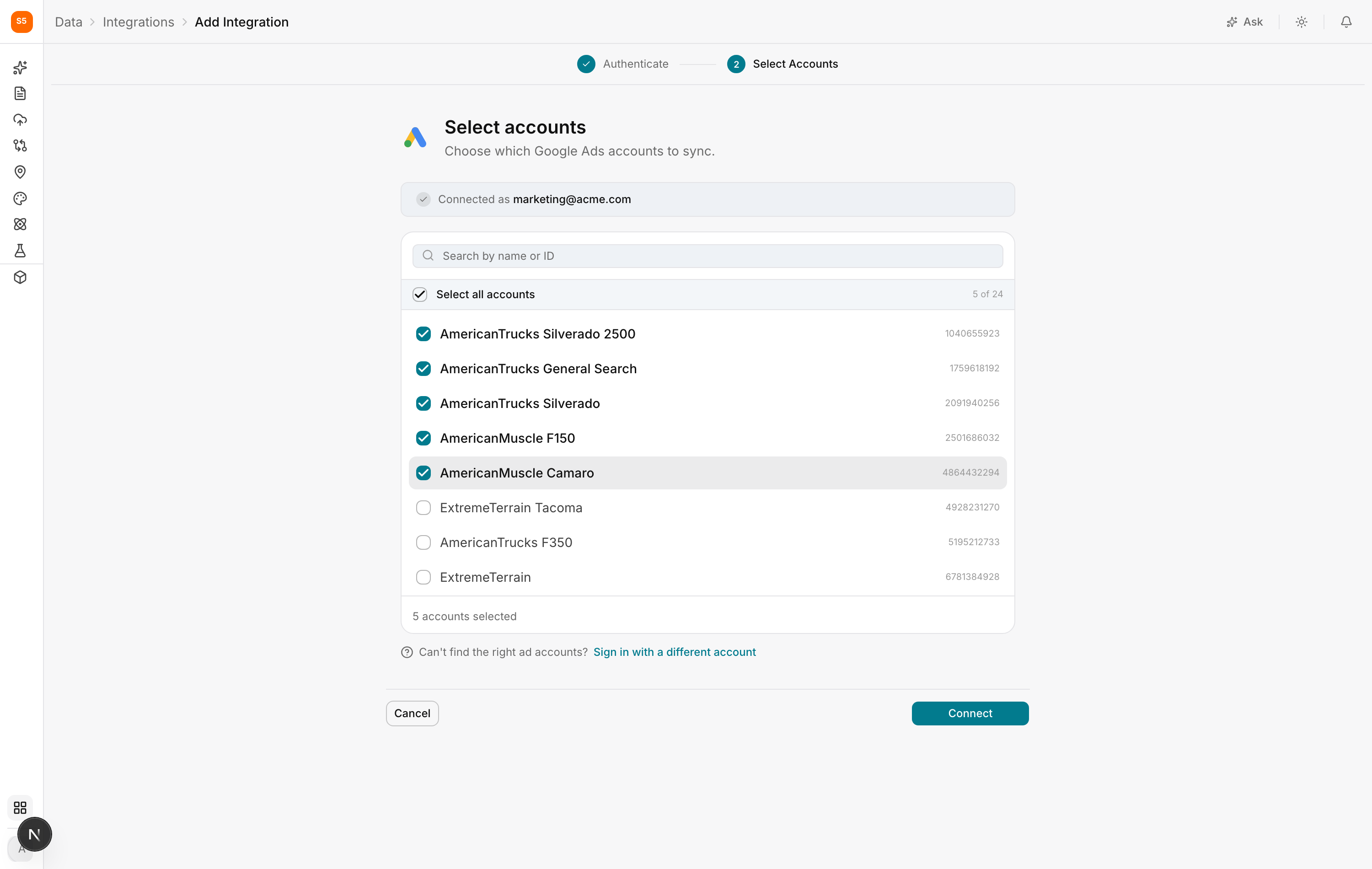
- Click Connect to finish.
Pick the accounts whose spend you want measured, and leave out test accounts, dormant accounts, and accounts that report in a currency you are not modelling in. You can add or remove accounts later without redoing the sign in.
Platforms That Use an API Key
Some platforms, like StackAdapt, authenticate with a key you generate inside the platform rather than by signing in. The flow is the same except that step 3 asks you to paste the key instead of redirecting you.
Each platform page in this section tells you exactly where to find its key.
Files and Spreadsheets
File based sources use a slightly different wizard, because there is no account to select and Lifesight has to work out what your columns mean.
- Name and Connect. Give the source a name you will recognise later, and either upload the file or authorise access to the sheet.
- Data setup. Lifesight previews the file and proposes what each column is. This is your chance to correct it before anything is imported.
- Schedule. For linked sources such as Google Sheets, choose how often Lifesight should re-read it.
See CSV Import and Google Sheets for more details.
Reading the Integrations Table
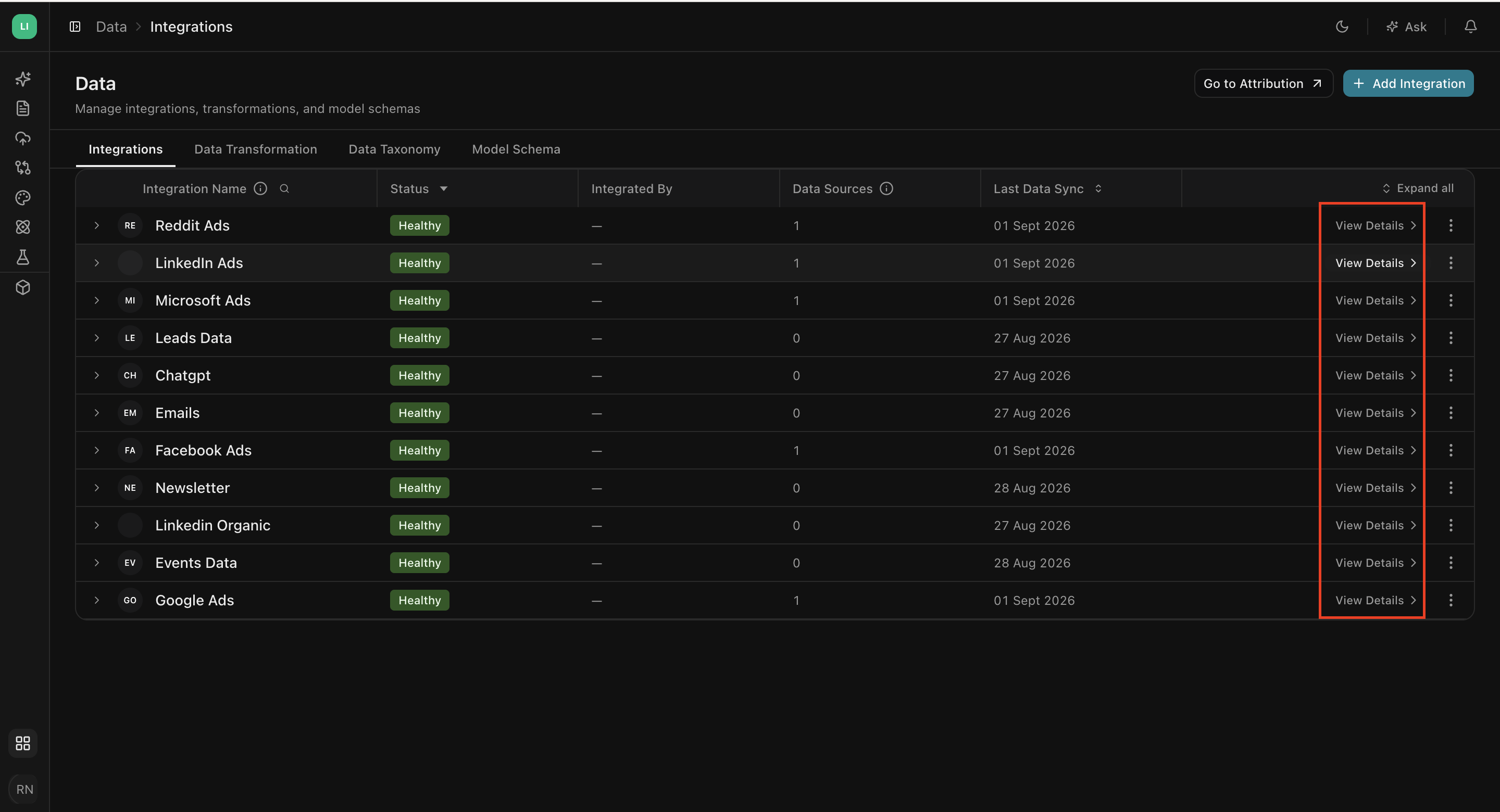
Once connected, each source becomes a row.
| Column | What it tells you |
|---|---|
| Integration Name | The platform, with its logo. Expand the row to see the individual accounts underneath. |
| Status | The health of the connection. See the table below. |
| Integrated By | Who set it up. Useful when a connection breaks and you need to know whose login it used. |
| Data Sources | How many accounts are syncing under this integration. |
| Last Data Sync | When fresh data last landed. If this is older than you expect, something has stalled. |
View Details opens the source, which has three tabs.
Overview
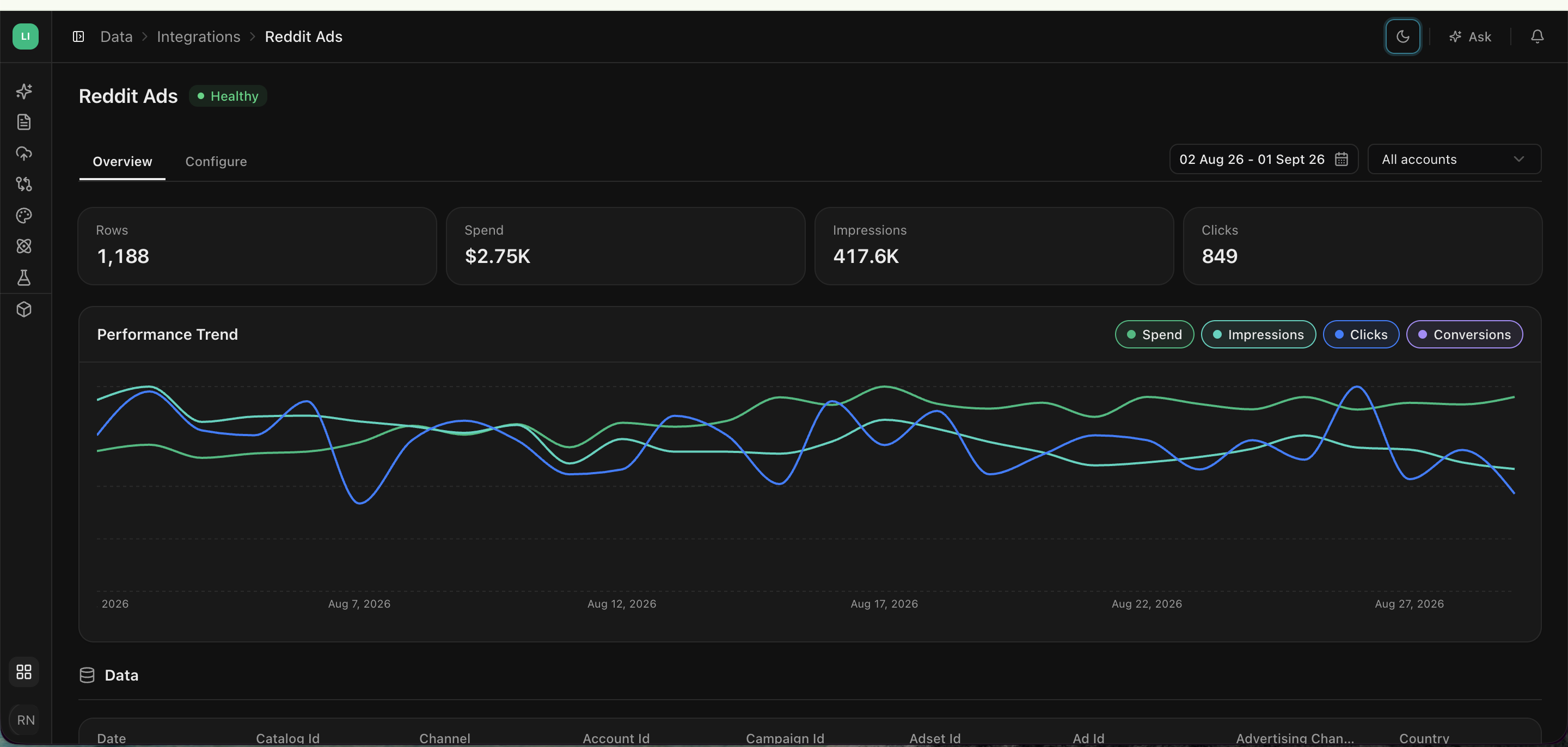
What is actually arriving. A date range selector sits at the top, and under it the headline numbers this source has delivered over that window: Spend, Impressions, Clicks and Attributed Revenue, charted over time.
Open this tab(overview) first when a number looks wrong elsewhere in the platform, because it answers the question worth asking up front: is the data coming through, and does its shape look right. A flat line where there should be spend, or a sudden step change, usually points to a sync issue or an account that stopped being included.
If the source is connected and syncing but its fields have not been mapped yet, this tab will tell you so rather than show empty charts.That points you to Data Transformation, and is not a fault with the connection.
Configure
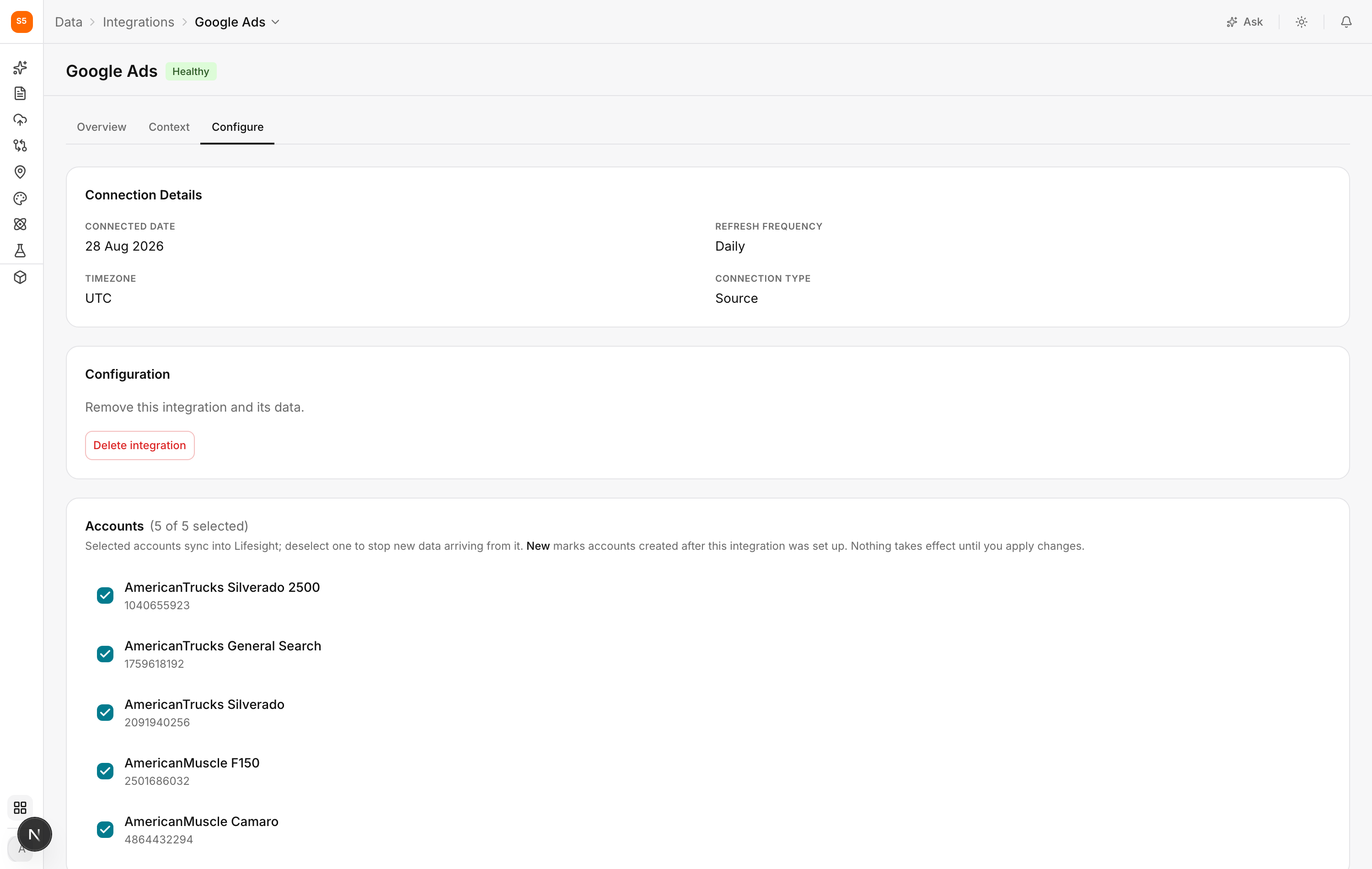
The Configure tab is where you change how an integration behaves. It has three sections.
Connection Details is read-only reference: the date the source was connected, the refresh frequency, the timezone the data is reported in, and the connection type. Timezone is the one people overlook, and it explains most small discrepancies against a platform's own dashboard.
Accounts lists every account under this integration with a checkbox against each, and a count such as "5 of 5 selected". Selected accounts sync into Lifesight; deselect one to stop new data coming in from it. Accounts created after the integration was set up are flagged New, which is how you catch an ad account someone opened without telling you. None of these changes take effect until you apply them, so you can review the full selection before committing.
Configuration holds the destructive action: removing the integration and the data it brought in. Check the Context tab before you do.
For CSV and Excel sources this tab also offers re-upload, which is how you refresh a file without creating a second integration and splitting its history.
Context (Coming Soon)
What this source is used for downstream. It answers the question people ask before touching anything: if I pause or remove this, what breaks.
Worth checking before you disconnect a source or deselect an account, because a source feeding a live model is not one to experiment with casually.
What the Statuses Mean
| Status | What is happening | What to do |
|---|---|---|
| Healthy | Data is arriving on schedule. | Nothing. |
| Sync in Progress | A pull is running right now. First syncs take longest because they cover your history. | Wait. Large accounts can take several hours. |
| Transformation in Progress | Data is in the platform and is being shaped into Lifesight fields. | Wait for dats to populate. |
| Sync Error | Lifesight could not fetch data. Usually a platform side issue such as rate limiting or an API outage. | Lifesight retries automatically. If it persists, check the platform page. |
| Transformation Error | Data arrived but could not be processed. Usually a column changed shape. | Open Data Transformation for that source and check the field mappings. |
| Reconnect | Authorisation expired or was revoked. This happens when someone changes a password, leaves the company, or removes Lifesight's access at the platform. | Open the integration and sign in again. |
| Unmapped | Data is arriving but required fields are not mapped yet, so nothing downstream can use it. | Go to Data Transformation and map the mandatory fields. |
| Paused | Syncing is stopped on purpose. | Resume it when you want it back. |
| Not Connected | In the catalogue, not yet set up. | Connect it. |
| Requested | You asked for a connector that does not exist yet. | Nothing to do. We will let you know. |
Managing an Integration After Setup
Add or remove accounts. Open the integration, go to Configure, and change the selection. Removing an account stops future syncs for it.
Reconnect. When a connection shows Reconnect, open it and sign in again with an account that still has access. You do not lose historical data by reconnecting.
Pause. Useful when you are troubleshooting or when a platform is mid migration and returning nonsense. Pausing keeps everything you already have.
Remove. Disconnects the source. Do this deliberately, because downstream models that depend on the source will be affected.
Troubleshooting
The integration connected but no data appeared
Check the date range. Most platforms only expose data from the point the account started spending, and the first sync can take hours on a large account. If Last Data Sync is populated but the numbers look empty, check Data Transformation to see whether the fields are mapped.
Numbers do not match the platform's own dashboard
This is common and usually explainable. Ad platforms report in the account's timezone and attribute conversions on their own window, so small differences are expected. Large differences usually point to a currency mismatch, a missing account, or a date range comparing different periods.
The accounts I expected are not in the list
The login you used does not have access to them. Sign in with a different account, or ask whoever administers the ad account to grant your user access first.
The status keeps flipping to Sync Error
Check whether the account is rate limited or whether the platform has an incident. If it continues past a day, contact support with the integration name and the time the errors started.
Frequently asked questions
What is an integration in Lifesight?
An integration is a standing permission for Lifesight to read data from another platform on your behalf. You connect a source once, and Lifesight refreshes it on a set schedule, so your reports and models stay up to date without manual exports.
What types of data sources can I connect to Lifesight?
You can connect three types of data sources: Native Integrations (direct API connections to platforms such as Google Ads, Meta Ads, Snapchat Ads, Reddit Ads, Microsoft Ads, RTB House, and StackAdapt), Files and Spreadsheets (CSV uploads and Google Sheets), and Data Warehouses (BigQuery and Snowflake).
How do I add an integration in Lifesight?
Go to Hub > Data > Integrations and click Add Integration. Search for the platform, click Connect on its tile, sign in or enter your API key, select the accounts you want to sync, and click Connect to finish.
Can Lifesight change my campaigns through an integration?
No. Lifesight requests read access only. It never sees your password and cannot change your campaigns through this connection.
Which ad accounts should I select when connecting a platform?
Select the accounts whose spend you want measured. Leave out test accounts, dormant accounts, and accounts that report in a currency you are not modeling in. You can add or remove accounts later without signing in again.
How do I connect a platform that uses an API key?
Some platforms, such as StackAdapt, use an API key instead of a sign-in. The steps are the same, except you paste the key on the Authenticate step. Each platform guide explains where to find its key.
What is the difference between a CSV upload and Google Sheets?
CSV uploads are one-off and must be re-uploaded manually to refresh. Google Sheets stays linked and refreshes on a schedule you choose.
How do I connect a file or spreadsheet?
Name the source and upload the file or authorize access to the sheet. Lifesight then previews the data and suggests what each column means, so you can correct it before importing. For linked sources like Google Sheets, you also choose how often Lifesight should re-read it.
When should I connect a data warehouse instead of individual platforms?
Connect BigQuery or Snowflake when your team has already modeled the data and you want Lifesight to read the result directly instead of rebuilding it. You can choose which specific tables to connect.
What if the platform I need isn't supported?
Request it from the App Wishlist. Each request counts as a vote, and connectors with the most demand are built first. Requested connectors show a Requested status.
How do I check if my integration is working?
Check the Status and Last Data Sync columns in the Integrations table. For more detail, click View Details and open the Overview tab to see the spend, impressions, clicks, and attributed revenue the source has delivered over time.
What does each integration status mean?
Healthy means data is arriving on schedule. Sync in Progress and Transformation in Progress mean data is being pulled or processed. Sync Error means Lifesight couldn't fetch data, Transformation Error means data arrived but couldn't be processed, and Reconnect means access has expired or been revoked. Unmapped means required fields still need mapping, Paused means syncing was stopped on purpose, Not Connected means the source isn't set up yet, and Requested means you've asked for a connector that doesn't exist yet.
How long does the first sync take?
First syncs take the longest because they pull your historical data. Large accounts can take several hours.
Why does my integration say Reconnect?
Access has expired or been revoked, usually because someone changed a password, left the company, or removed Lifesight's access in the platform. Open the integration and sign in again with an account that still has access. You won't lose historical data by reconnecting.
What should I do if my integration shows Unmapped?
Data is arriving, but required fields haven't been mapped, so it can't be used downstream yet. Go to Data Transformation and map the mandatory fields.
What should I do about a Transformation Error?
A Transformation Error usually means a column changed format. Open Data Transformation for that source and check the field mappings.
Why does my integration keep showing Sync Error?
Sync Errors are usually caused by platform-side issues such as rate limiting or an API outage. Lifesight retries automatically. If the error continues for more than a day, contact support with the integration name and the time the errors started.
Why did my integration connect but no data appear?
Check your date range first, since most platforms only share data from when an account started spending. The first sync can also take several hours on large accounts. If Last Data Sync shows a date but the numbers look empty, check Data Transformation to see if the fields are mapped.
Why don't my Lifesight numbers match the ad platform's dashboard?
Small differences are expected, because ad platforms report in the account's timezone and attribute conversions using their own window. Large differences usually point to a currency mismatch, a missing account, or date ranges covering different periods.
Why can't I see the ad accounts I expected?
The login you used doesn't have access to them. Sign in with a different account, or ask your ad account administrator to grant your user access first.
How do I add or remove accounts after setting up an integration?
Open the integration, go to the Configure tab, and update the account selection. Changes take effect only after you apply them. Removing an account stops future syncs for it.
How do I find new ad accounts that were created after setup?
Open the integration's Configure tab. Accounts created after the integration was set up are flagged New, so you can decide whether to include them.
How do I refresh a CSV or Excel file without creating a new integration?
Use the re-upload option in the integration's Configure tab. This keeps all data under one integration instead of splitting its history.
What happens when I pause an integration?
Pausing stops syncing but keeps all the data you already have. It's useful when troubleshooting or when a platform is mid-migration. Resume it when you're ready.
What happens if I remove an integration?
Removing an integration disconnects the source and removes the data it brought in. Any downstream models that rely on the source will be affected, so check what depends on it before removing it.
Why might my numbers differ slightly because of timezone?
Each integration reports data in the timezone shown under Connection Details in the Configure tab. If it differs from the timezone in the platform's own dashboard, small daily differences are expected.
Related articles
Updated about 1 hour ago