
Stackadapt
Connect your StackAdapt programmatic advertising account to Lifesight
StackAdapt is an AI-powered programmatic advertising platform (DSP) that lets advertisers plan, launch, and optimize campaigns across native, display, video, connected TV (CTV), audio, in-game, and digital out-of-home (DOOH) channels, alongside email. The StackAdapt Reporting API allows you to programmatically extract campaign performance and spend data without logging into the StackAdapt dashboard.
By integrating StackAdapt with Lifesight, you can automate the ingestion of granular programmatic performance data and unify it with your broader marketing and business datasets inside the Lifesight Unified Marketing Measurement (UMM) platform — eliminating manual report exports and accelerating reporting on your StackAdapt campaigns.
Primary Use Cases: MMM and Causal Attribution
Connecting your StackAdapt account unlocks powerful, advanced measurement capabilities within Lifesight.
- Marketing Mix Modeling (MMM): To accurately measure the true impact of your StackAdapt advertising, Lifesight ingests granular, multilevel data. This rich dataset is essential for our MMM engine to precisely model StackAdapt's contribution to your overall marketing mix and its effect on key business outcomes.
- Causal Attribution: The insights generated from the MMM are then used to perform causal attribution. This allows you to understand the effectiveness of your StackAdapt campaigns at various hierarchies — from the overall account level down to individual campaigns and creatives — and optimize your strategy accordingly.
Data Ingestion from StackAdapt
Lifesight pulls comprehensive data from all available hierarchies within the StackAdapt platform to ensure your models are robust and your insights are detailed.
The standard advertising structure in StackAdapt includes the following levels, and Lifesight ingests data from each:
- Advertiser: The top-level account under which campaigns are organized.
- Campaign Group: A grouping of related campaigns used to organize and compare performance.
- Campaign: Where the objective, budget, and flight dates are defined.
- Ad / Creative: The individual creative units (native, display, video, CTV, audio, and more) served to users.
Key metrics and dimensions brought into Lifesight include:
| Category | Data Points |
|---|---|
| Performance Metrics | Spend (Media Cost), Impressions, Unique Impressions, Clicks, Click-Through Rate (CTR), Video Views / Completions. |
| Conversion Metrics | Conversions, Conversion Rate, Return on Ad Spend (ROAS). |
| Cost Metrics | Cost Per Click (CPC), Cost Per Mille (CPM), Cost Per Engagement (CPE). |
| Hierarchy Dimensions | Advertiser, Campaign Group, Campaign Name, Ad / Creative Name. |
| Targeting Dimensions | Geo, Device, Channel, Audience Segment. |
Prerequisites
Before you begin, make sure you have:
- An active StackAdapt account with API access enabled.
- A StackAdapt API Key (see Obtaining your StackAdapt API Key below). The key authorizes Lifesight to read your reporting data. Keep it handy — you will paste it into Lifesight during setup.
Obtaining your StackAdapt API Key
Your API Key is generated inside the StackAdapt platform, not in Lifesight. To retrieve it:
- Sign in to your StackAdapt account at https://www.stackadapt.com/login.
- Open Account Settings from your account menu (top-right of the StackAdapt dashboard).
- Go to the API Integration section.
- Locate your API Key and copy it.
API access must be enabled on your account. If the API Integration section isn't visible, or no key is listed, API access hasn't been provisioned yet. Contact StackAdapt Support or your StackAdapt Account Manager to enable API access and issue a key. Lifesight uses StackAdapt's read-only Reporting API, so a reporting/REST API key is sufficient.
Steps to Integrate StackAdapt
Connecting your StackAdapt account is a straightforward, API key–based process.
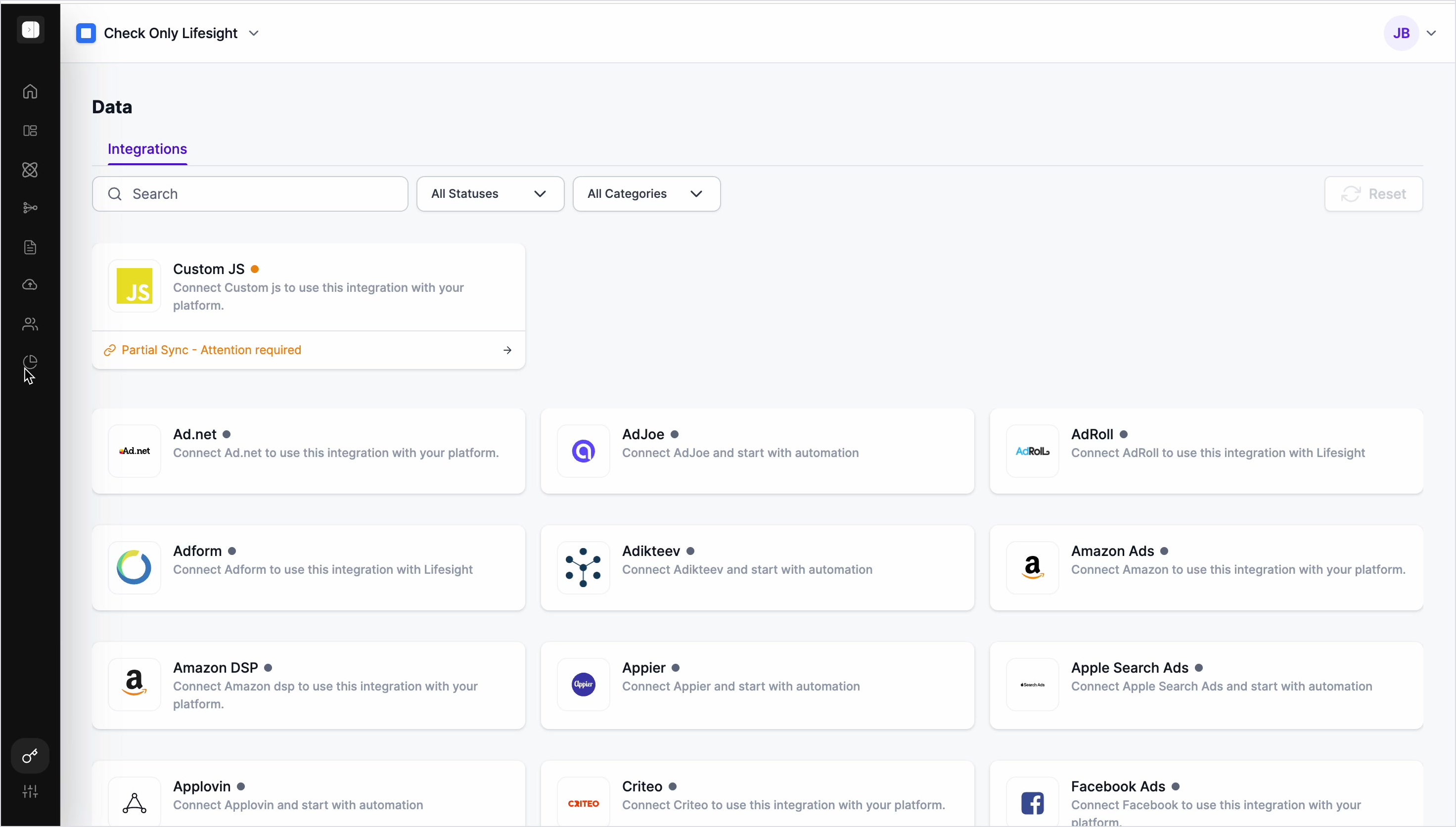
1. Open the Integrations page.
Navigate to Data → Integrations in the Lifesight left-side menu.
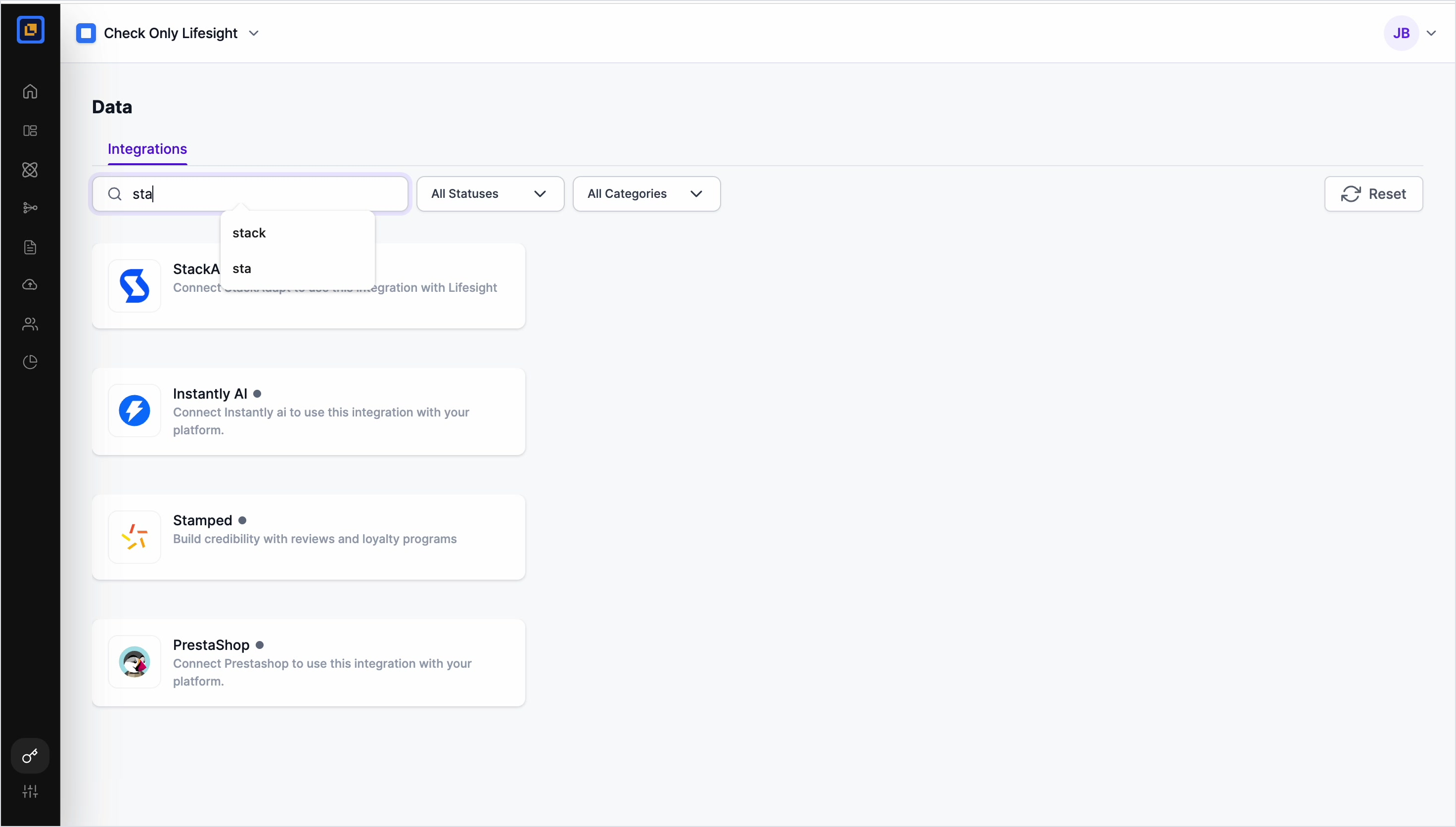
2. Find the StackAdapt tile.
In the Search field, type "StackAdapt" to locate the integration tile, then click the StackAdapt tile.
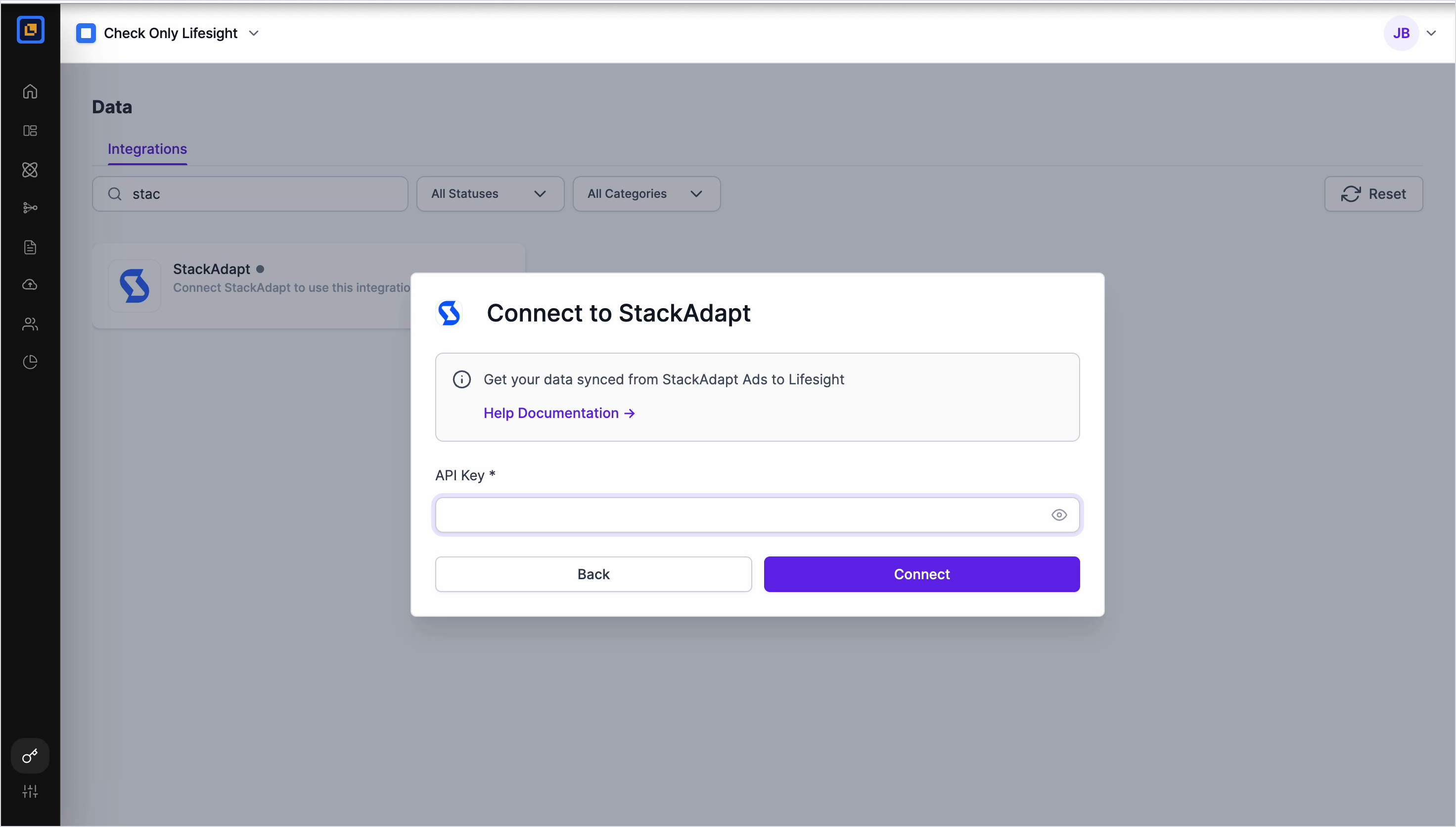
3. Enter your API Key.
The Connect to StackAdapt dialog opens. Paste your StackAdapt API Key into the API Key field. Use the eye icon to reveal the key and confirm it was pasted correctly.
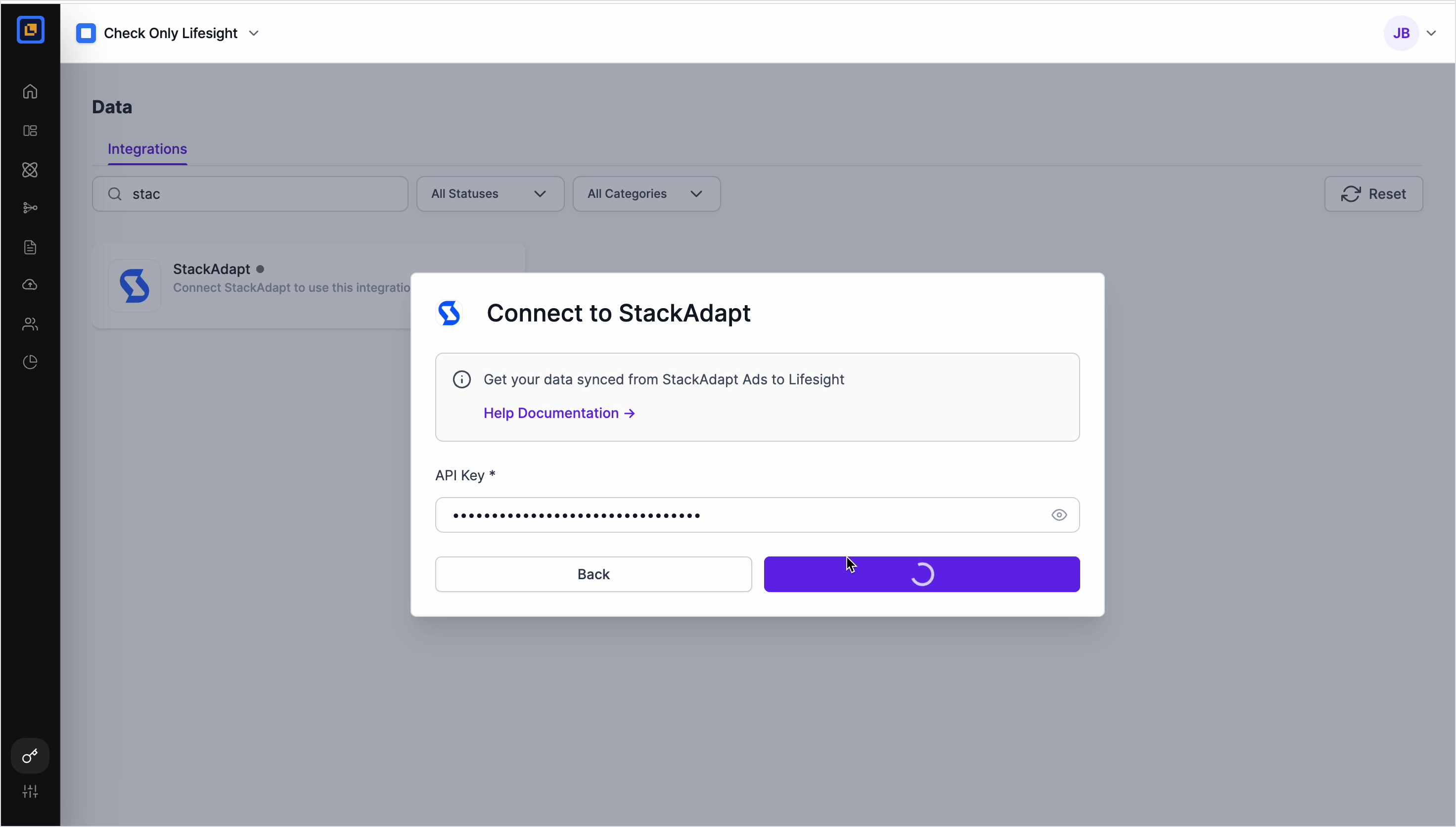
4. Connect.
Click Connect. Lifesight validates the key and retrieves the StackAdapt accounts associated with it.
5. Select your account(s).
From the Select Account dropdown, choose one or more StackAdapt accounts you want to sync into Lifesight.
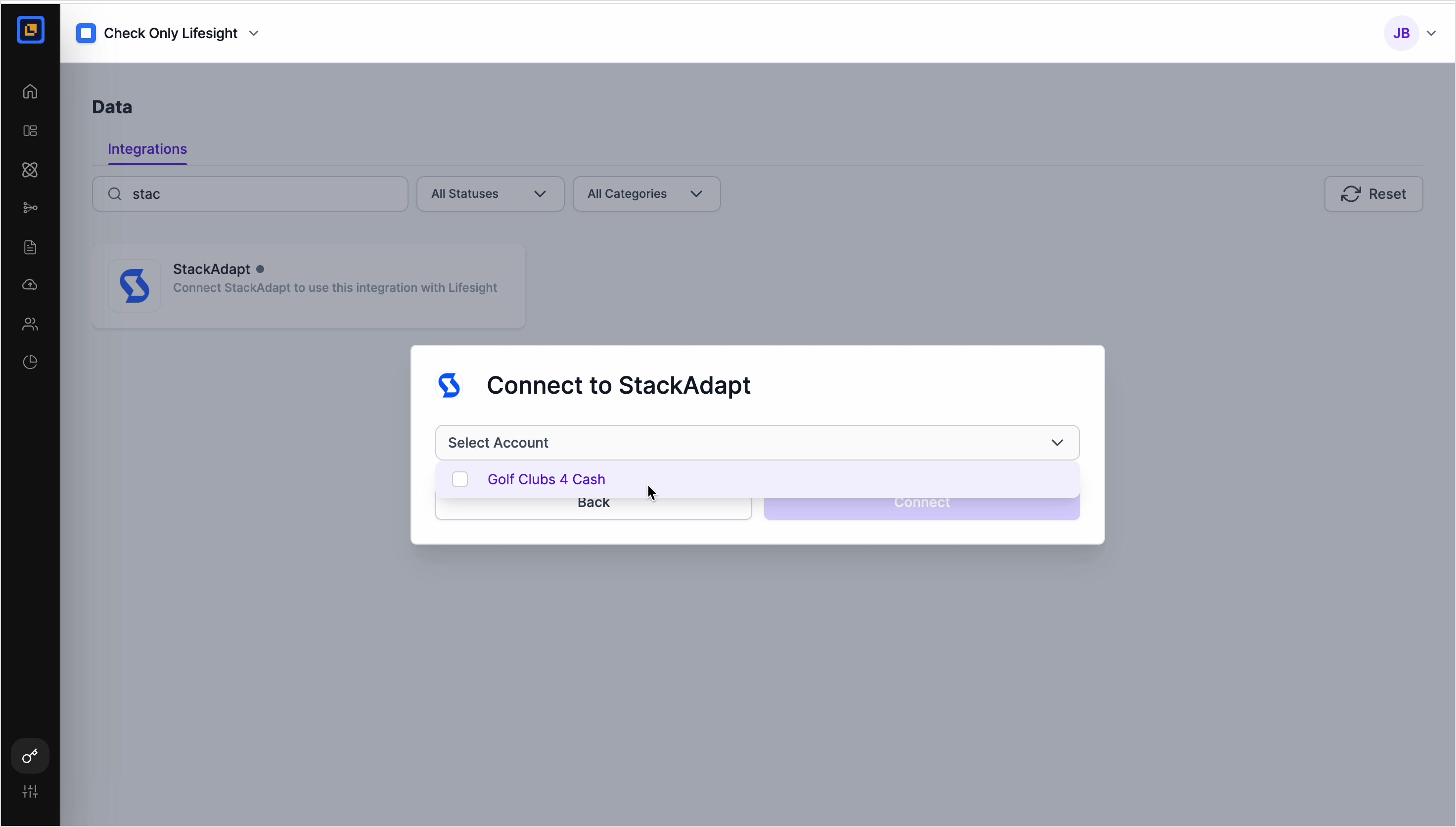
6. Finish the setup.
Once your accounts are selected, click Connect to complete the integration.
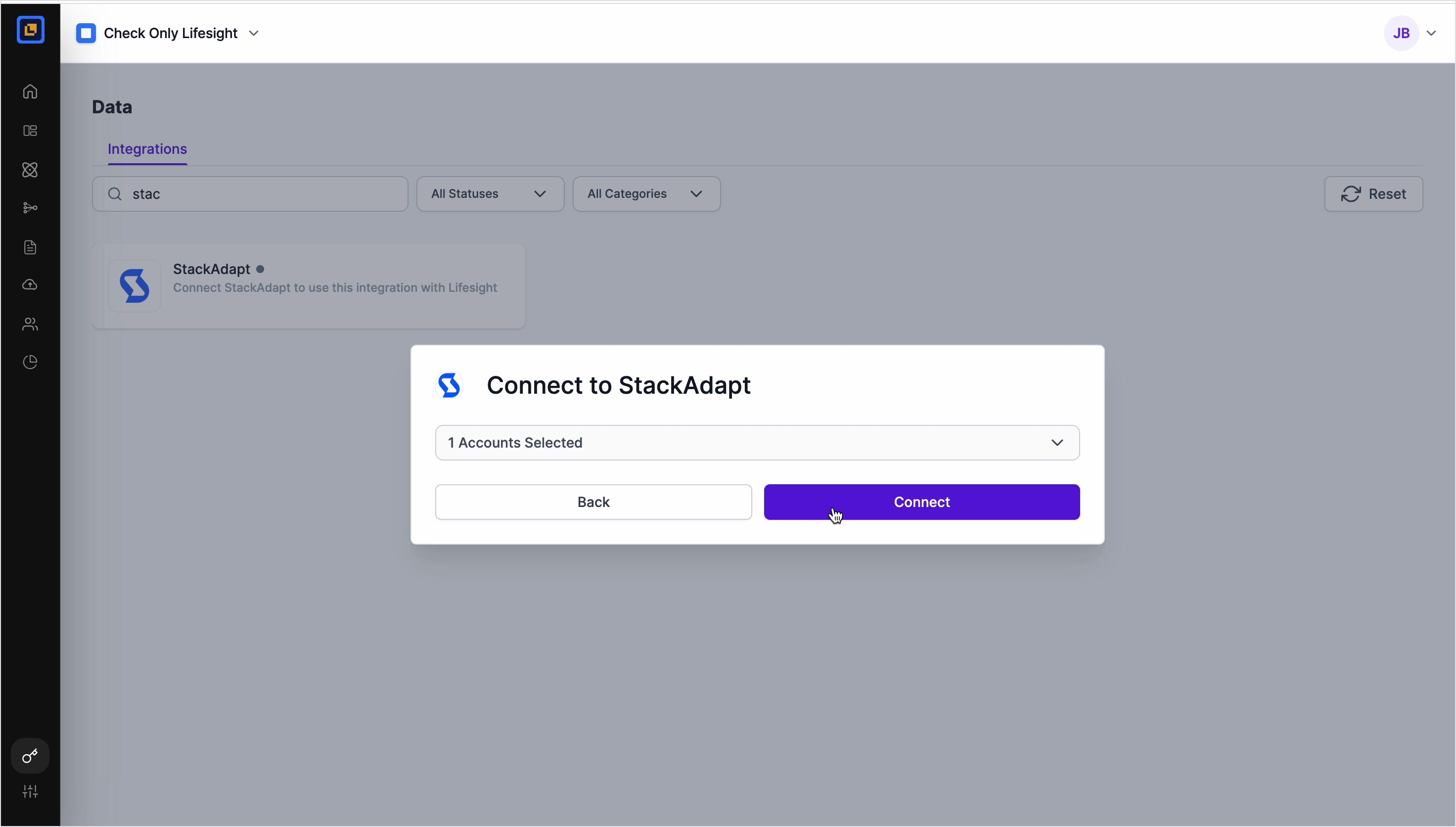
Once the integration is complete, Lifesight will begin the initial data pull from your selected StackAdapt accounts. This process may take some time depending on the volume of your historical data. After the first sync, the StackAdapt tile will display a connected status, and your data will refresh automatically on a regular schedule.
Troubleshooting
- API key rejected: Confirm the key was copied in full with no leading or trailing spaces, and that API access is enabled on your StackAdapt account.
- No accounts listed: Ensure the API key has permission to access at least one advertiser/account in StackAdapt.
- Need to add more accounts later: Re-open the StackAdapt tile from the Integrations page and adjust the selected accounts.
Updated about 2 months ago